Configure Purple Variants
Purple Hub
Summary
This guide provides instructions on how to configure article (post) variants in Purple Hub via the Purple Variants feature. Variants enable you to create separate versions of content for various platforms, such as online or print. This configuration ensures each format can be handled independently within the Purple Hub.
Preconditions
- Have the "Purple Variants" Plugin enabled in Purple Hub. This can only be done by a Super Admin, a role restricted to Purple staff. If you want us to enable the Plugin for you open a ticket in our Support Helpdesk.
- Have an Admin role in Purple Hub to configure Purple Variants
Purple Variants Settings

Once the Purple Variants plugin is activated, within the Settings (1) menu, you will now see a new sub-menu labeled Purple Variants Settings (2). With click on this sub-menu opens the configuration page for Purple Variants.
Default Variant
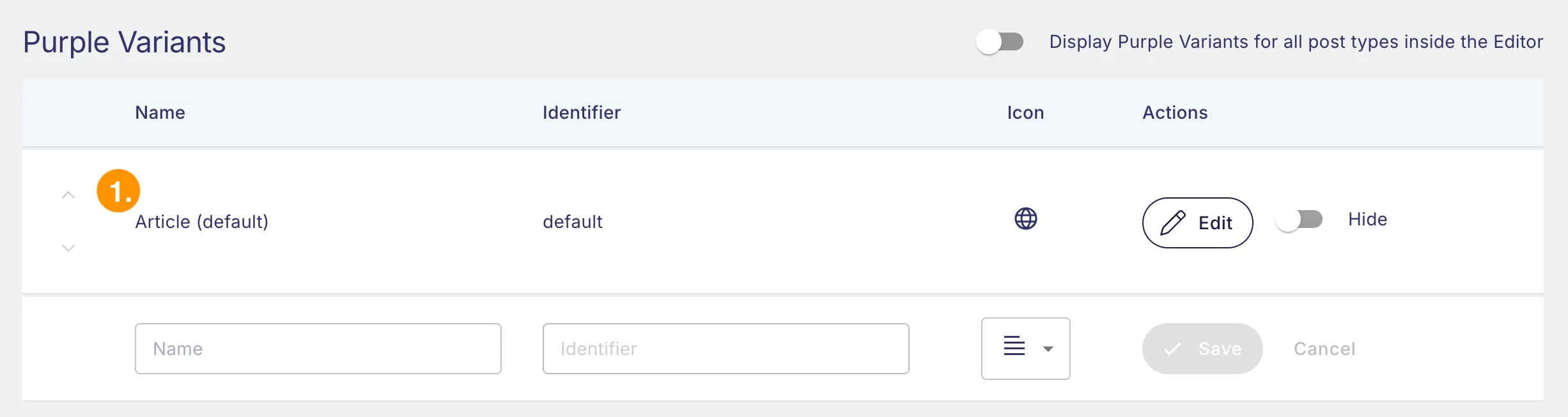
Upon installation, a default variant (1) is automatically created.
Note: This default variant cannot be deleted. However, it can be removed from the interface by toggling the 'Hide' option on the right side of the row.
Creating a new variant
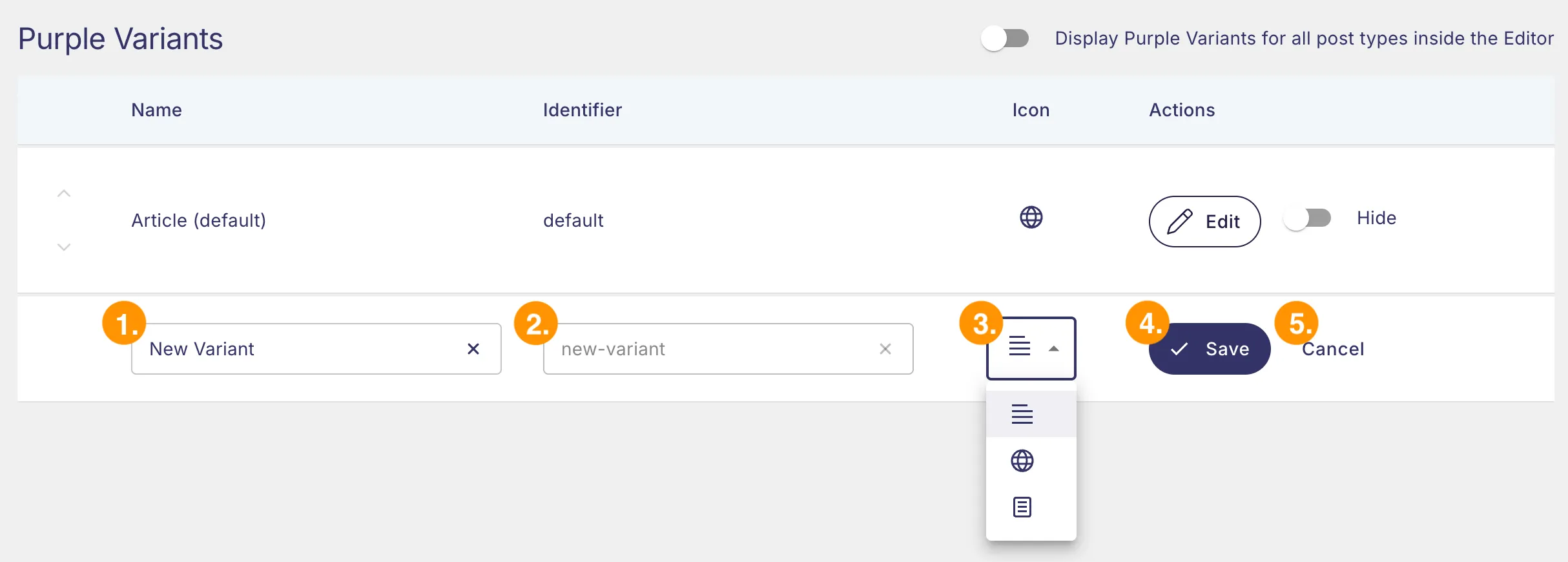
Creating a new variant:
- Enter the name (1) for the variant (e.g., Online).
- The Identifier (2) field is automatically generated based on the variant name and cannot be changed.
- Selection of the variant icon (3):
- Save (4) to add the variant to the list or click Cancel (5) to revert your changes.
Managing variants
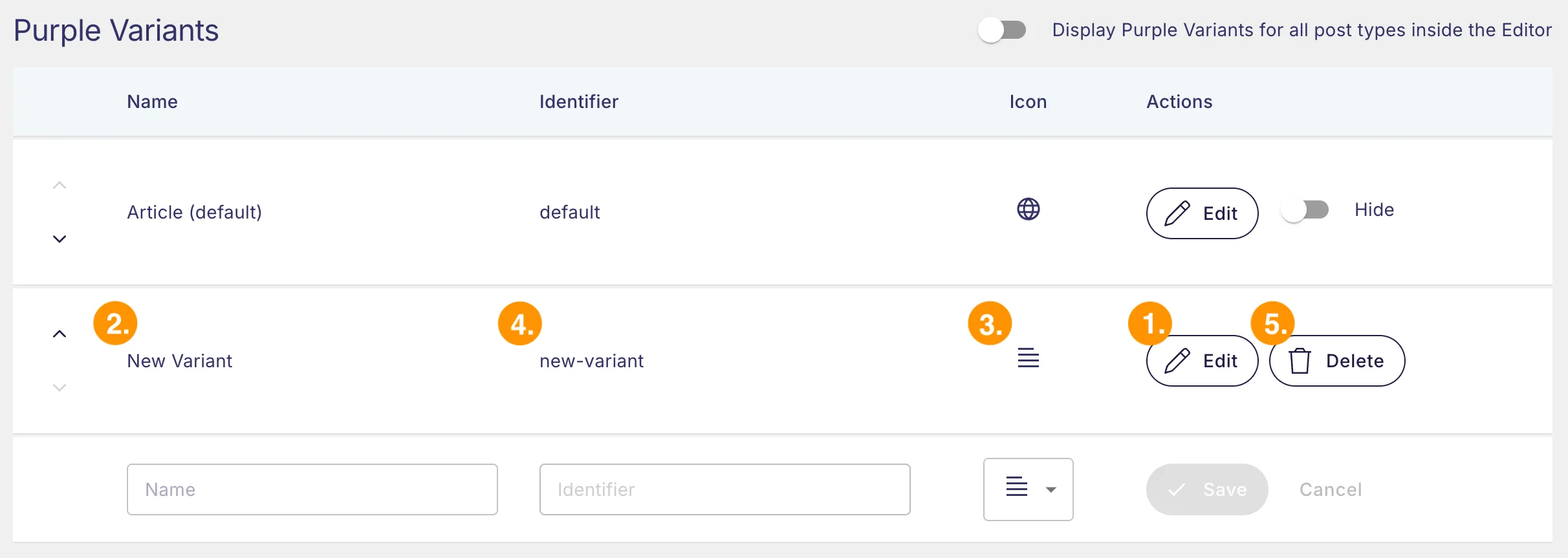
After saving, the new variant will appear in the list of configured variants.
You can:
- By clicking Edit (1) the variant’s name (2) and icon (3) can be changed.
- The Identifier (4) remains fixed, even if you edit the variant's name.
- Delete the variant by clicking the Delete (5) button.
Variant icons

Each variant is assigned a unique icon to help visually differentiate between them. Icons are automatically displayed next to each variant type (Neutral, Online, Print) in Purple Hub for you to quickly identify them.
Visibility in the editor interface
By default, the Purple Variants editor sidebar is only visible for article types managed by the Purple Variants plugin. The interface can be displayed for all article types by toggling the switch above the table:

API Identifier (optional)
If you are integrating with external APIs, note that Purple Hub automatically assigns a unique API Identifier to each variant. This identifier allows external systems to retrieve content for specific variants.
The content type identifier provided to external services will be the variant's identifier prefixed by "pv_"