Dynamic Collections
Summary
The Dynamic Collections page in the Purple Control Center gives you a real-time overview of all your dynamic collections and the status of their last import.
It lets you quickly spot which collections are failing, trigger a manual update, and view diagnostic logs.
Access
The Dynamic Collections page is accessible at:
It is also linked from the Purple Control Center dashboard via the Dynamic Collections card.
You can navigate directly to a specific app's collections using the path /dynamiccollections/{appId}
Overview
Dynamic Collections are content collections in a Purple app that are automatically populated on a schedule, for example to surface trending or most-read articles based on Google Analytics data. The Dynamic Collections page shows you the current state of all collections your account has access to.
The Collections List
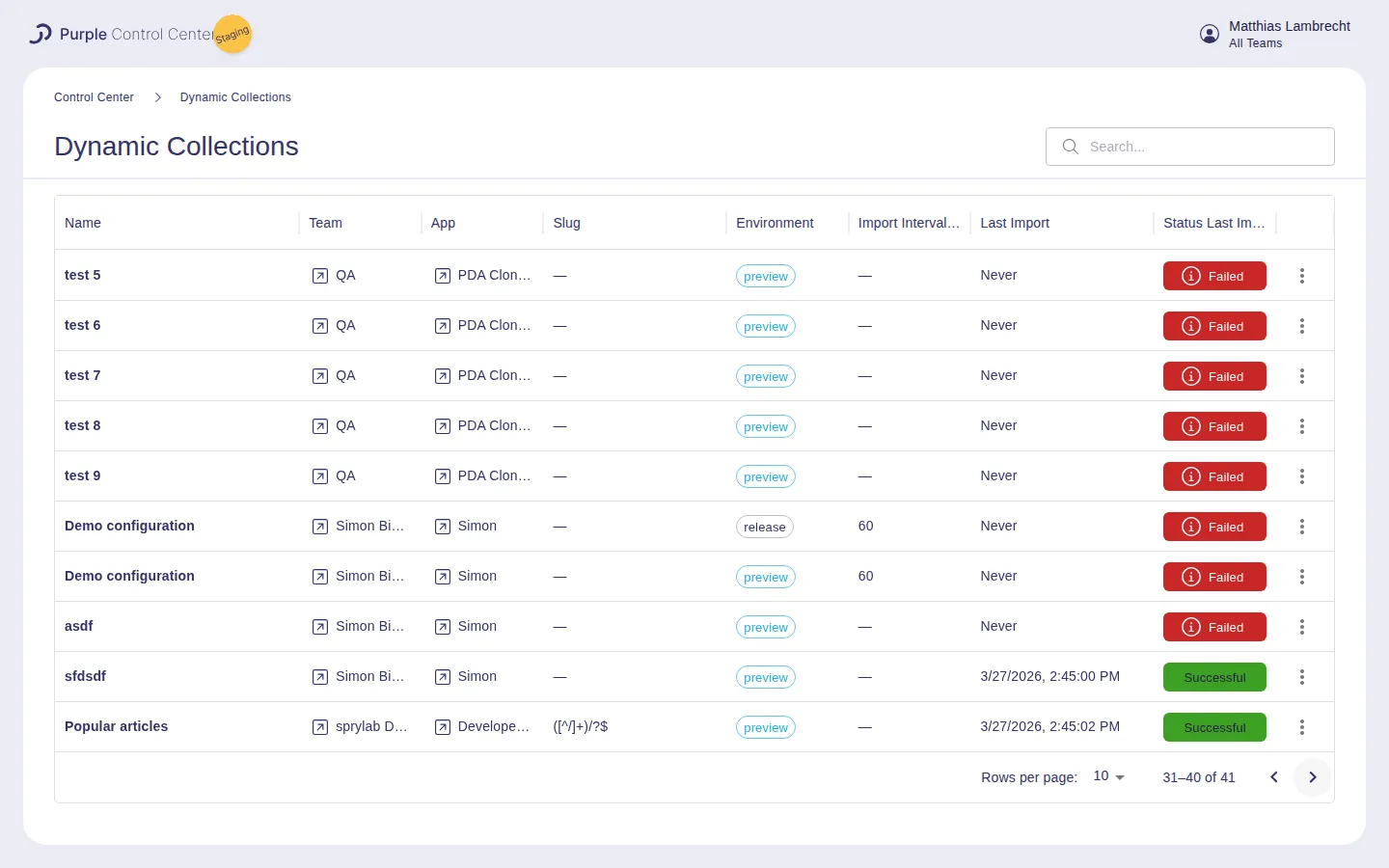
Each row in the table represents one dynamic collection. The following columns are displayed:
Column | Description |
|---|---|
Name | The name of the collection as configured in the Purple Hub. |
Team | The team the collection belongs to. Clicking the link opens the team in Purple Manager. |
App | The app the collection belongs to. Clicking the link opens the app in Purple Manager. |
Slug | The slug regex pattern used to match content into this collection. Displays — if not configured. |
Environment | Whether the collection is for the preview or release environment, shown as a colour-coded chip. |
Import Interval (min.) | How frequently (in minutes) the collection is automatically updated. Displays — if not configured. |
Last Import | The timestamp of the most recent import. Displays Never if no import has run yet. |
Status Last Import | The result of the last import attempt - see Import Status below. |
The example below shows a mixed list with both Failed and Successful statuses, an actual import timestamp, a slug pattern, and both preview and release environments:
Filtering by Team
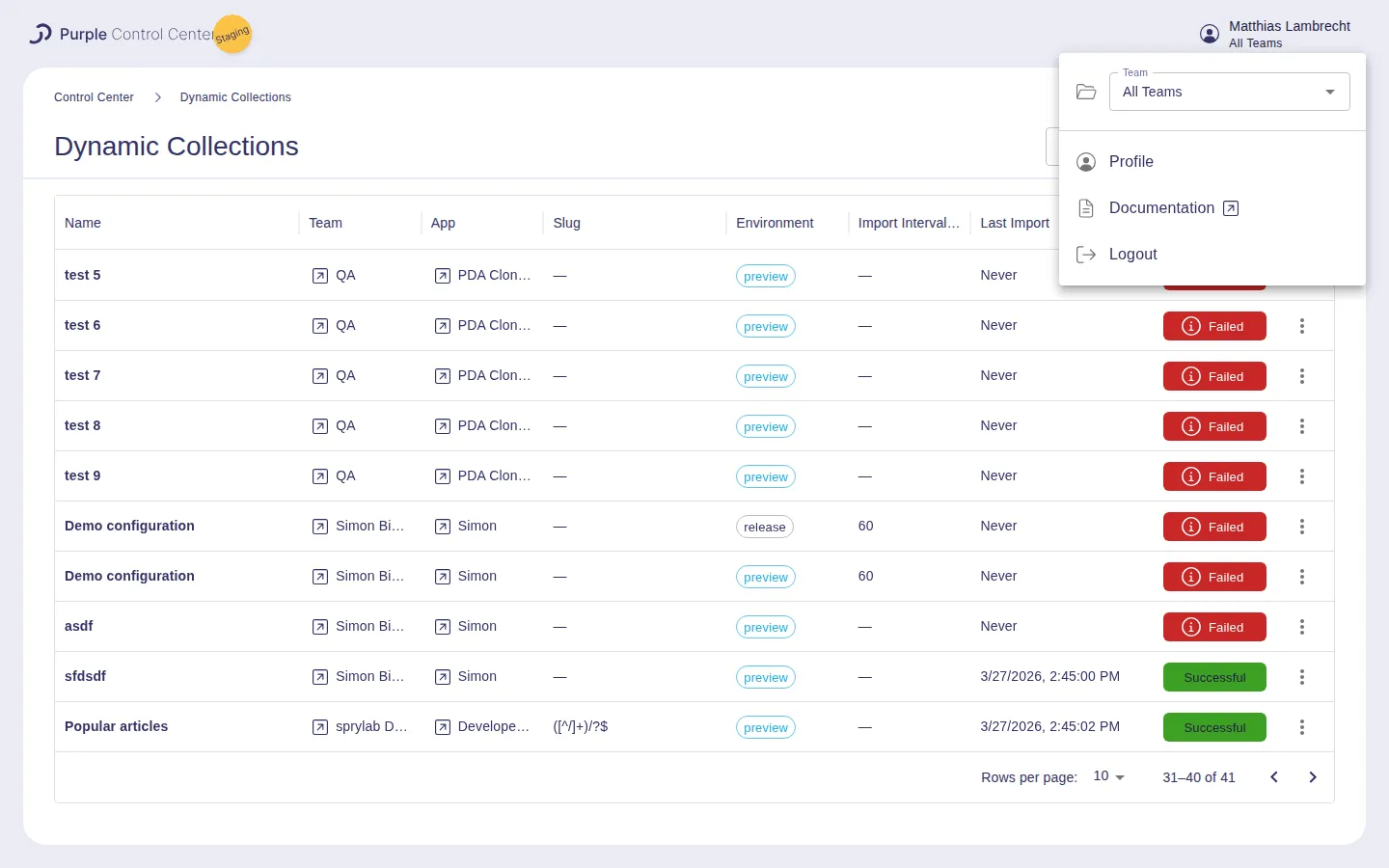
If you manage multiple teams, you can filter the list to a specific team using the team selector in the top-right corner of the page.
Click your name/team name in the top-right, then select a team from the dropdown. The list will immediately update to show only collections belonging to that team. Select All Teams to remove the filter.
Searching
Use the Search field in the page header to filter collections by name. Results update as you type.
Import Status
The Status Last Import column shows the result of the most recent import attempt as a colour-coded chip:
Status | Colour | Meaning |
|---|---|---|
Successful | Green | The last import completed without errors. |
Failed | Red | The last import encountered an error. Click on the chip to view details. |
No Import | Grey | No import has run yet for this collection. |
Viewing Error Details
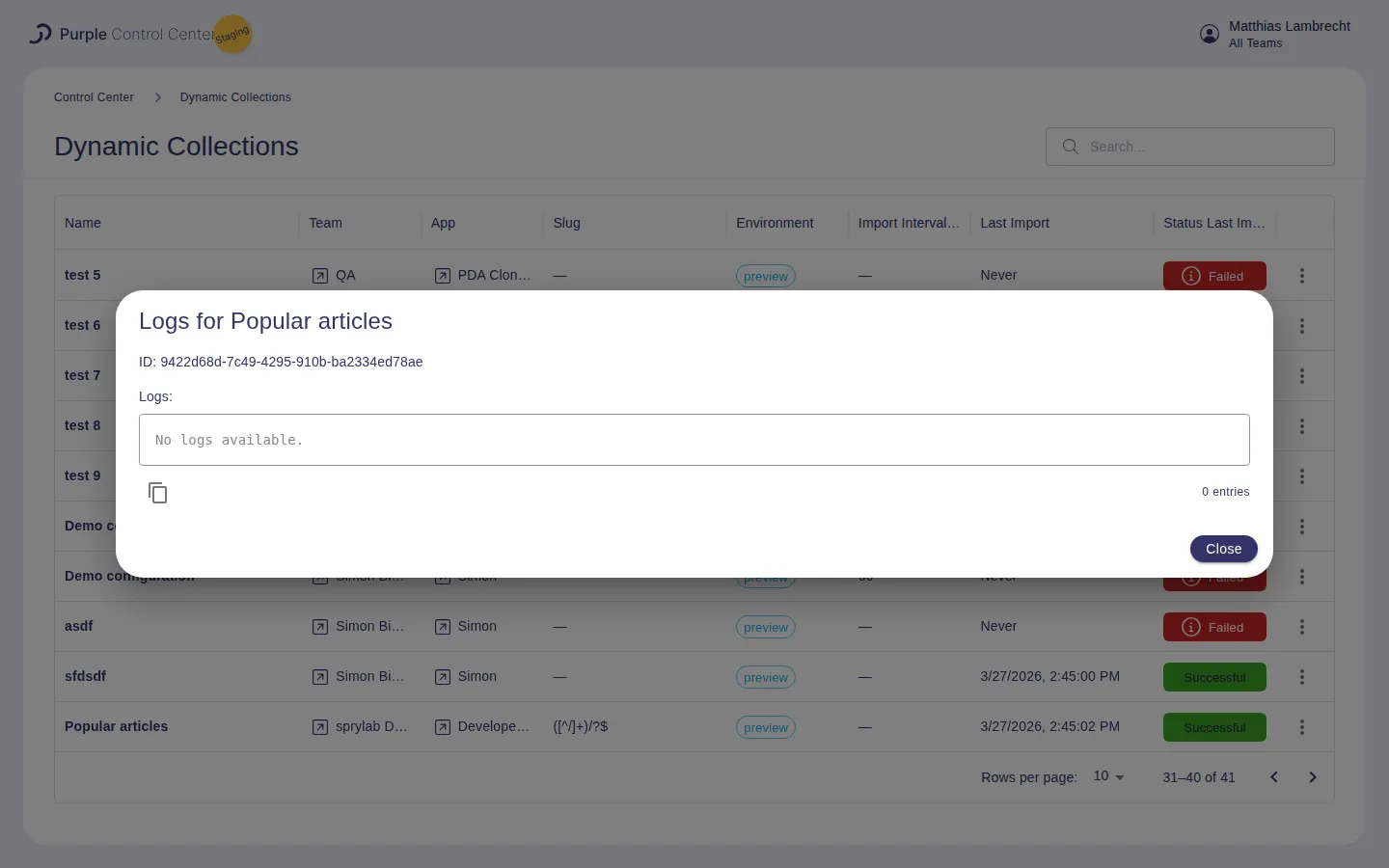
When a collection has a Failed status, click on the red chip to open the logs dialog. This dialog shows:
- The collection ID
- The log output from the last import attempt
- A copy to clipboard button for easy sharing with support
Row Actions
Each row has a ⋮ actions menu on the right side. Click it to access the following options:
Action | Description |
|---|---|
Trigger update | Manually triggers a re-import for this collection. The collection will be picked up on the next scheduled run of the import service. |
Edit | (Coming soon) Will allow editing the collection configuration directly from this page. |
View Logs | Opens the full log output for this collection in a dialog, with a copy-to-clipboard button. |
Access & Permissions
The page shows only collections you have access to based on your role:
- Global Admins see all collections across all teams.
- Team Admins see collections for their own team(s).
- Regular team members without admin rights do not have access to this page.
The Trigger update action also requires Team Admin rights or higher.