Hub Import API
Purple Hub
API Request
The Purple Hub offers a REST API for importing articles with all connected metadata. For each Hub cluster, this data is required to perform the call:
Data | Description | Example |
|---|---|---|
Hub cluster domain | Determines the Hub cluster, data is imported to | demo.purpledshub.com |
Hub identifier | Determines the Hub instance, data is imported to | my-news-portal |
Authorization Token | Securing the call to import data | 4de214ac-cfdb-2154-11f2-10470a4bb5f1 |
Publication ID | References the feed, data is imported to | 3bca5bf2-425a-47ac-93f9-135ce05e117d |
The call is performed with the parameters above:
Request POST https://<hub-cluster-domain>/<hub-identifier>/wp-json/purple/v3/import
Headers Authorization: Bearer <authorization-token>
Post-Parameters post: <post-data>
Where post data is a JSON structure containing post content and metadata. The publication ID is also part of the post data, as outlined below.
Important: The externalId is unique, meaning that if a post with an externalId already exists, this one will overwritten when sending another request with the same externalId. Accordingly, also the post type etc. will be overwritten.
Authentication
To retrieve a token you need to call the POST /<hub-identifier>/wp-json/purple/v3/login endpoint. The body needs to include the following parameters as JSON body:
Field | Description |
|---|---|
username | Your username |
password | Your password |
As a response you receive a token that can be used as Authorization token when calling the Export API.
This approach cannot be used when your company is using Azure Entra-ID
JSON structure of “post” parameter
{
    "externalId": "<external-uuid>",
    "post": {
        "title": "<title>",
        "type": "post",
        "date": "<publish-date, format: 2023-01-01T00:00:00+01:00>",
        "slug": "<slug>",
        "description": "<summary/onlineteaser>",
        "content": "<html-content>"
    },
    "assets": [ "<asset-url-1>", "<asset-url-2>", ... ],
    "meta":{
           "key": "value",
           "key1": "value",
    },
    "acf": {
        "overline": "<overline>",
        "isins": [ { "item": "<isin-1>" }, { "item": "<isin-2>" }, ... ],
        "serie": "<series>",
        "stadt": "<city>",
    },
    "taxonomies": {
        "category": [ { "name": "<main-section>" } ]
        "post_tag": [ "<keyword-1>", "<keyword-2>", ... ],
    },
    "authors": [ "<author-1>", "<author-2>", ... ],
    "publish": {
        "publicationId": "<publication-id>",
        "release": true,
         // check the Hub settings for your configured access levels and use the index as it configured there.
        "paywall": <0=free, 1=paid, 2=kompakt> // Default, check for your hub as described above
    },
    // The accessLevel parameter is prioritized over the "publish"->"paywall" parameter
    "accessLevel": <0=free, 1=paid, 2=kompakt> // Default, check for your hub as described above
}
The property „assets“ is a list of URLs referencing assets (images, etc.) that appear in the content and have to be copied to the Purple HUB.
Please note: The externalId that is set during the Hub import IS NOT the externalID exposed in the CatalogAPI/Content Cloud. The externalID available in the CatalogAPI is the Wordpress Post ID. Whereas the externalID for the Hub Import API is only used during the import and is not stored in the Hub or in the Count Cloud.
Example for a “post” parameter
{
  "externalId": "3c6fcf10-0f6c-11ed-a8b4-07f9801ba5be",
  "post": {
    "title": "Does my dog love me? Here’s how to know for sure",
    "type": "post",
    "date": "2022-08-02T00:00:00+01:00",
    "slug": "does-my-dog-love-me-heres-how-to-know-for-sure",
    "description": "Sure, they wag their tails to greet us and are happy to snuggle up and watch TV in the evening...",
    "content": "<!-- wp:paragraph --><p>Sure, they wag their tails to greet us and are happy...<!-- /wp:paragraph -->",
    "status": "draft"
  },
  "assets": [],
  "acf": {
    "custom_field": "Value",
    "custom_array": [{
        "item": "Item 1"
      }, {
        "item": "Item 2"
      }
    ]
  },
  "taxonomies": {
    "category": [{
      "name": "Category 1"
    }],
    "post_tag": [{
      "name": "Tag 1"
    }, {
      "name": "Tag 2"
      }
    ]
  },
  "authors": ["Jack Author"],
   "publish": {
    "publicationId": "3bca5bf2-425a-47ac-93f9-135ce05e117d",
    "release": true,
    "paywall": 1
   }
  }
Structure HTML Content
The actual content structure is reflected by the code view of the article in the Purple Hub, except for any unique purpleId attribute, which is not expected to be given.
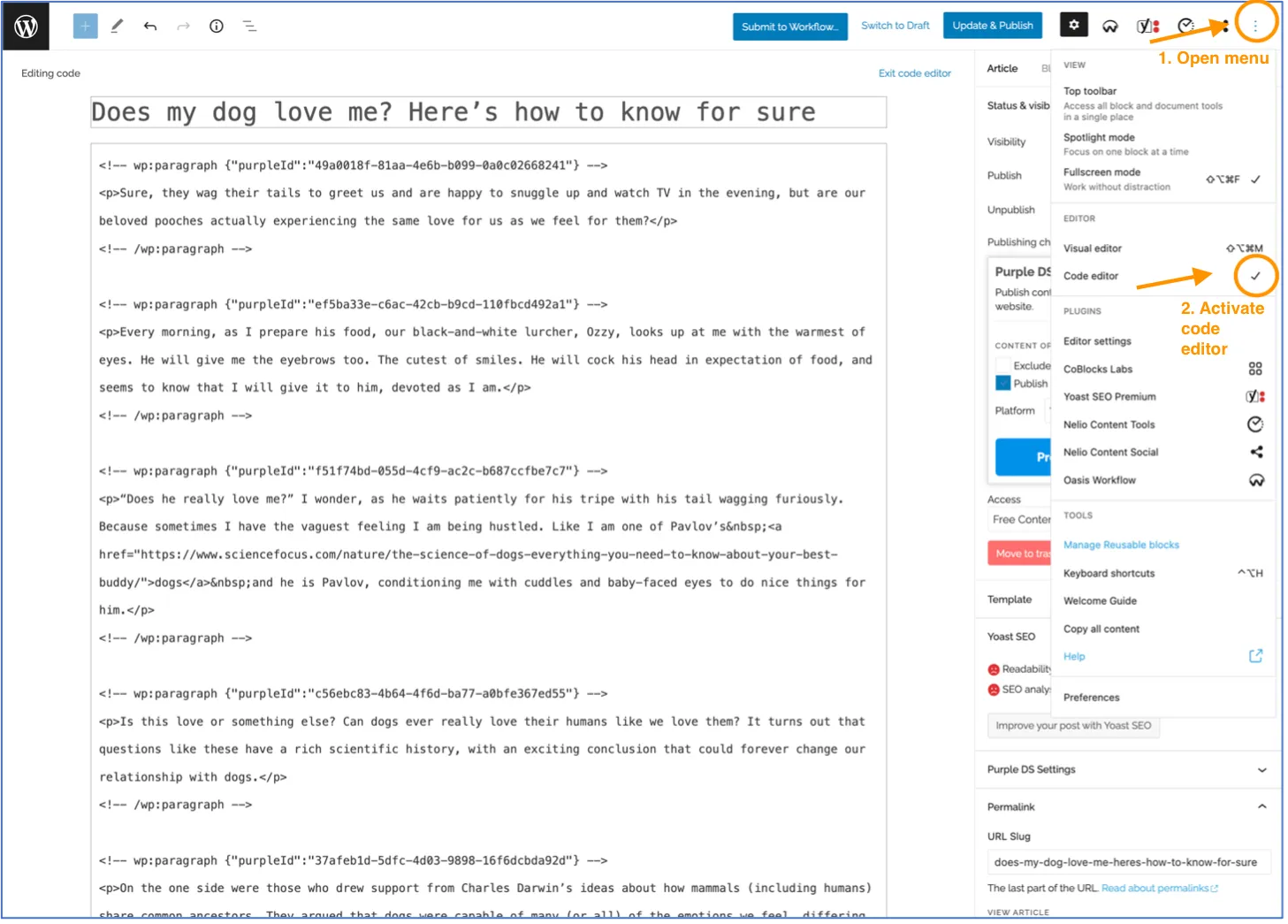
Response Codes and Messages
Response for a succeeded call:
200 <post-id>
Responses for erroneous calls:
400 An unexpected error occurred while updating/inserting post: <error>
401 No authorization token was provided.
401 The authorization token is incorrect.
400 No JSON string was provided.
400 Could not decode JSON. Please check if the provded JSON is valid.
400 The JSON string contains no data. Nothing to do.
400 Missing post data.
400 Missing post title.
400 Missing post status.
400 The provided post status does not exist.
400 Missing post type.
400 The provided post type does not exist.
Image Focal Points
Focal point management is handled by the "Smart Media" Plugin, and stored as post-meta by the Hub import API for that plugin to use. The coordinates are given in pixels from the top left corer of an image. Focal points can be set for the featured image of a post, as well as for the "assets" given alongside of it in the JSON. Both kinds of images need to be given in object form (instead of only the URL string), and then the focal point can be given as in a separate property. See also the schema document below.
{
  "url": "https://example.com/image.jpg",
  "focalPoint": {
    "x": 380,
    "y": 180
  }
}
Images in ACF properties
If an ACF property should be set to reference an imported image, the special syntax "$assetIdFromUrl" can be used in the value for this field. During post import, the database field will then store the ID of the image imported from this URL, so that ACF image-fields work correctly. Additional information about this image (like caption, or even further ACF properties for the image itself) can be defined in the assets section as usual.
{
  "post": { "title": "Article with ACF Image" },
  "acf": {
    "myImageAcfField": { "$assetIdFromUrl": "https://placehold.co/100.jpg" }
  },
  "assets": [
    {
      "url": "https://placehold.co/100.jpg",
      "caption": "An example image caption",
      "acf": {
        "myImageCopyrightField": "CC BY placehold.co"
      }
    }
  ]
}
Duplicate images per language
As default, the importer compares imported images on a hash-level to avoid images being imported multiple times. However, if your Hub is using multiple languages, you might want to have image duplicates on a language level to be able to keep metadata as for example the description or caption for each language separate. This is possible with the following syntax:
{
    "post": {
        "title": "IT Article with featured image duplicated",
        "language_slug": "it",
        "featuredImage": { "url": "https://http.cat/200.jpg" }
    },
    "duplicateAssetsByLanguage": true
}
--------
{
    "post": {
        "title": "DE Article with featured image duplicated",
        "language_slug": "de",
        "featuredImage": { "url": "https://http.cat/200.jpg" }
    },
    "duplicateAssetsByLanguage": true
}
In this example, the image gets imported twice, once in Italian and once in German and both images get connected to each other. The feature gets activated by setting the "duplicateAssetsByLanguage" flag to true. Note that this only works when also the "language_slug" for the post is set.
Schema for validating the API Input
In order to make sure, that the Input transferred through the API is correct, please use this json-schema attached here as a download.
Update posts
To update posts, send another call to the same endpoint. If an existing post is found with the same external ID (or the same title if no external ID is given), this one will be updated, instead of a new one being created.
Remove Featured Image
To remove the featured image of an existing post, send an update request, and set the URL of the featured image to an empty string. Other updates (like the post content) can be made with the same request.
{
  "post": {
    "title": "Existing Article with featured image",
    "type": "post",
    "featuredImage": { "url": "" }
  }
}
Remove ACF Value
If you want to remove the value of an ACF field, you need to set an update request and set an empty string as value:
{
  "post": {
    "title": "Existing Article with featured image",
    "type": "post",
    "acf": {
      "imageField": ""
    }
  }
}
Delete posts
The Importer API can also be used to delete and unpublish posts. Posts are automatically unpublished when they are deleted from the Hub. Following parameters can be used:
postId | required if externalId isn't set, otherwise optional | ID of the post in the Hub |
|---|---|---|
externalId | optional | externalId that was used when the post was imported. If both postId and externalID are set, the externalId is used. |
deletePermanently | optional | Set to true to permanently delete a post. If not set or set to false, posts are only moved to trash. |
Request POST https://<hub-cluster-domain>/<hub-identifier>/wp-json/purple/v3/import /delete
Possible error codes
400 MISSING_PARAMETERS: Neither postId nor externalId are set
400 POST_NOT_FOUND: No post is found with the given ID
500 FAILED_TO_DELETE_POST: An error occurred during the deletion of the post
Example of the body for a delete call
{
	"postId": 77289,
	"externalId": "s34dgfd-sdfdsf", // externalID is used in this example
	"deletePermanently": true
}
Linking Variants on Import
When the Purple Variants plugin is active (see also Purple Variants), you can link imported posts as content variants of one another using the optional variantOf field.
The first post must be imported without variantOf. Subsequent posts that should belong to the same variant group reference the already-imported post:
// Reference by the WordPress post ID returned from a previous import call:
{ ..., "variantOf": { "postId": 1234 } }

// Reference by the externalId of the previously imported post:
{ ..., "variantOf": { "externalId": "article-web-v1" } }
Any post in the variant group can serve as the reference target — you do not need to reference the first post specifically.
Removing a post from its variant group: Pass null to disconnect the post from all variants on an update call:
{ ..., "variantOf": null }The variantOf field only manages the variant group connection. It does not create or modify any post content or metadata — that is handled by the import data itself.
Importing Dossiers
Dossiers (purple_dossier) can be created and populated via the Import API. The typical workflow consists of three steps:
- Create the dossier by importing a post with "type": "purple_dossier".
- Import articles and link them to the dossier via the addToDossiers field.
- Publish the dossier (optional) once all articles are in place.
Step 1: Create the dossier
{
  "post": {
    "title": "My Dossier",
    "slug": "my-dossier",
    "type": "purple_dossier",
    "status": "draft",
    "content": "<p>This is the dossier title page.</p>"
  }
}
The response returns the WordPress post ID of the newly created dossier. Use this ID when importing articles in the next step.
Step 2: Import articles and add them to the dossier
Use the addToDossiers field to link an article to one or more existing dossiers by their WordPress post IDs:
{
  "post": {
    "title": "My Article",
    "type": "post",
    "slug": "my-article",
    "content": "<p>Article content here.</p>"
  },
  "addToDossiers": [12345]
}
addToDossiers accepts an array of IDs, so one article can be added to multiple dossiers in a single call.
Step 3: Publish the dossier (optional)
After all articles are imported, publish the dossier by referencing it via its slug:
{
  "post": {
    "slug": "my-dossier"
  },
  "publish": {
    "release": true
  }
}
Importing taxonomy terms directly
When importing a post, terms (like categories, tags, or custom taxonomy terms) can be imported as well within that payload, via the taxonomy property.
Alternatively, terms can also be imported on their own, without a post that uses them. Instead of calling the /wp-json/purple/v3/import endpoint, call /wp-json/purple/v3/import/term. The payload needs at least two fields: One for the name of the taxonomy that the term belongs to, and one for the term data itself. The data format is the same as for the list of taxonomy terms in the post-import endpoint.
{
  "taxonomy": "category",
  "term": {
    "name": "My example category term",
    "acf": {
      "myAcfField": "Example ACF value"
    }
  }
}
Similar to the post-import-endpoint, if a term with this name / slug already exists, no new term is created, but the existing term is updated instead.
The endpoint returns the ID of the (freshly created) term. When using the post-import endpoint later, instead of re-sending the whole set of information for a term that should be linked to this post, the endpoint also accepts this ID.
Image ACF properties for terms
It is possible to import images used in terms with this term-import-endpoint, using the same syntax as for the post-import-endpoint:
{
  "taxonomy": "my-custom-taxonomy",
  "term": {
    "name": "Example term with image acf",
    "acf": {
      "myImage": { "$assetIdFromUrl": "https://http.cat/305.jpg" }
    }
  },
  "assets": [
    {
      "url": "https://http.cat/305.jpg",
      "acf": {
        "myAcfFieldOnImages": "Example Image ACF Value"
      }
    }
  ]
}
As usual, if the URL passed to "$assetIdFromUrl" was already imported previously, this existing imported image gets linked to the term. If not, the image gets imported into the Hub.
Via the "assets" field, additional information about the used images can be provided, like ACF fields for the images themselves.