Image Metadata in Gutenberg Editor
Overview
This feature allows editors to view and edit image metadata directly within the Gutenberg editor, eliminating the need to open the media library. The feature displays configured image metadata fields as captions and allows easy editing of image metadata properties.
Note: This screencast shows a previous version of the interface. The demonstrated workflow is still accurate, but some UI elements may not match the current interface.
Setting Up Image Metadata Fields
Configuration Steps
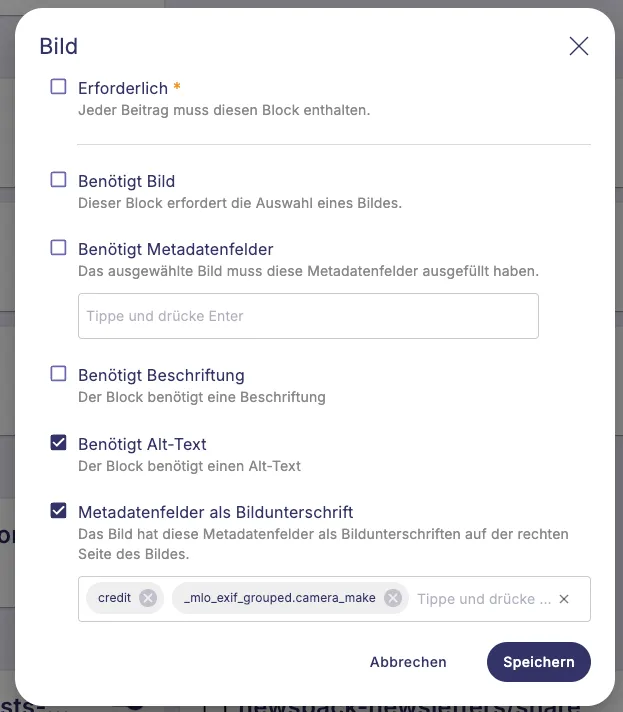
- Navigate to Purple Blocks settings
- Select the Image block settings
- Look for the new checkbox field: "Meta Fields as Image Caption"
- Select which metadata fields you want to display:
- You can add ACF (Advanced Custom Fields) fields
- You can add Purple fields
- Common fields include: Title, Owner, Location, and Author
- Additionally it is possible to activate the "requires caption" and "requires alt text" checkboxes to require caption and alt-text for all image blocks
- Click "Save" in the popup
- Remember to click the Purple Blocks "Save" button at the top to apply changes
Using the Feature in the Editor
Adding Images with Metadata
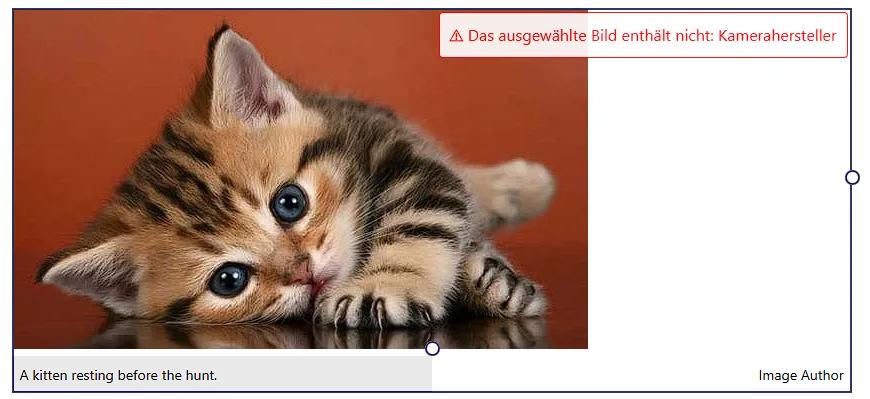
When you add an image block in the Gutenberg editor, you'll now see:
- A notification if required image metadata is missing
- When hovering over the image, you'll see which fields need to be filled
Editing Image Metadata
Image metadata can be:
1. Using the Sidebar (Recommended)
- Select the image block
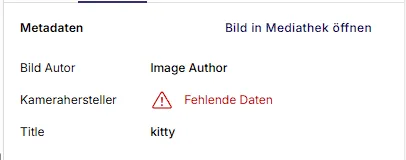
- Find the sidebar panel on the right side
- Click on "open in media library"
- The Image Editor will open showing metadata fields
- Fill in the required fields
- These changes apply to the current article by default
2. Using Image Editor
- Click the pen icon on the image
- The Image Editor will open showing metadata fields
- Fill in the required fields
- These changes apply to the current article by default
Saving Metadata Changes
You have two saving options:
- For this article only: Simply save the post/article (default behavior)
- In the media library (global change): Click "Save image data to Media Library" button
After saving, the configured metadata will appear as a caption below the image.
Important Note: When you upload an image and edit its metadata in the sidebar or editor, those changes apply only to the current article. If you want these changes to persist in the Media Library for use in other articles, you must click the "Save image data to Media Library" button.
Additional Capabilities
Caption and Alt Text Editing
In addition to metadata fields, you can now directly edit:
- Caption: The text displayed below the image
- Alt Text: The text used for accessibility and SEO purposes
These fields are visible in both the sidebar panel and the Image Data section of the image editor.
Common Questions
Q: I set caption/alt text in the Media Library, but they're not appearing when I add the image to my article. Why? A: After uploading an image to an article, you need to set the caption/alt text in the sidebar panel for that specific article.
Q: I've changed the caption in one article, but it's not showing in my other articles. Why? A: By default, caption and alt text changes are specific to each article. To make these changes global, update the changes in the media library button.
Benefits
- View image metadata directly in the Gutenberg editor
- Edit metadata without having to open the media library
- Save time on image management workflows
- Ensure all required metadata is present before publishing
- Option to make changes locally or globally
Support
If you have questions or need assistance with the Image Metadata features, please contact the support team.