Media Interface
Overview
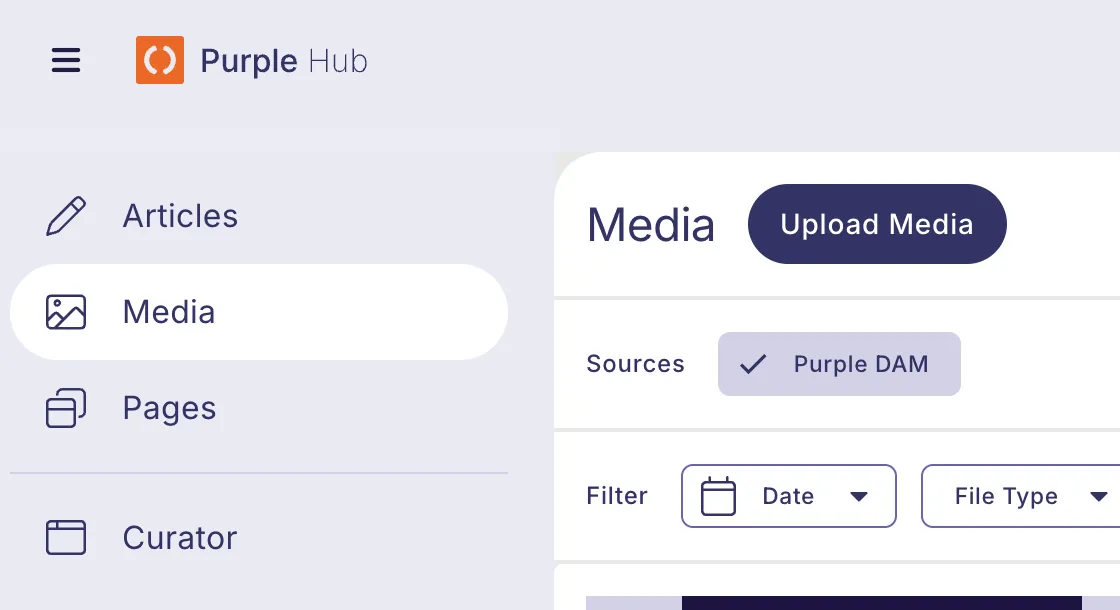
Open Media by clicking Media in the Hub sidebar.
Grid View
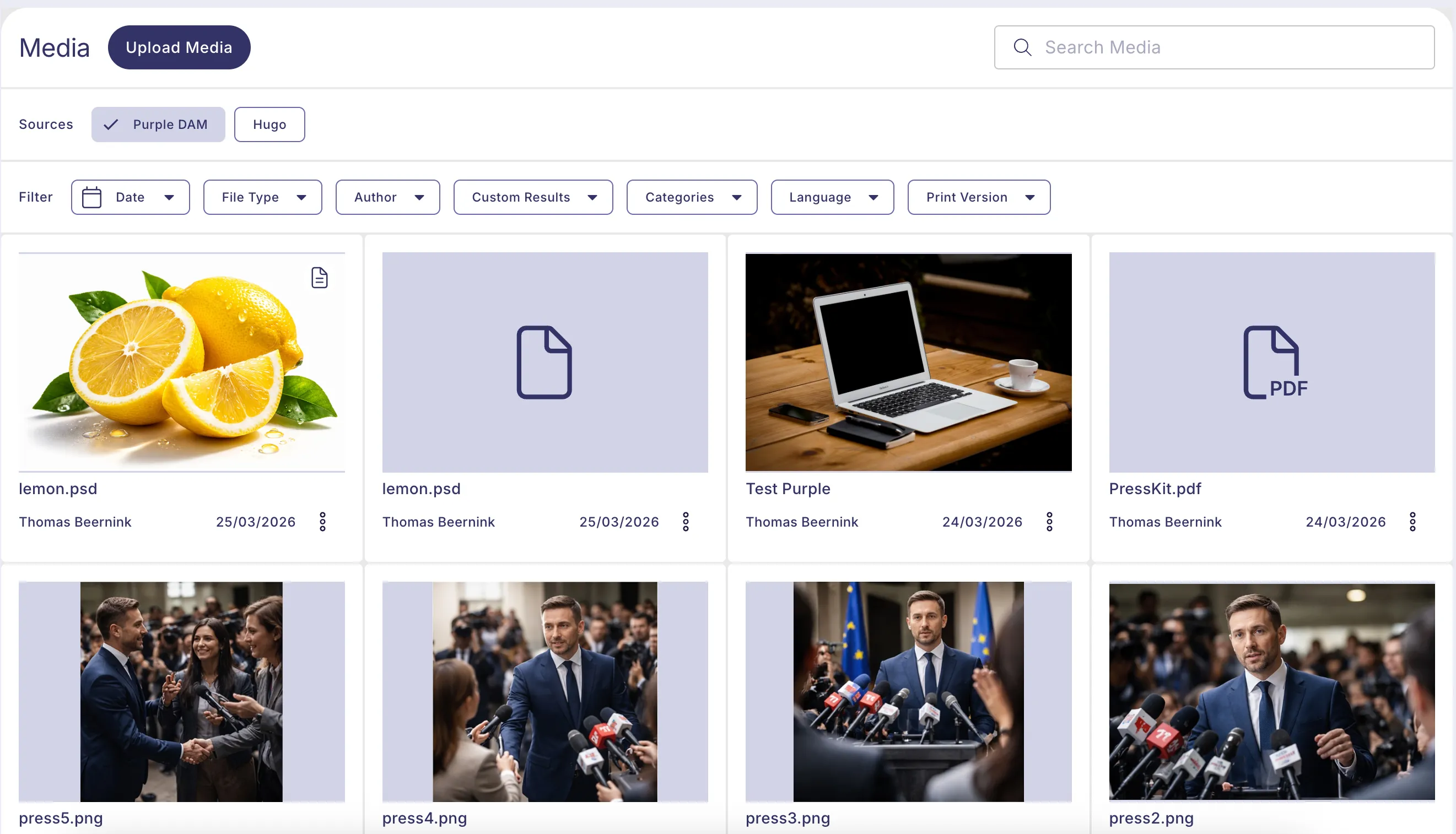
All assets are displayed as thumbnails in a responsive grid. Each tile shows:
- A preview thumbnail
- The file type indicator
- A print file icon in the top-right corner (if a print version has been attached)
Click any asset to open its Image Detail view.
Opening a Specific Asset by URL
Any asset can be linked to directly using its post ID. The Image Detail modal opens immediately for that asset — useful for sharing links to specific files with colleagues.
Multi-Select in the Image Chooser
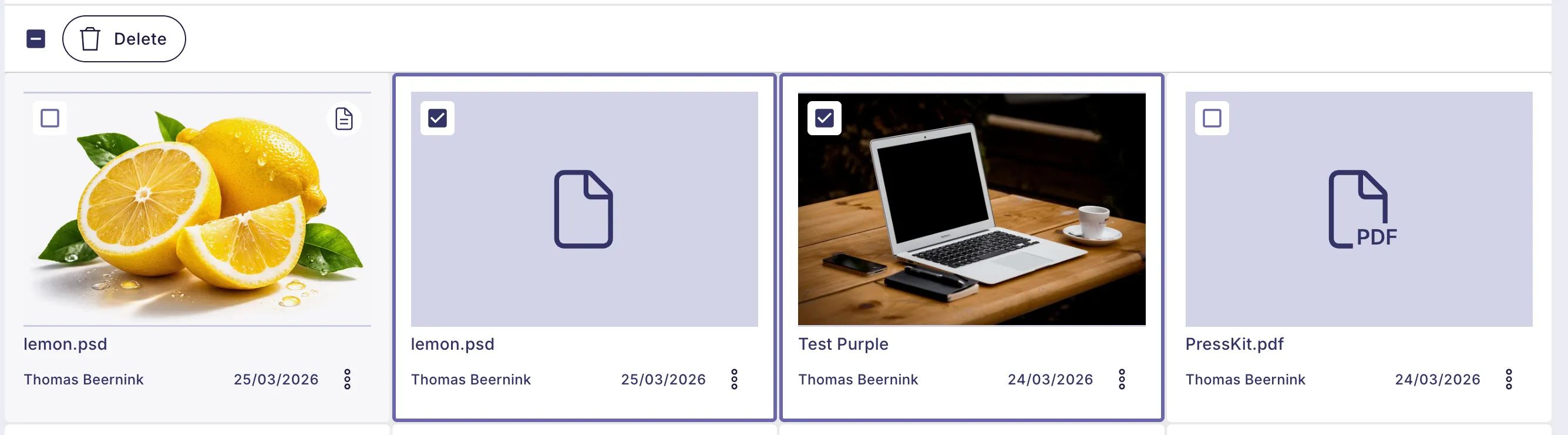
When the Media Library is opened from within an article or ACF field (image chooser mode), multiple images can be selected simultaneously. Button labels make the action clear:
- Insert / Select — for a single item
- Insert Selected — for multiple items
A comprehensive guide to using Purple Hub Media.
Additional Features
Purple DAM Source
The chips in the Sources section provides access to all the connected sources.
Results Per Page
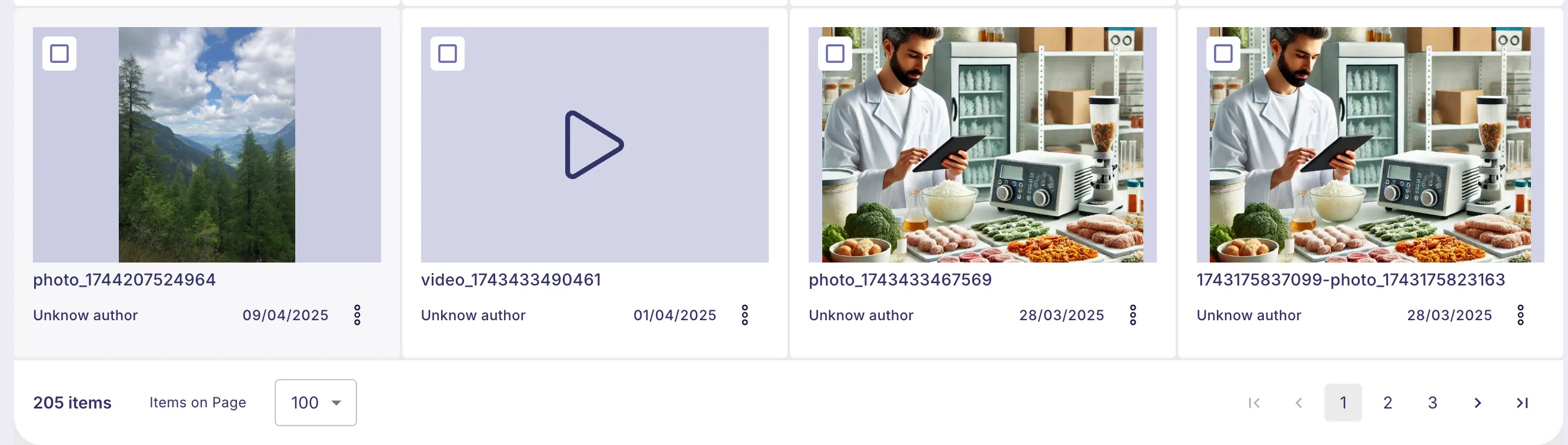
At the bottom of the page, you can adjust how many items display per page:
- Default: 100 items per page
- Use pagination to navigate through results
Search Box
The search box in the top right works alongside filters to search by filename or title.