Purple ePaper Issue Import Monitoring
Summary
The Purple ePaper Issue Import Monitoring is an interface to control the import process (when importing content via sFTP import) and the transformation of your imported data by Purple Importer and Purple Transformer, as well as to report any errors to the user. This article describes all the features and options available in the interface.
Description
URL
Link to the production environment: https://manager.purplepublish.com/imports/epapers
Login
You can log in with your purple editorial account.
Monitoring view
Several columns can be seen in the Purple Ingest Monitoring interface
Columns whose data comes from the import CSV

- Publication: Name that you have given to this publication
- If the publication was found, you can directly jump to the Publication in the Purple Manager
- Issue: Name you have given to this issue
- If the Import was successful, you can directly jump to the Issue in the Content Cloud Explorer
- Expected: Date that lies a configurable amount of time (default is 1 hour) before the publication date
- Publication date: Date and time you have defined for the uploaded issue
Columns that represent the import process

5. Uploaded: Date and time at which the data package you uploaded (PDF with/without E-pub as a ZIP file) was stored on the sFTP server. 6. Processed: Time at which the processing of your uploaded data packet is completed. 7. Status: Shows the current status of your data package. The following status messages are available:
- Planned: The PDF or ZIP file is missing from the sFTP upload for an issue where the publication date has not been reached yet.
- Queued: The file/issue was found and is currently in the queue/preparing for processing
- File is Late: The publication date is within the configured time range (expectation date reached) and the PDF or ZIP file is (still) missing from the sFTP.
- Started: The file currently gets imported. Ordinary, it should be available in the next 30-45 minutes after start date of the import
- Processed: The issue was successfully imported to the publication, but the publication date has not been reached yet.
- Partially Processed: The issue was successfully imported to the publication, but the publication date has not been reached yet and there have been non critical warnings/errors during the import. You can check the warnings/errors clicking on the state.
- Success: The issue was successfully imported to the publication and is already published.
- Partial Success: The issue was successfully imported to the publication and is already published, but there have been non critical warnings/errors during the import. You can check the warnings/errorsclicking on the state.
- Missing File: The PDF or ZIP file is missing from the sFTP upload: The file referenced in the import CSV could not be found in the upload folder on the sFTP server. This implies that the publication date has already been reached.

8. Input File: The size of the file package you have uploaded is displayed here. Below the format of the uploaded file is shown.
9. Output File: The size of the transformed package is displayed here. The file format is always pkar.
Actions to perform on the Monitoring view
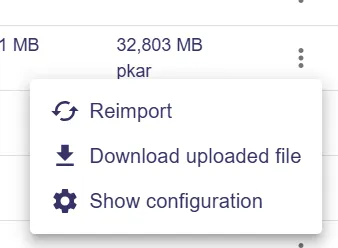
10. Reimport: Used to import the same content package into a new one, i.e. to start the import process again. This is done using exactly the same import CSV and file package that you originally uploaded. If you have made changes to the Config properties file and want them to be applied to your data package, e.g. in the case of a change to the TTS, this option is suitable. This option is not suitable if there is an error in the file, as it will only re-upload the file package and not correct the error.
11. Download: Here you can download the exact file(s) that you uploaded to the sFTP server. This is still uncompressed and in its original state.
12. Show configuration: Shows the whole import configuration in a pop up. Can be helpful for error analysis.
Filter Options

There is a filter for each column. Applied filters are shown as a chip below the filters and can be removed using the x.