Purple RSS
Purple Hub
Introduction
Purple Feed allows publishers to generate RSS feeds following RSS 2.0 specification from contents in the Purple Hub. You can define various feeds based on a variety of filters. You can then access these feeds either through the Purple Manager URL (default setting) or through a custom domain.
Prerequisites
- Have an Administrator role in Purple Hub
The following setting must be activated to use Purple Feeds:
- The "Purple DS Hub - Purple RSS" plugin must be activated
Configuration
Create a new feed

- Use "Purple RSS" --> "Add feed" from menu
- Add a feed title
- Click "Configure Feed"
You will then see the "Edit Feed" page.
Edit a feed

Base information (required)
Feed title String
Name your feed (e.g. Sports)
Feed slug String
- To edit the automatically created slug, use the [Edit slug] button beside the label
- The slug is unique and will automatically be set to a unique slug if one like this already exists
Feed base target URI String
Tell the RSS service on which URL the feed is running (how to display the article links in the feed). You can configure the custom domain e.g., if the article must be accessible at https://www.yourdomain.com/subdir/[article-slug], "subdir" must be defined here. If you don't need a custom domain, simply enter https://feeds.purplemanager.com/
Use URL from URL Resolver: When you select this option, no feed base target URI needs to be defined and is also not published. Instead the URL that is configured in the URL resolver is used for the urls.
Feed image Select
You can select a thumbnail from your media library to enrich the RSS feed with a teaser image
Content filter
- The content filter defines what articles will be delivered within the feed, so you can set Categories, tags, custom terms or custom fields to be used for filtering the feed.
- The feed will always only deliver published articles. By dragging the elements from the lower list to the upper list (or empty area, if no filter was defined), the filter will be created automatically.
- All arguments are connected with:
- AND-relation: If you choose one category, the content belonging to this category is displayed in the feed. If you select two, only content, that belongs to both categories get displayed. E.g. If you select the categories 'Sports' and 'Regional', only the articles that belong to both categories, 'Sports' and 'Regional', get displayed. Articles, only belonging to one of both, wouldn’t get listed in the RSS feed.
- OR-relation: All contents that match one of the selected terms like for example categories are listed in the feed
- AND/OR-relation: You can create multiple rule groups. All items that match all conditions of at least one rule group are shown
Additional information
Include post contents on delivery Checkbox
- Allows to pass the whole article text to external services.
- If checked, an item will contain the element <content:encoded> with full article content
This is interesting for external text to speech services (like bot talk) or newsletter use cases. Example: Create a 'Newsletter' category in Purple Hub, write a newsletter article, add the article to the category 'Newsletter' and create an RSS feed, containing articles with the category 'Newsletter' to ingest this article to your newsletter RSS function.
Include featured image on delivery Checkbox
- Enrich the RSS feed with a teaser Image
- If checked, an item will contain the element <enclosure> with attributes
- url that has the url of the featured image
- length with bytes of the image
- type with mime-type information
Include tags
When checking this option, feed items will include all added tags. They will be added with the "<purple:tag>" tag.
Include access level
When checking this option, feed items will include the access level. This will be added with the "<purple:accessLevel>" tag.
Include post type
When checking this option, feed items will include the post type. This will be added with the "<purple:postType>" tag.
Require URL Resolver
When enabled, feed generation will fail if URL resolver is unavailable, preventing duplicate articles in external systems.
Limit number of items Int
The maximum number of items that will be returned from the Purple Content Cloud
Feed description String
A descriptive text about your feed
Feed category String
- A definition of the category/categories your feed belongs to
- Combine multiple categories with a slash "/"
- Has no correlation with the filter category
Copyright String
Contains the Copyright information of your feed
TTL Int
The TTL-argument will be used by automatic feed readers as time between automated feed calls in min. The default setting is 60 minutes.
Language Select
Language setting is only available if the Hub is set up with Polylang as a multi-language Hub. If you set this information, the language information will be added to the feed. The feed items still depend on your selected filter options.
Feed Type MediaRSS
As a default, the feed type for RSS feeds is "RSS 2.0". However, it is possible to change this to "MediaRSS" by changing the feed type dropdown:

For this feed type, it is possible to configure an ACF field that will be displayed for the media:credit tag for the featured image. The description field of the image will be shown as media:description tag. In the same way, it is possible to define a copyright field. Also an ACF can be selected here, this will be shown as "media:copyright" tag in the feed.
Feed Type MSN RSS
Similar to MediaRSS, also the feed type "MSN RSS" can be selected:
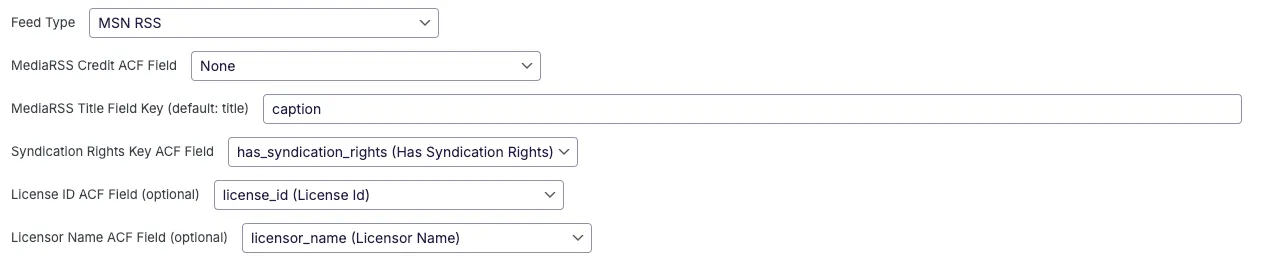
For this feed type, it's possible to configure (additionally to the Credit field) also media fields for media title, syndication rights, licenseId and licensor. The title field can be filled in a freetext input that needs to match an image meta field like title or caption, while for the other fields an existing ACF field can be select.
Include ACFs
When you have custom properties configured for articles (see Create Custom Fields in Purple Hub), you can configure the RSS Feed to also include this information. For each field, you can configure which tag name will be used. For each article, custom tags will then be added to the RSS items, as seen below.
Include own taxonomies
It is possible to include custom taxonomies in the feed. For these, a custom tag needs to be entered, and the taxonomy that should be displayed for it can be selected.
Custom tag names need to be prefixed with purple: to adhere to the RSS standard.


    <item>
      <title>Example article with extra info and ISINs</title>
      <link>https://test.de/example-article-with-extra-info-and-isins</link>
      <purple:isin xmlns:purple="https://schema.purplepublish.com/feeds">isin-value-1</purple:isin>
      <purple:isin xmlns:purple="https://schema.purplepublish.com/feeds">isin-value-2</purple:isin>
      <purple:extrainfo xmlns:purple="https://schema.purplepublish.com/feeds">this is the ACF extra info of the article</purple:extrainfo>
      <description />
      <category>uncategorized</category>
      <pubDate>Wed, 08 May 2024 08:41:43 GMT</pubDate>
      <author>[email protected]</author>
      <guid>daab79cd-e503-4711-ba44-c9a72b9c17f4</guid>
    </item>
Publish feed
If all required information is set and saved, this will publish your feed with the saved configuration.
Save feed properties
This will save feed properties in our database. Make sure to save your changes before leaving the configuration screen.
Updating a feed configuration
If you want to modify your feed configuration and publish your updates, please follow these steps:
- Modify your feed configuration as needed (for example: "Change TTS from 60 -> 90")
- Click on the "Save feed properties" button in the lower left. This will persist the latest configuration in our database.
- Click on "Publish feed" in the upper right of the configuration screen. This will update your feed with the latest configuration.
Note: Always save your properties before updating/publishing a feed. Otherwise your changes will not be published.
View feed
Depending on your Hub environment, the final feed URIs differ:
- Prod: https://feeds.purplemanager.com/[team-id]/[feed-slug]
- Staging: https://feeds.staging.purplemanager.com/[team-id]/[feed-slug]
- Dev: https://feeds.dev.purplemanager.com/[team-id]/[feed-slug]