Send & Preview
9 min
Preparing to Send
1. Access Newsletter Campaign Settings
- Ensure no specific block is selected (click outside any blocks)
- Open the general newsletter sidebar
- Scroll to the Newsletter Campaign section

newsletter campaign
2. Configure Campaign Details
Set the following fields:
- Campaign Title - Internal name for tracking
- Email Subject - What recipients see in their inbox
- Preview Text - Short text shown in email clients before opening
3. Select Mailing List
In the Send To section:
- Click the text field to see available mailing lists
- Select the appropriate list from the dropdown
- Lists are pulled from your Mail service providers
Testing Your Newsletter
Send Test Email
Before sending to your full list:
- In the sidebar, find the Testing section
- Enter your email address (or colleague's)
- Click Send Test Email
- Check your inbox to verify formatting and content

testing
Sending a Test Email in Inxmail
To send a test email to yourself in Inxmail, two conditions must be met:
- A Send to list must be selected.
- Your own email address must be added to a test mail group.
Steps
- Open the Inxmail Professional desktop application.
- Open any existing mailing list.
- Open an existing mailing and go to the Check tab.
- Click Send test mail at the top.
- Click the blank page icon next to the dropdown to create a new test group.
- Enter your email address as both the name and receiver, then save with OK.
Once your address is added to the test group, you can select it from the dropdown and send a test mail directly to yourself.
Preview Options
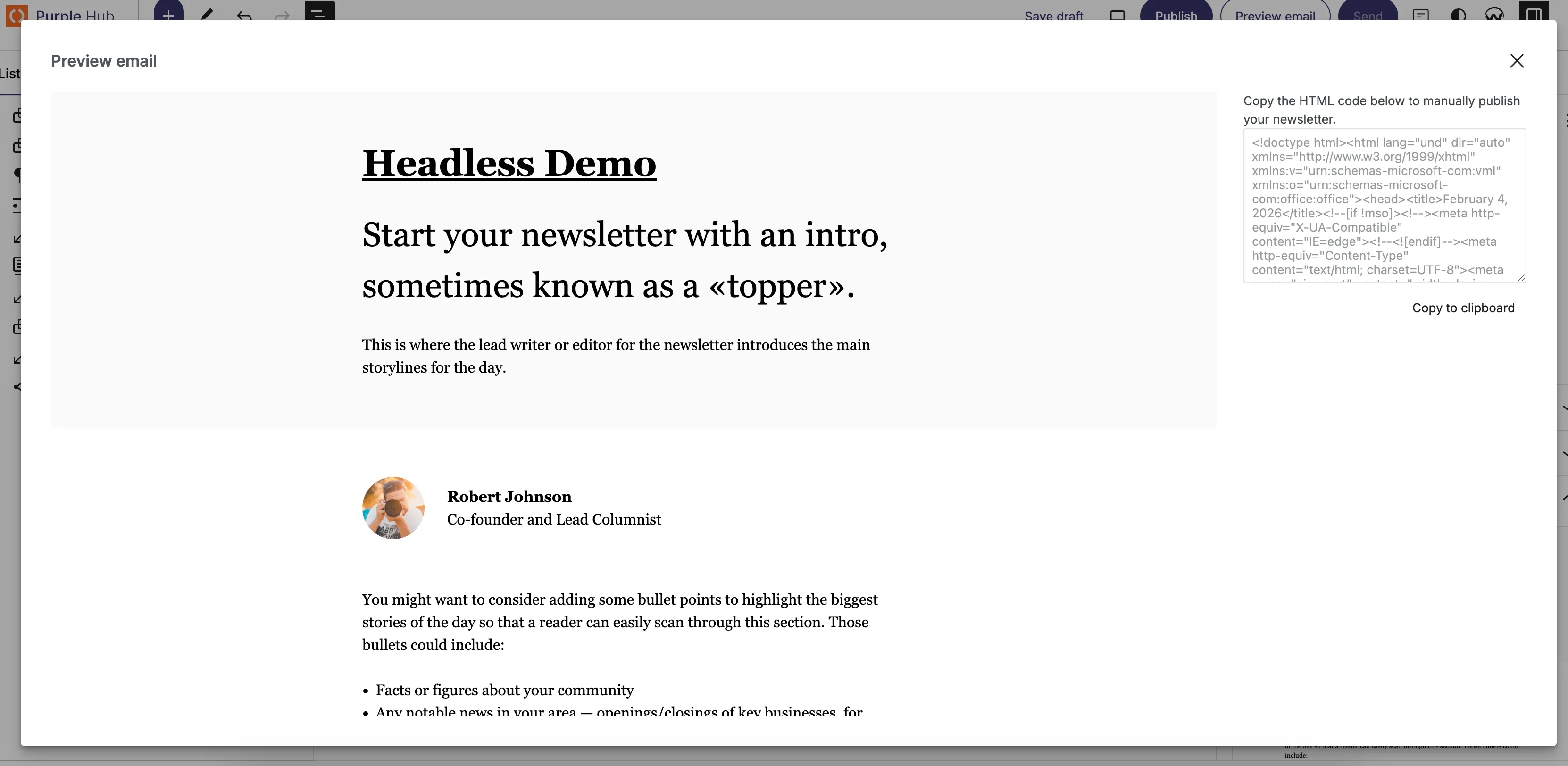
Preview Button
Located in the top-right corner (where Publish normally appears):
- Click Preview Email
- Opens a popup showing the exact newsletter format
- Verify all elements:
- Link functionality
- Image display
- Text formatting
- Advertisement placement (if applicable)
- Copy HTML allows you to import the email in a mail application for use there.
Sending the Newsletter
Final Send Process
- Click the Send button (top-right corner)
- System saves and opens a final preview popup
- Last chance to review:
- Content accuracy
- Advertisement settings
- Recipient list
- Click Send in the popup to dispatch the newsletter

send your email
Important Notes
- The newsletter is sent immediately upon confirmation
- Ensure all testing is complete before final send
- Check that the correct mailing list is selected