Social Media + Planning
Required plugins
If not activated by default, activate following plugins in the Hub.
- Nelio Content
- Nelio Purple Hub extension
Quick Setup Checklist
Step 1: Connect Social Profiles
- Navigate to Social Profiles tab
- Click on one of the Social Media Logos a the Bottom to add a profile for each social media account.
- You can can add the Social media through the login page of that social media
- You can add the social media with 'Buffer', an tool to better automate the scheduling of your posts.
- Authorize Nelio to access your accounts
- Set language for each profile
- Assign priority numbers (1 = highest)
- Verify all connections show green status
Step 2: Configure Managed Post Types
- Go to Advanced tab > Social Settings
- Check which content types should have social sharing enabled
- Typical selection: Articles (always), Pages (optional)
Step 3: Set Default Sharing Behavior
- In Advanced tab > Social Settings
- Choose: "Exclude all posts, unless stated otherwise" for opt-in approach
- Or leave unchecked for automatic sharing by default
Step 4: Create First Automation Group
- Go to Automations tab
- Click "Add Group"
- Select post types (e.g., Articles)
- Set publication date filter (typically "Any date" for new sites)
- Select target social profiles
- Click "Save Changes"
Step 5: Configure Notifications
- In Advanced tab > Cloud Notifications
- Add email addresses for profile expiration alerts (one per line)
- Enable Plugin Setup Notifications if working with a team
Step 6: Enable Meta Tags (if needed)
- In Advanced tab > Meta Tags
- Enable Facebook Open Graph tags (only if NOT using Yoast/Rank Math)
- Enable X (Twitter) Card meta tags (only if NOT using Yoast/Rank Math)
Step 7: Test Configuration
- Create and publish a test post
- Check that social messages are generated automatically
- Verify messages appear in selected social profiles
- Review and adjust settings if needed
Settings
Access plugin settings via Nelio Content > Settings
1. Social Profiles Tab
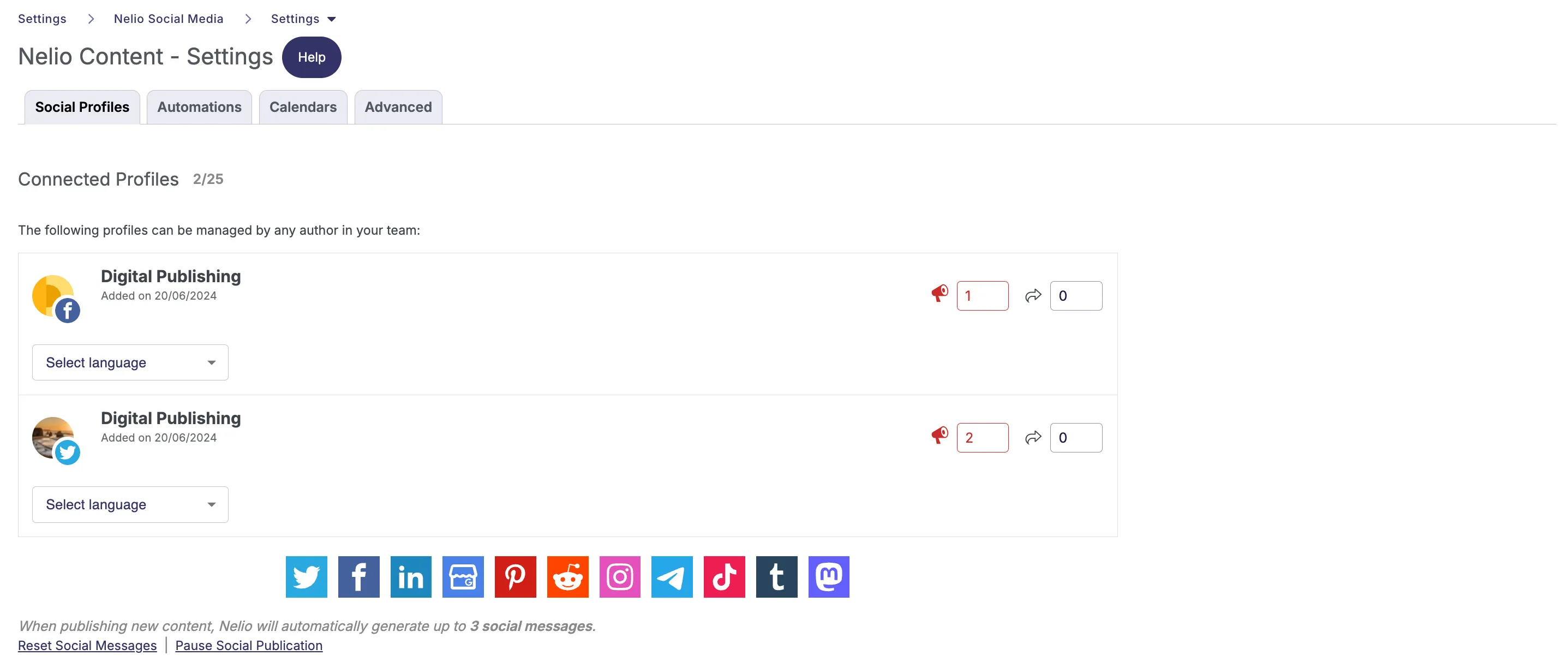
Connected Profiles
- Profile Limit: Up to 25 social media profiles
- Supported Platforms: Twitter/X, Facebook, LinkedIn, Google My Business, Pinterest, Reddit, Instagram, Telegram, TikTok, Tumblr, Mastodon
Profile Configuration
Each connected profile displays:
- Platform type and profile name
- Connection date
- Language selector: Choose language for localized content generation
- Priority number: Determines posting order (1 = highest priority)
- Connection status: Green = active, Red/Yellow = requires re-authorization
Automatic Message Generation
Nelio automatically generates up to 3 social messages when publishing new content.
Control Options:
- Reset Social Messages: Clear existing automated messages
- Pause Social Publication: Temporarily disable automatic sharing for specific content
2. Automations Tab
Create automation groups to control which content is shared and where.
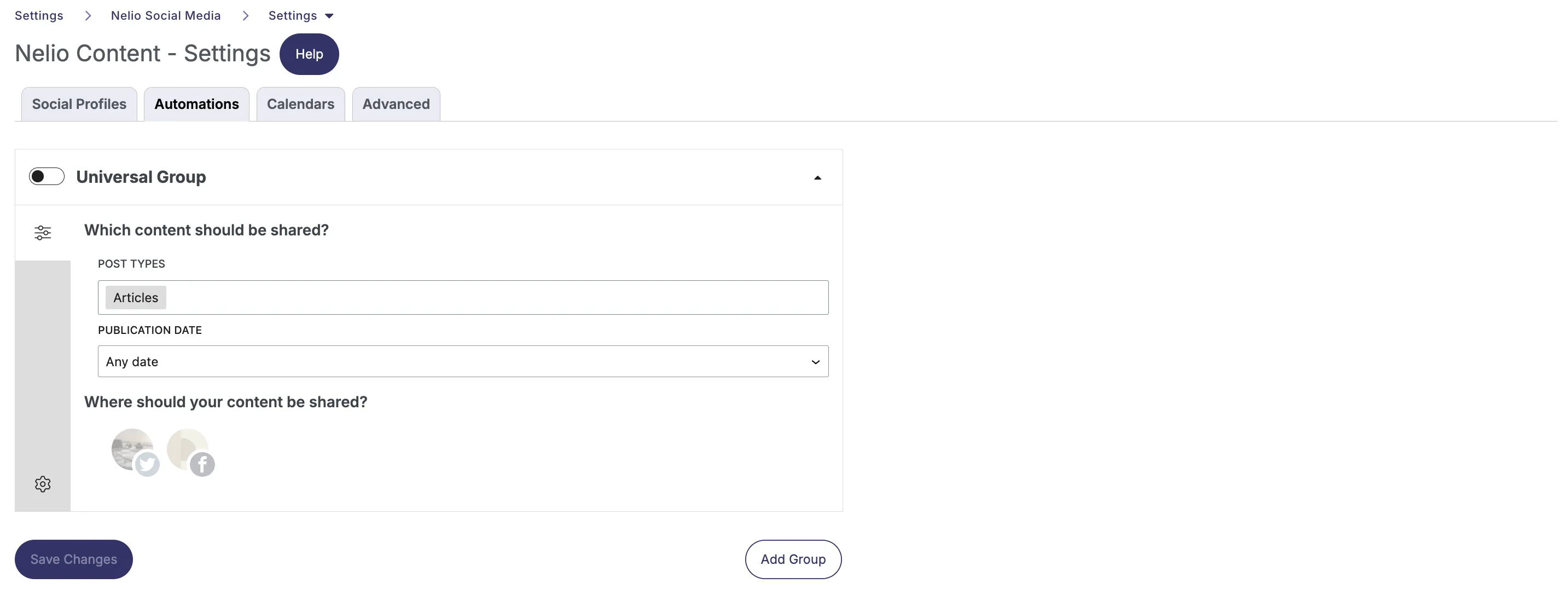
Content Selection Criteria
Post Types
- Select content types to share: Articles, Pages, Custom Post Types
- Multiple post types can be selected per group
Publication Date
- Any date: Include all content
- Specific dates: Only content published on selected dates
- Date ranges: Content published within specified time periods
Distribution Targets
- Select which connected social profiles receive automated posts
- Visual profile selector shows active destinations
Actions:
- Save Changes: Save current automation group settings
- Add Group: Create additional automation rules for different content strategies
3. Calendars Tab

iCal Calendar Integration
- Add external calendar feeds via URL input
- Supports standard iCal format calendars
- Enables centralized scheduling across calendar systems
Configuration:
- Enter iCal feed URL
- Click "Add" button
4. Advanced Tab
Social Settings
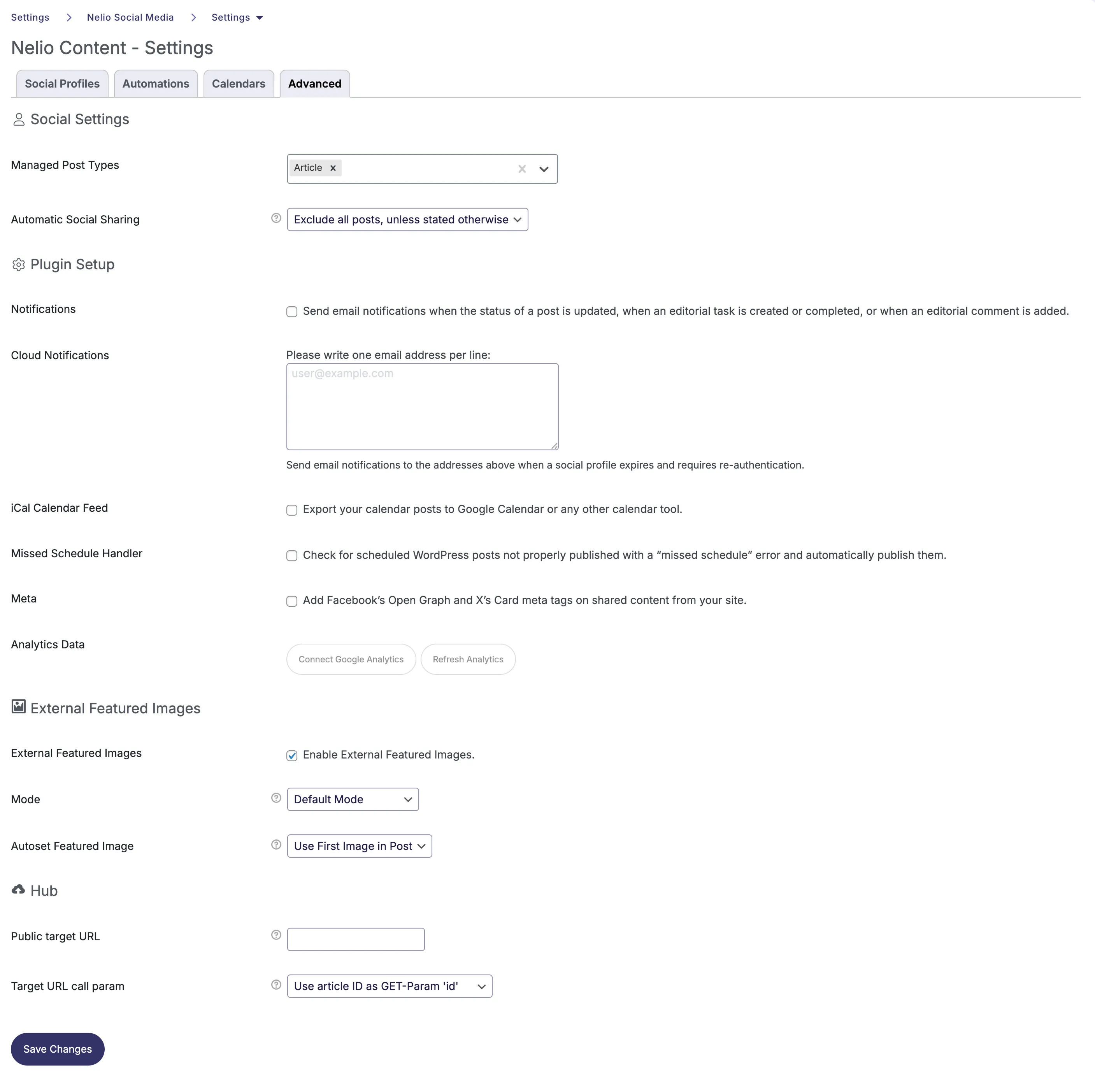
Managed Post Types
- Define which content types (Articles, Pages, Custom Post Types) can be shared socially
- Only checked post types will have social media sharing options
Automatic Social Sharing
- "Exclude all posts, unless stated otherwise": Opt-in model where posts must be explicitly enabled for sharing
- Determines default behavior for new content
Notifications
Plugin Setup Notifications Email notifications for:
- Post status updates
- Editorial task creation or completion
- Editorial comment additions
Cloud Notifications
- Enter email addresses (one per line)
- Alerts sent when social profiles expire and require re-authentication
iCal Calendar Feed
- Export scheduled posts to external calendar tools (Google Calendar, etc.)
- Creates calendar feed for team coordination
- Generated feed URL can be imported into external applications
Missed Schedule Handler
- Monitors scheduled posts
- Automatically publishes posts that fail to publish on schedule due to "missed schedule" errors
Meta Tags
Facebook Open Graph Tags
- Enable to add Open Graph meta tags for improved Facebook sharing
- Disable if using another SEO plugin (Yoast, Rank Math, etc.)
X (Twitter) Card Meta Tags
- Enable to add Twitter Card meta tags for improved X/Twitter sharing
- Disable if using another SEO plugin
External Featured Images
Enable Feature
- Use external image URLs as featured images without downloading to media library
Mode
- Configure default mode for external image processing
Autoset
- Automatically use first image in post as featured image if none specified
Hub Configuration
Public Target URL
- Define public-facing URL for the Hub
- Enter your site's primary domain
Target URL Call Parameter
- Control how article IDs are passed in URLs
- Example: "Use article ID as GET-Param 'id'"
- Results in URLs like: https://yourdomain.com/api/article?id=123
Troubleshooting
Social Messages Not Auto-Generating
Possible Causes and Solutions:
- Post type not included in automation group
- Check: Automations tab → verify post type is selected
- Post type not managed by plugin
- Check: Advanced > Social Settings > Managed Post Types
- Solution: Enable the post type
- Social publication paused
- Check: In post editor, look for "Pause Social Publication" status
- Solution: Uncheck "Pause Social Publication"
- No profiles selected in automation group
- Check: Automations tab → verify at least one profile is checked
- Solution: Select target profiles and save
- Opt-in mode enabled but post not marked for sharing
- Check: Advanced > Social Settings > "Exclude all posts, unless stated otherwise"
- Solution: Either disable opt-in mode or manually enable sharing for each post
Social Profile Connection Expired
Symptoms:
- Red or yellow indicator on profile
- Posts not being published
- "Re-authorization required" message
Solution:
- Go to Social Profiles tab
- Find the expired profile
- Click "Reconnect" or profile name
- Re-authorize access
- Verify green status appears
Prevention:
- Set up Cloud Notifications with multiple email addresses
- Check profile status monthly
Missed Schedule Errors
Problem: Posts stuck in "scheduled" status, never published
Solutions:
- Enable Missed Schedule Handler
- Advanced tab > Missed Schedule Handler
- Check to enable automatic recovery
- Check WP Cron
- Verify wp-cron.php is functioning
- Contact hosting provider if issues persist
- Server Resources
- High traffic sites may need server cron instead of WP cron
- Consider upgrading hosting plan
Deleting a Social Media Channel
When a connected Social Media channel is deleted in Purple, the following behavior applies:
Published posts: The post entry disappears from the Social Media sidebar in the article editor. The post itself remains live on the social media platform and is not affected.
Scheduled posts: Scheduled posts are only transferred to Buffer at the time of publication. If the channel is deleted beforehand, these posts will no longer be published.
Re-connecting the same channel: Previously linked post entries will not be restored in the Social Media sidebar.
Required role: Only users with the Admin role can delete Social Media channels.
⚠️ Note: When deleting a channel, Purple will warn that associated templates will be deleted. It does not currently warn about the impact on scheduled or published posts.
Note on @Mentions in Social Posts
Purple's social publishing feature is powered by Nelio Content, which enables scheduling and publishing posts to social media platforms (e.g. LinkedIn) directly from the CMS via their official APIs.
Due to how the LinkedIn API works, true @mentions of people or company pages cannot be generated automatically. LinkedIn requires internal entity IDs for mentions, which are normally only resolved through LinkedIn's own autocomplete when composing a post natively. As a result, any @name typed in Nelio/Purple is passed to LinkedIn as plain text and will not become a clickable mention or link.
This is a technical limitation of the LinkedIn API and affects most CMS-based publishing integrations that post content programmatically.