Syncing
Overview
This documentation guides administrators through setting up the Kordiam (formerly Desk-Net) plugin for the Purple Hub. The plugin enables synchronization between Kordiam editorial planning system and Purple Hub.
Table of Contents
- Best Practice
- Initial Setup
- Channel Mapping
- Status Sync Settings
- Post Type Status Mapping
- Channel Field Mapping
- Legacy Settings
- Additional Settings
Best Practice
There are various ways to set up Purple with Kordiam, and we will keep supporting existing setups until informed otherwise. However, in order to set up the Kordiam connection with Purple in the most optimal way, we advise the following best practice.
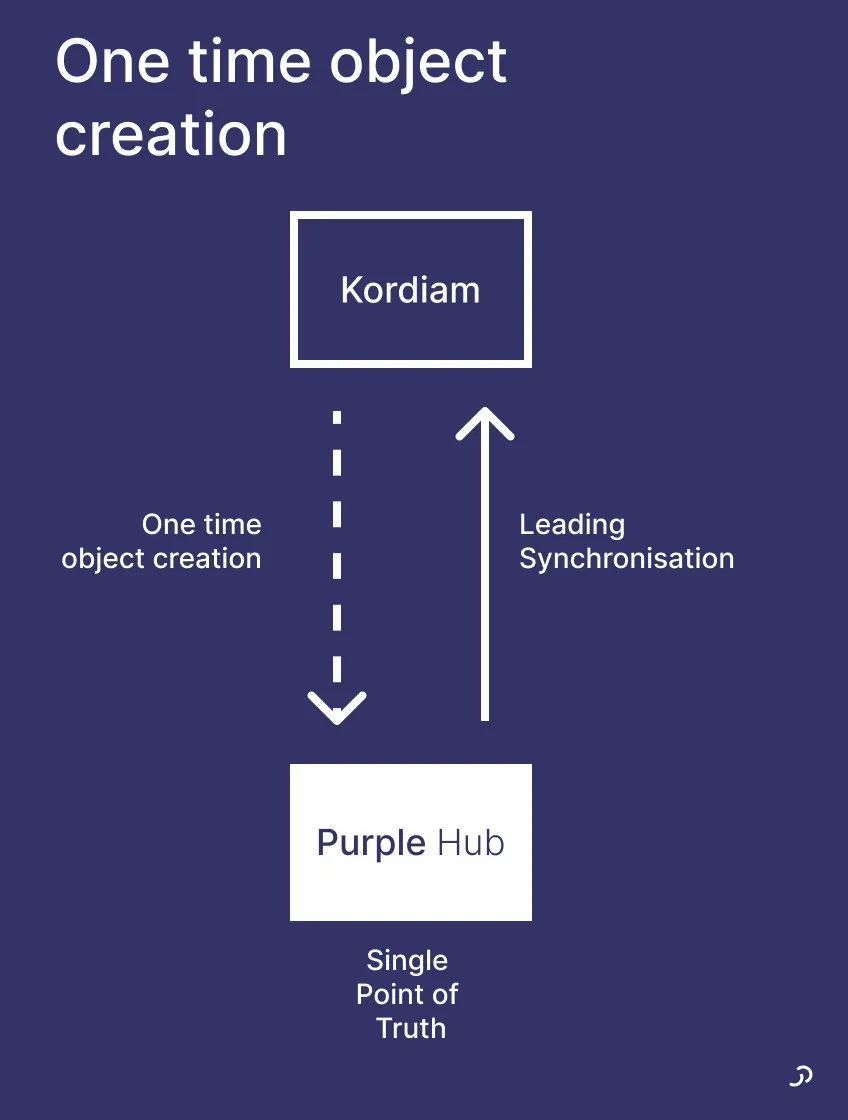
Treat Kordiam as your planning tool for allocating resources and Purple Hub as your creating and publishing tool. Published content is what will reach reading customers, therefore, the Hub should be the leading source for all your content, the single point of truth.
This will mean that after an article has been created in Kordiam, there will be a one-time object creation from Kordiam to Purple Hub. After that, there will be no further syncing from Kordiam to Purple Hub, only from Purple Hub to Kordiam.
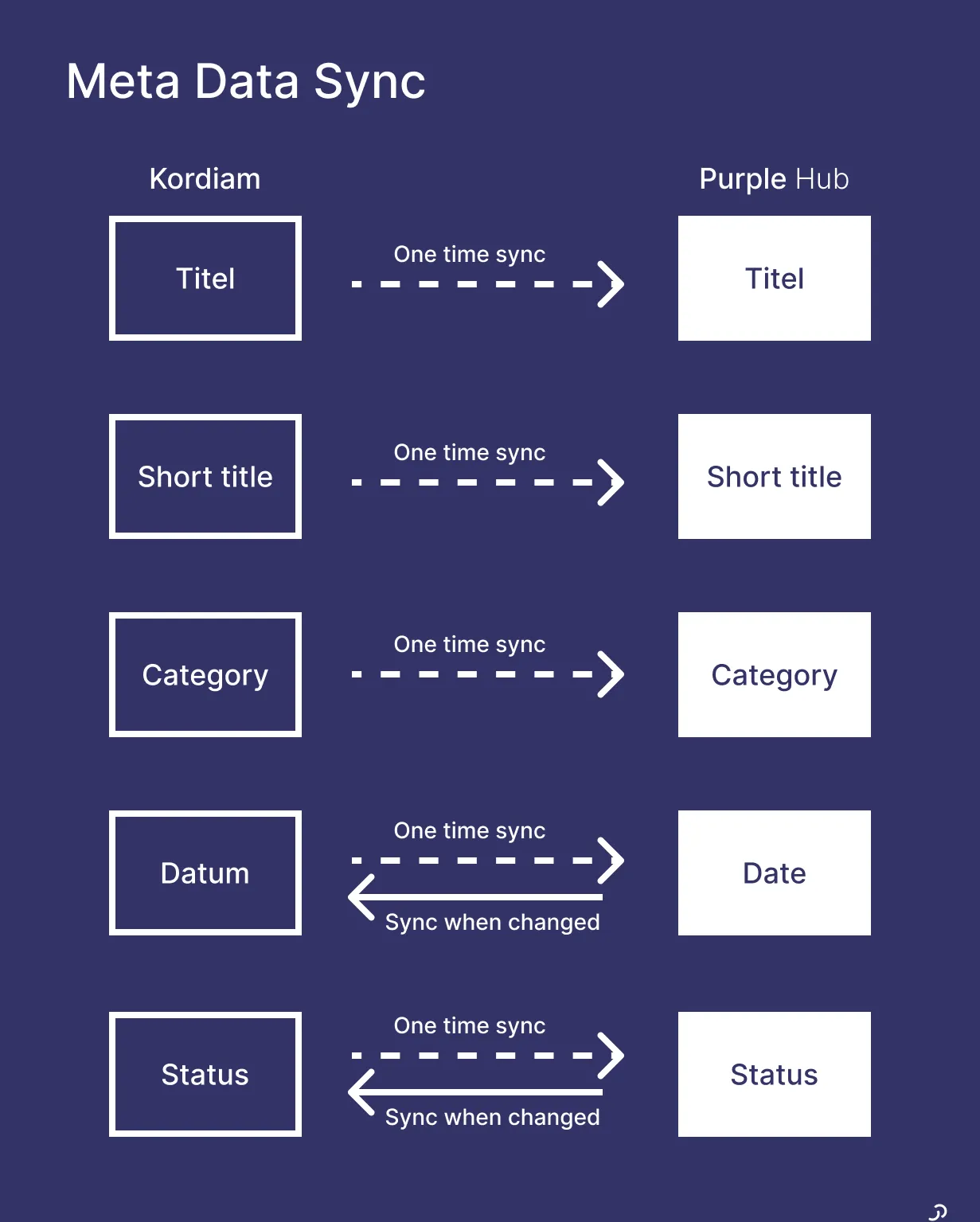
Not all metadata will sync between Kordiam and Purple Hub. See the diagram below to understand what will sync and when.
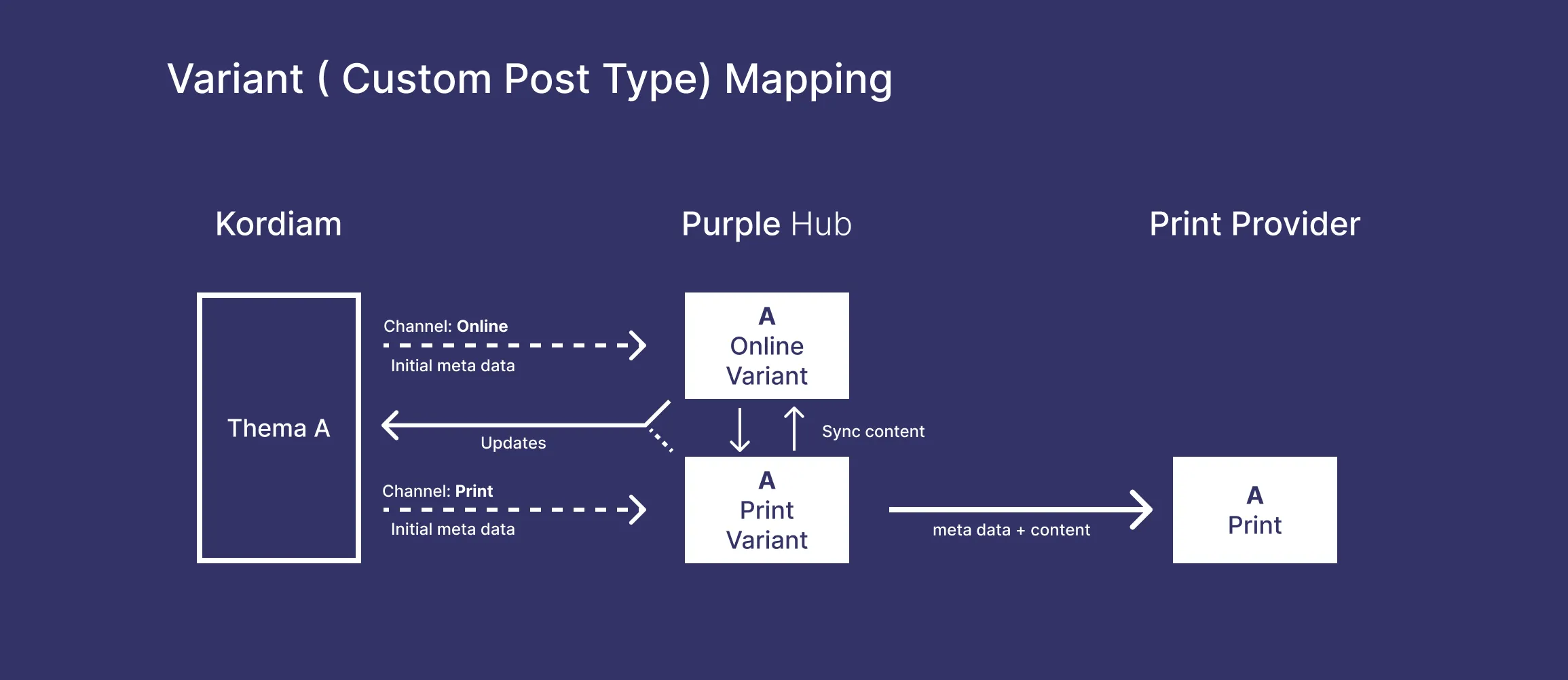
With the different possibilities in Purple to map channels to variants (also known as custom post types) and statuses, it is also possible to create more complex mappings, including having print variants of an article.
Initial Setup

Purple Hub Credentials
Configure the basic Purple Hub connection credentials required for the plugin to function. This is typically set up once during initial installation.
Kordiam Credentials
Enter the Kordiam API credentials to establish the connection between systems. This is a one-time configuration during initial setup.
Important: Always remember to click the "Save" button at the bottom of each settings page after making changes.
Channel Mapping
Navigation: Kordiam Plugin → Channel Mapping
Purpose
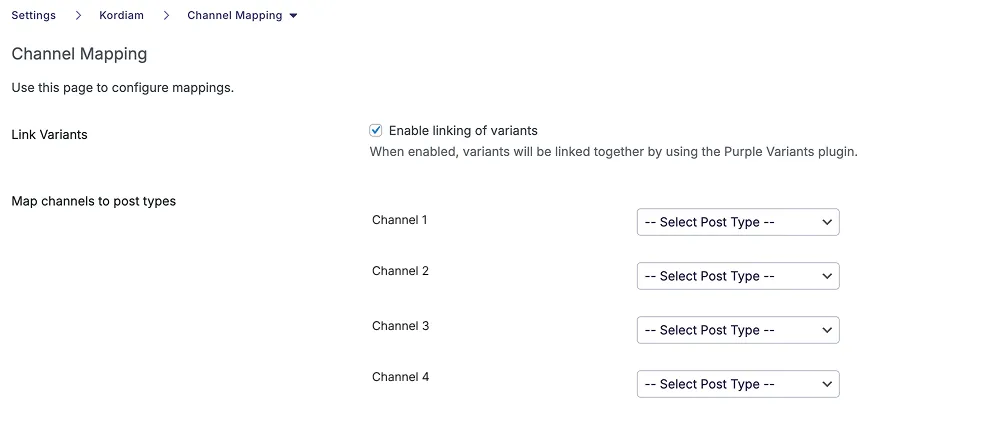
Maps Kordiam channels to specific post types in Purple Hub. When a channel is created in Kordiam, it will automatically create a post with the corresponding post type in the Hub.
Configuration Steps
- Navigate to the Channel Mapping settings page
- You'll see a list of all channels configured in Kordiam
- For each channel, select the corresponding Purple Hub post type from the dropdown
Example:
- Kordiam Channel: "Your Channel Name"
- Maps to → Post Type: "Your Post Type"
How It Works
- When a channel is assigned to a post in Kordiam, a post is automatically created in Purple Hub with the mapped post type
- The channel must also be configured in Kordiam to create posts on the Hub side
- Posts can be linked as variants if the variant linking setting is enabled
Status Sync Settings
Navigation: Kordiam Plugin → Status Sync Settings
Important: Must be activated using the checkbox at the top of the page.
Understanding Status Types
There are two different status types that should not be confused:
- Story Status (top of Kordiam interface) - The overall editorial status
- Channel Status (bottom of Kordiam interface) - Individual channel publication status
This settings page configures the Story Status synchronization.
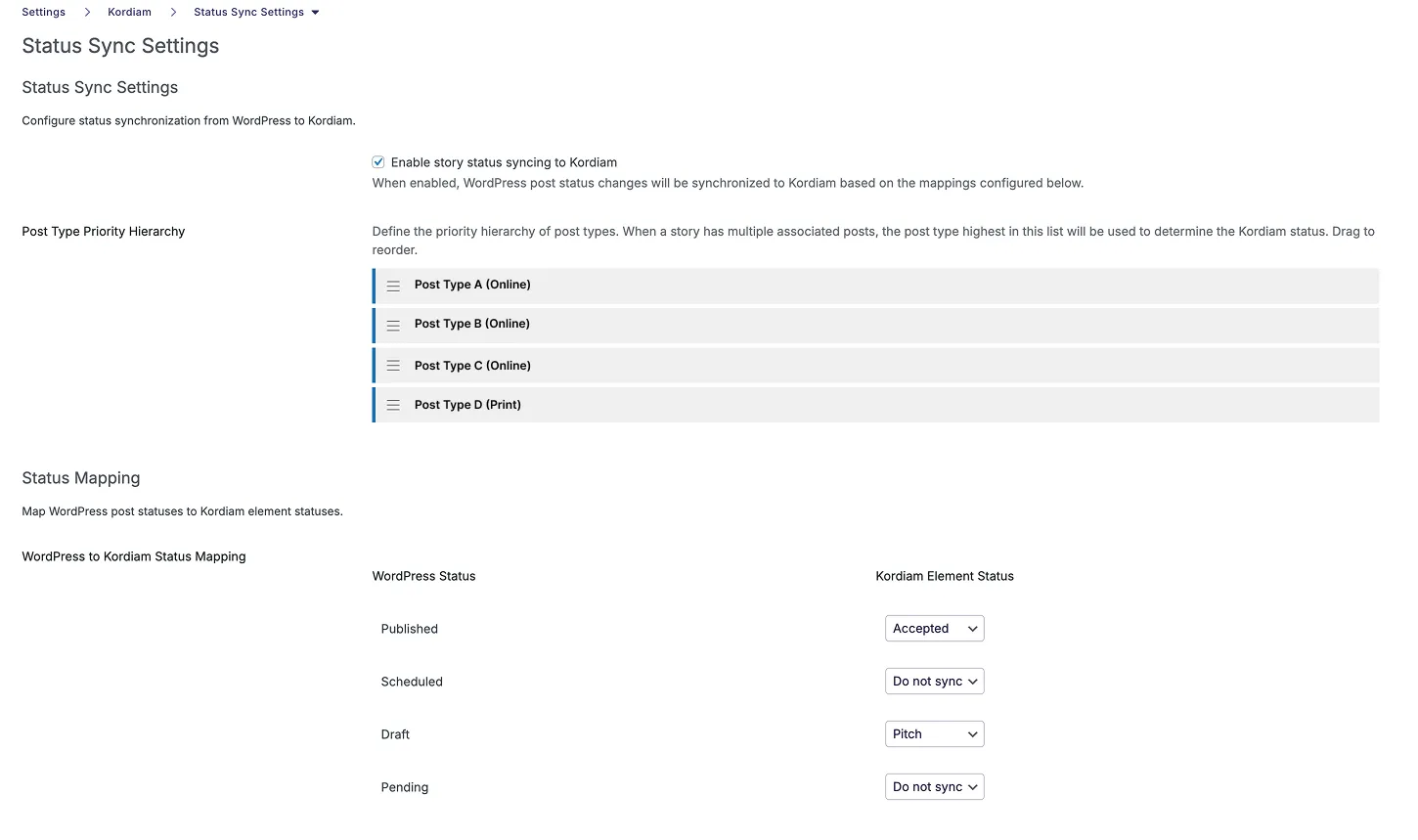
Post Type Priority (IRO Key)
Defines the hierarchy for determining which post variant controls status and title synchronization back to Kordiam.
How it works:
- When multiple variants of a post exist (e.g., online, print, newsletter)
- The post type highest in the priority list is used to sync status and title back to Kordiam
- Lower priority posts in the hierarchy will not affect the Kordiam story status
Example Configuration:
- Post Type A (Priority 1 - highest)
- Post Type B (Priority 2)
- Post Type C (Priority 3)
In this example:
- Changes to "Post Type A" will sync back to Kordiam
- Changes to "Post Type B" or "Post Type C" will not sync back
- If the "Post Type A" variant is deleted, the next highest priority post takes over
Status Mapping (Story Status)
Maps Purple Hub post status to Kordiam story status.
Common Mappings:
- Purple Hub "Published" → Kordiam "Accept"
- Purple Hub "Draft" → Kordiam "Pitch"
Example: If a post is published in the Hub, the story in Kordiam automatically receives the "Accept" status.
Post Type Status Mapping
Navigation: Kordiam Plugin → Post Type Status Mapping
Prerequisite: Only functions when "Only allow initial sync from Kordiam" is enabled in Syncing Settings.
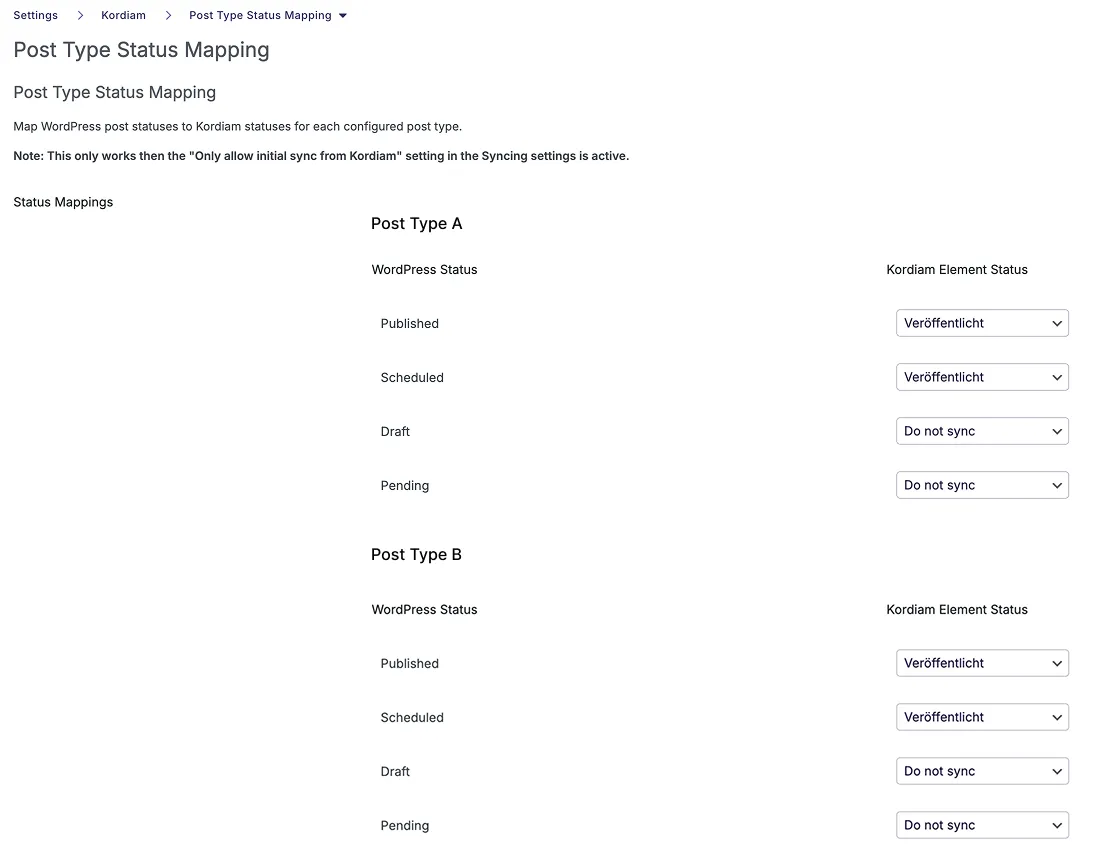
Purpose
Maps Purple Hub post status to Kordiam channel status (not story status). This controls the status shown at the bottom of the Kordiam interface for individual channels.
Configuration Steps
- Enable "Only allow initial sync from Kordiam" in Syncing Settings
- Navigate to Post Type Status Mapping
- Configure mappings for each post type that has a channel mapping
Available for: Only post types configured in Channel Mapping will appear here.
Status Options
- Purple Hub statuses: Published, Draft, Scheduled, etc.
- Kordiam channel statuses: Dynamically fetched from Kordiam (custom statuses per installation)
- Option: "Do not sync" - Select this for statuses that shouldn't trigger synchronization
How It Works
Example:
- Post Type: Your Post Type
- Mapping: Purple Hub "Published" → Kordiam Channel Status "Published"
- Result: When the post is published in Purple Hub, the channel in Kordiam shows "Published" status
"Only Allow Initial Sync from Kordiam"
Navigation: Kordiam Plugin → Syncing Settings

When enabled:
- Posts are created in the Hub when a new channel is assigned in Kordiam
- Subsequent changes in Kordiam are NOT synced to the Hub
- Only changes in the Hub sync back to Kordiam (based on the settings above)
This gives Hub editors full control after initial post creation.
Date Synchronization
The publication date from the Kordiam channel is automatically synced to the Hub post. The post with the highest priority in the hierarchy (as defined in Post Type Priority) is used for date synchronization.
Channel Field Mapping
Navigation: Kordiam Plugin → Channel Field Mapping
Important: Must be activated using "Enable Channel Field Mapping" checkbox.
Purpose
Maps Kordiam categories and metadata to Purple Hub taxonomies or ACF (Advanced Custom Fields) when posts are initially created.
Configuration Steps
- Enable "Enable Channel Field Mapping"
- Select a post type from the dropdown (only post types with channel mappings appear)
- View the list of available Kordiam categories for that channel
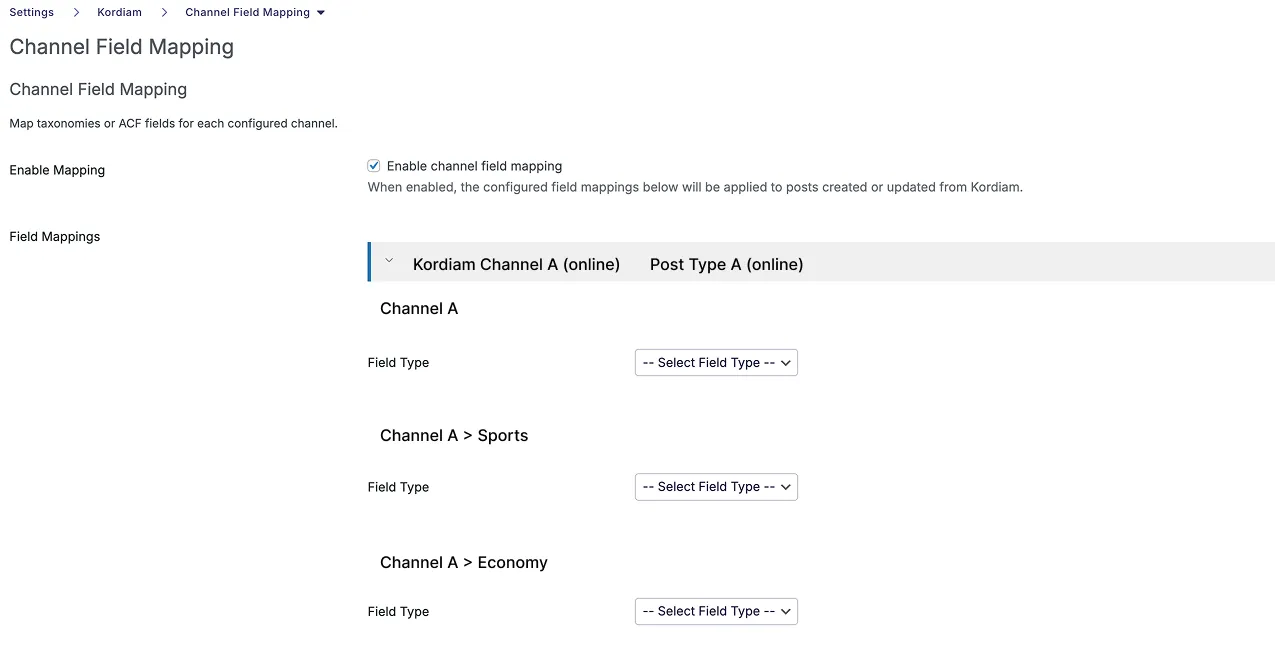
Mapping Options
For each Kordiam category, you can map to:
1. Taxonomy Mapping
- Field Type: Select "Taxonomy"
- Taxonomy: Choose the Purple Hub taxonomy
- Term: Select the term to assign
Example:
- Kordiam Category: "Category Name"
- Maps to → Taxonomy: "Your Taxonomy" → Term: "Your Term"
- Result: Posts with this category in Kordiam automatically get assigned the specified term in the taxonomy
2. ACF Field Mapping
- Field Type: Select "ACF Field"
- ACF Field: Choose the custom field (only fields available for that post type appear)
- Value: Enter the value to assign
Example:
- Kordiam Category: "Category Name"
- Maps to → ACF Field: "Your ACF Field" (string field) → Value: "Your predefined text"
- Result: The ACF field receives the specified value when the post is created
Important Notes
- Only taxonomies and ACF fields configured for the specific post type will appear in the dropdowns
- These mappings only apply during initial post creation
- Multiple mappings can be configured for each post type
Legacy Settings
The following settings are maintained for backward compatibility with existing customers but are generally not recommended for new installations with multiple channels.
Status Matching
Navigation: Kordiam Plugin → Status Matching
Limitation: Only works for a single channel.
When to use:
- Customer has only ONE channel
- No need for the more complex multi-channel settings
When NOT to use:
- Customers with multiple channels (e.g., online, print, newsletter)
- In these cases, use the new "Status Sync Settings" and "Post Type Status Mapping" instead
Category Matching
Navigation: Kordiam Plugin → Category Matching
Limitation: Only works for a single channel.
When to use:
- Customer has only ONE channel
- Simple category mapping needs
When NOT to use:
- Customers with multiple channels
- In these cases, use the new "Channel Field Mapping" instead
Task Matching
Navigation: Kordiam Plugin → Task Matching
Purpose: Maps Kordiam tasks to Purple Hub fields.
Status: Rarely used in practice. Most customers don't require task mapping.
Additional Settings -> SHOULD NOT BE USED
Content Settings -> No sync of content possible.
Navigation: Kordiam Plugin → Content Settings
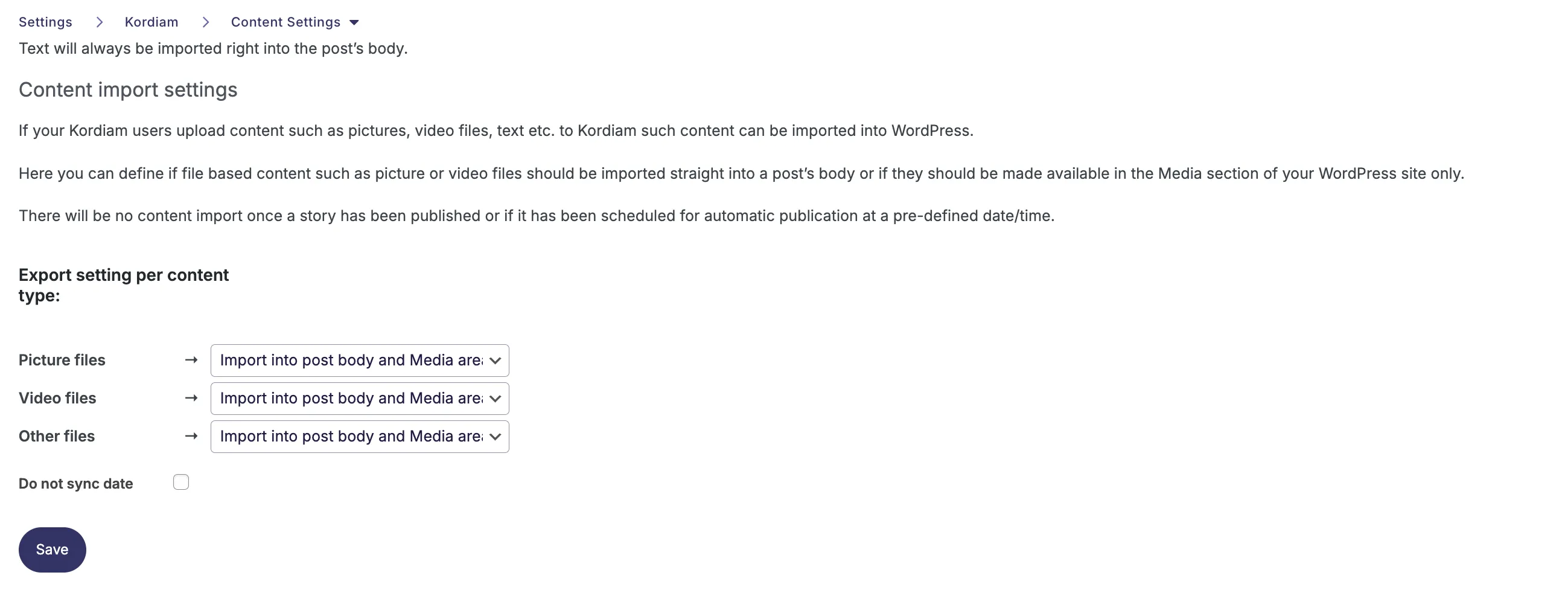
Purpose: When enabled, text content from Kordiam tasks is synced to the post during initial creation.
Current Usage: Not commonly used in production environments.
Syncing
Navigation: Kordiam Plugin → Syncing
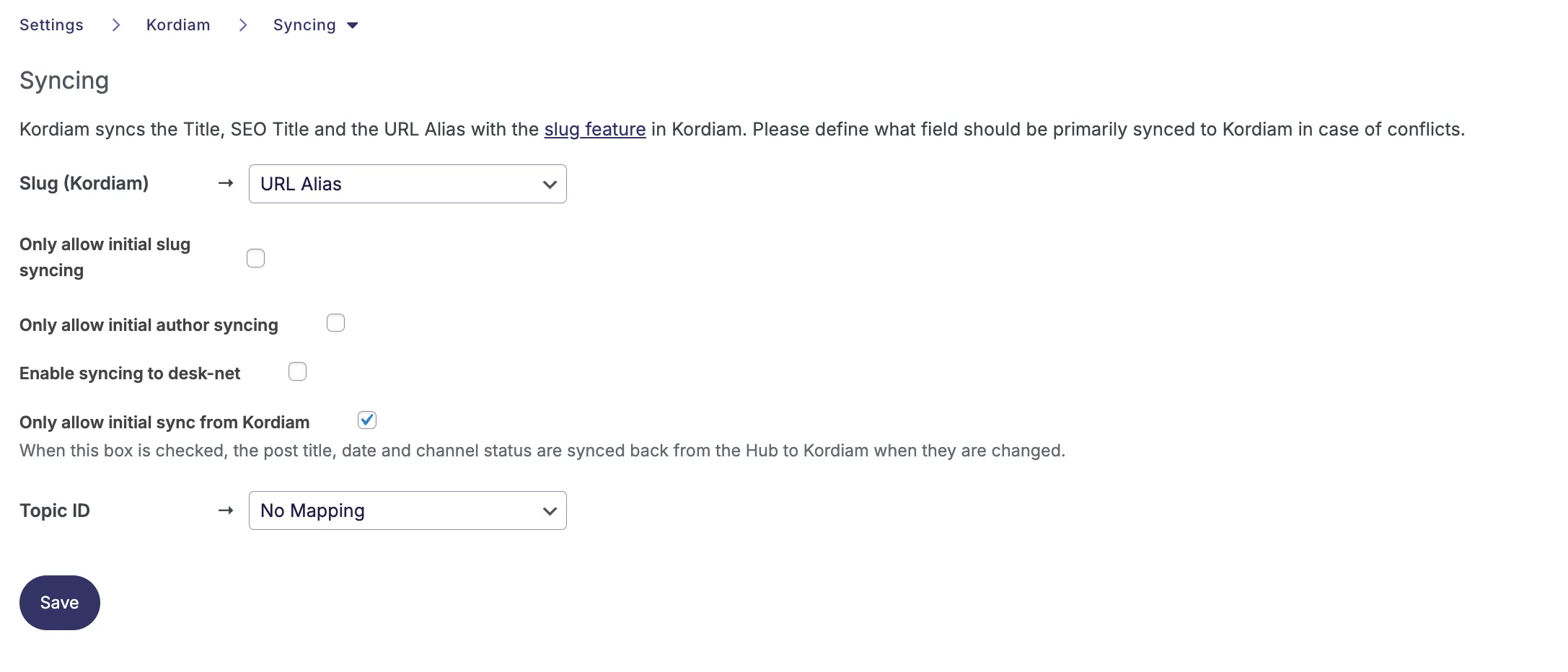
Key Setting: "Enable syncing to Kordiam"
Typical Configuration: Usually deactivated in Purple Hub installations.
Reason: In most workflows, synchronization is one-way (Kordiam → Hub for initial creation, Hub → Kordiam for status updates), not bidirectional for all content changes.
Kordiam ID in URL
Navigation: Kordiam Plugin → Kordiam ID in URL
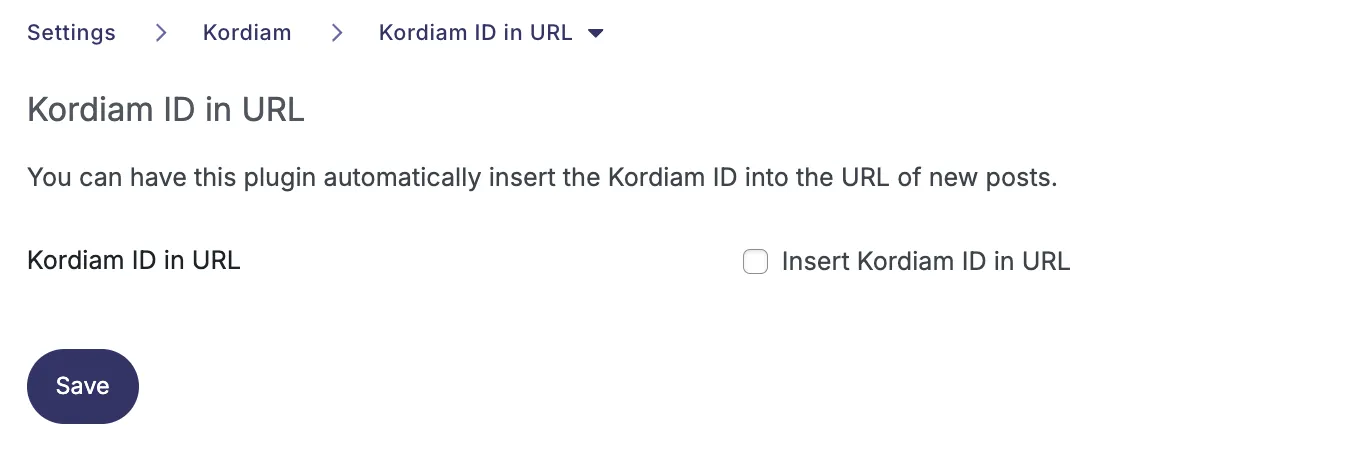
Purpose: Adds the Kordiam ID to the Purple Hub post slug (URL).
Recommendation: Not recommended unless there's a specific use case.
Current Usage: No known customers using this feature.
Configuration Workflow for New Customers
For Customers with Multiple Channels
- Configure Channel Mapping - Map all Kordiam channels to post types
- Configure Status Sync Settings - Set up post type priority and story status mapping
- Enable "Only allow initial sync from Kordiam" in Syncing Settings
- Configure Post Type Status Mapping - Map post statuses to channel statuses for each post type
- Configure Channel Field Mapping - Map categories/metadata to taxonomies or ACF fields
- Skip legacy Status Matching and Category Matching
For Customers with Single Channel
Option 1 (Simpler):
- Configure Channel Mapping
- Configure Status Matching
- Configure Category Matching
- Skip advanced multi-channel settings
Option 2 (Future-proof):
- Follow the multi-channel workflow above (recommended if customer might add channels later)
Important Reminders
- Always save changes by clicking the "Save" button at the bottom of each settings page
- Test thoroughly in a staging environment before deploying to production
- Document your mappings for future reference and troubleshooting
- Status types matter: Understand the difference between Story Status (top) and Channel Status (bottom)
- Priority hierarchy: Remember that only the highest priority post type syncs back to Kordiam
Troubleshooting Tips
Posts not syncing from Kordiam
- Verify Purple Hub and Kordiam credentials are correct
- Check that Channel Mapping is configured for the specific channel
- Ensure the channel is properly configured in Kordiam to create posts
Status not updating in Kordiam
- Check Post Type Priority - ensure the post type you're editing has highest priority
- Verify Status Mapping is correctly configured
- Confirm "Only allow initial sync from Kordiam" is enabled if using Post Type Status Mapping
Categories/Fields not mapping
- Ensure "Enable Channel Field Mapping" checkbox is enabled
- Verify the taxonomy or ACF field exists for that post type
- Check that the mapping is saved correctly
Changes from Kordiam overwriting Hub edits
- Enable "Only allow initial sync from Kordiam" to prevent subsequent updates from Kordiam