Workflow revision
1. Purpose & Key Concepts
The revision functionality allows you to update existing published content without changing the live version until changes are reviewed and approved.
Key Terms:
- Published Content: The live version visible to visitors
- Revision: A working copy where you make changes
- Workflow: The approval steps (review, edit, approve, publish) the revision goes through
- Planned Revision: A revision in progress (in the workflow)
- Executed Revision: A revision that has been published to the live site
- Used Revision: A temporary status showing the revision document for ~1 hour after publishing, before it disappears from the post overview
When to use revisions:
- You need to update live content safely with an approval trail
- Multiple people must review changes before they go live
- You want to avoid accidental direct edits to published content
2. Enable the Post Status Column
Before working with revisions, set up your view:
- Navigate to Article Overview (post overview)
- Click Screen Options (top right)
- Check the "Post Status" column
- The column now shows revision states for each article
Important: Always check the Post Status before creating a revision to avoid duplicate work.
3. Understanding Post Status
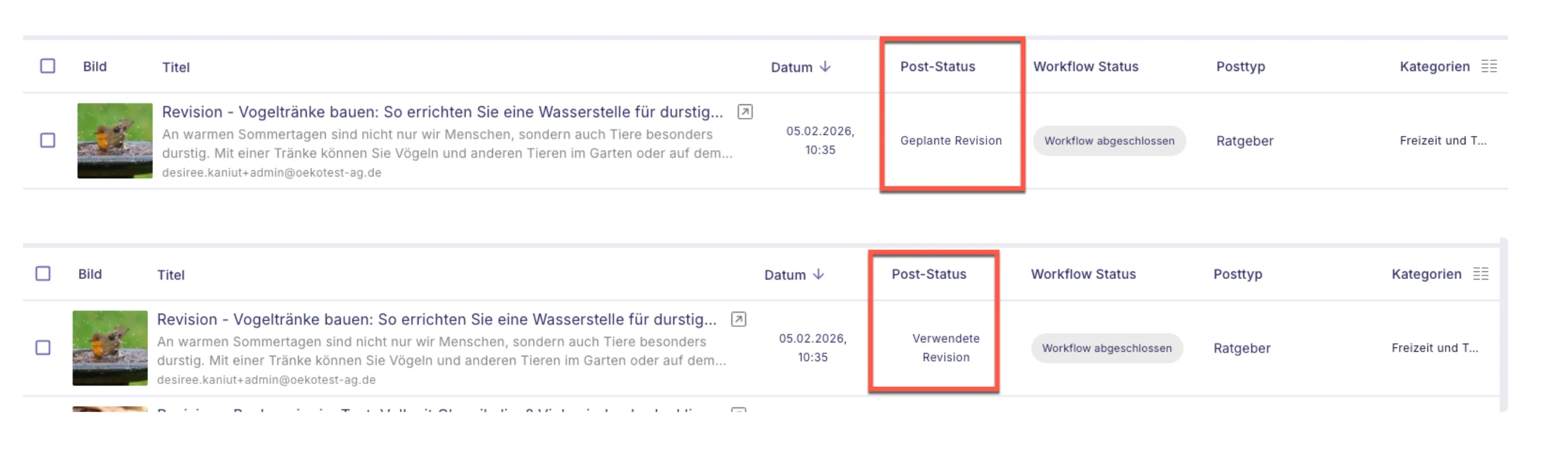
The Post Status column shows:
- Planned Revision: Revision is in the workflow, original content still live
- Executed Revision: Revision was just published; the revision document will disappear from the post overview after ~1 hour
4. Creating a Revision
- Open the published post/page in WordPress
- Click "Create Revision" or "Submit to Workflow (as Revision)"
- Select the workflow template (e.g., "Standard Content Update")
- Set due dates and assignees for the first step
- Click Submit
Result: A working copy is created, the published version stays unchanged, Post Status shows "Planned Revision"
5. Editing the Revision
- Open the revision from your Oasis Workflow inbox or the post list
- Make your changes (text, images, metadata, categories, tags)
- Add internal notes to explain major changes (optional)
- Click "Submit to Next Step" and set the next assignee/deadline
6. Reviewing a Revision
- Open the assigned task in Oasis Workflow
- Review the content (use compare tools if available)
- Choose one action:
- Approve/Move forward: Pass to next step or finalize
- Send back: Add specific comments on required changes
- Reject: Cancel the revision
7. Publishing the Revision
- Complete final check (all comments addressed)
- Click "Publish" in the final workflow step
- The revision updates the live post/page
- Post Status changes to "Executed Revision"
- The revision document shows as "Used Revision" for ~1 hour before disappearing
Note: The previous version is stored in WordPress history.
8. Tracking Revisions
In the Oasis Workflow dashboard:
- View all items in revision workflows
- Filter by assignee, due date, workflow, or status
- Identify overdue or stuck steps
In the Article Overview:
- Use Post Status column to identify active revisions
- Check for "Planned Revision" before creating new revisions
- Monitor "Used Revision" items that will soon disappear
In workflow history:
- See who edited, approved, and what comments were made
- Audit decisions and timelines
9. Best Practices
- Enable Post Status column and check it before creating revisions
- Never edit published content directly – always create a revision
- Add clear comments when submitting or reviewing
- Set deadlines for each workflow step
- Monitor the dashboard regularly to prevent stalled approvals
- Coordinate with your team to avoid multiple parallel revisions of the same item
10. Common Issues
Problem | Solution |
|---|---|
Can't see revision status | Enable Post Status column in Screen Options |
Multiple revisions of same item | Check Post Status for "Planned Revision" before starting |
Stalled approvals | Set due dates and monitor workflow dashboard |
Unclear feedback | Reviewers must add specific comments with section references |
Revision document disappeared | Normal behavior – "Used Revision" items disappear after ~1 hour |