Builder Pipelines
Pipelines in the Purple Experience Builder add processing steps for dynamic resources before they are merged or pushed. They can be run manually or triggered automatically in the builder when you change affected files. This allows you to write SCSS and compile it to one CSS file that gets delivered in Purple Apps and Web, increasing developer experience and performance.
For more information about styling see Experience Styling
Preconditions
- Have Admin Access in Purple Manager for the App that you want to edit in Experience Builder
Explanation
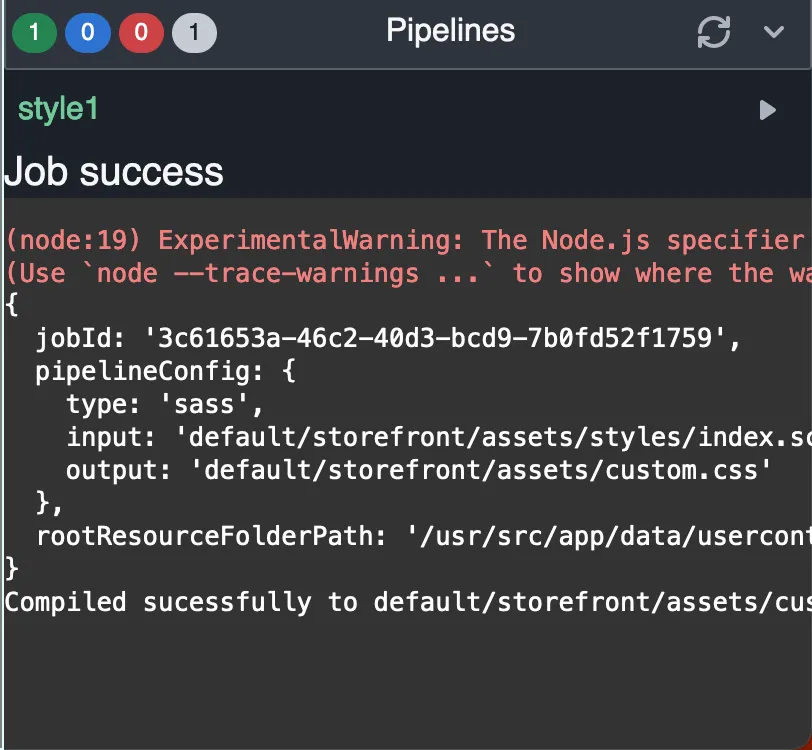
Pipelines can be configured in a builder.config.json in the default folder of the dynamic resources in the Purple Experience Builder.
A minimal and some other example configurations:
{
  "$schema": "https://builder.purplemanager.com/api/public/schema/1.0/builder.config.schema.json",
  "postProcessing": {
    "pipelines": {
      "style1": {
        "type": "sass",
        "input": "default/storefront/assets/styles/index.scss",
        "output": "default/storefront/assets/custom.css",
        "watchFiles": ["default/storefront/assets/styles/**/*"]
      }
    }
  }
}
Each pipeline has an input and output. Additionally, other fields are available to further configure the pipeline, see schema or autocomplete of the editor for more info about available fields.
If an output file is opened in the Experience Builder, it is read-only to prevent accidental changes that would get overwritten anyway if the pipeline runs again.
Pipeline Types
SASS/SCSS
Reference: https://sass-lang.com/
The sass pipeline requires an input file and an output file.
It is recommended to place all SCSS files in a single folder and import all in an index.scss which in turn generates the default/storefront/custom.css.
The output file gets completely overwritten on every run! If your custom.css contains styles before you create a pipeline, make sure to copy the contents into the appropriate SCSS files to not lose these styles.
JS
In the same builder.config.json, write the pipeline for js like:
"pipelines": {
      "SCSS": {
        "type": "sass",
        "input": "default/storefront/assets/library/_styles.scss",
        "output": "default/storefront/assets/custom.css",
        "watchFiles": [
          "default/storefront/assets/library/**/*"
        ]
      },
      "SSR-JS": {
        "type": "javascript",
        "input": "default/storefront/assets/scripts/ssr/custom.server.js",
        "output": "default/storefront/assets/scripts/custom.server.js",
        "format": "cjs",
        "minify": true,
        "sourcemap": false,
        "watchFiles": [
          "default/storefront/assets/scripts/ssr/*"
        ]
      },
      "CSR-JS": {
        "type": "javascript",
        "input": "default/storefront/assets/scripts/csr/custom.js",
        "output": "default/storefront/assets/scripts/custom.js",
        "format": "cjs",
        "minify": true,
        "sourcemap": false,
        "watchFiles": [
          "default/storefront/assets/scripts/csr/*"
        ]
      },
      "RESOLVER": {
        "type": "javascript",
        "input": "default/storefront/assets/scripts/resolver/resolver.js",
        "output": "default/storefront/assets/scripts/url.resolver.js",
        "format": "esm",
        "minify": true,
        "sourcemap": false,
        "watchFiles": [
          "default/storefront/assets/scripts/resolver/*"
        ]
      }
You must specify type(sass, cjs, esm), input and output paths and the rest will be default to values you see above for the respective keys.
The output file gets completely overwritten on every run! If your output file, in this case custom.server.js contains code before you create a pipeline, make sure to copy the contents into the appropriate JS files to not lose the code. In this case, it could be your input file my-script.js.
This way you may write an es2020 standard supportable JavaScript file with features, for example import/export or operators like ! and ??. You may also split and structure our JavaScript code into multiple JavaScript files. Tip: set the minify to true for better performance by having a reduced sized JS file.
watchFiles
When specifying watch files , the pipeline automatically re-runs if a matching file(s) is/are changed. You can specify multiple file globs, following the https://github.com/isaacs/minimatch rules (see also https://en.wikipedia.org/wiki/Glob_(programming))