Downloading your app builds
Downloading the app builds allows you to have them saved locally, which is necessary to be able to upload them to the App Stores.
Furthermore, when downloading the builds on a mobile device, you can also install the app versions to test them directly.
Preconditions
- Have the apps successfully built
Description
Checking the different app builds
By clicking on the respective Android/iOS-Icon, you can open an overview of the most recent builds:
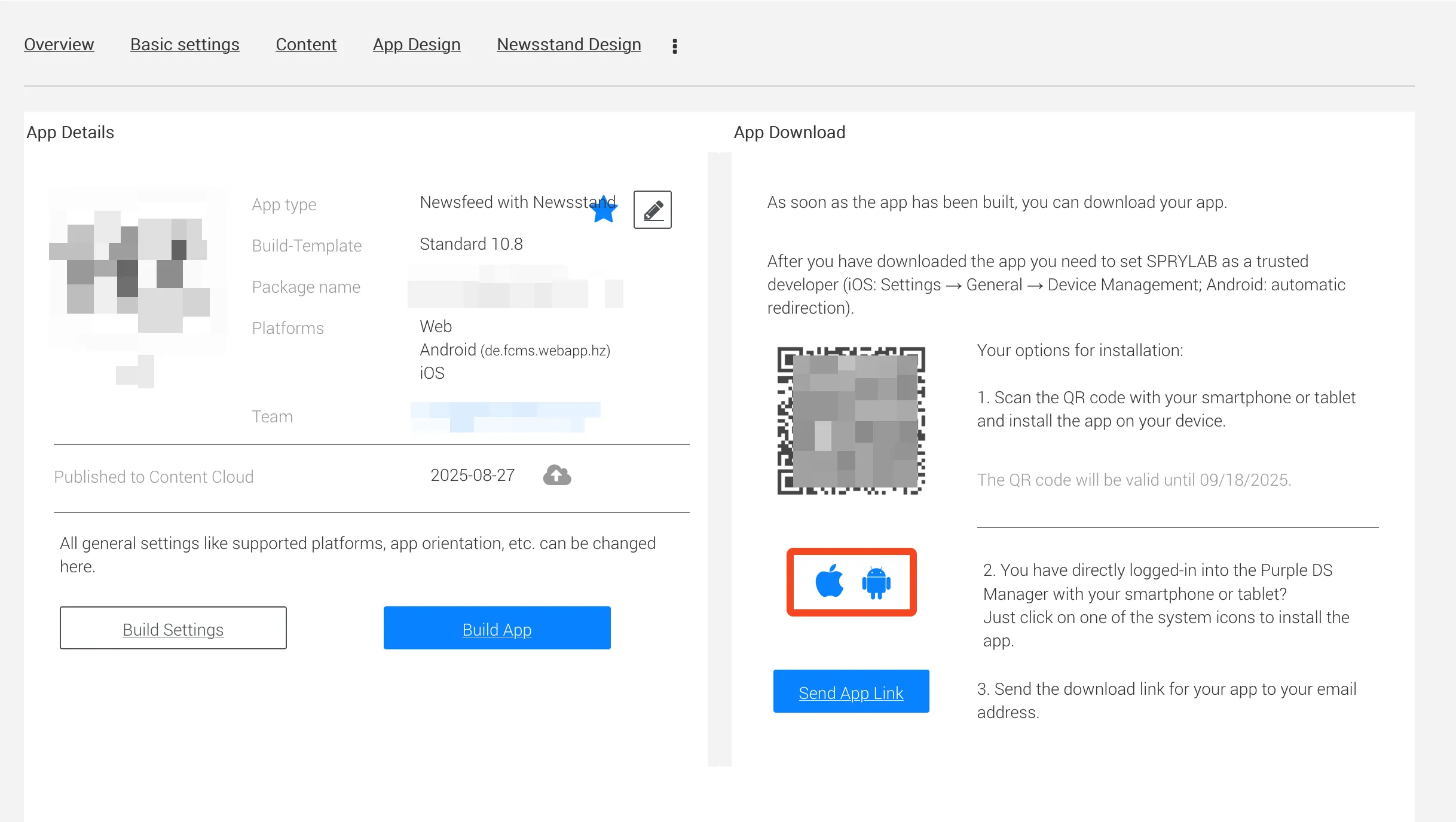
Downloading the correct app build
Here is an example of the builds window for both iOS and Android:
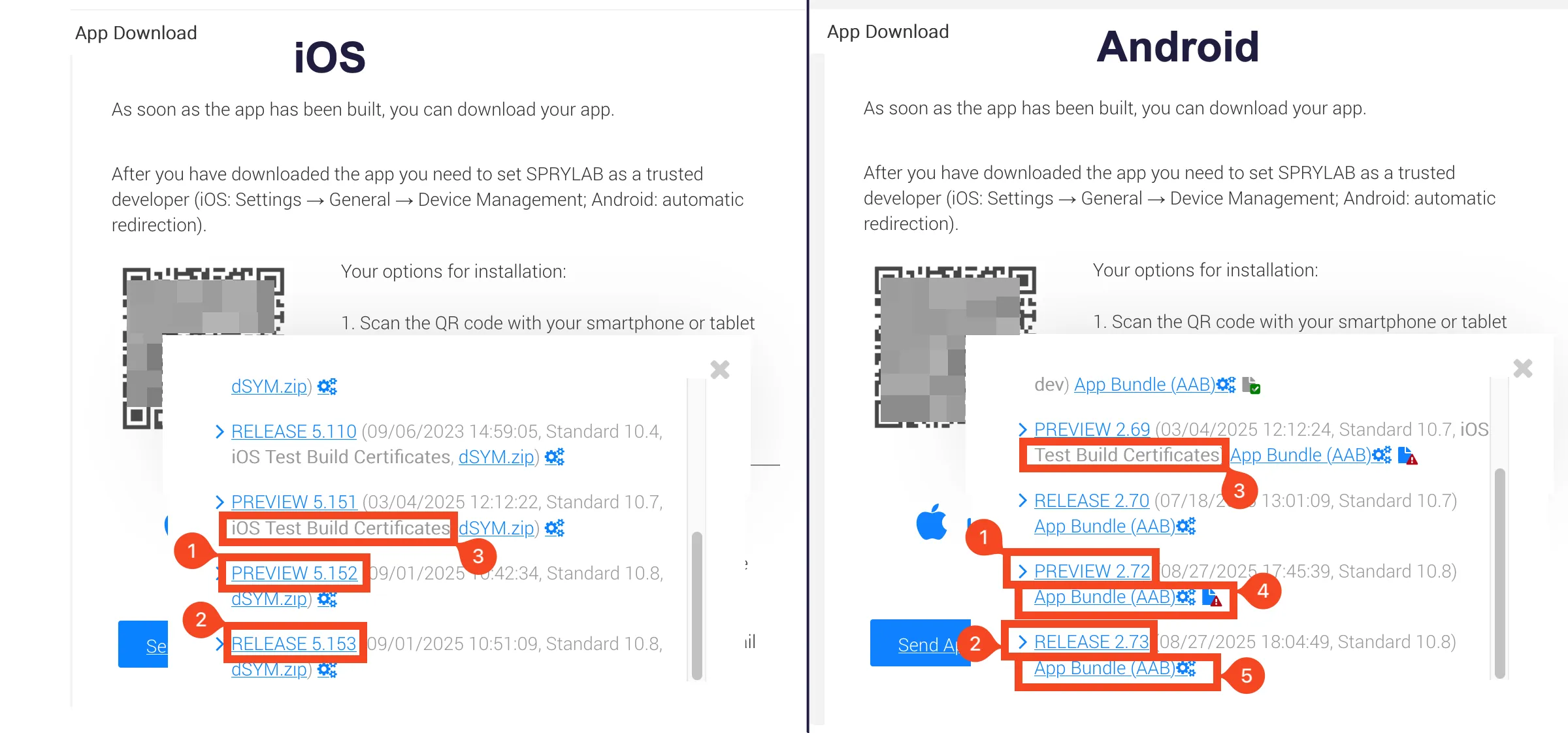
- Is a preview app build. You can download it on a mobile device to test the build (keep in mind that iOS devices can only install this preview version, if their UDID was selected when creating the preview/ad-hoc profile in the Apple Developer Environment). You can download it by clicking on the "Preview *.**" text.
- Is a release app build. This is the one you need to download to then upload it to the App Stores. You can download it by clicking on the "Release *.**" text.
- This certificate mention shows that this build was built from us at Purple, while having a specific profile selected (See Building an App). Due to that, this build can only be installed on our (Purple) internal iOS devices, and not on yours. You will need to select another preview version, or build one, to be able to install it. For Android devices, there is no difference regarding the profiles.
- This is an alternative file format (.aab) for Android app builds.
- This is the same alternative file format (.aab), just for a release build. Sometimes, it can be necessary to download the .aab file instead of the .apk file, to upload it to the Google Play Store (only when there is a specific error message when trying to upload the .apk file). When in doubt, you can always reach out to us for clarification.
It's best practice to rename the downloaded files, so all relevant information is included in the name. This generally includes:
- The app name
- The build type (release or profile)
- The version
Two examples would be:
- YourApp-Release-5-153.ipa (for an iOS release build)
- YourApp-Preview-2-72.apk (for an Android preview build)
Downloading on a mobile device
When you follow the QR code on a Purple App, or you get an invitation link and open it on your mobile device, you will be directed to a different selection view.
Based on your device, only the corresponding app builds will be shown (so you can not download iOS builds on an Android device and vice versa).
The most recent build will be highlighted, regardless of it being a release or preview build, and regardless of the profile used when building the app.
If the highlighted build is not the one you currently need, you will need to tap/select "other versions", and select the correct build. This is especially the case for iOs builds (as release builds can not be installed outside the Apple Store and only the devices selected for a given profile can install the preview version).