Issue downloads
Progressive Download
- When a user opens an issue in the app using the 'Read' button, only the current page and any adjacent pages in the issue are downloaded.
- As the user progresses through the issue, more content is downloaded.
- The advantage of this approach is that the content is immediately available to the reader, who does not have to wait for the download to complete. It also ensures that only content that the user actually wants to read is loaded.
- This avoids unnecessary loading of data that takes up capacity on the reader's device when it is not being used.
- If the user is offline, this means that output may only be partially available offline if the user has not actively downloaded it using the download button.
If you want to give your users the option to actively/explicitly download entire issues, please ensure that you provide a 'Download' button next to your issues. Tapping this button will download the entire issue.
Note that on iOS the download will only take place while the app is active, whereas on Android the download will continue even if the app is in the background.
If you want to download to continue after the issue is first opened until the issue is fully downloaded, regardless of the user's behavior in the issue:
- This is only possible on Android, without any further settings. Once an issue is opened, the download will continue in the background until it is complete.
- This option doesn't exist on iOS.
Read mode availability in off-line mode
If the read mode is provided via pkar import, it also works in offline mode. If the read mode is article-based (content wasn’t imported via pkar import), it doesn’t work in offline mode.
Accessing Downloads
For best behavior in offline mode, Purple apps will usually have a view configured which is meant for being used in that situation. It's configured so that only downloaded content is accessible. There are options to limit displayed Contents to only fully downloaded Issues or to also display partially downloaded contents.
You may also set up that view to enable deletion of downloaded Issues from here.
Managing Downloads
Explicitly delete Issues
Given, you have provided a view for displaying downloaded issues as described here: Offline behavior
You may want to add a button to allow users to delete issues explicitly. To do that, simply enable
Automatic limitation of offline issues
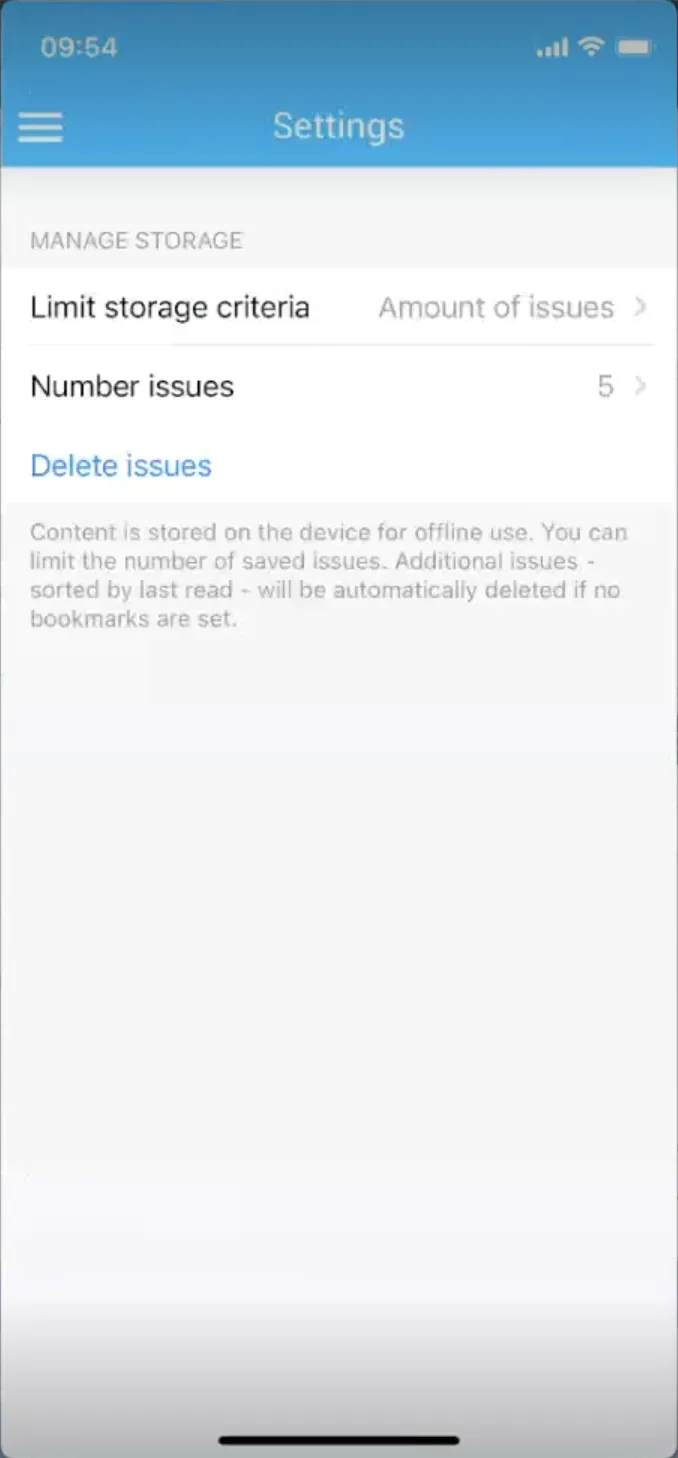
As the content is stored on the user's device for offline use, you can limit the Amount of issue saved or the Days after last read. Additional issues – sorted by last read – are automatically deleted if no bookmarks are set. The limit is a suggestion to the end user. The end user can accept, decline or set a custom limit in the Settings section of the application. If the user changes the setting, your suggestion will be overwritten and the user's choice will be applied to their personal device. The appearance of this page in the app is native, so you can't change it via the Experience Builder.
Issues that the user has fully downloaded by tabbing on the download button will not be affected by automatic deletion, but only those issues that are downloaded as a result of scrolling through the content (see “Progressive download” above). The idea behind this exception is that we assume that downloaded issues for which the user has triggered the download button 'actively' are those that should be kept permanently offline on the device.
This setting can be made in Purple Manager → Basic Settings → General → Automatic limitation of offline issues

01. Enable automatic deletion of issues: Activate the feature by checking the checkbox
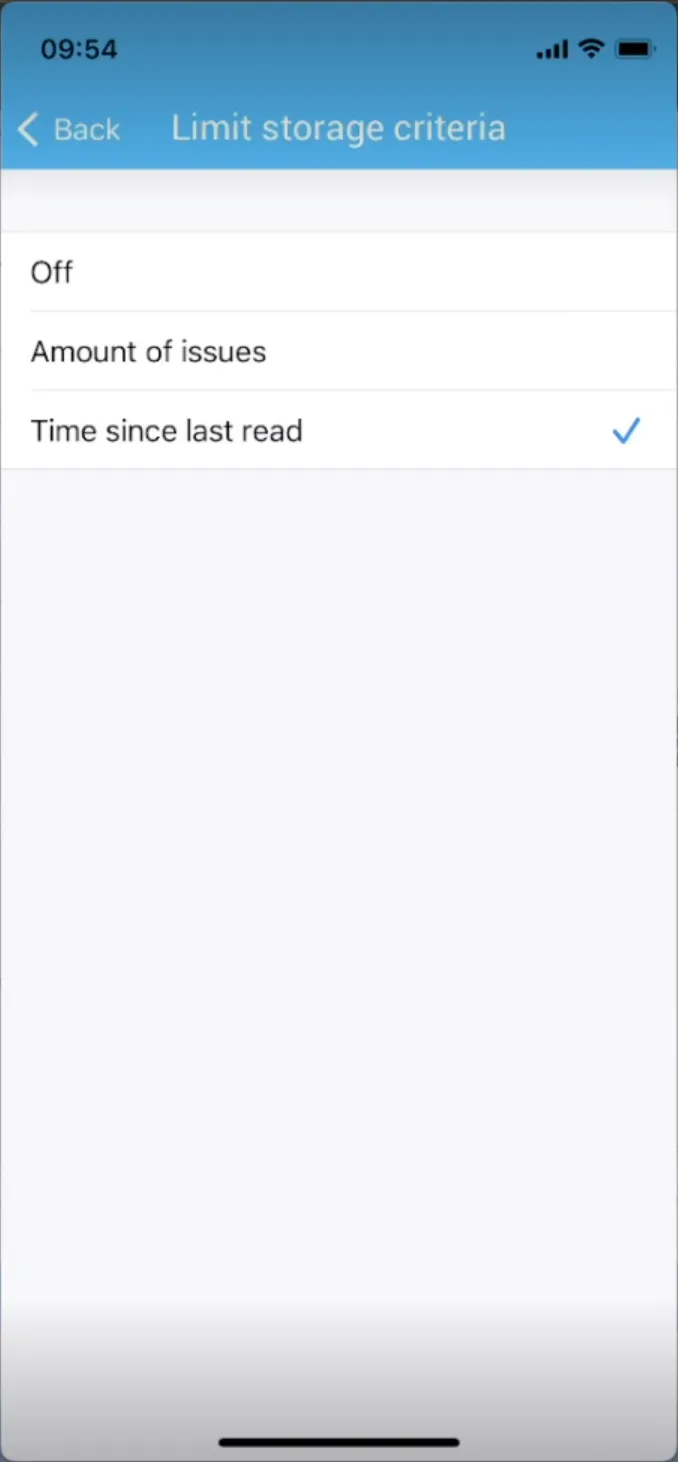
02. Default mode for issue deletion:
Select one of the modes:
Off: The issue deletion function is disabled by default.
Amount of issues: You can limit the number of issues to be saved, and additional issues – sorted by last read – will be automatically deleted if no bookmarks are set. You define the number of issues in item '03. Proposal for maximum number of offline issues'.
Days after last read: Issues will be deleted after a certain period of time (if no bookmarks are set). You define the number of days in item '04. Proposal for maximum number of days after last read'.

03. Proposal for maximum number of offline issues: You can set any number here, to define a Proposal after which amount of downloaded issues the automatic deletion should take effect. The user will be able to change the number in the app and overwrite your proposal.
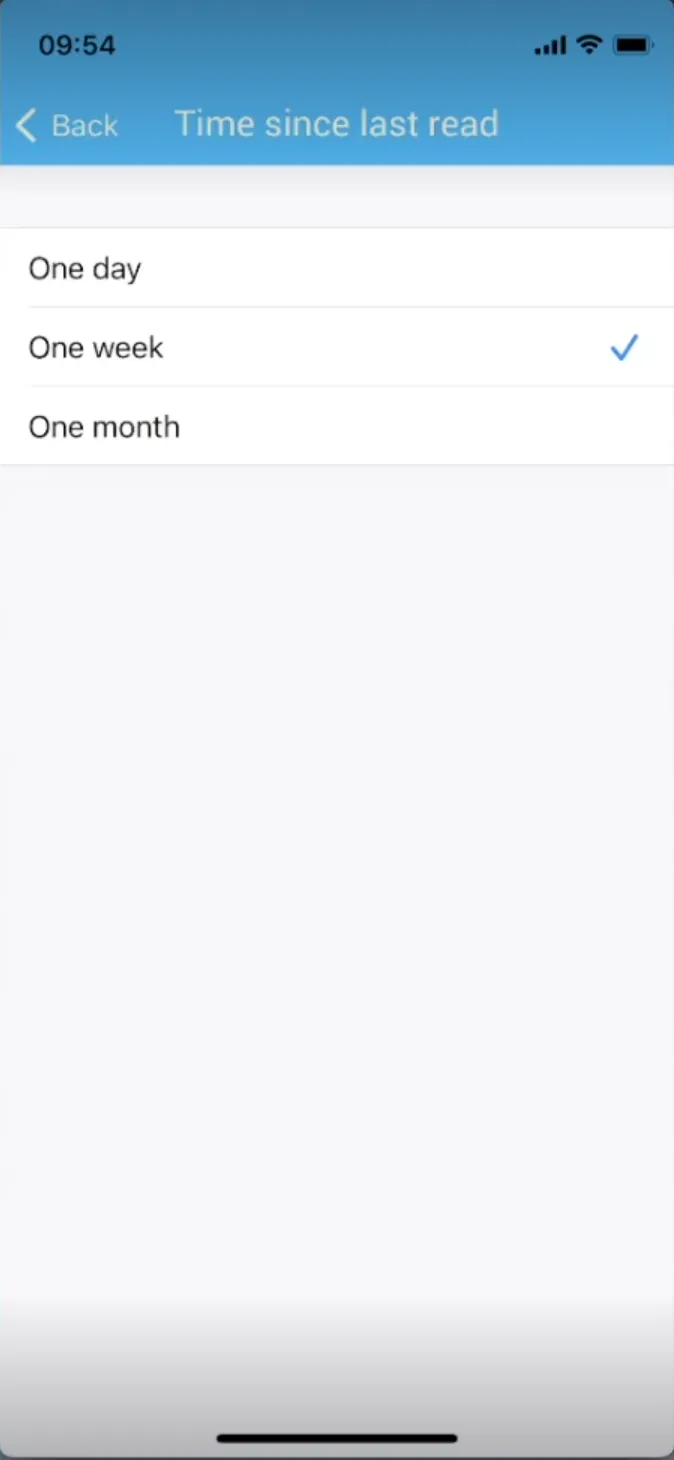
04. Preset for maximum number of days after the last read: Select one of the three default values: 1, 7, or 30 days to define a preset after what time we should delete the issues after not being read. E.g. you set 7 days in the app – If you open an issue on day 1, the issue is loaded on the app, if you open the app again on day 8 but not the issue, the issue gets deleted automatically. The user will be able to change the amount in the app and overwrite your preset.
If this feature is enabled, the deletion will take place on each App resume, provided there are issues that meet the criteria.
When changing the Manager settings, please make sure to save your changes, rebuild and test the app so that you can resubmit it to the app store to make the changes visible to your users.
The user will find the option to change your proposed settings in her/his app, like in this example user flow shown in the screenshots:
Manage Storage
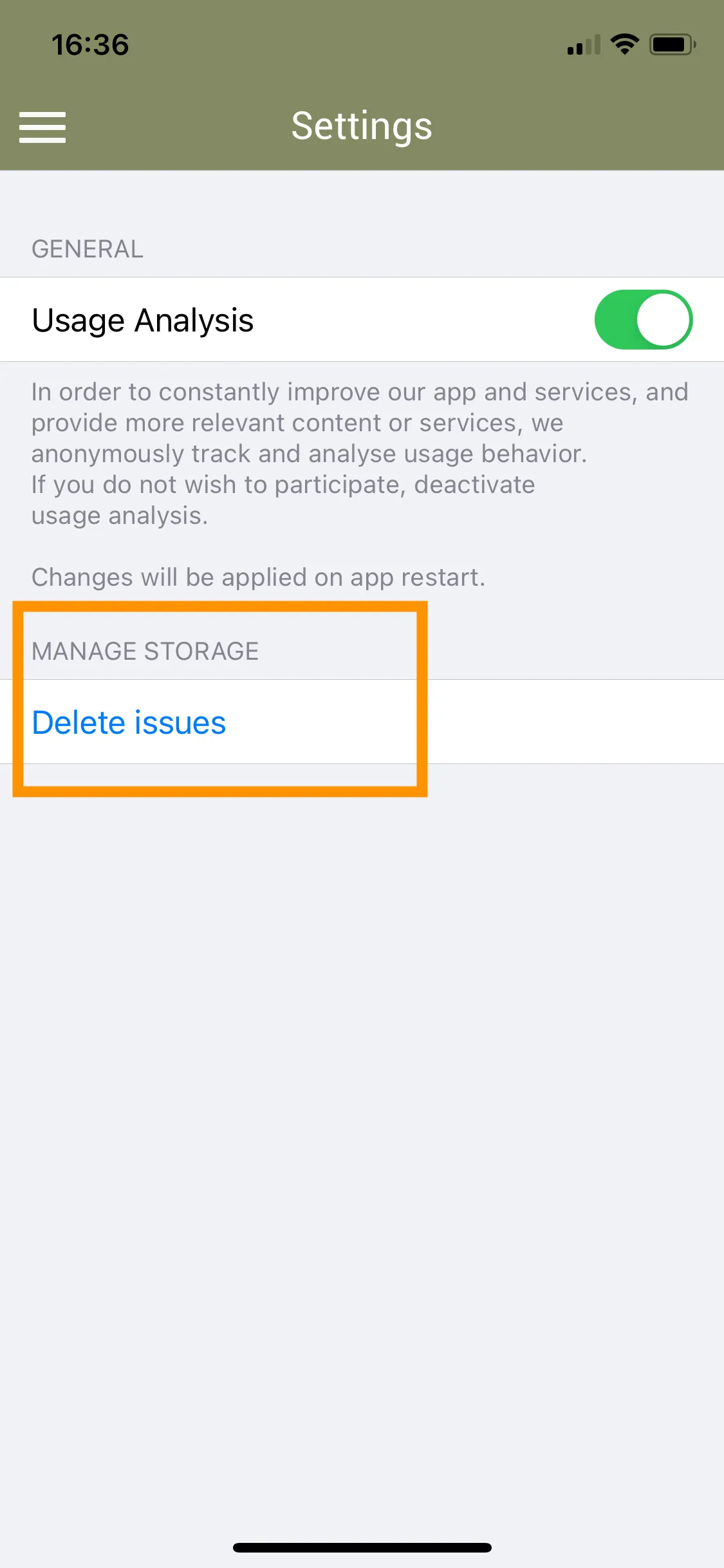
The Purple Apps offer per default an option in the app to delete all downloads from the device. The 'Manage Storage' option comes as a 'Settings'-page in the app, accessible over the app menu. After tapping on 'Delete issues' all progressively and 'actively' downloaded contents get deleted. Please find an example below. The appearance of this page is native, so you can't change it via the Experience Builder.