Matomo Tag Manager Setup guide
Description
The prerequisite for successful tracking with the Matomo Tag Manager is that all desired action events, view events and attributes are configured in the "tracking_config.json". You can find out how to do this in general here.
Based on this configuration, PXP sends the corresponding data to Matomo Tag Manager using defined names for triggers and variables.
The configuration must be set up accordingly on Matomo's side. The full PXP support results in the following example structure which shows the full setup to support action-events, view-events and attributes.
Complete structure used by this example
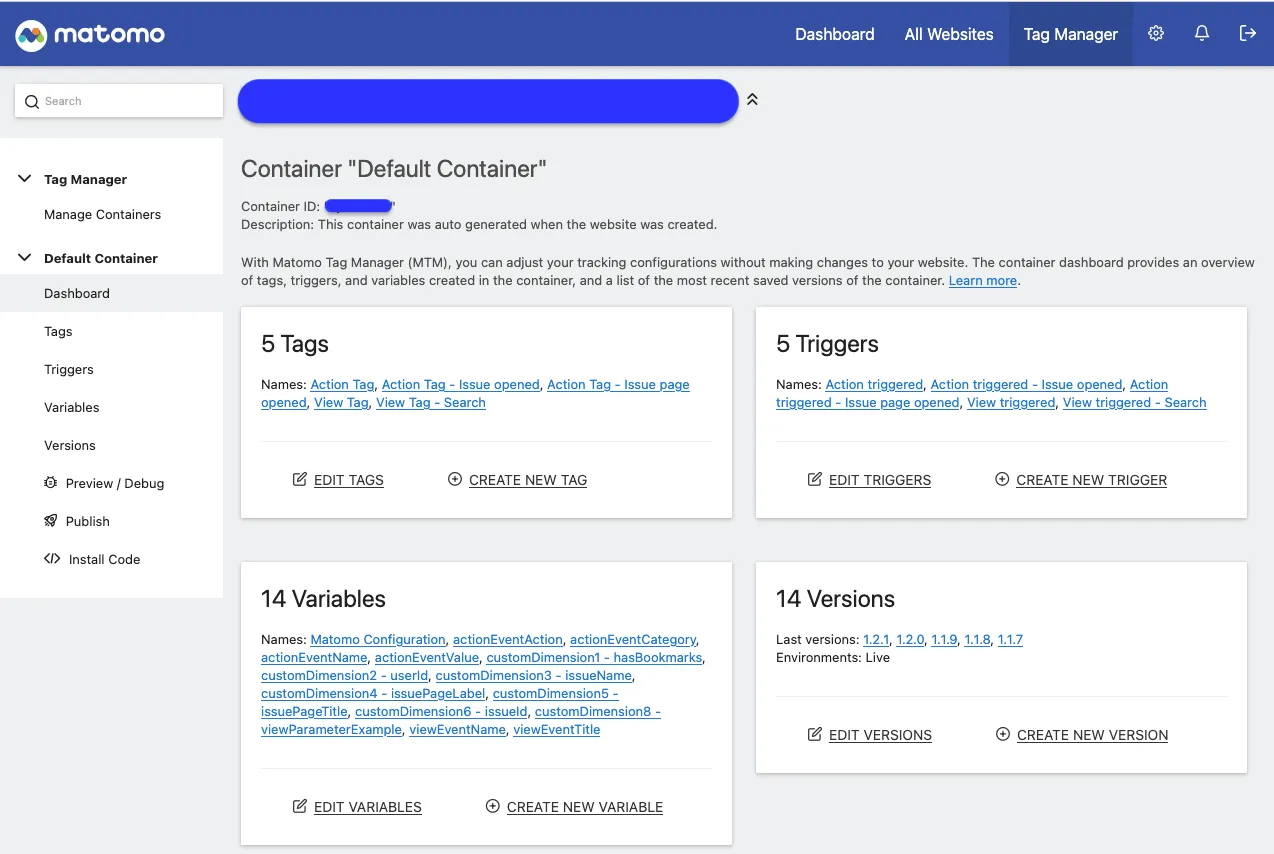
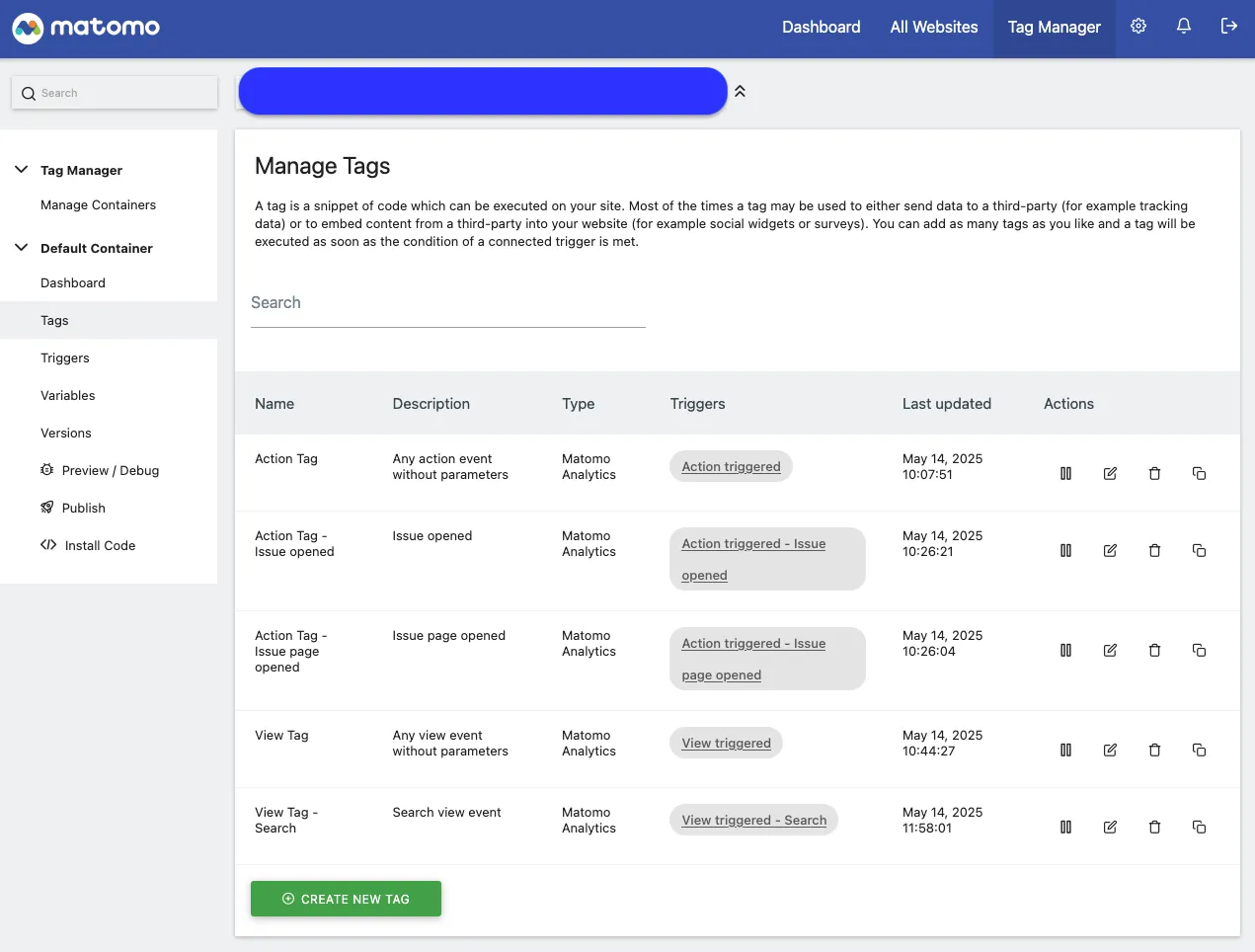
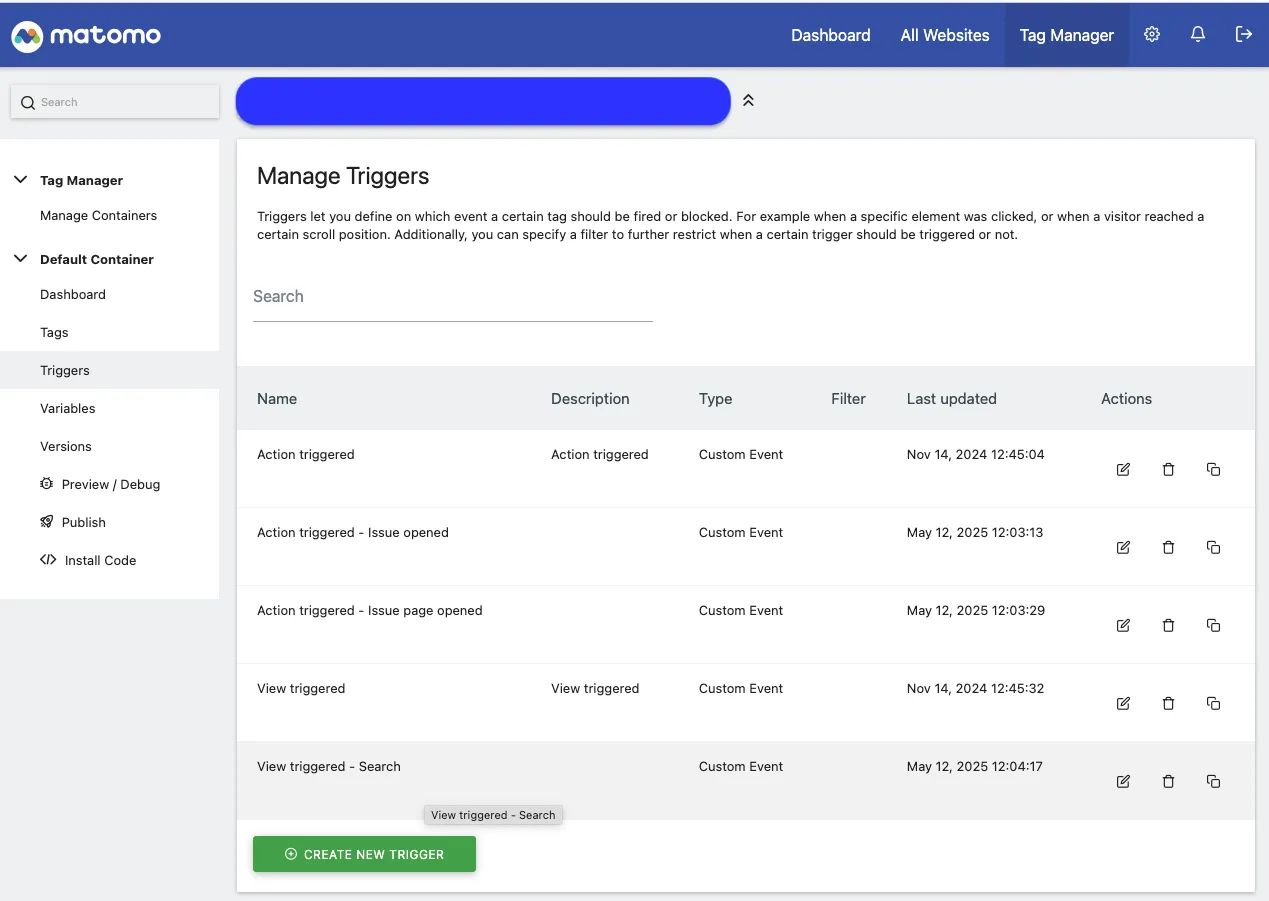
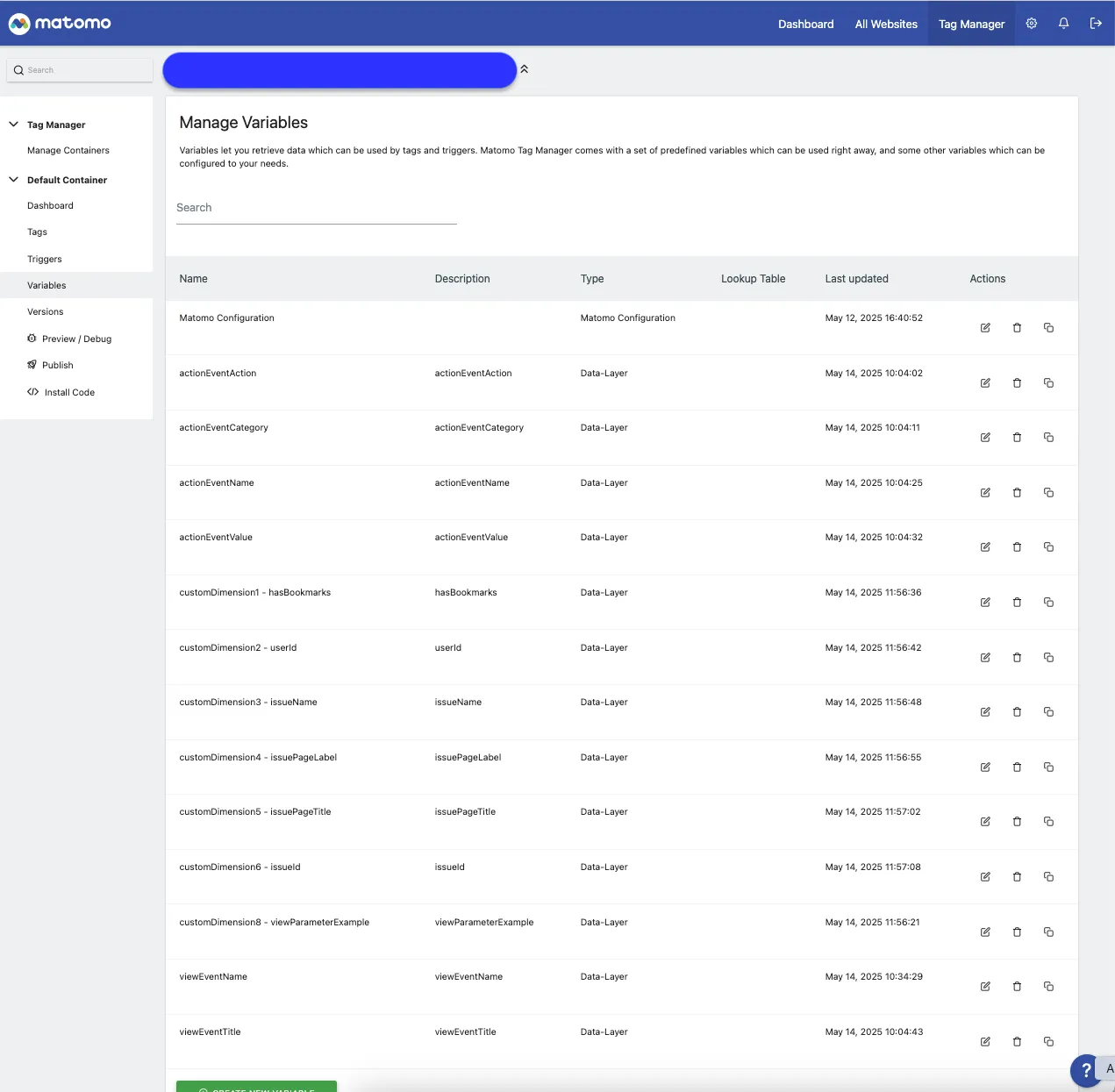
Events and Attributes
Action events
PXP
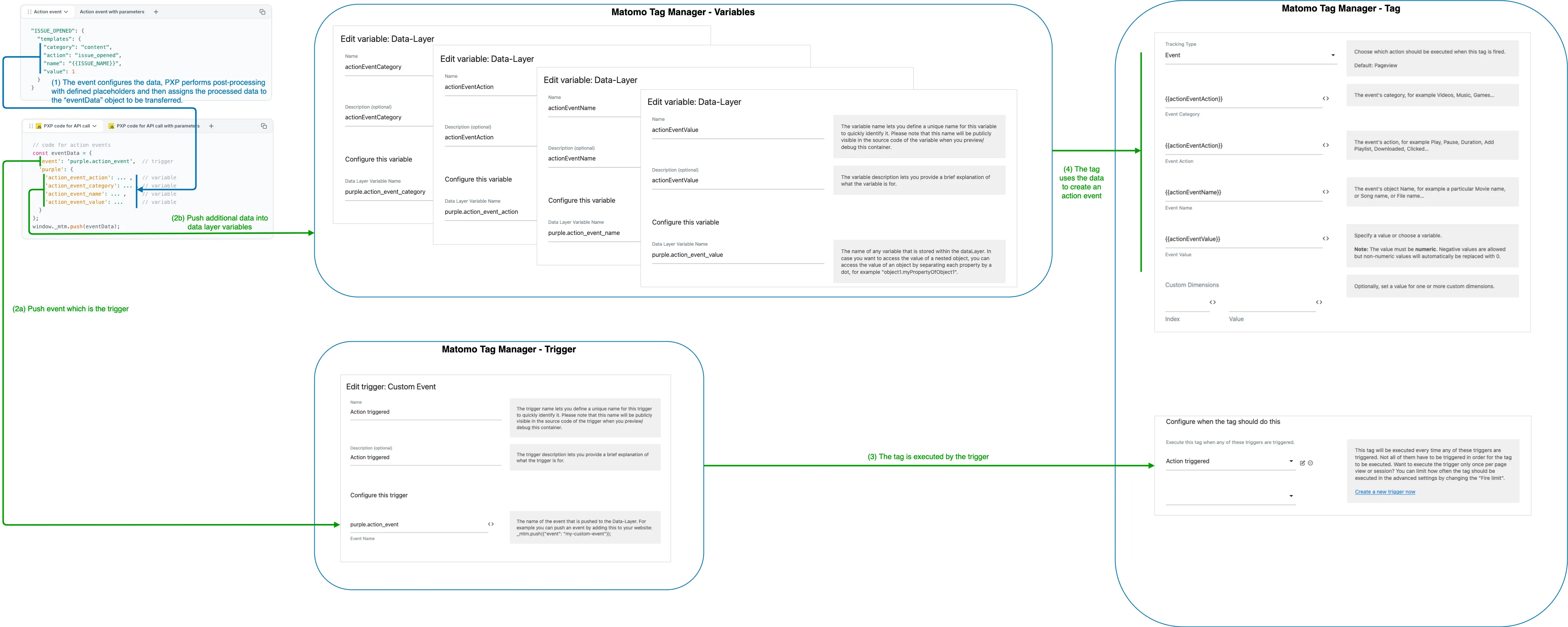
It starts with an action event configuration. The event "ISSUE_OPENED" is used for the following example. Depending on whether parameters are to be used or not, the configuration differs as follows:
"ISSUE_OPENED": {
  "templates": {
    "category": "content",
    "action": "issue_opened",
    "name": "{{ISSUE_NAME}}",
    "value": 1
  }
}
Reduced code from PXP
PXP web client pushes
- an "event" which is configured as "Trigger" and
- data which is configured as "Variable (Data-Layer)"
to Matomo Tag Manager.
The following source code shows a simplified representation of how PXP calls the Matomo Tag Manager API:
// code for action events with parameters
const eventData = {
  'event': event.templates?.trigger ?? 'purple.action_event',  // trigger
  'purple': {
    'action_event_action': ... ,   // variable
    'action_event_category': ... , // variable
    'action_event_name': ... ,     // variable
    'action_event_value': ... ,    // variable
    'parameters': { ... } // all configured parameters
  }
};

window._mtm.push(eventData);
Configuration in Matomo Tag Manager
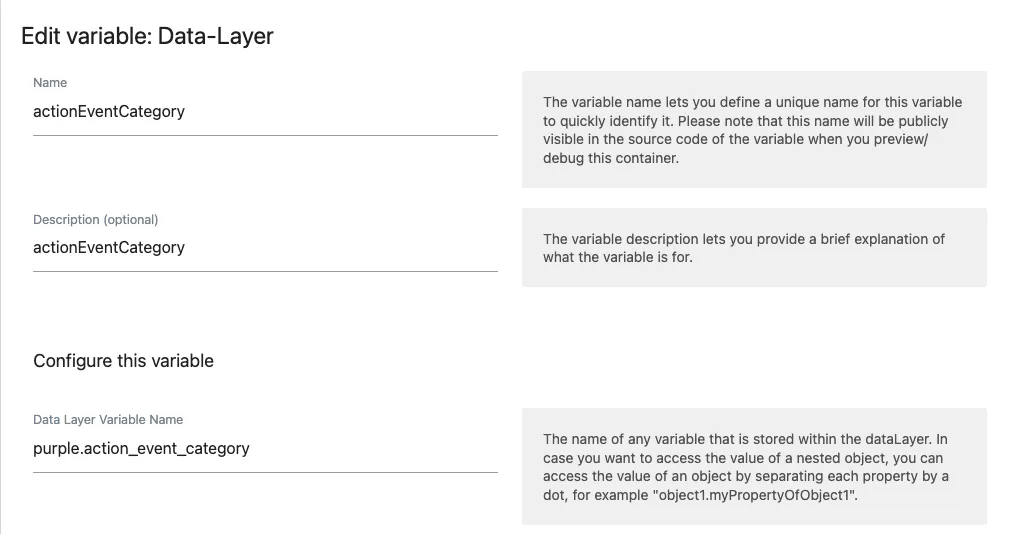
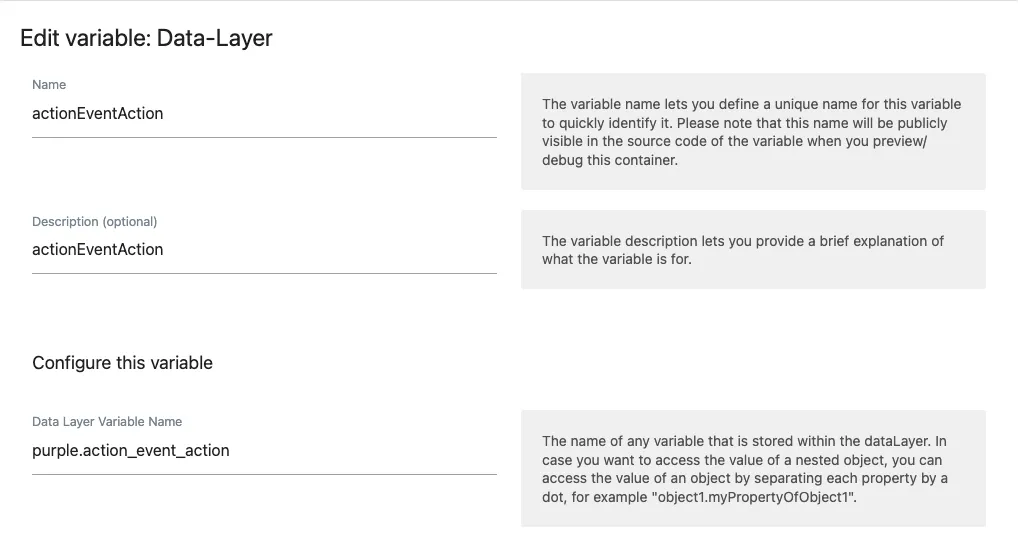
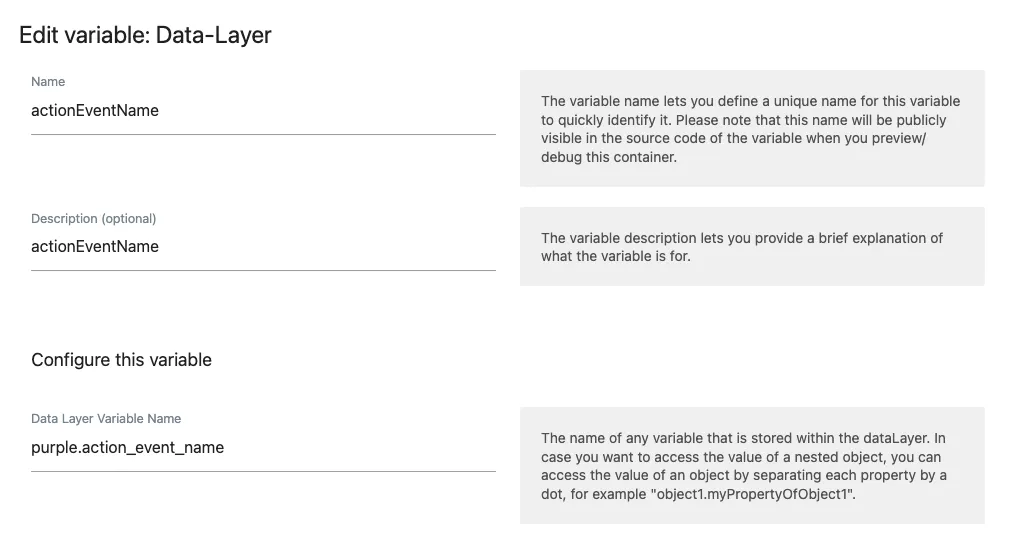
Create required "Variables (Data-Layer)" to receive data
The variable names defined by Purple are as follows:
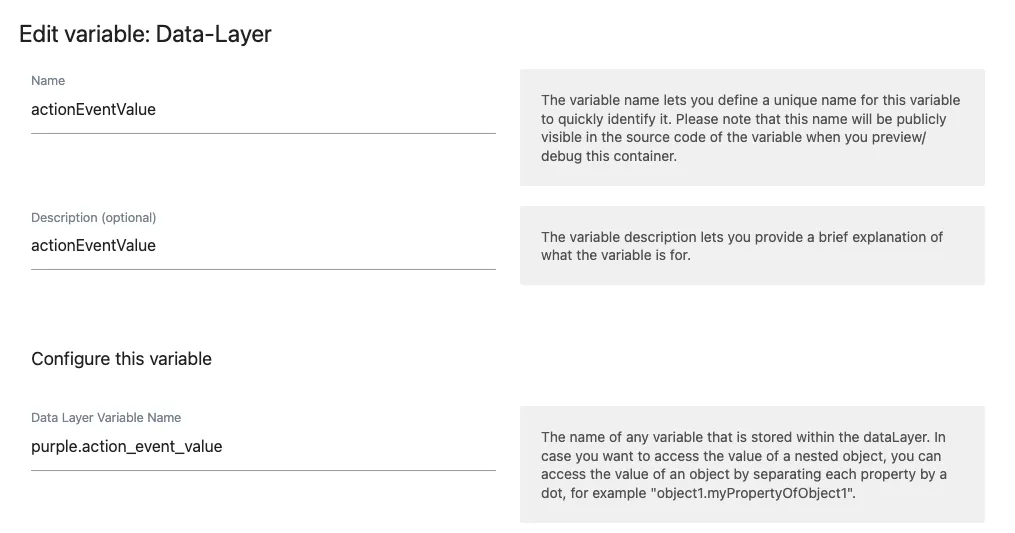
Create the required “Trigger” for PXP to push to.
The trigger name defined by Purple is as follows:
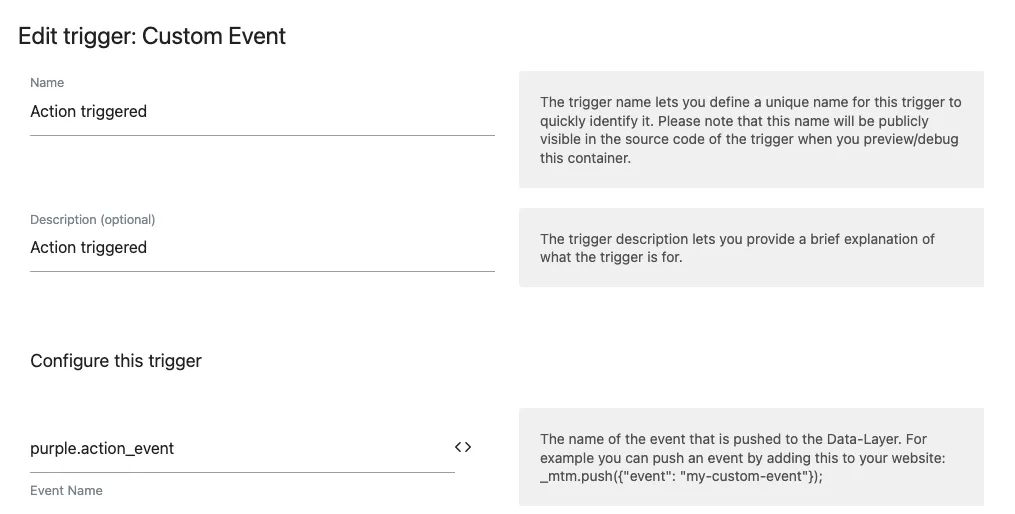
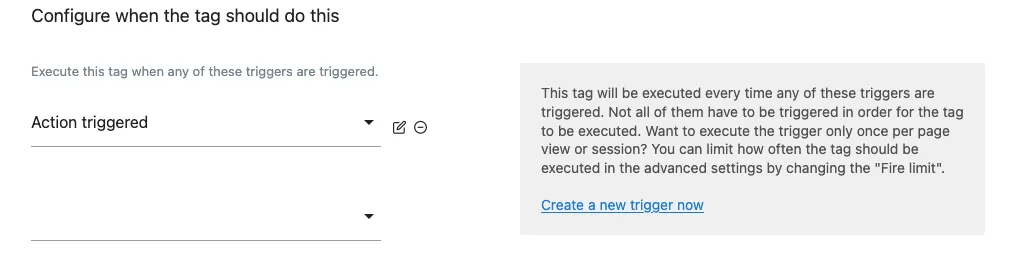
Create a “Tag” that will run when the trigger fires
Create a tag which creates an action event using the variables from Step 1 and assign the trigger from Step 2 to define when this tag executes.
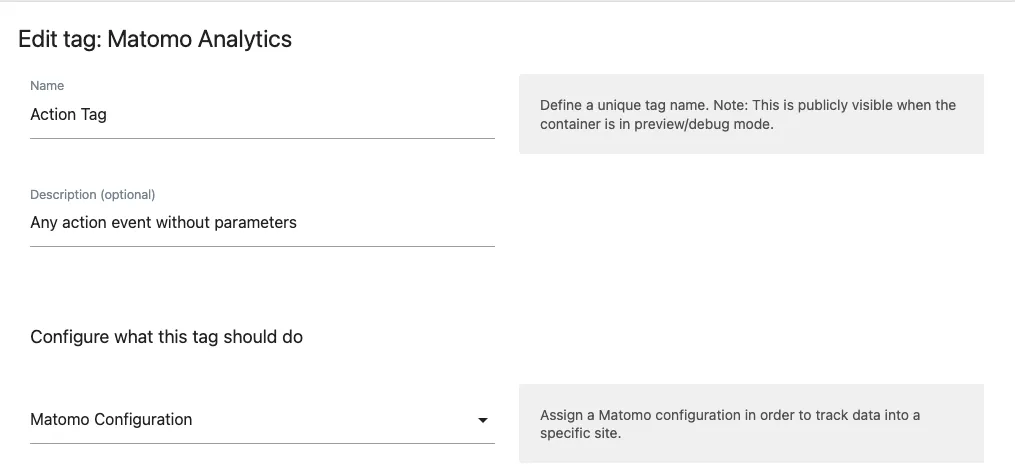
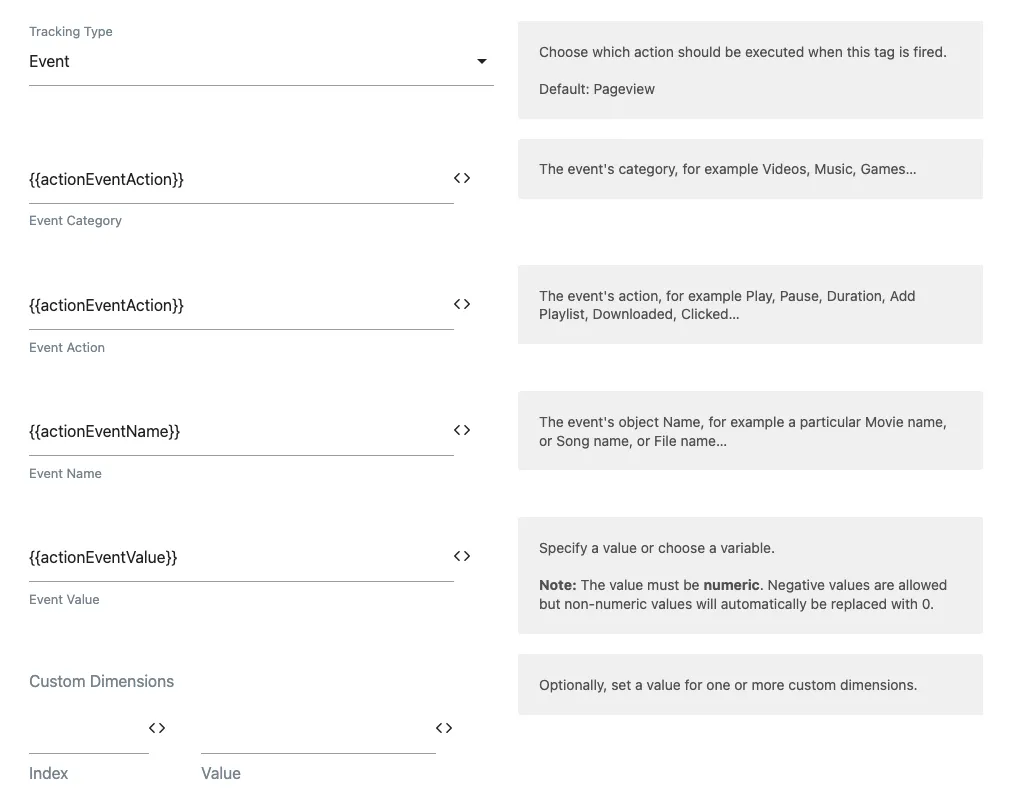
Summary
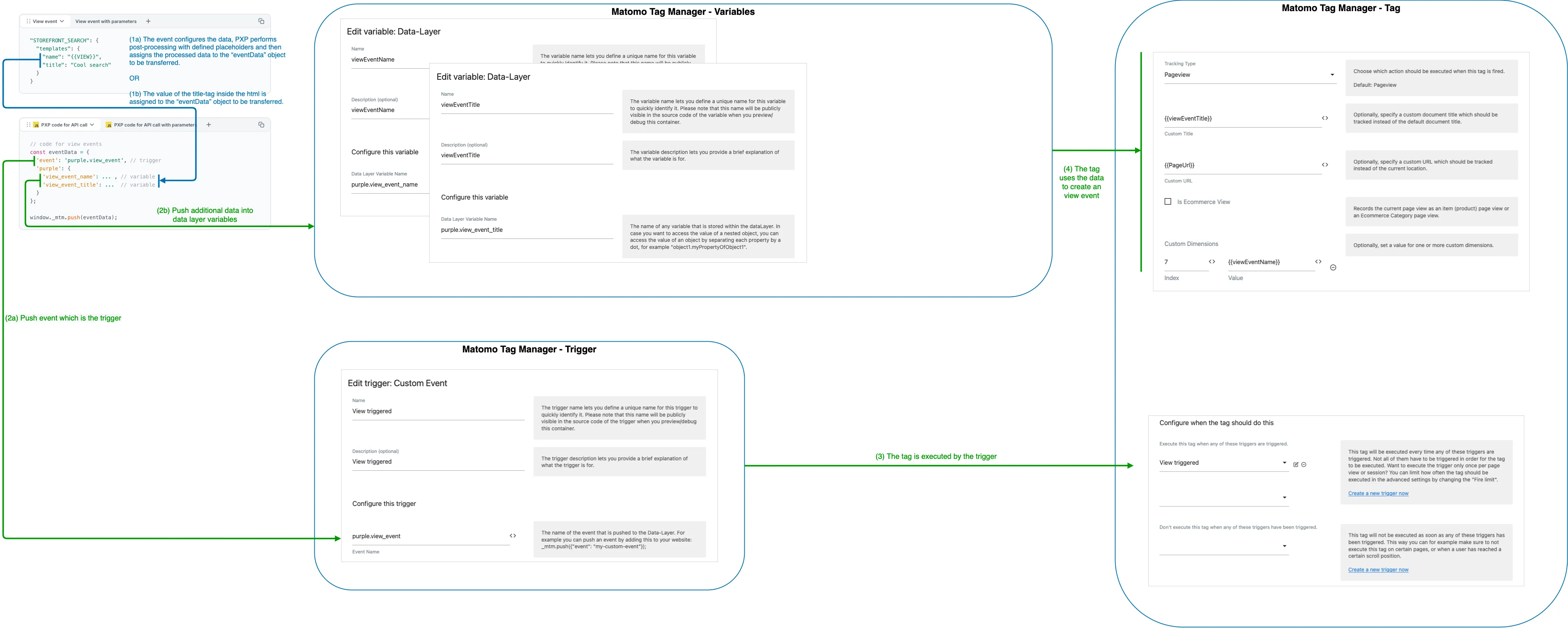
Finally, this is how it works together:
View events
PXP
It starts with a view event configuration. The event "STOREFRONT_SEARCH" is used for the following example.
"STOREFRONT_SEARCH": {
  "templates": {
    "name": "{{VIEW}}",
    "title": "Cool search"
  }
}
Reduced code from PXP
PXP web client pushes
- an "event" which is configured as "Trigger" and
- data which is configured as "Variable (Data-Layer)"
to Matomo Tag Manager.
The following source code shows a simplified representation of how PXP calls the Matomo Tag Manager API:
// code for view events
const eventData = {
  'event': 'purple.view_event', // trigger
  'purple': {
    'view_event_name': ... , // variable
    'view_event_title': ...  // variable
  }
};

window._mtm.push(eventData);
Configuration in Matomo Tag Manager
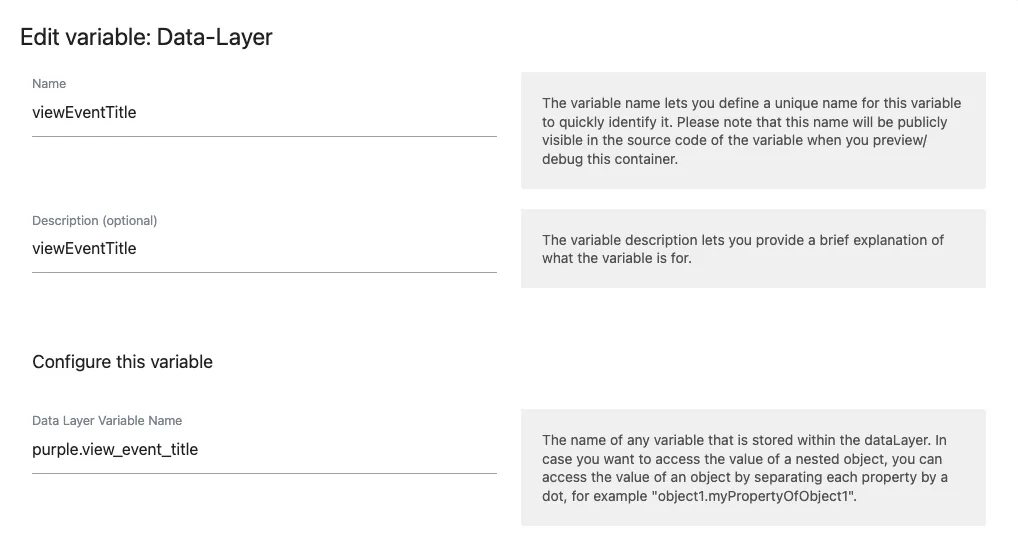
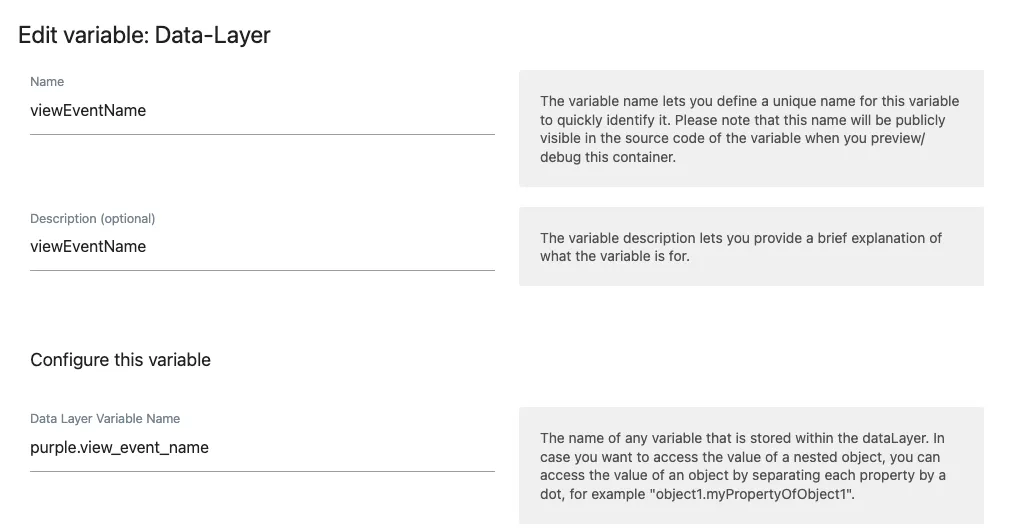
Create required "Variables (Data-Layer)" to receive data
The variable names defined by Purple are as follows:
Create the required “Trigger” for PXP to push to.
The trigger name defined by Purple is as follows:
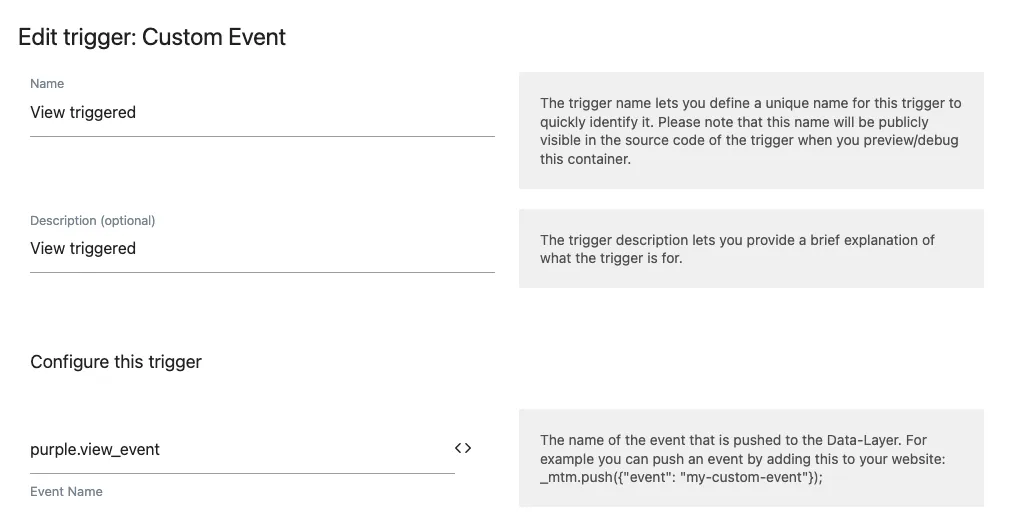
Create a “Tag” that will run when the trigger fires
Create a tag which creates an view event using the variables from Step 1 and assign the trigger from Step 2 to define when this tag executes.
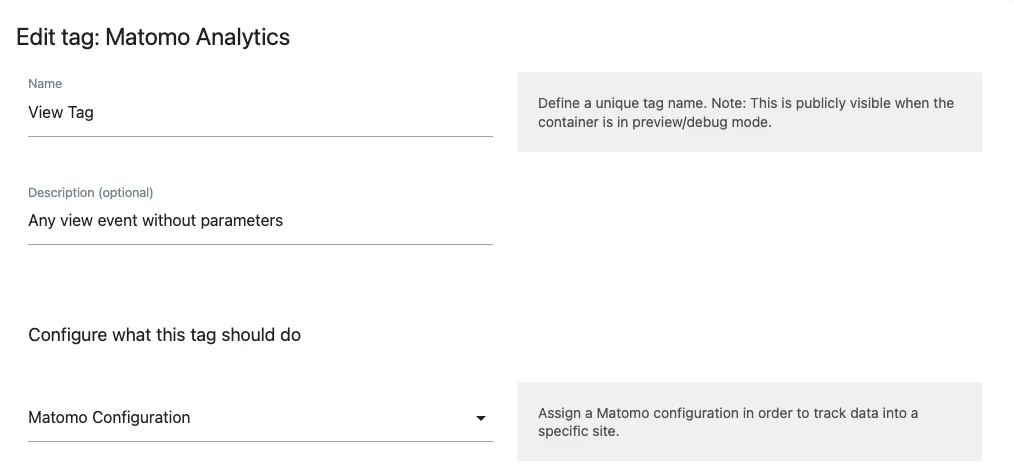
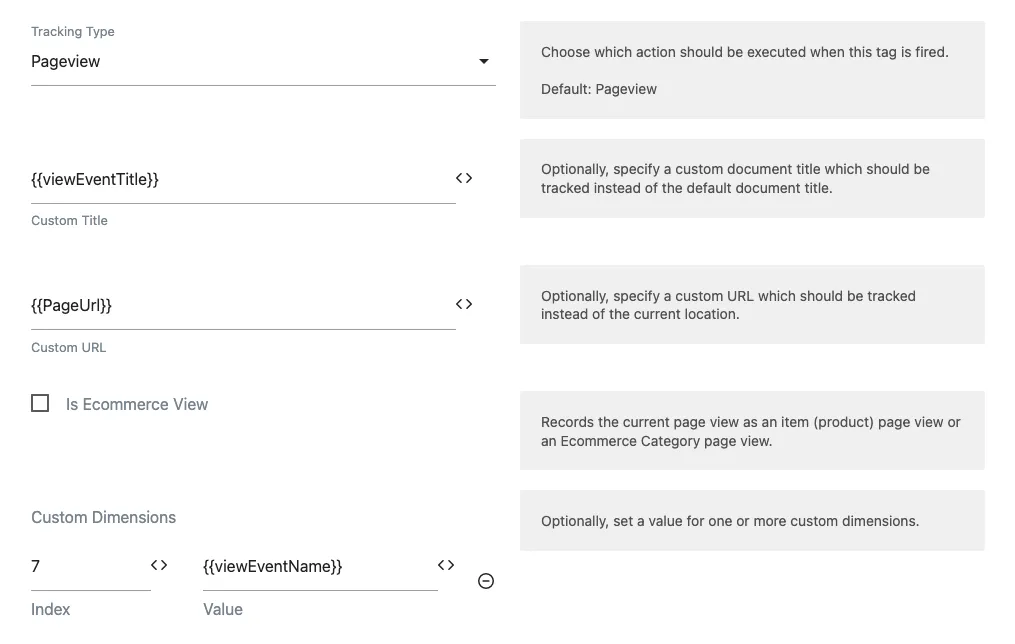
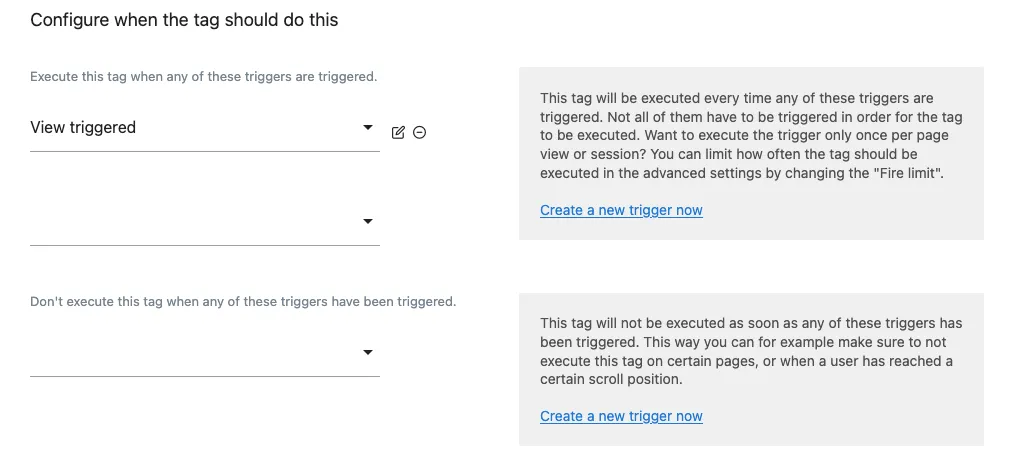
Summary
Finally, this is how it works together:
Attributes
PXP
It starts with an attribute configuration. The attribute "HAS_BOOKMARKS" is used for the following example.
"HAS_BOOKMARKS": {
  "templates": {
    "id": "1"
  }
}
Reduced code from PXP
PXP web client pushes data which is configured as "Variable (Data-Layer)" to Matomo.
The following source code shows a simplified representation of how PXP calls the Matomo Tag Manager API:
// code for custom dimensions
const index = ... // value is configured in tracking_config.json
const dataLayerName = `purple.custom_dimension_${index}`;
const customDimensionData = {
    [`${dataLayerName}`]: ... // variable
};
window._mtm.push(customDimensionData);
Configuration in Matomo Tag Manager
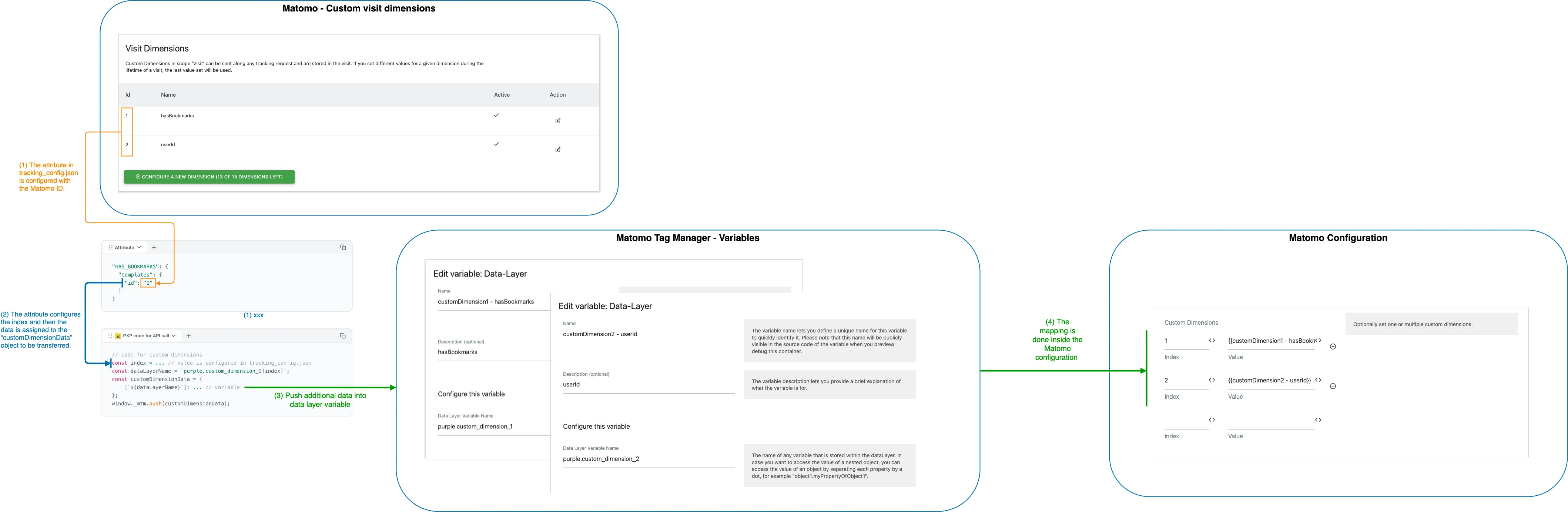
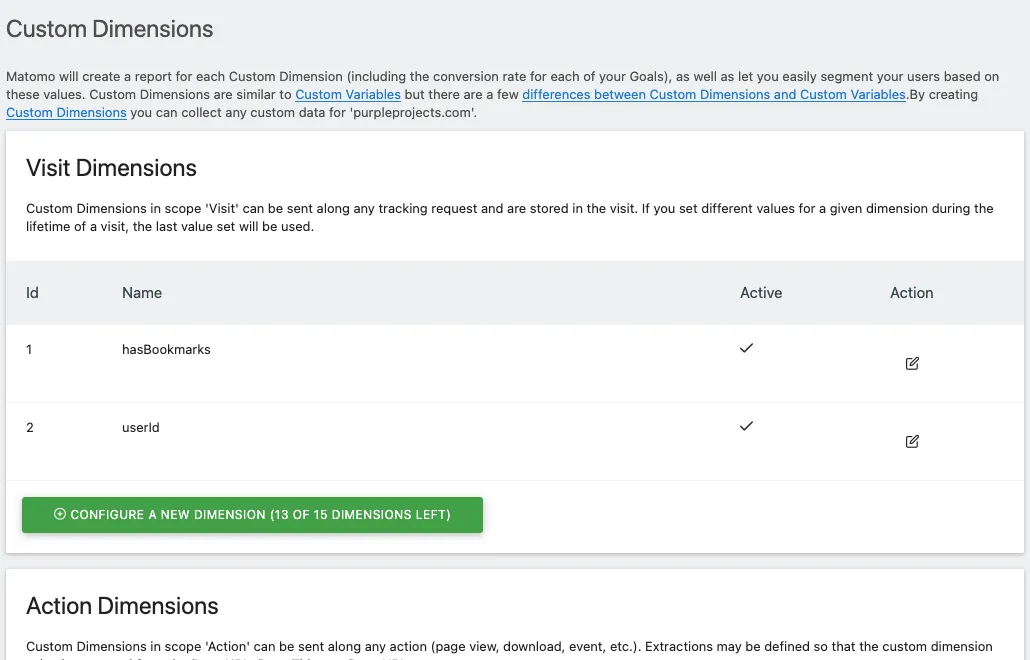
Create custom visit dimensions
Add your desired custom visit dimensions.
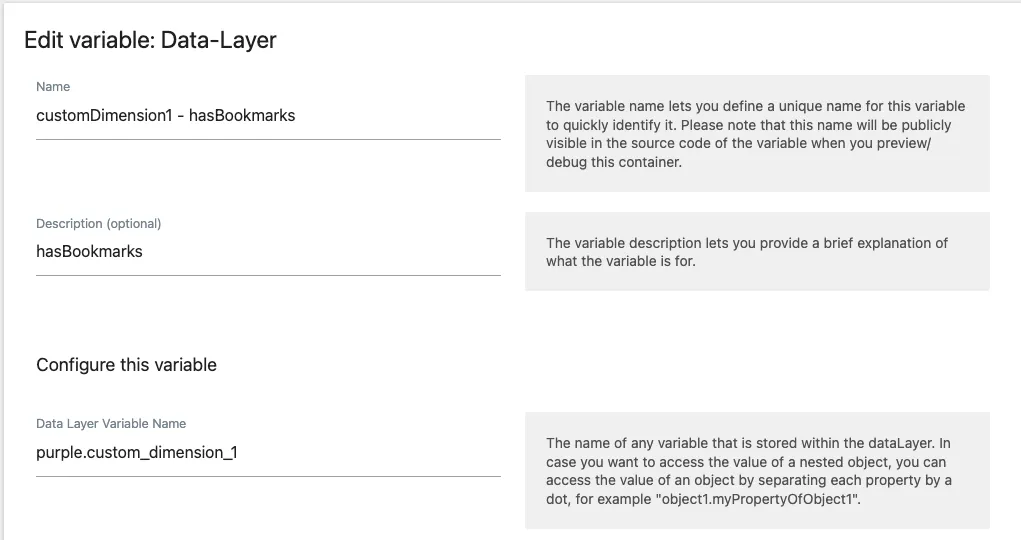
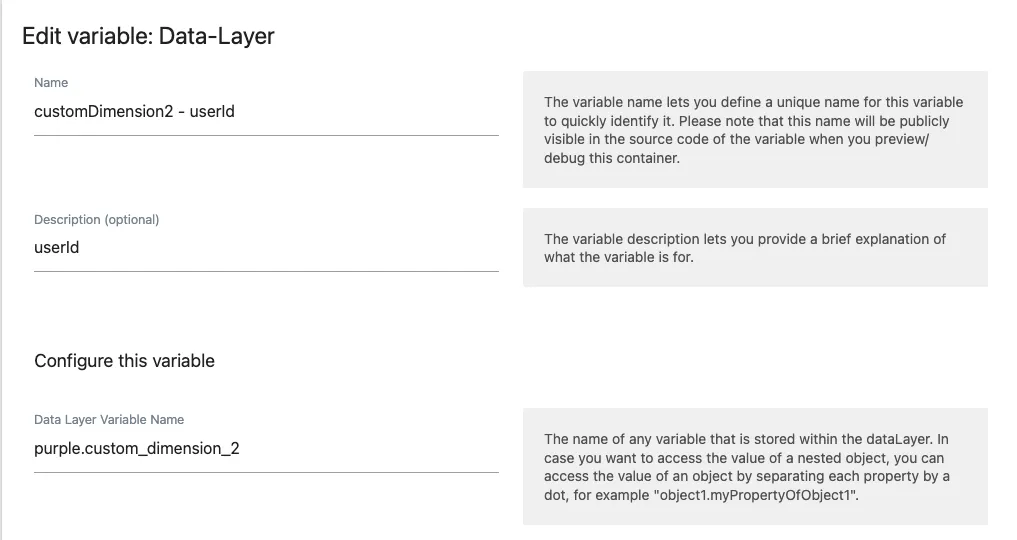
Create required "Variables (Data-Layer)" to receive data
The variable names defined by Purple are as follows:
Where "n" is an element of the integer positive numbers.
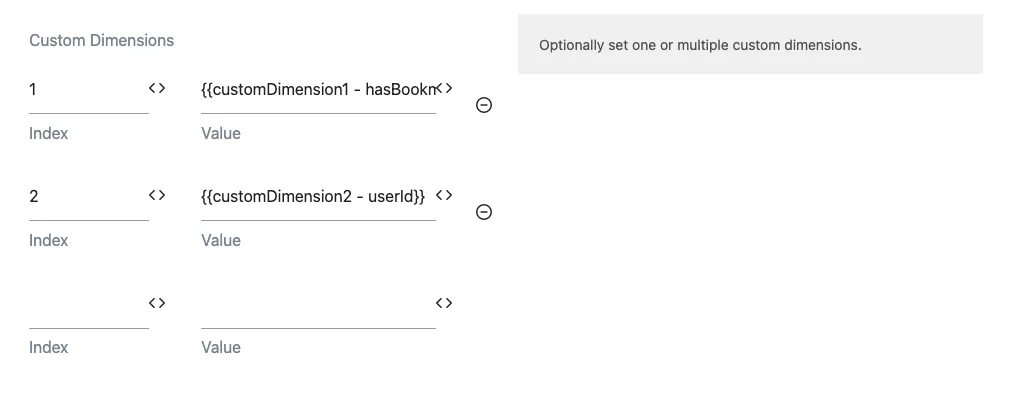
Map custom visit dimensions to Matomo site configuration
Custom visit dimensions are mapped within the corresponding Matomo site configuration.
Matomo site configuration
Summary
Finally, this is how it works together: