messages.json: static texts
By maintaining your messages.json, you can reuse terms in different views and access them as variables in your Purple Experience.
In this article, you learn how to edit text belonging to text keys in the messages.json in Purple Experience Builder.
Edit Messages
Prerequisites
- Validate urls.json to reference the path for messages.json.
How to
- Open messages.json from default/storefront/assets or from the path you have defined.
- Choose a message to change, i.e., through filtering 'SEARCH.'
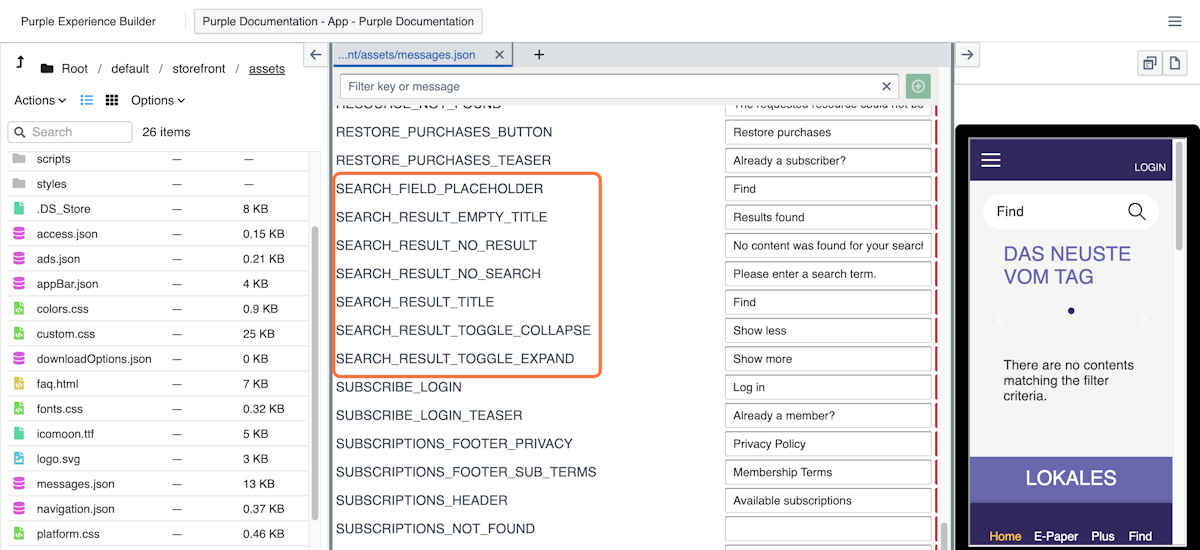
- Go to the text next to 'SEARCH_FIELD_PLACEHOLDER' and change it, e.g. 'Search'
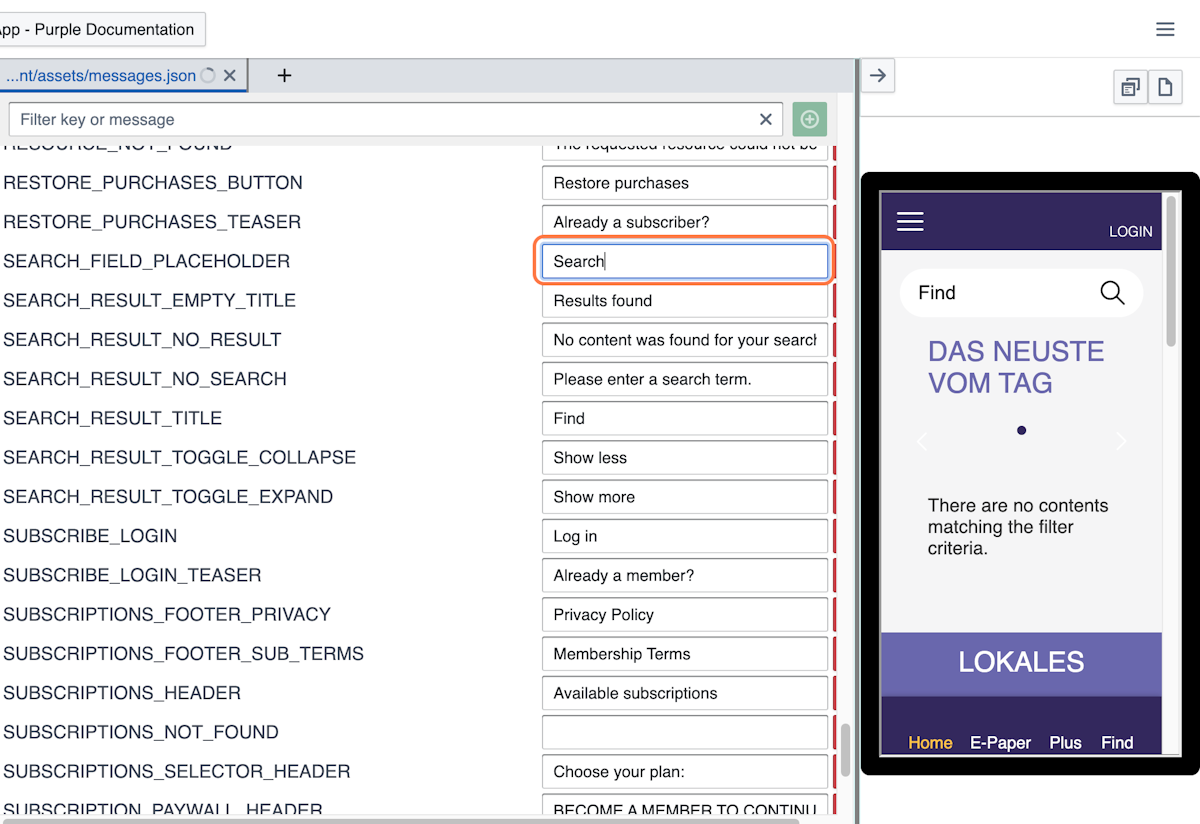
- Repeat that for each text value that you wish to change. You can also add new keys from the interface by pressing the "+" button on the top-right corner. Fill them accordingly with values.
- Verify your changes in Preview and merge or push as usual.
You have now changed the text in the Purple Experience of your app by editing the text for some keys in the messages.json. You can review the results in your app preview and push them live if you are happy with them to make them visible to your users.
Using placeholders
Keys that contain %s, %1$s, %2$s, or similar placeholders will have dynamic values injected at runtime - these must be preserved in your custom translations. For an example, see Placeholders in messages. For variable reference, see Placeholder Syntax reference
How to change a value
In messages.json, enter the key name and your desired value. Changes take effect immediately on the next app load.
Example:
BOOKMARK_CREATION_DATE_MESSAGE = Erstellt am %s