Offline behavior
Purple Native apps still work when your device isn't connected to the internet. However, there are some limits to what you can do without an internet connection. This article explains offline behavior and how you can define an offline view to let your users know that they are currently not online while using your app.
Offline Behavior in Purple Apps
Purple Native Apps still work even if your users' devices aren't connected to the internet. However, there are some limits on what you can do without internet connectivity.
Here are the basics:
First-time usage of the app
The first time using the app, the user needs to be connected to the internet; on subsequent starts, the app can be started without network connectivity.
Offline available data
Data in the dynamic resources is generally available offline, e.g., view configs.
Data from the content cloud that is fetched using, e.g., data sources is generally only available online. This includes but is not limited to contents, publications, collections, taxonomies, and menus.
Data that is loaded while the device is online may be cached for a moment and therefore available offline but is subject to automatic clearing by the system or other factors, e.g., signing in or out.
The only exception is the content data source using the local config. This will be explained in the Downloaded Content ViewDownloaded Content View section.
Sign in/out
When signing in or signing out, the cache is cleared, and content will disappear or queries will not be resolved. This happens because some options within the app change depending on the login status.
When trying to sign in or sign out in offline mode, it's likely that the user won't be able to see views while staying offline.
Downloaded Content
Define offline views
To ensure consistent usability while being offline, we recommend creating a view that displays all content that is completely or - depending on your desired behavior - partially available for offline usage.
To ensure the app gracefully starts in offline mode, ensure there is no data from online sources needed upon startup. Implement proper fallbacks here; otherwise, you might end up in an undefined state.
To ensure your users can easily find this view, you can trigger a message if the device is offline and link directly to the aforementioned view.
If the url resolver is involved, any path that should be available offline, should be configured to skip path segment resolution by setting skipResolvedData to true, as this requires an active network connection otherwise.
{
    pathPattern: '/any/offline/path',
    skipResolvedData: true,
    viewResolver: async ({dataResolver, match}) => { ... }
}
Downloaded Content View
This view shows content you've explicitly saved.
Downloaded Content Behaviour
- We do not explicitly download thumbnails, so they will only appear if the user has had a look at the downloads page before going offline and is still cached by the OS.
- Contents that were not fully downloaded yet can be opened but will only show the parts that were downloaded until this point.
Here's how to do that:
In Experience Builder -> views.json, you can create a view to display downloaded content, including partially downloaded elements:
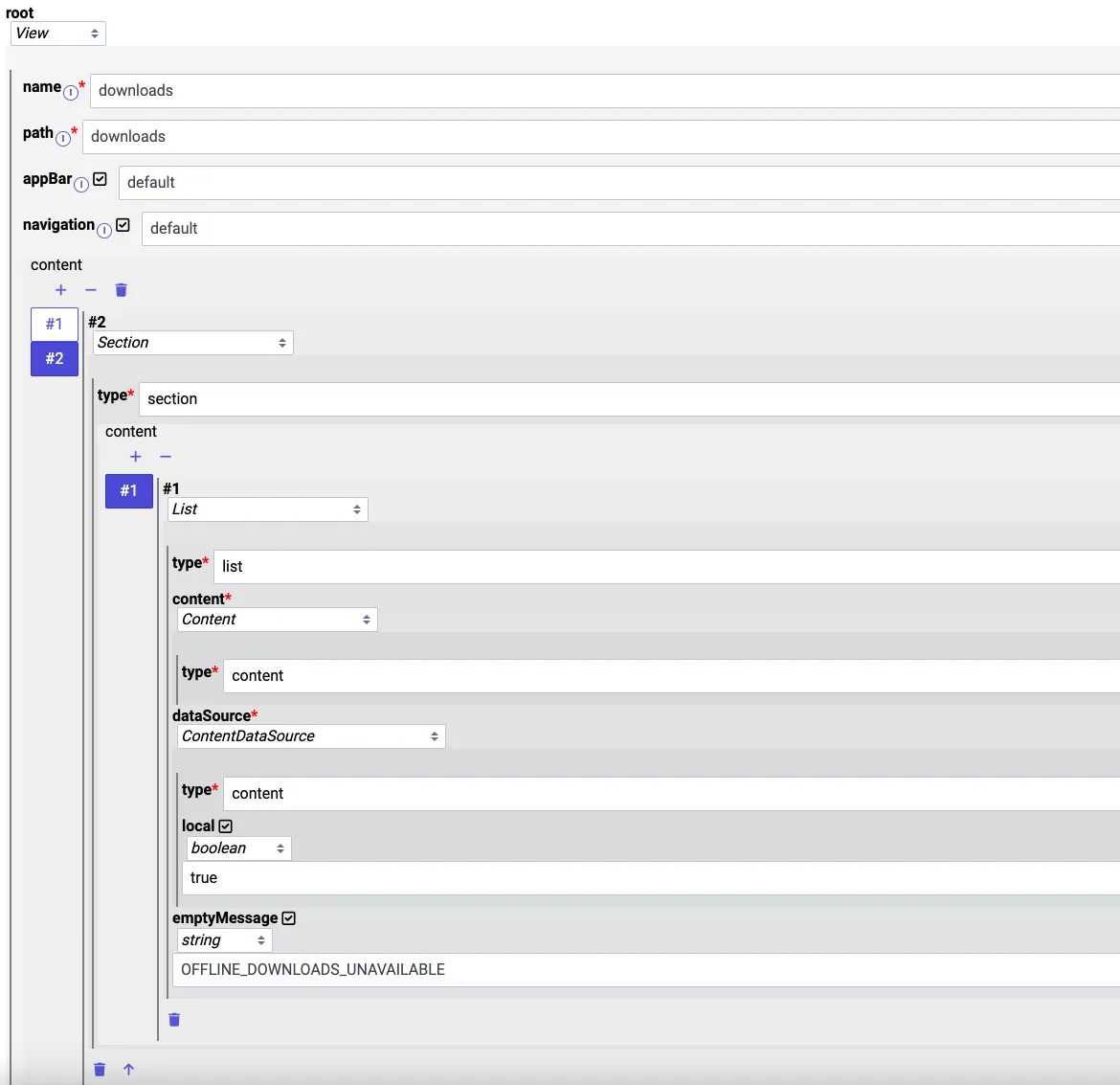
Note that the actual value of the emptyMessage is controlled via messages.json. For further details on that, see messages.json: static texts.
Instead of using the boolean true for local, it is also possible to provide a string, which uses a $function. In that case, we provide $context.local and $context.states, which can be used as parameters for filtering the local contents for further criteria.
$context.local provides an array of locally available contents, which were manually downloaded. These contents may still be downloading.
$context.states is a map from content ID to content states, which can be used to filter for contents of certain states, e.g., only showing fully downloaded contents.
The following example shows a filter function that returns only fully downloaded contents:
window.$functions = {
  filterLocalContents: (local, states) => {
    if (!local || !states) {
      return [];
    }
    return local.filter(content => {
      return states[content.id].installState === 'COMPLETE';
    })
  }
}
Using the above example, the string value for local on the data source should look like this:
$functions.filterLocalContents($context.local, $context.states)
Due to some limitations, this $function may be called without local and states available. In that case, please always return an empty array.
When using local, either as a boolean or string, any filters applied to the data source will not have any effect, as the source for the local contents is the device and not the backend. For further filtering, please use the $function approach mentioned above.
Now that you can list locally available contents, you need to configure a way to open such contents offline.
If the app only serves content of type ISSUE, then adding an OpenContentAction to either tapCover or tapContent is sufficient, and the setup is done. These issues will then be opened by the native presenter, and users can view them offline, assuming they were fully downloaded.
If the app also serves contents of type BUNDLE, then a few additional configuration steps are required:
- Define a navigation action to an offline content view.
- Adjust the URL resolver to fetch the local content and provide it as context.
- Build the offline content view.
For issues, use standard open content action. For posts and bundles, define a navigation action that points to a view that works offline.
This can be achieved by using a conditional on, e.g., tapCover or tapContent. If the contentType of the content is ISSUE, the OpenContentAction should be used; otherwise, a NavigateAction, which in the above example links to the path offline/$context.content.id.
Depending on your needs, the path may be different, but the important piece here is that the content ID has to be used, not a slug or any other information, since the URL resolver can only access offline content by its ID.

Now in the URL resolver, configure a corresponding entry for the offline path, which then loads the content using the dataResolver's findContentById function and then provides this content as context to a content view. Additionally, this resolver entry has to set skipResolvedData to true to disable automatic path segment resolution, since this is neither available offline nor needed for our case.
The findContentById function from the dataResolver is the only function that can serve data offline. It will always attempt to restore the content from the cache before attempting a network request. This also means that in online scenarios, this function might return stale data.
This function also takes optional fetchOptions, which may be needed for, e.g., displaying a bundle's ToC.
The following minimal example matches the above configuration using a path offline followed by the content id:
{
    pathPattern: '/offline/:contentId',
    skipResolvedData: true,
    viewResolver: async ({dataResolver, match}) => {
        const content = await dataResolver.findContentById(match.params.contentId)
        return {
            viewName: "content",
            viewContext: {
                content
            }
        }
    }
}
Finally, configure the corresponding content view. In a minimal example it is sufficient to just show a content body component, which takes the content from the context:
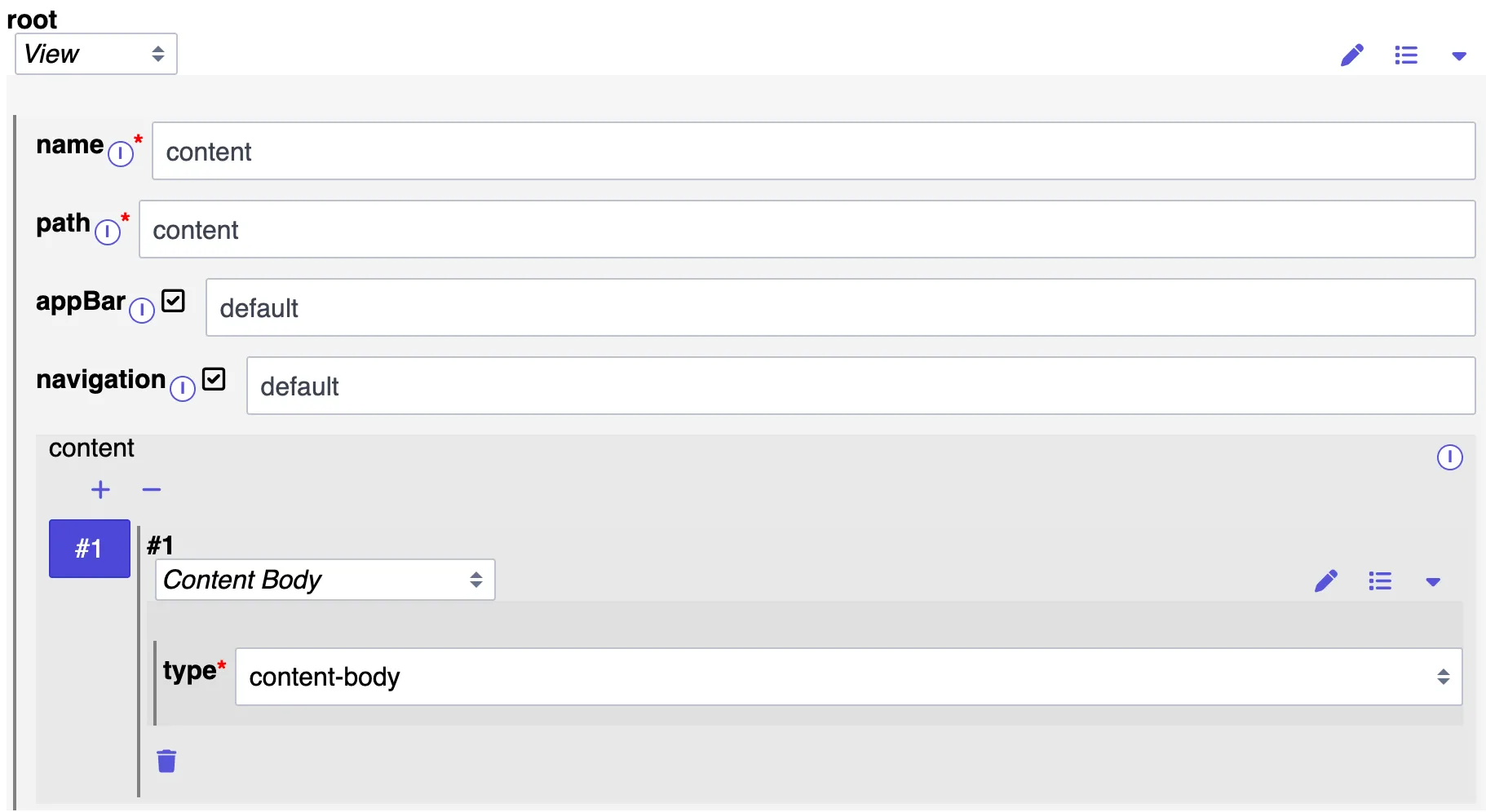
Depending on your needs, this view can be extended, e.g., for showing the ToC or swiping between articles. Keep in mind to only reference the content provided from the context, or if other data is needed, to provide it from the URL resolver.
Offline notification and link
You can create a message that will be triggered if the device is offline.
The following section is outdated. The same outcome may be achieved utilizing presets. Please refer to View configuration for further information.
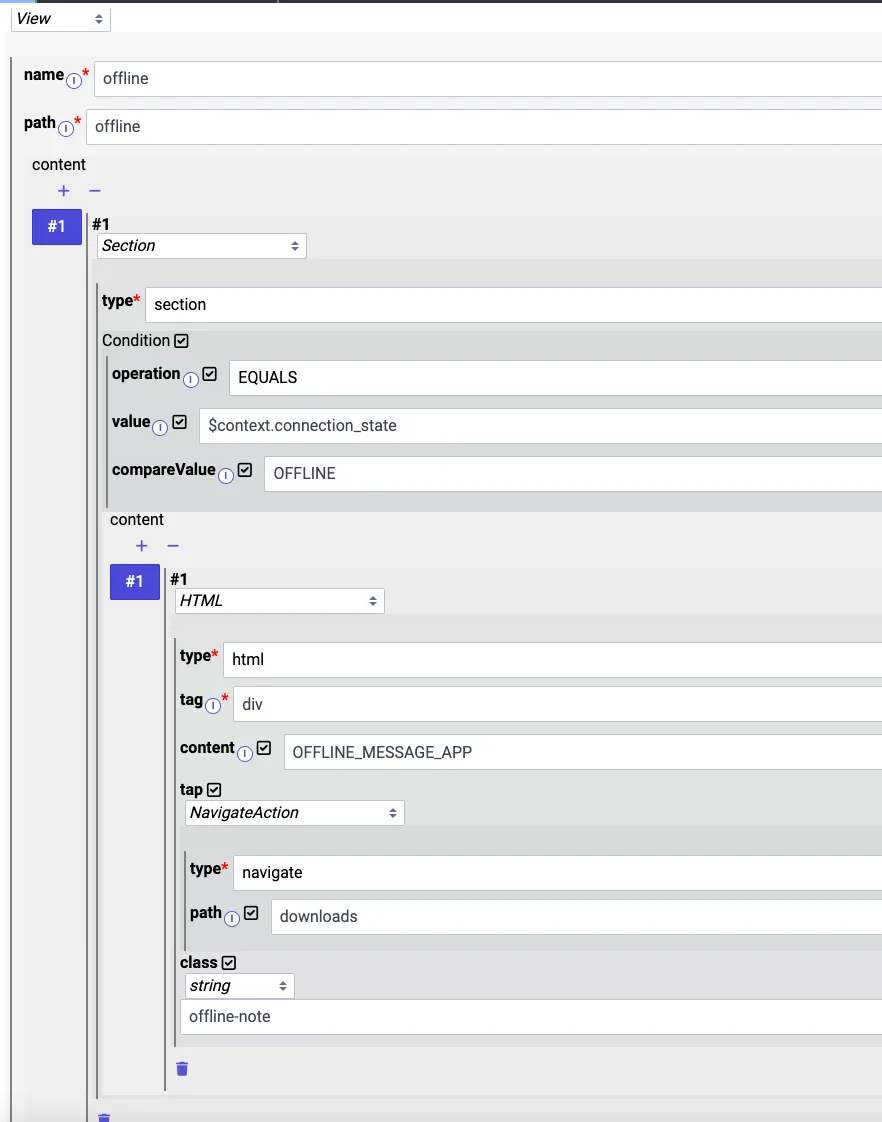
To ensure maintainability, this should be done in two steps:
a) Creation of a view with the desired message and behavior. Not depicted, but possible, is to add further tracking parameters to that view as well (see Configure views for tracking for details). You are free to add CSS accordingly to style that part to your need.
b) Inserting that view into any other view where you want to display the message
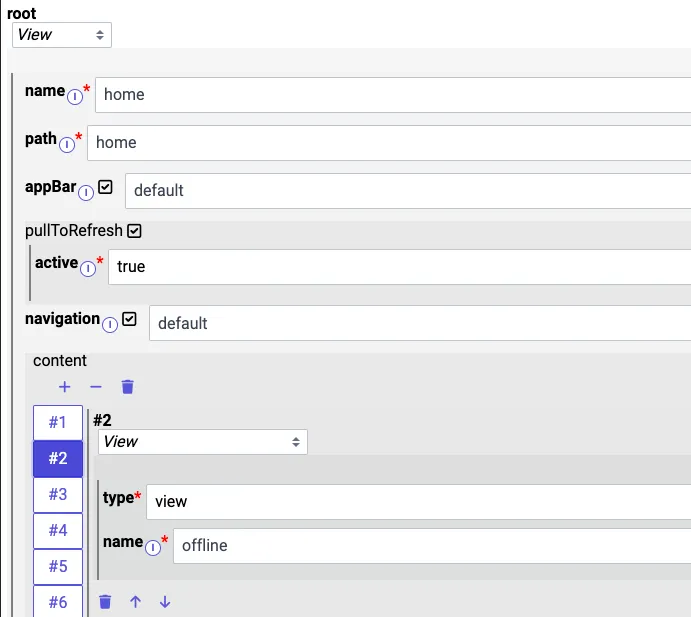
With this approach, you can make significant changes to the message without manually altering many views. You also get the freedom to integrate other elements that you trigger on specific conditions.