Managing Dossiers
Purple Hub
Summary
In this article, you will learn about the options available for managing Dossiers in Purple Hub, for compiling and displaying content, and for presenting it to your audience as a binder of assembled content.
Preconditions
- Learn how to Enable the Dossiers feature in Purple Hub
- Learn more about the concept of Dossiers
- Learn how to Create a Dossier in Purple Hub
Description
Managing Dossiers from the Dossiers' view
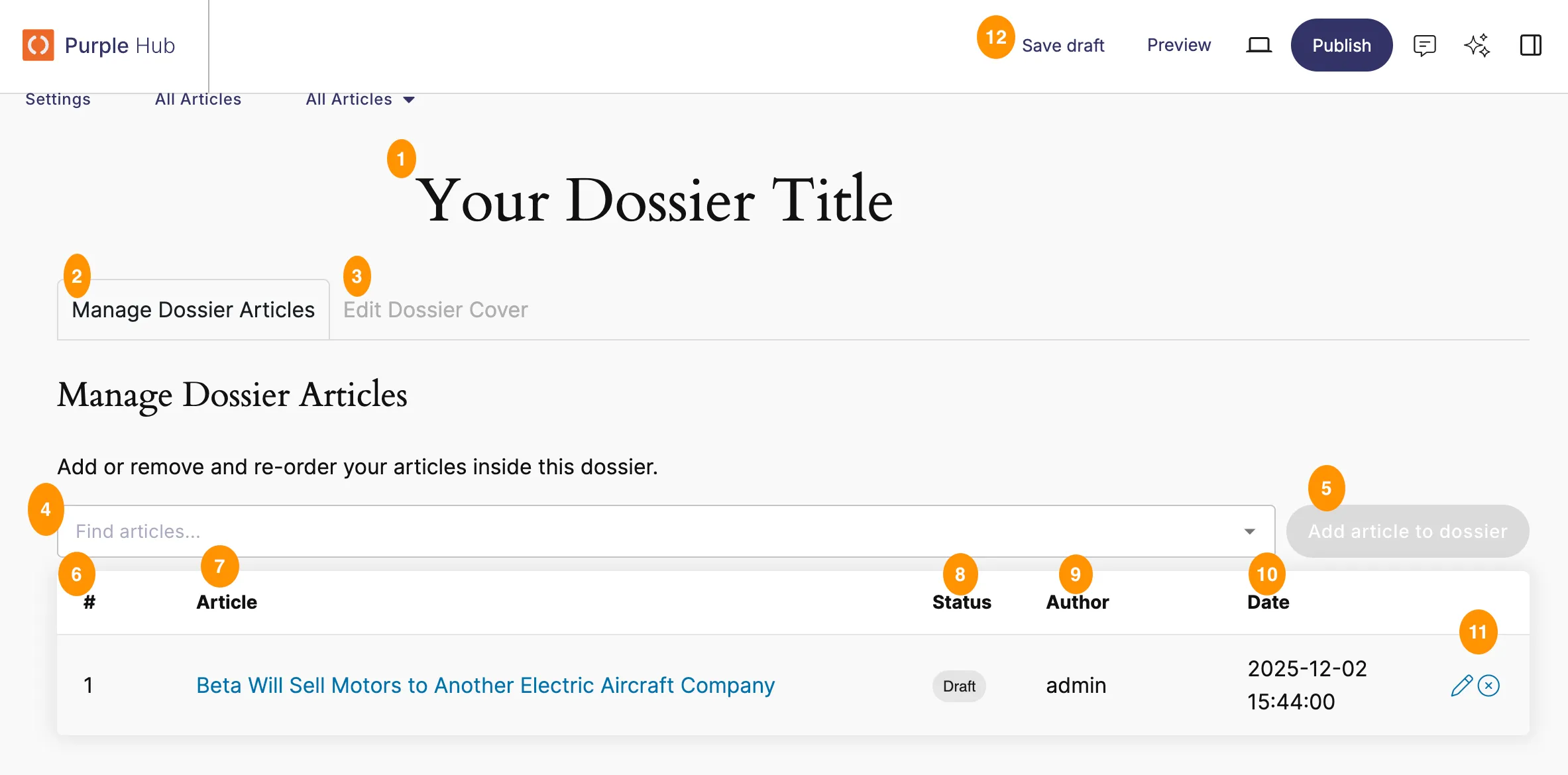
- Dossier title: Name your Dossier by entering its title into this text field
- Manage Dossiers Articles: By activating the tab, you can jump to this current view
- Edit Dossier Cover: By activating the tab, you can jump to the Dossier covers view (see 'Creating a Cover of a Dossier' below)
- Find articles: Search in this field for all posts in your Purple Hub by typing their titles.
- Add article to Dossier: Add the article selected in the search bar (4) by clicking this button.
- Order of articles: Indicates the order of articles by number. Change the order per drag & drop.
- Article: Lists all articles belonging to your Dossier.
- Status: The eye symbol indicates if the article in the list is already published.
- Author: Creator of the article in Purple Hub.
- Date: Creation date of the article
- Pen Symbol: Links to the article itself X-Symbol: Delete the article from the Dossier
- Publishing options: Save the Dossier as a draft, generate a preview or publish it
Creating a cover of a Dossier
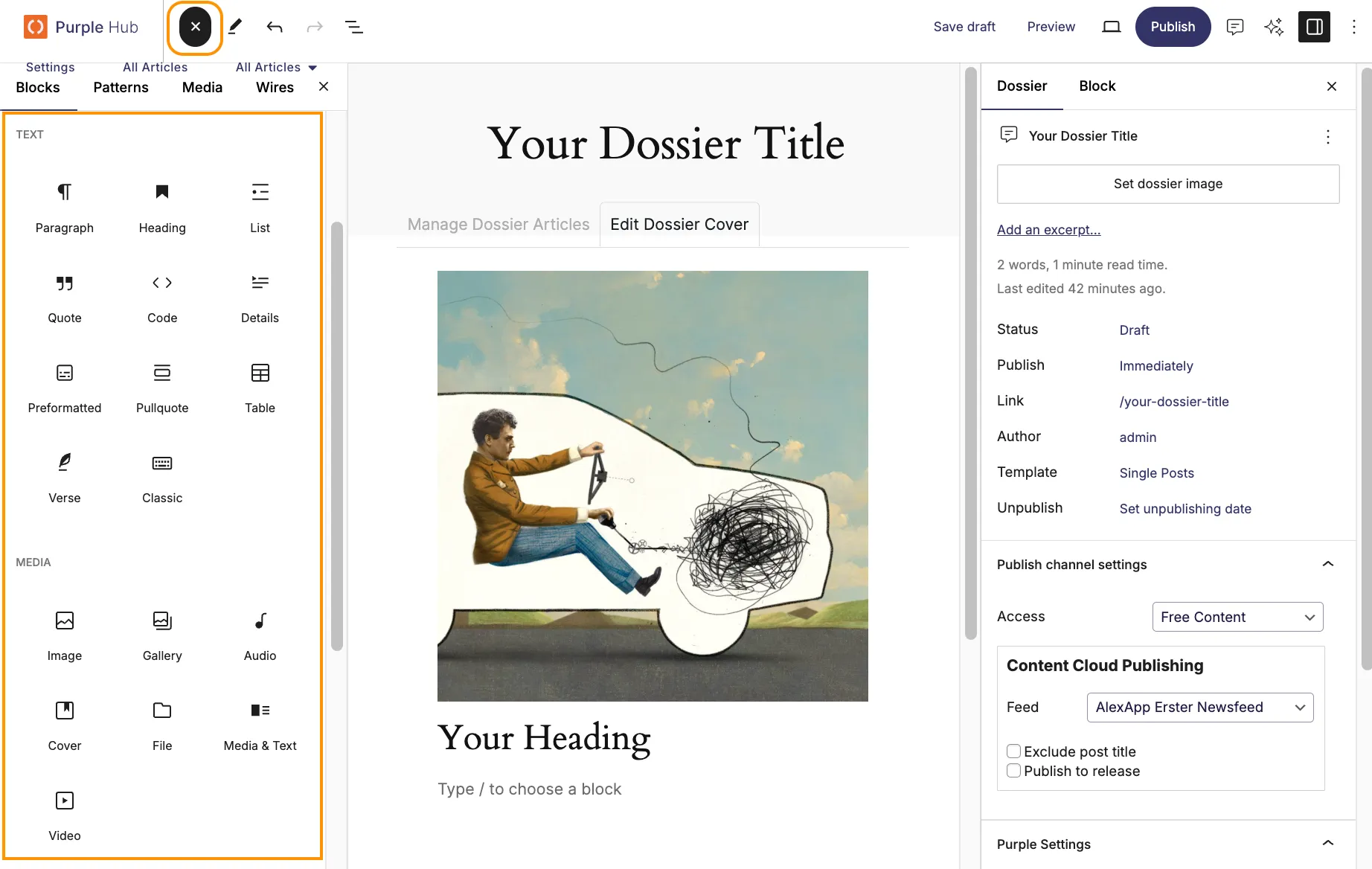
Create a cover for a Dossier by inserting an image and adding text. The full range of Gutenberg blocks in the Purple Hub are available for designing the cover. The title is taken from the Dossier title you defined in the Dossier view (see paragraph above).
Managing Dossiers from an article
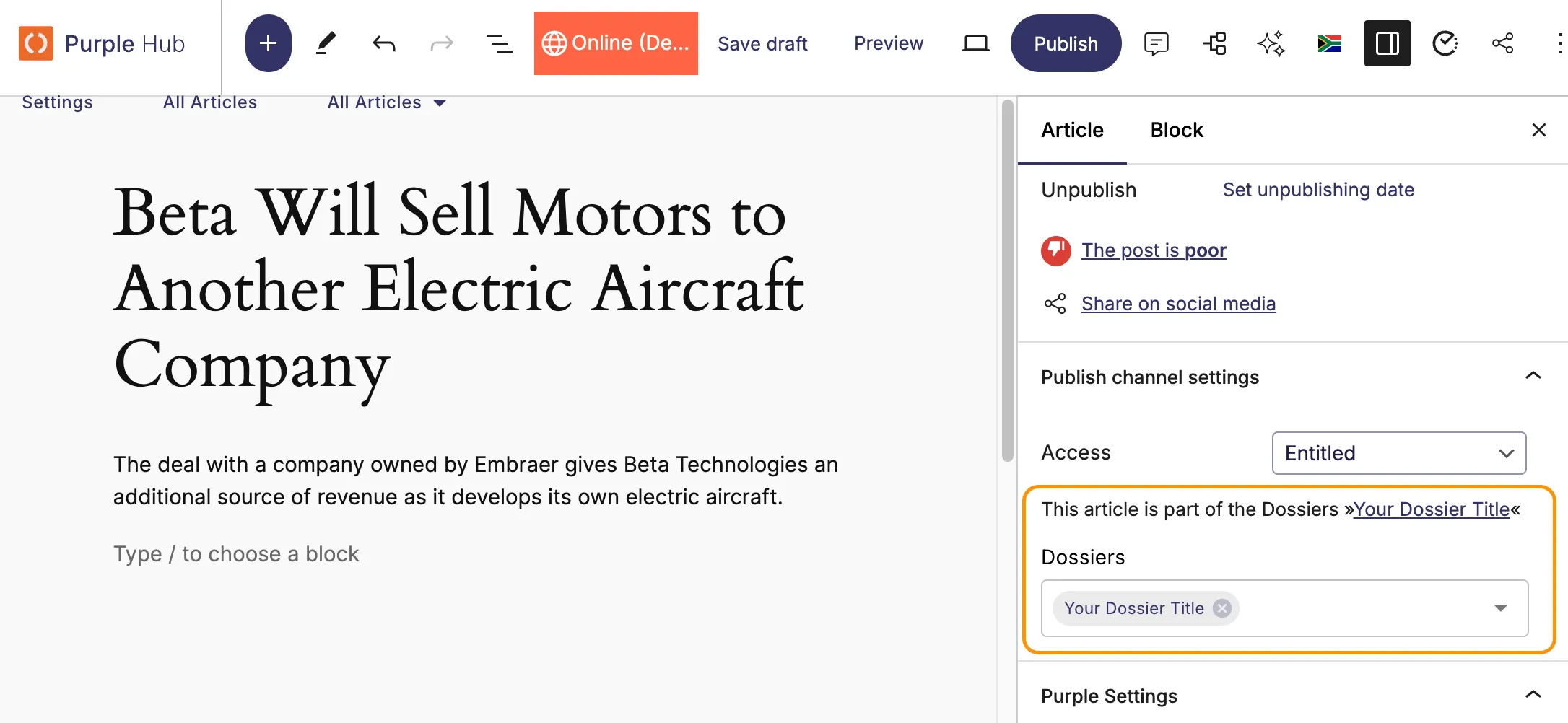
- You can see in the right-hand sidebar of your article which Dossier(s) your article belongs to.
- If your article belongs to multiple Dossiers, you will find all of them here.
- You can click on the Dossier's name to visit its overview page.
Preview
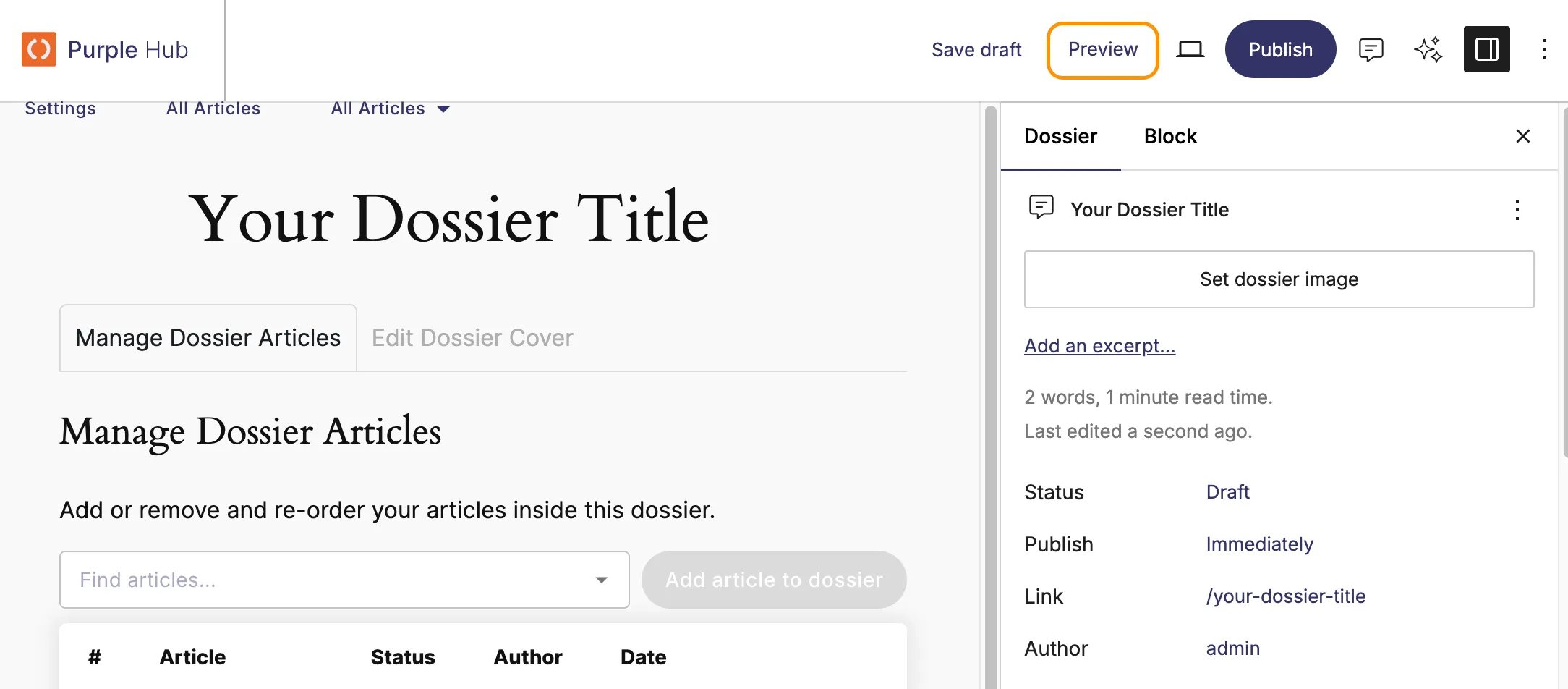
Generate a preview of a Dossier before it is published by clicking the 'Preview' button on the top bar in Purple Hub.
Publishing
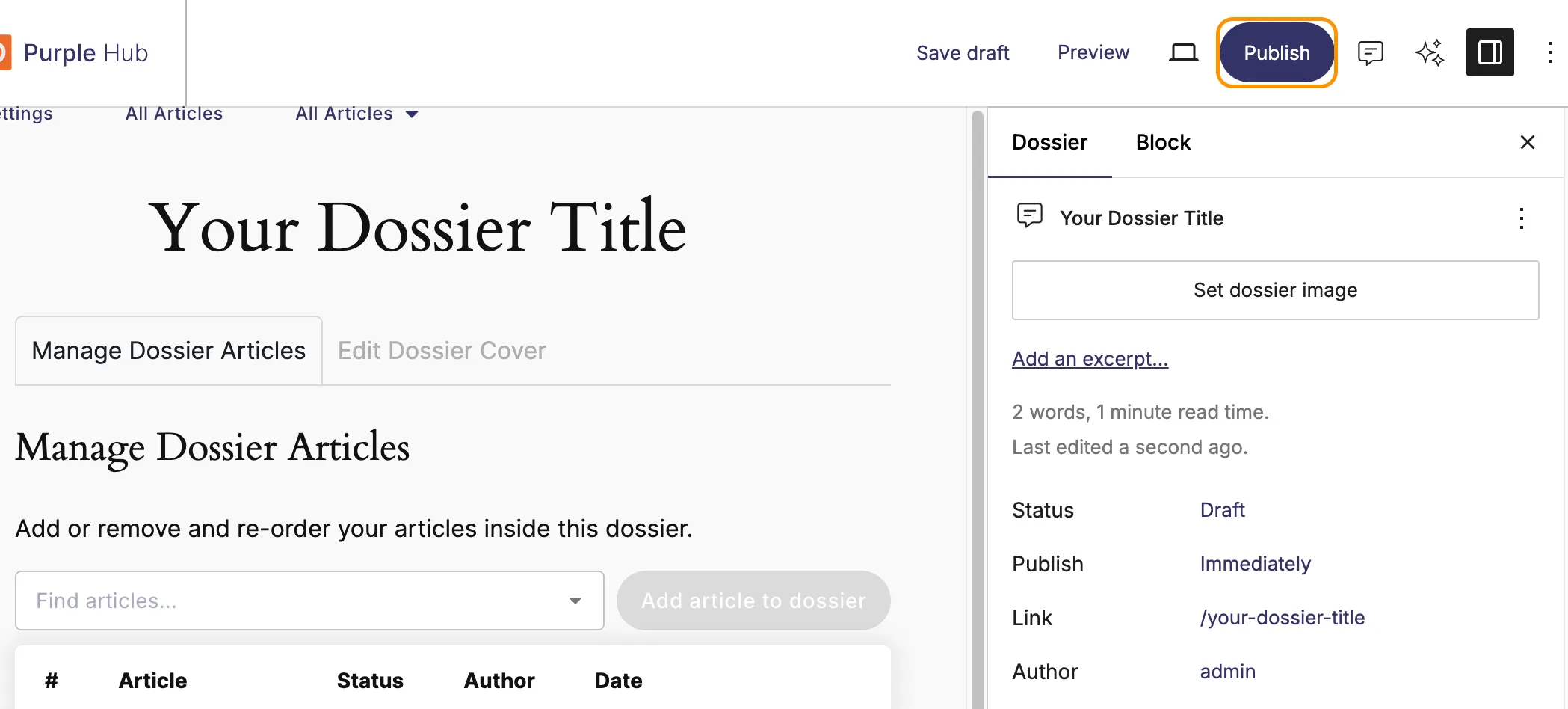
Publish your Dossier via the Publishing dialogue/top bar in Purple Hub to make it visible to your audience. For being able to be published, a Dossier needs to contain a minimum of 1 published article.
Unpublished Posts are not getting published automatically when you publish a dossier. Instead, you will get a warning screen when you are publishing the dossier:
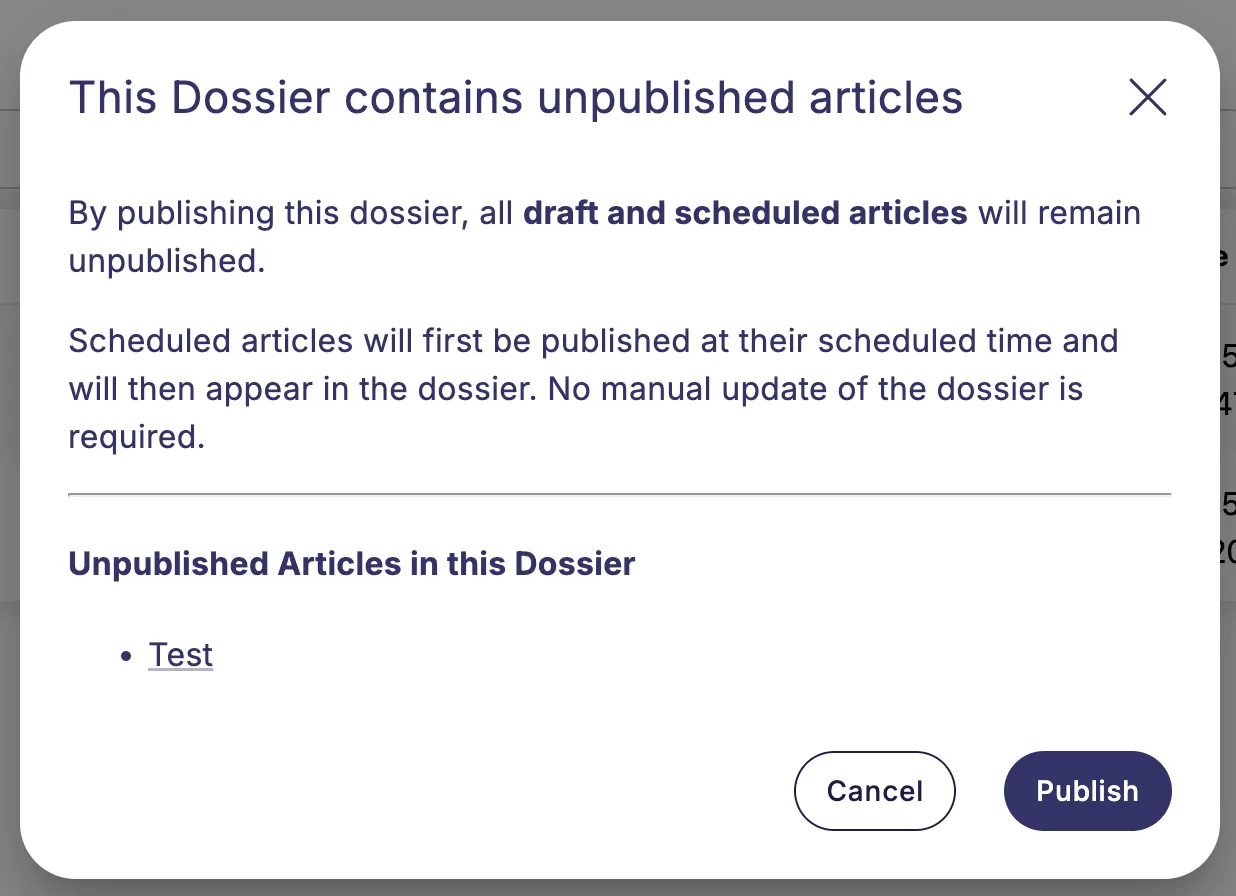
You can then directly open the posts and publish them if you want to or go ahead and publish the dossier without the draft articles. If the dossier contains scheduled articles, you will also receive the warning. Scheduled articles will automatically appear in the published dossier at their publishing time.