Search & Filtering
Overview
Media provides powerful filtering options to help you quickly find the media files you need. You can filter by date, file type, author, categories, and language.
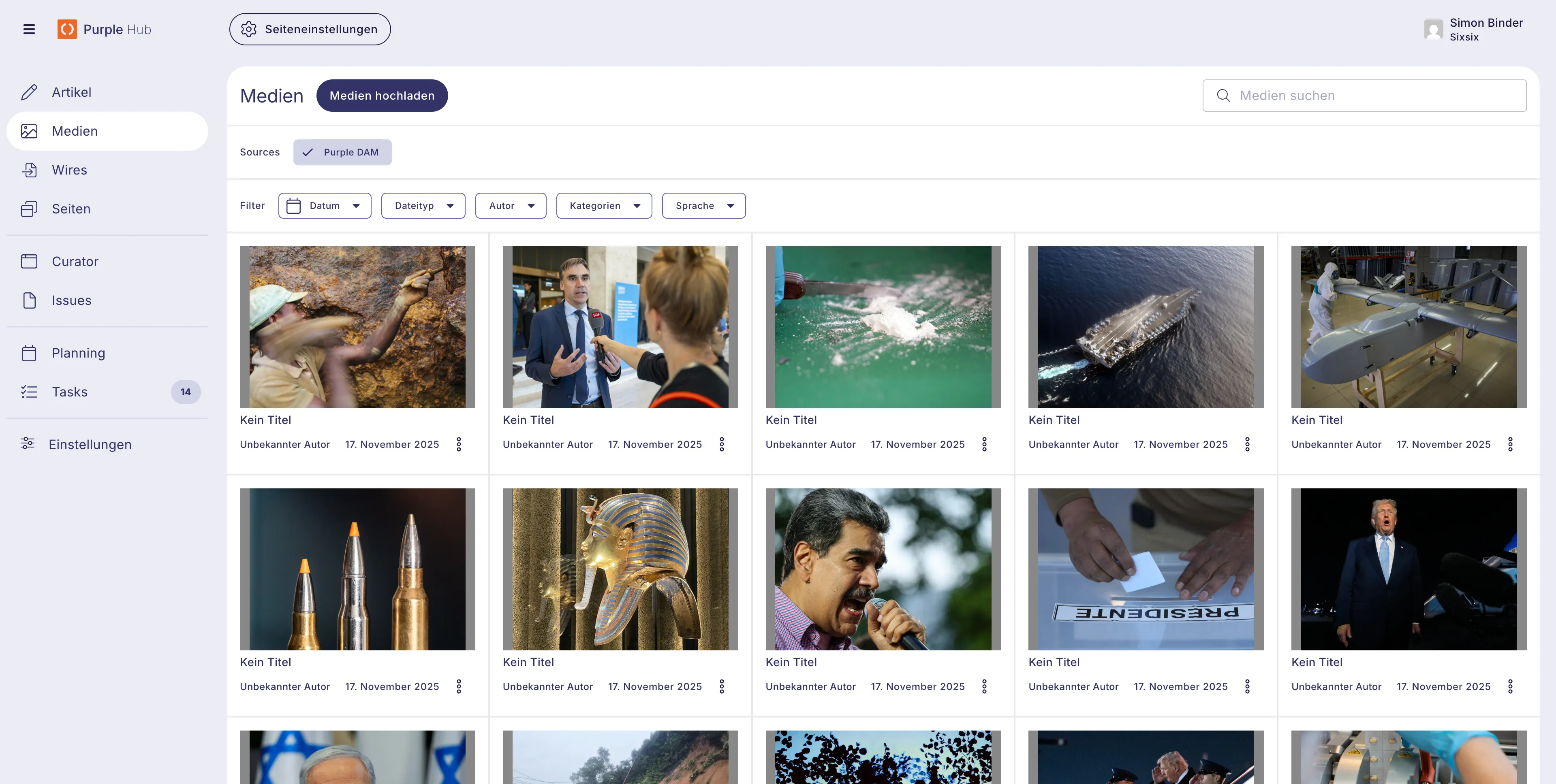
Available Filters
📅 Date Filter
Filter media files by their upload date.
How to use:
- Click the Date button in the filter bar
- Choose from quick options or manually select a date range:
- Click the calendar to pick specific dates
- Use the From and To fields to enter dates directly
- Format: YYYY-MM-DD (e.g., 2025-11-01)
- Click Apple to filter results
Tip: The calendar highlights your selected date range, making it easy to see what period you're filtering.
🖼️ File Type Filter
Filter media by file type to quickly find images, videos, documents, and more.
Available options:
- Images - JPG, PNG, GIF, etc.
- Videos - MP4, MOV, etc.
- Audio - MP3, WAV, etc.
- Documents - DOC, TXT, etc.
- PDF - PDF files
How to use:
- Click the File Type button
- Click on one or more file types
- The counter shows how many types you've selected (e.g., "1 ausgewählt")
- Click Apply
Tip: You can select multiple file types at once to see all images and videos together, for example.
👤 Author Filter
Find media files uploaded by specific users.
How to use:
- Click the Author button
- Use the search box to find authors by name
- Click on author names to select them
- Click Apply
Tip: The search is helpful when you have many users in your system.
🏷️ Categories Filter (Kategorien)
Organize and find media by assigned categories.
How to use:
- Click the Category button
- Use the search box to find categories
- Select one or more categories
- Click Apply
Tip: Categories help organize media by projects, campaigns, or content types.
🌍 Language Filter
Filter media by language, useful for multilingual content.
How to use:
- Click the Language button
- Use the search box to find languages
- Select one or more languages
- Click Apply
Print Version Filter
When Print Version handling is active, a Print Version filter chip appears with two options:
- With Print Version — only assets that have a print file attached
- Without Print Version — only assets without one
ℹ️ Note: If Print Images is disabled in Settings → Media → General, this filter is hidden automatically.
Advanced Custom Fields (ACF) as filter
If any Advanced Custom Fields (ACF) for Purple DAMa are configured, those can also be used as filters for Media. See also Configure ACFs as filterf
Working with Active Filters
Viewing Active Filters
When you apply filters, they appear as chips below the filter buttons:
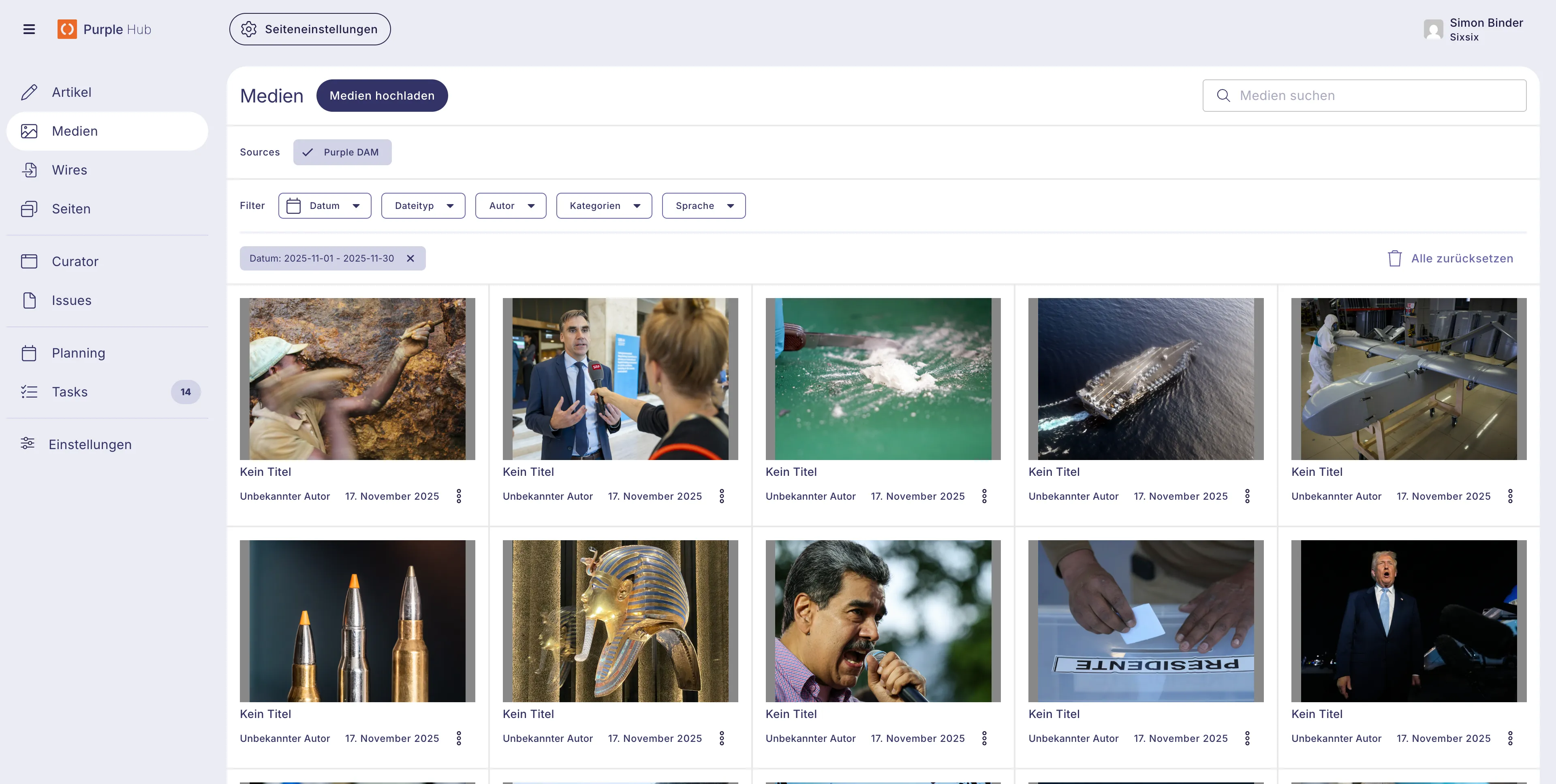
Each chip shows:
- The filter type
- The selected value(s)
- An X button to remove that specific filter
Combining Multiple Filters
You can use multiple filters together to narrow down your search:
Example:
- Apply Date filter: "This month" → Shows 79 items
- Add Author filter: "Author 1" → Shows 8 items
- Add File Type filter: "Images" → Shows 7 items
Each filter progressively narrows your results.
Removing Filters
To remove a single filter:
- Click the X button on that filter's chip
To remove all filters:
- Click the Clear All button
Tips & Best Practices
🎯 Quick Searches
- Recent uploads: Use "This week" or "This month" in Date filter
- Your own files: Filter by your name in Author filter
- Campaign materials: Use Categories to group related media
🔍 Narrow Down Results
Start broad and progressively narrow:
- Start with Date or Categories
- Add File Type if needed
- Refine with Author or Language
⚡ Keyboard Shortcuts
- Type in the search box within dropdowns to quickly find options
- Use Tab to navigate between filter buttons
- Press Enter after selecting to apply (in some dropdowns)
📊 Result Count
The item count at the bottom shows how many files match your filters:
- Example: "79 items" tells you exactly how many files are displayed
Common Use Cases
Finding Recent Images
- Click Date → Select This Week
- Click File Type → Select Images
- Click Apply on both
Reviewing Content by Author
- Click Author → Select author name
- Review all their uploaded media
- Add Date filter to see recent uploads
Locating Campaign Assets
- Click Categories → Select campaign category
- Click File Type → Select needed file types
- All campaign assets appear together
Multilingual Content Management
- Click Language → Select language
- View all media in that language
- Combine with Categories for organized multilingual content
Troubleshooting
No Results Showing
- Check your filters: Make sure they're not too restrictive
- Clear all filters: Click "Reset all" and start over
- Verify date range: Ensure the date range includes uploaded files
Filter Not Working
- Click "Apply": Remember to apply the filter after selection
- Check selections: Make sure you've selected options before applying
- Refresh page: If issues persist, refresh the browser
Too Many Results
- Add more filters: Combine multiple filters to narrow results
- Use specific dates: Instead of "This Month", select exact date ranges
- Use search: The search box can further filter results
Full-Text Search
The search bar at the top of the Media Library searches across:
- Title
- Alt Text
- Caption
- Description
- ACF field values (when enabled — see below)
Results are returned instantly and support multi-word queries.
Enabling ACF Field Search
For ACF field values to appear in search results, an administrator must:
- Go to Settings → Media Library → Search Fields & Weighting.
- Enable the relevant ACF fields.
- Run a full ElasticPress reindex.
Once indexed, ACF field content is searchable alongside the standard fields.