App_menu.xml
Starting with PXP 5.0 and Apps Template 10.10 this menu is not enabled by default anymore.
General setup
For apps, the native app menu has to be enabled in the Purple Manager in App Design -> General -> Advanced Settings -> App Menu. This is a build-time configuration, so after changing this value, the app has to be rebuilt for this change to take effect.
For the web, the enableLegacySideMenu flag has to be set in experience.config.json inside the assets folder in the dynamic resources:
{
  "purple": {
    "legacy": {
      "enableLegacySideMenu": true
    }
  }
}
Each Purple App comes with an app menu (accessible by clicking on the menu icon in the top left corner or with a screen swipe from left to right in the app).
The app menu is a global app UI component that is used for navigation. It consists of a header area, dynamic entries, and a footer area. The configuration of this menu happens in the app_menu.xml file that is located in the dynamic resources: default/app_menu.xml.
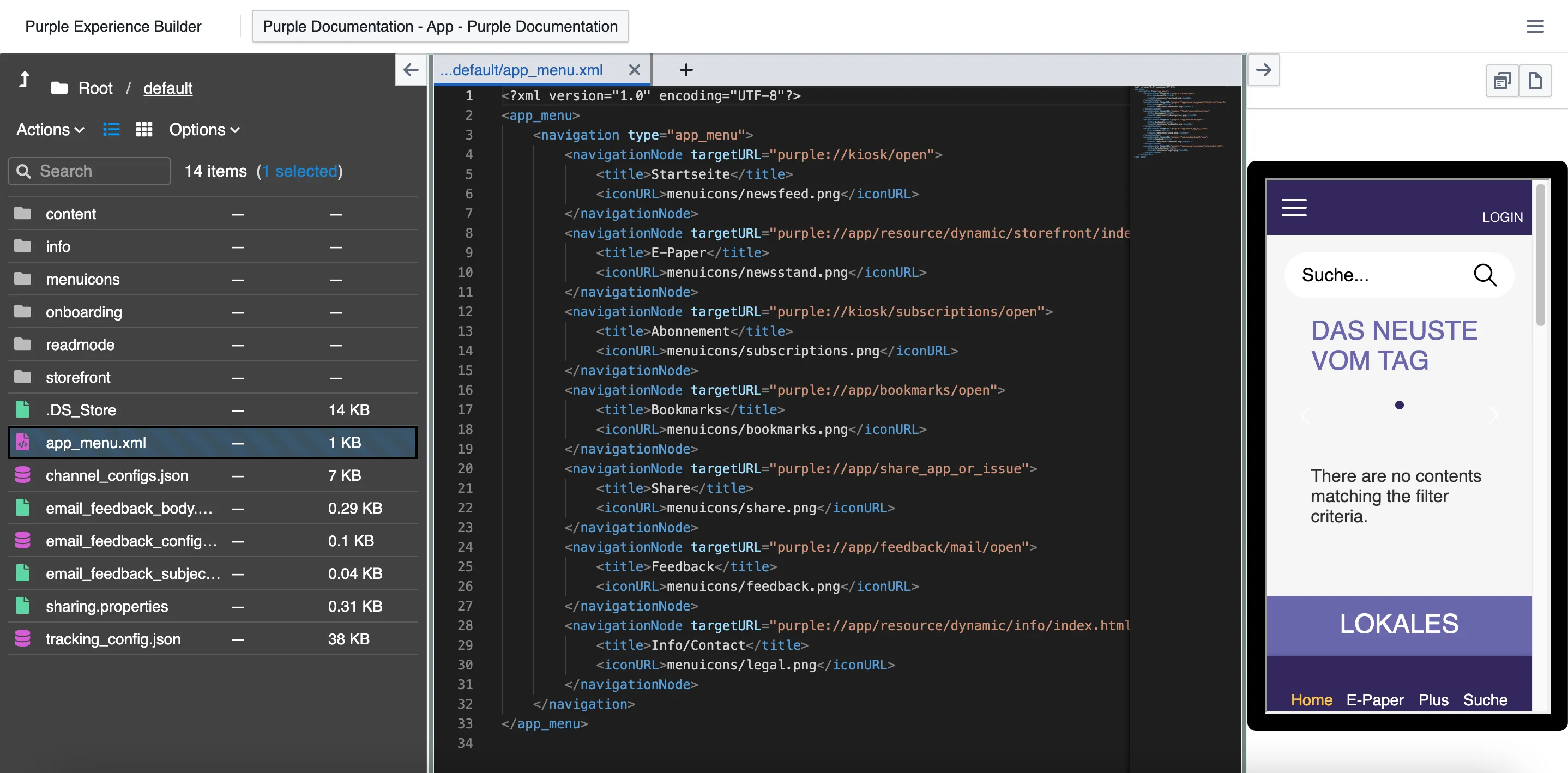
Preconfigured app menu
Purple provides a "neutral" preconfigured app menu in the standard dynamic resources. You can use this or overwrite or extend it to customize it to your needs.
If no navigationNode with the action url purple://app/settings/open is declared in the app_menu.xml but there are settings available in the app, then a default settings entry is automatically added at the end of the app menu.
Menu icons
The menu icons are located in default/menuicons
Structure of the app_menu.xml
The XML file is usually structured as follows:
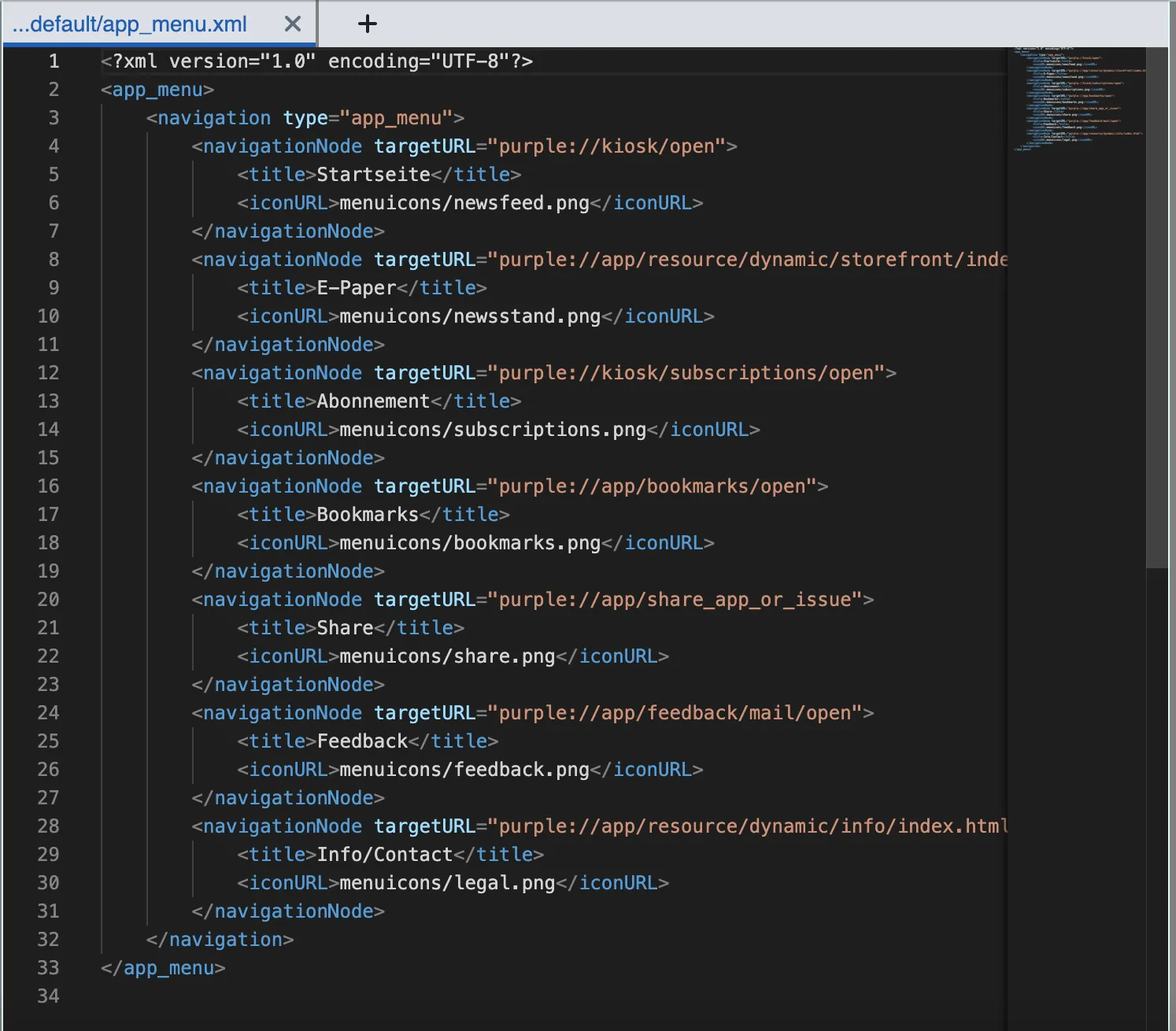
The file consists of the following elements:
Frame
This is the container in which the components of the app menu are stored, and it looks like this:
Header image
You have the option to place a logo above the entries of the app menu, which will be stored in the app_menu.xml as follows:
You can specify the exact path to the logo file here, as well as the desired height and padding.
Menu item
A single entry in the menu (using the "Bookmarks" entry as an example) looks like this:
- The "navigationNode" contains a URL. The URL can be a purple deep link that triggers a certain event (like 'open bookmarks view'), an external URL to a web page or a link to an HTML page in the dynamic content.
- The "title" tag contains the text for the displayed entry. In the example above, this is "Bookmarks". This text will be displayed in your app menu to the users.
- The "iconURL" refers to the icon for this entry in the dynamic content. This entry can also remain empty, in which case no icon is displayed. Icons must be referenced by their file name.
Menu icons
Purple apps offer the option of using custom icons for the menu used in the app.
If you want to use custom icons, you will need them in 3 different versions so they can be displayed properly on all devices.
Usually the format *.PNG is used because the icons contain transparent areas. The required formats for the icons are:
Requirements
- PNG image with 120x120 pixel dimensions and with the file name: <iconname>@3x.png
- PNG image with 80x80 pixel dimensions and with the file name: <iconname>@2x.png
- PNG image with 40x40 pixel dimensions and with the file name: <iconname>.png
Example
You want to create your own icon for the menu item Imprint. To ensure that the menu entry looks good on all device types, you need to have the following 3 image files in place:
- [email protected], with the dimensions 120x120 pixels
- [email protected], with the dimensions 80x80 pixels
- imprint.png, with the dimensions 40x40 pixels
Purple will choose one of the three image versions, depending on the device.
Sample Photoshop icons
You can download sample Photoshop documents here:
URLs
Each menu entry leads to another URL, either inside your app or to an external source.
Examples are, among others:
- Link to an HTML page in the app (in the dynamic content), such as an imprint or the FAQ
- Link to an external website, which will be opened in a browser overlay
- Link to a specific issue in the newsstand
- a purple deep link that triggers a certain event (like 'open bookmarks view')
An overview of possible deep links can be found in the Section Action URLs and Deep linking
Multilanguage for app menu
For Purple Apps, it is possible to display the app's main menu in the users' device language. To enable this function, you have to add the title in the app_menu.xml in each language that you desire to have a translation for and add a country code.
Example
Let's take a look at one of the menu entries of the app menu in the app_menu.xml.
For the Bookmark Add Entry, we want to integrate an English and French version (the standard is German)
The only thing that is important for a multilingual menu here, is the tag "title". In this segment, another title entry can be added using the country code and the value "locale".
If you would like to offer, e.g., an English and French version now, the following entries are required:
- The two-letter language codes, in our case "en" and "fr"
- The translated words for the titles (Bookmarks and Signets)
Your result should look like this
By applying the same principle, you can set up all menu items in multiple languages.