Google Search Console (GSC)
Google Search Console is a free tool provided by Google that helps website owners monitor, maintain, and troubleshoot their site's presence in Google Search results. It lets you see how Google crawls and indexes your site, identify and fix technical issues, and understand how people are finding you through search.
Key things you can do with it:
- See which search queries bring users to your site, and track impressions, clicks, and rankings
- Submit sitemaps and individual URLs for indexing
- Identify crawl errors, security issues, and Core Web Vitals problems
- Check mobile usability and structured data status
- Get alerts when Google detects issues with your site
It's primarily aimed at webmasters, SEO professionals, and developers who want to optimize their site's visibility in Google Search.
Google's official documentation:
Validating an Experience Website with GSC
To use GSC, you'll need to verify the site ownership.
Purple supports verification through
- HTML Tag
- Google Tag Manager
- Google Analytics tracking code
As additional configuration on PXP is only needed for the Tag Variant, find below how to do that. For Google Tag Manager and Google Analytics integration, please refer to the respective documentation in GSC and here: Google Analytics / Google Tag Managerpurple docs.
Verification through HTML Tag
Follow the GSC Guide for creating the proper tag. In GSC,
- Choose the HTML tag method on the Ownership verification page for your property.
- Copy the tag from the Search Console verification wizard into the <head> section in the HTML of your site's non-logged-in home page.
In PXP Builder,
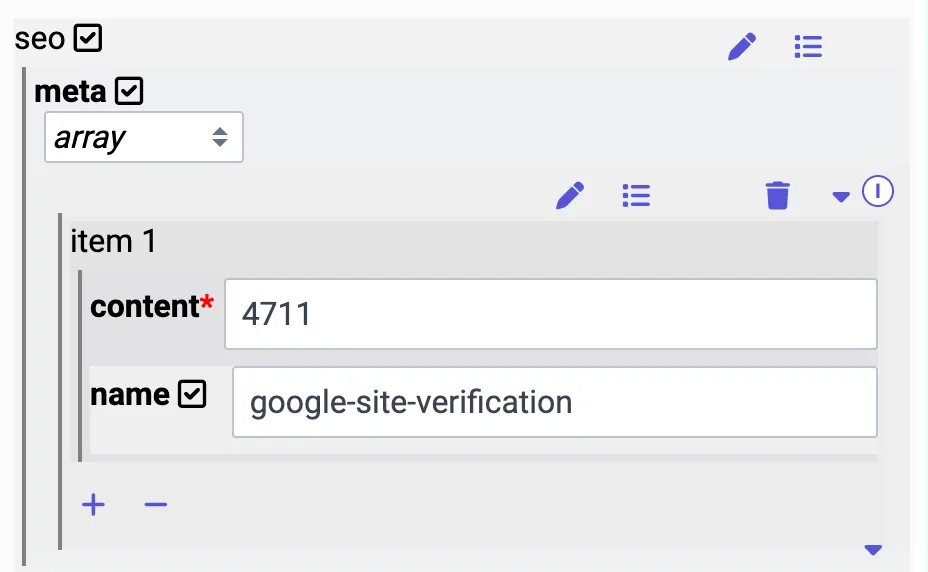
- Add a meta tag to your home page
- Navigate to the respective view.
- Add the SEO property if it's not set already:
- Add the meta property if it's not set already:
- Add an item with content from GSC (example: "4711") and name it "google-site-verification"