Set up TTS with Amazon Polly on the 'Publication' level
3rd party integration / Purple Manager
Summary
In this article, you learn how to set up TTS (Text-to-speech) for a news feed publication in Purple Manager with Amazon Polly. You will go to your desired newsfeed publication in Purple Manager, add the needed properties for the set-up and enable the TTS function. Afterwards, you will be able to use TTS right away.
Preconditions
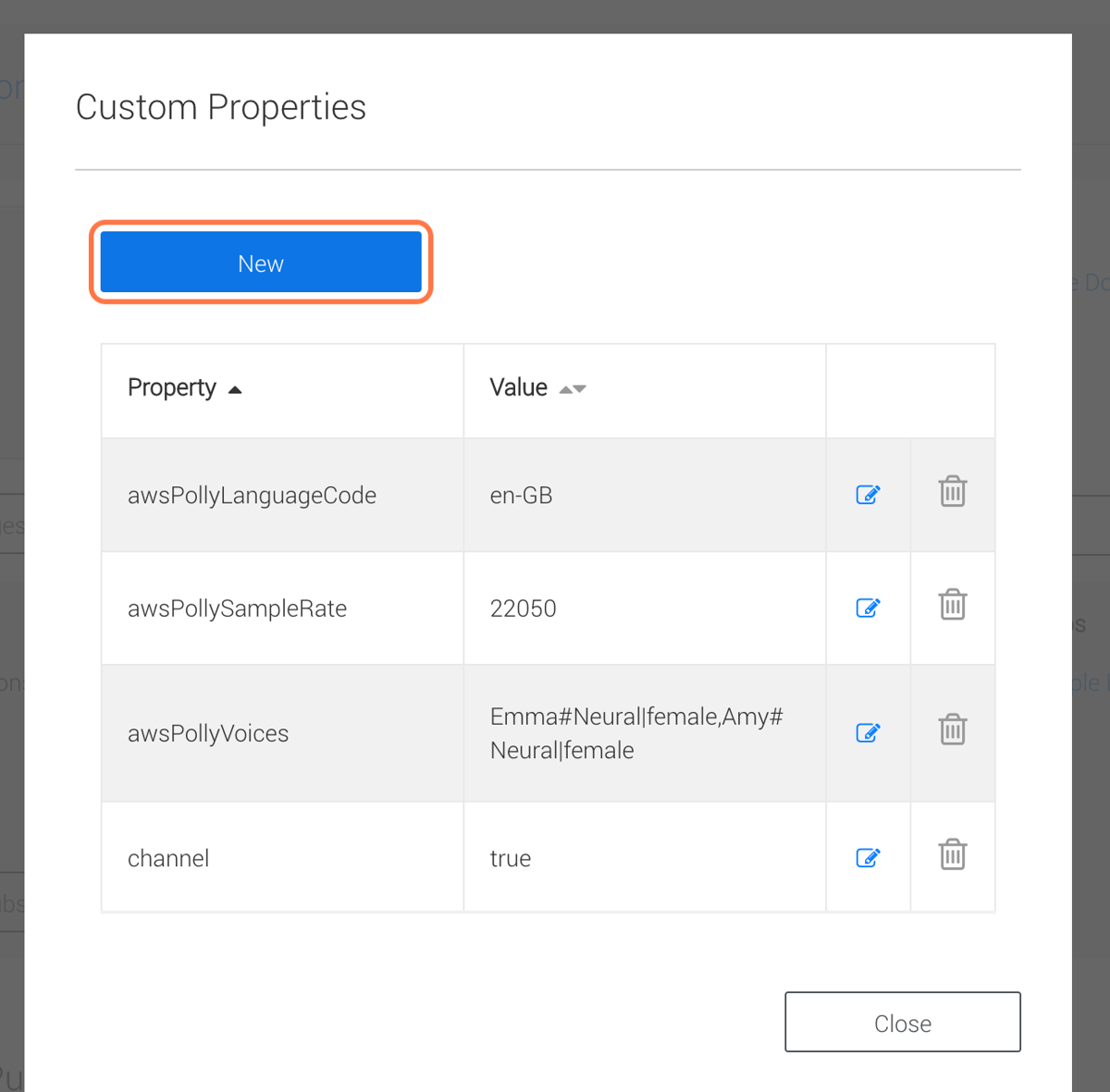
- Have the following TTS properties by Hand:
- awsPollyLanguageCode (e.g. en-GB for British English)
- awsPollySampleRate (e.g. 22050)
- awsPollyVoices (e.g. Emma#Neural|female,Amy#Neural|female)
There are a few settings which need to be done either for the 'Team' or for each 'Publication'. If the settings are set for both, the publication settings are preferred. Learn more in this article about Amazon Polly properties.
How to
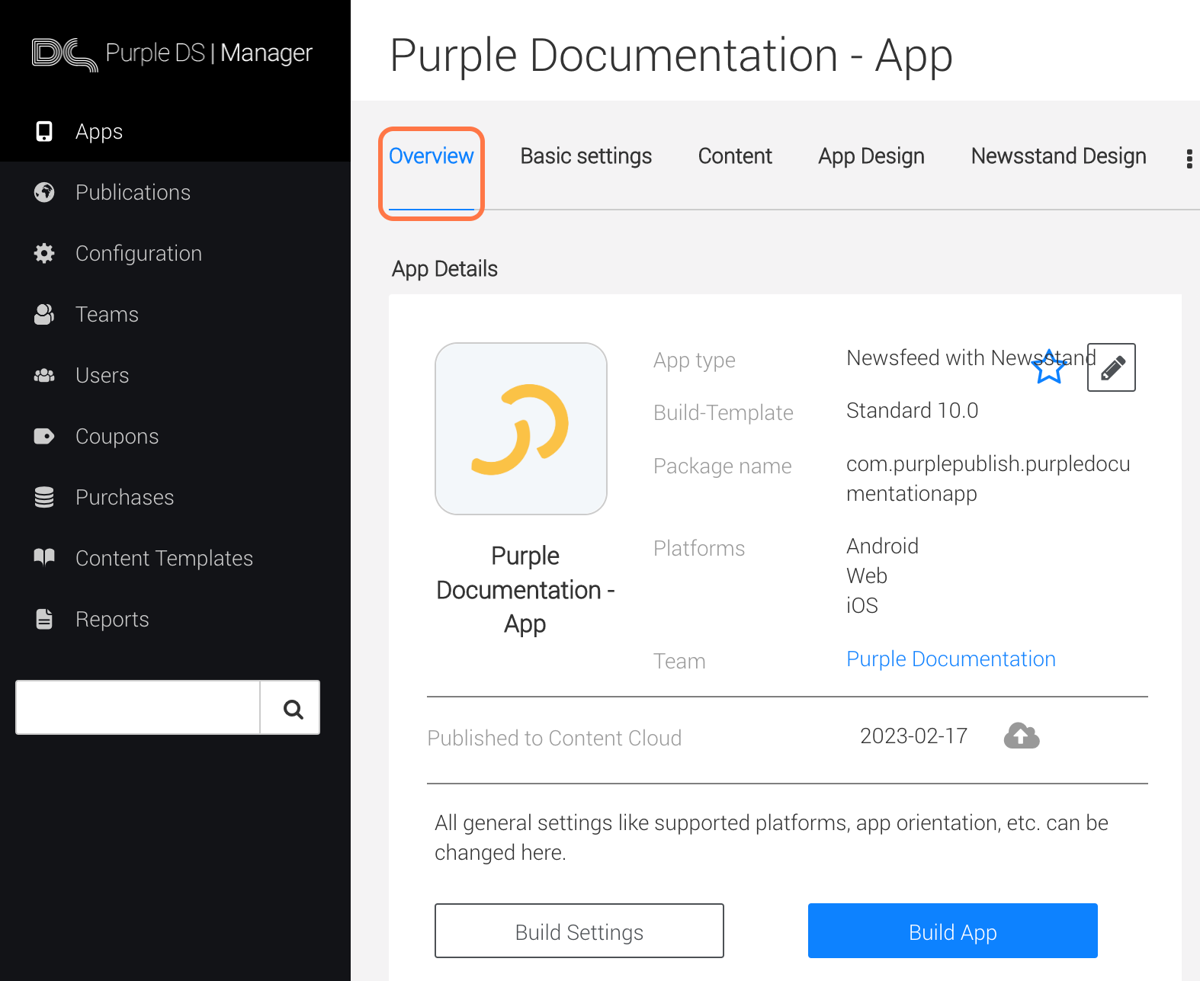
1. Go to Purple Manager – 'Apps' – 'Overview'
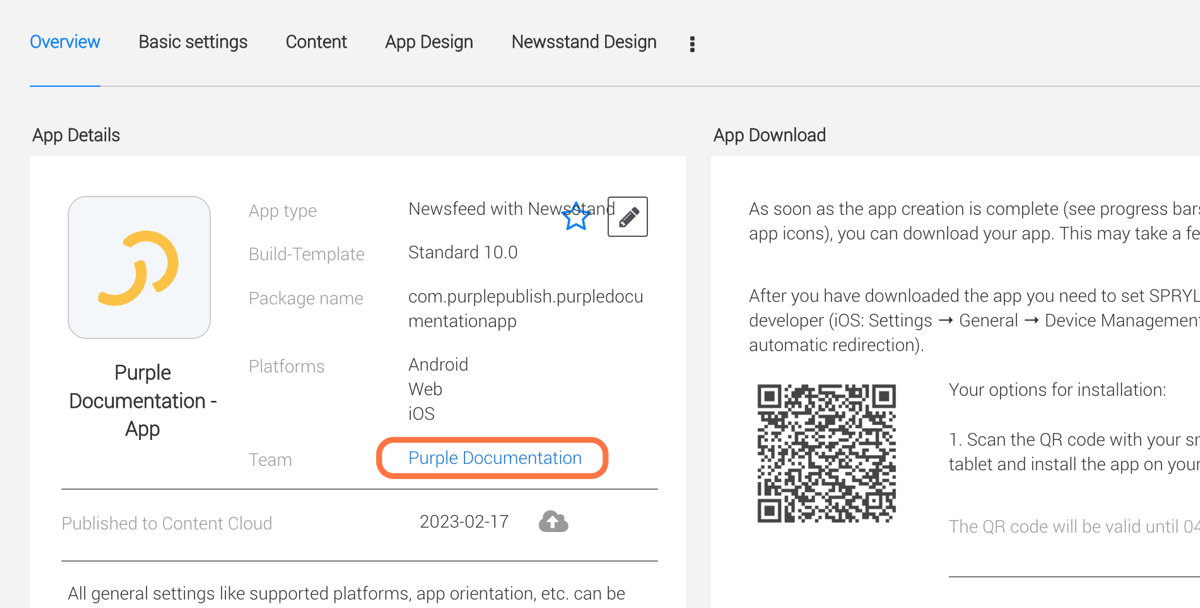
2. Next to 'Team' click on your team
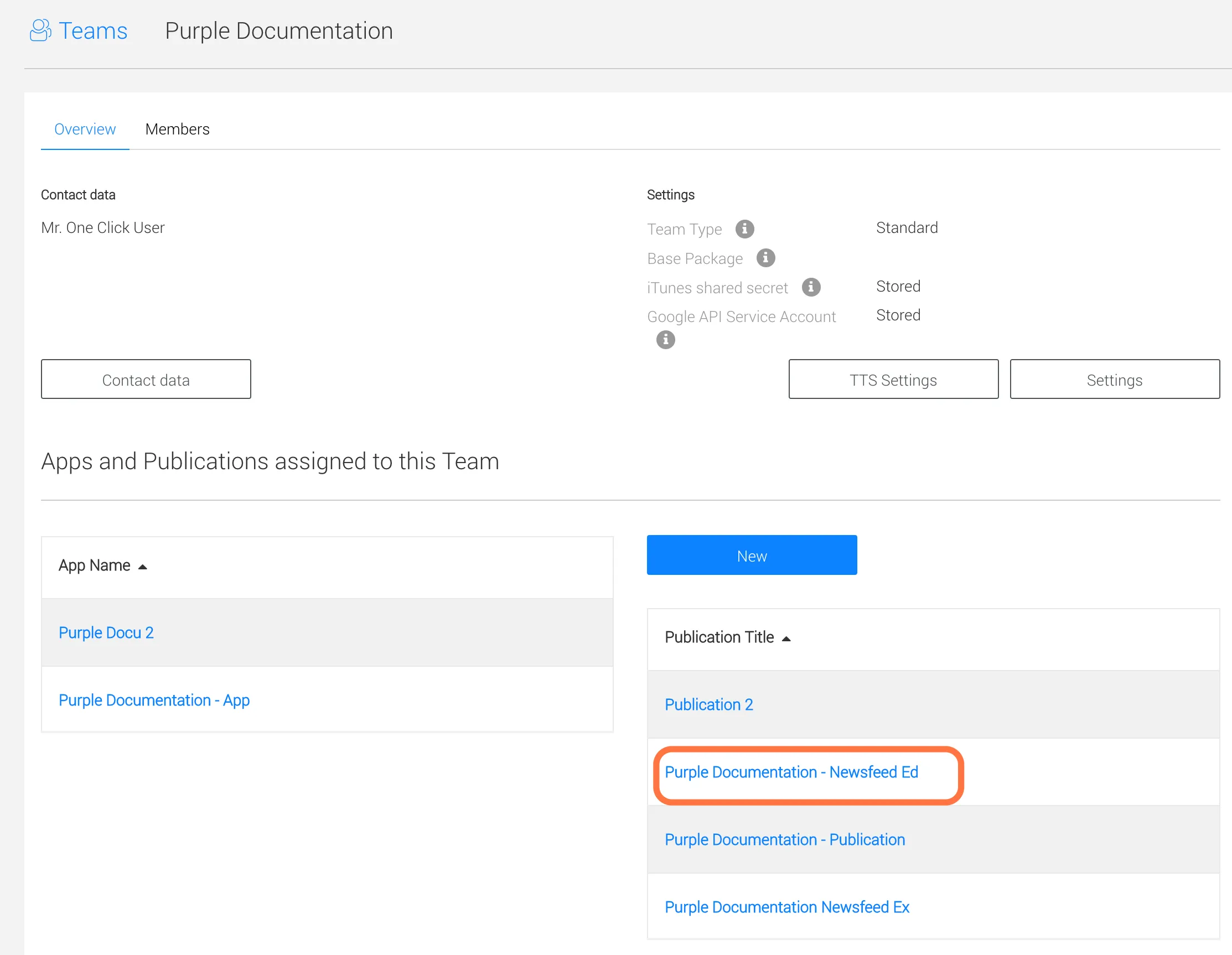
3. Below 'Publication Title' choose the newsfeed publication from the list for which you want to set up TTS, and click on it
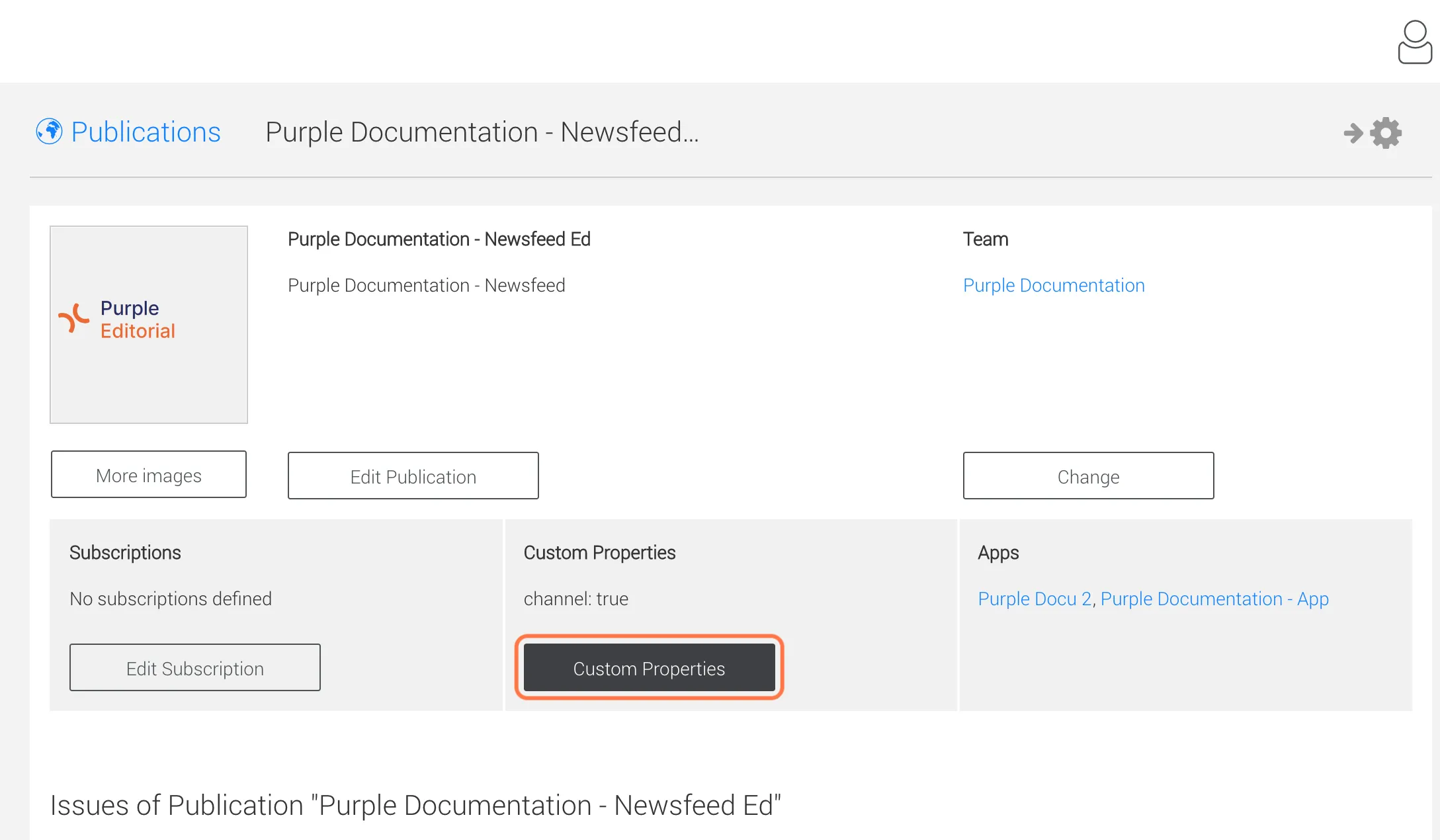
4. Click on 'Custom Properties'
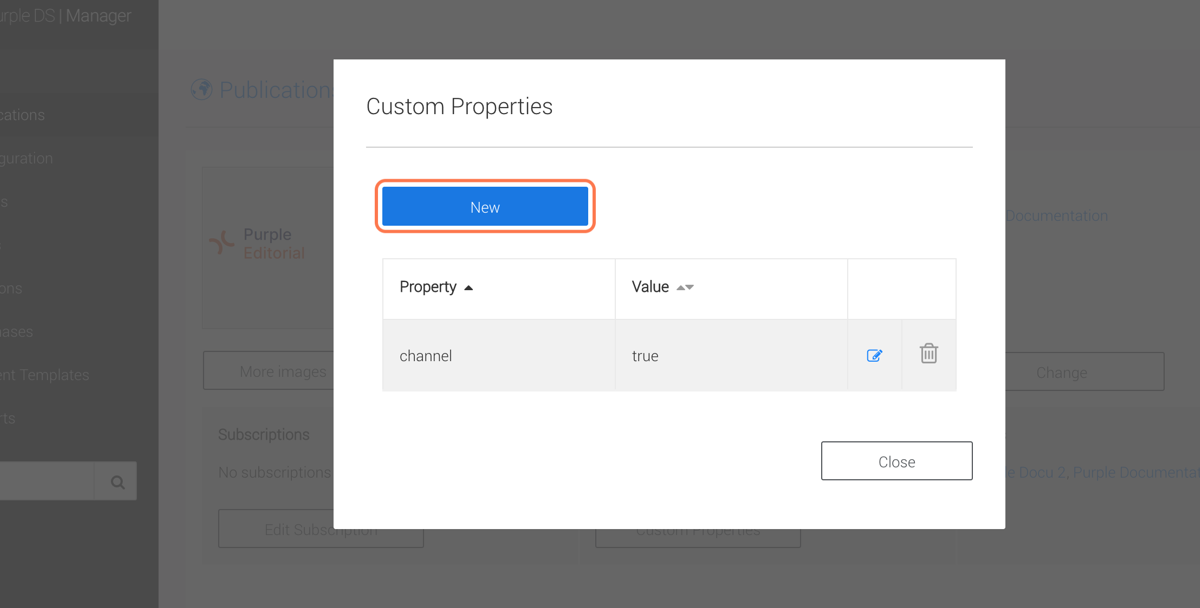
5. Click on 'New'
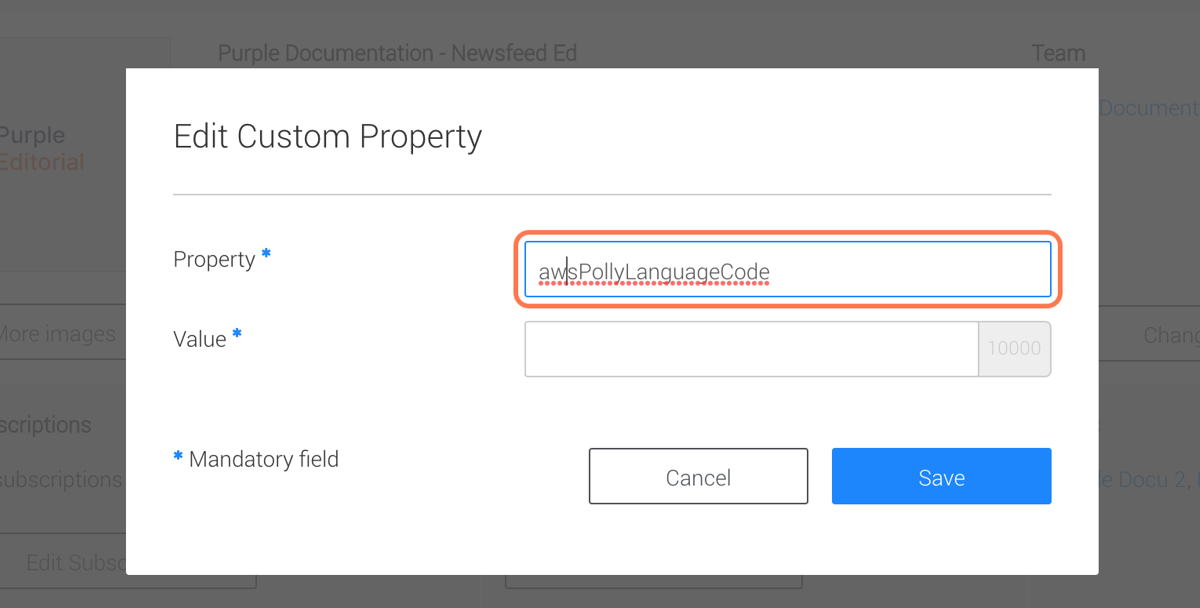
6. Next to 'Property' insert 'awsPollyLanguageCode'
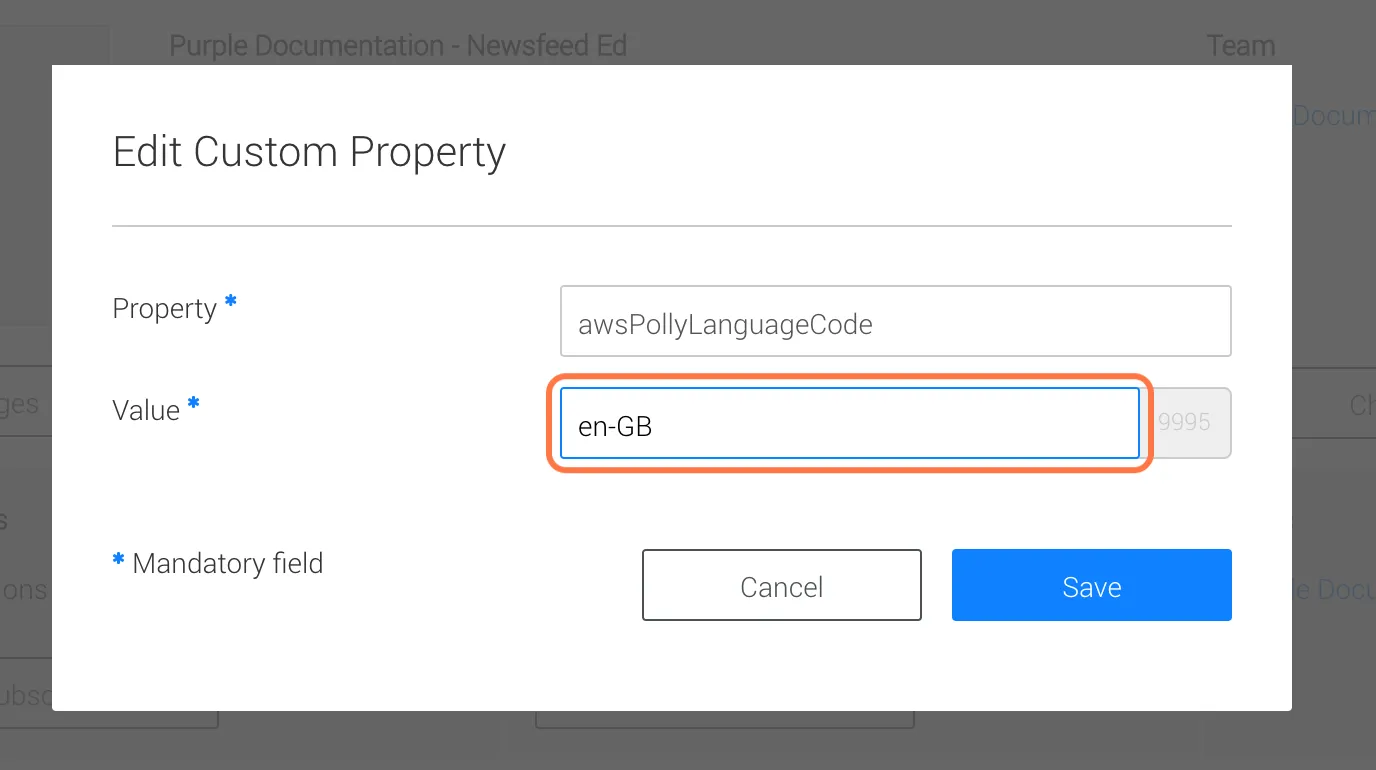
7. Next to 'Value' insert your desired language code e.g. 'en-GB' for English/Great Britain
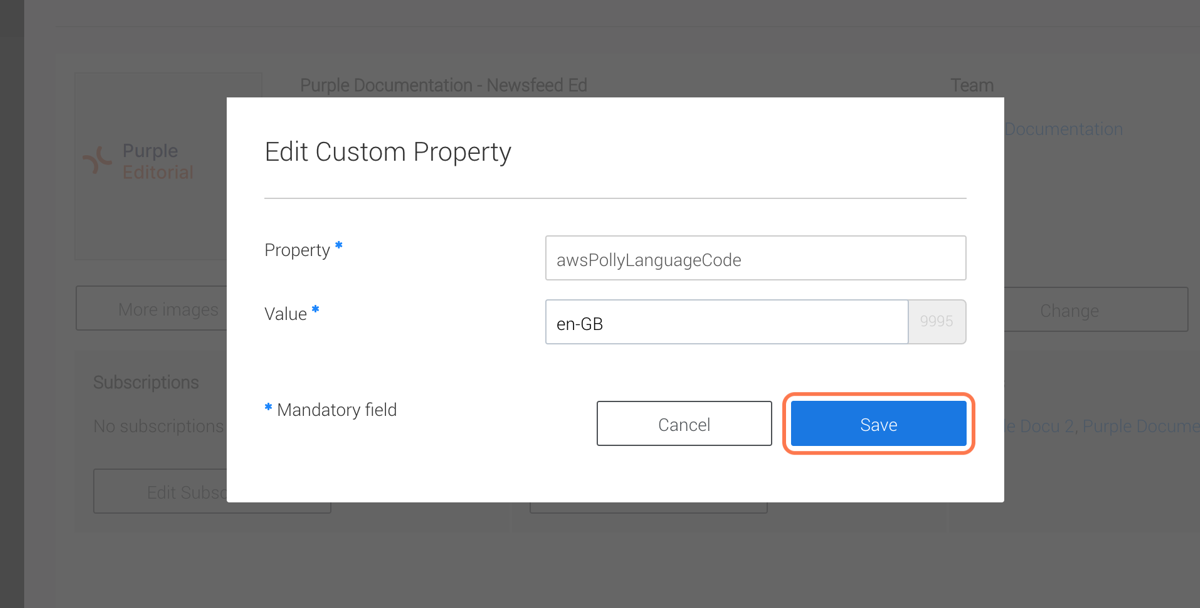
8. Click on 'Save'
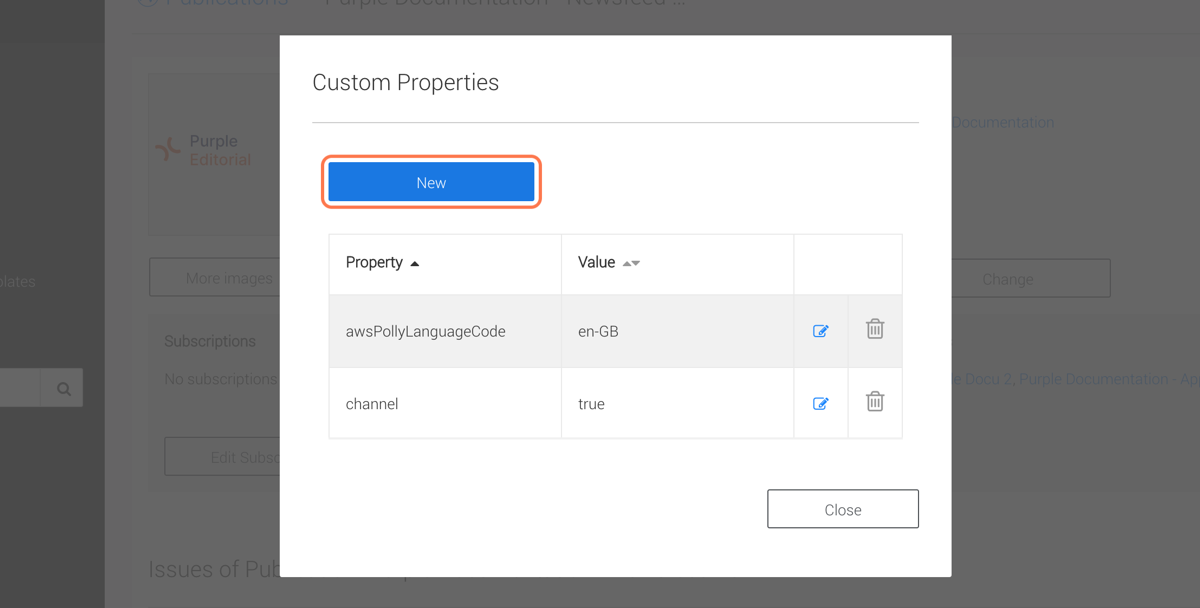
9. Click on 'New'
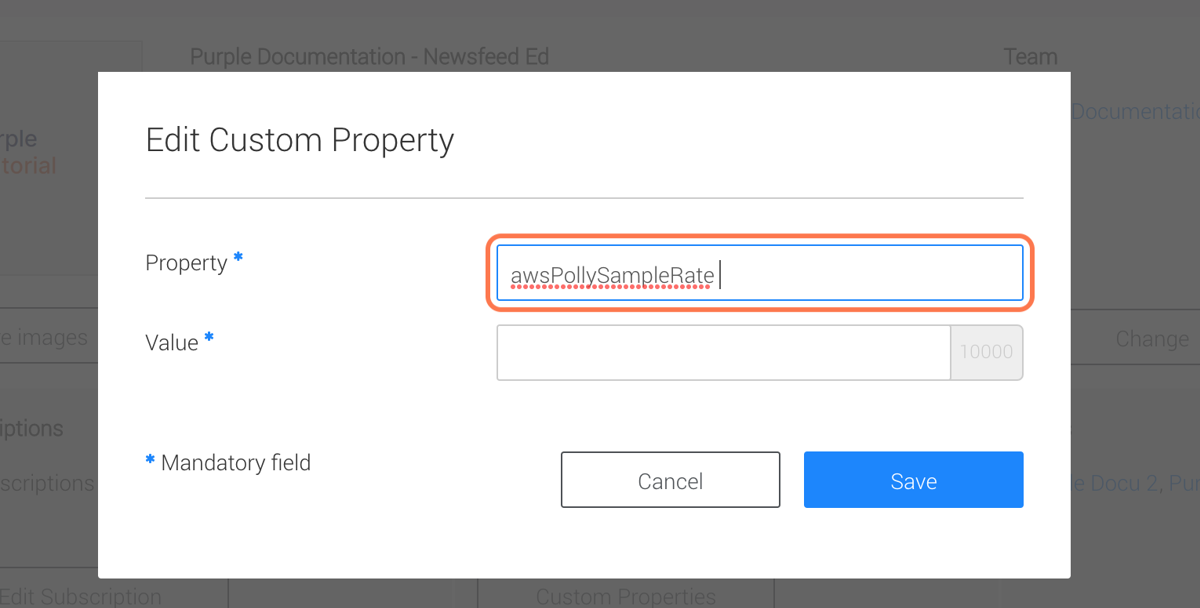
10. Next to 'Property', insert 'awsPollySampleRate'
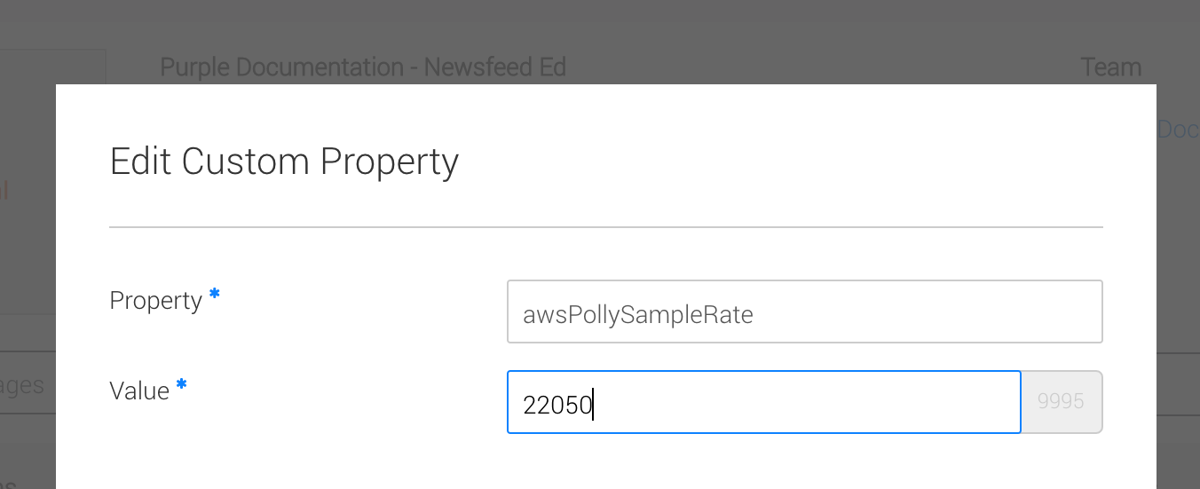
11. Next to 'Value' insert your desired sample rate, e.g. '22050'
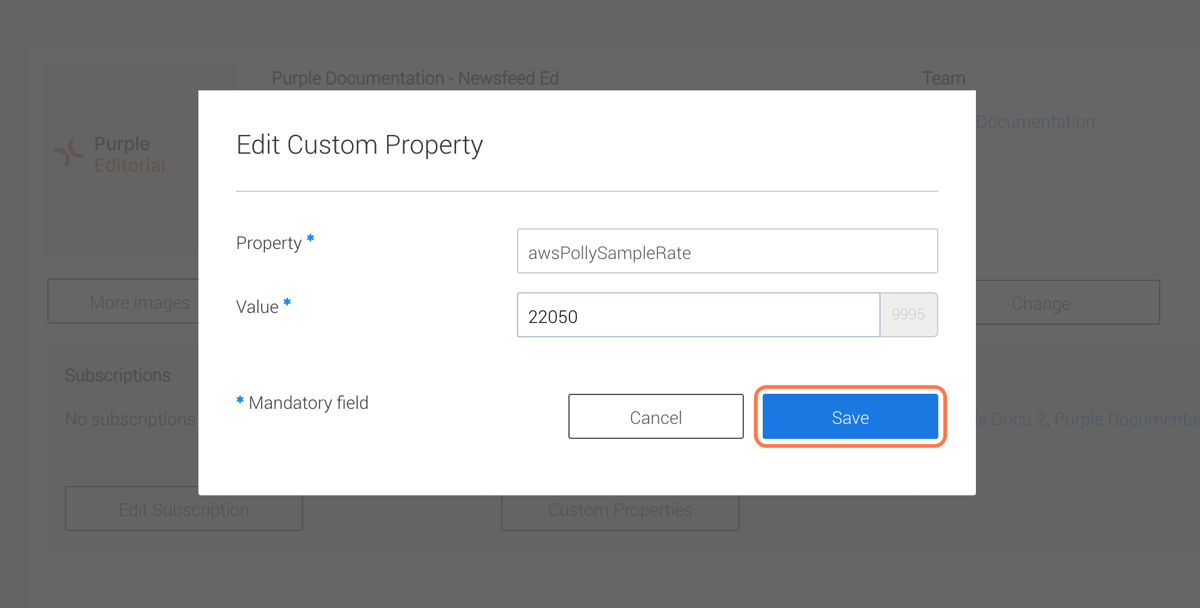
12. Click on 'Save'
13. Click on 'New'
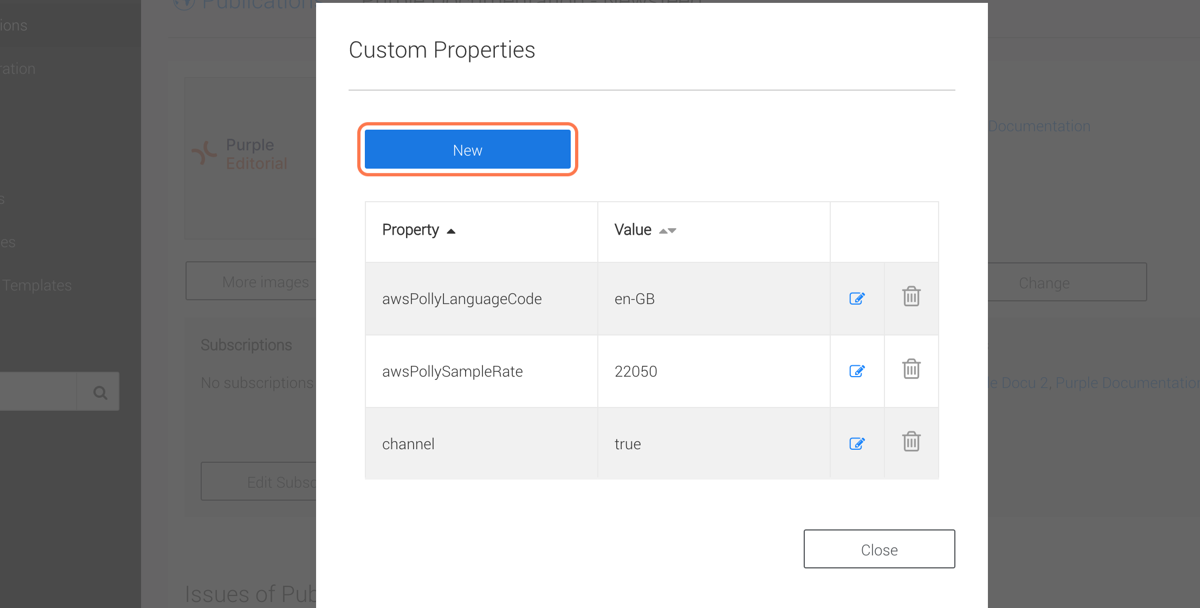
14. Next to 'Property' insert 'awsPollyVoices'
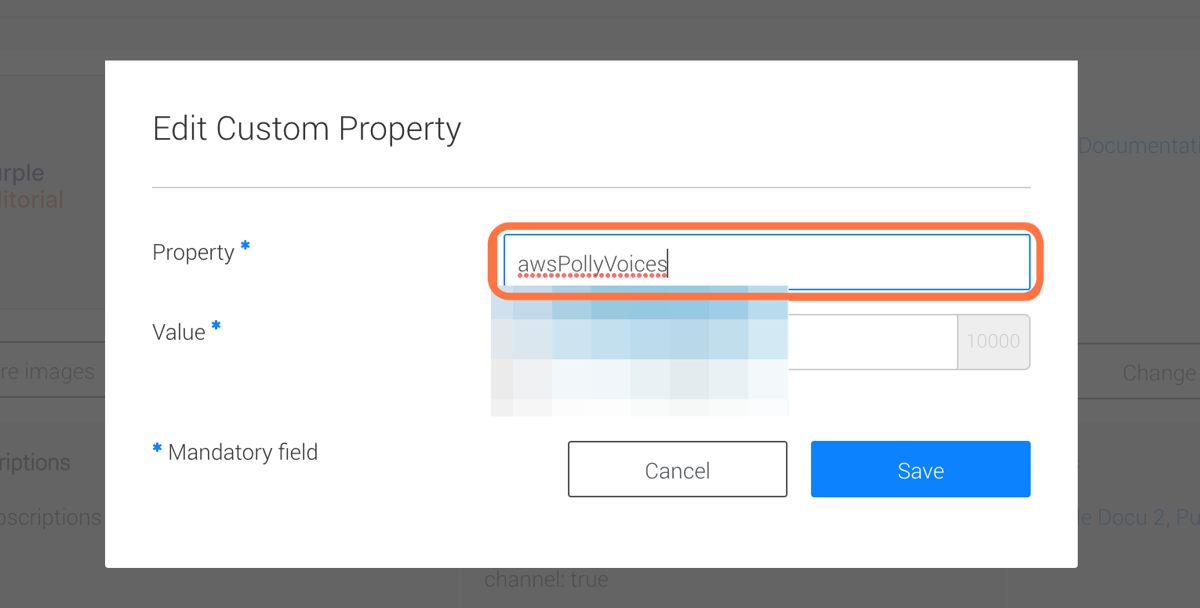
15. Next to 'Value' insert your desired Polly voices, e.g. for neural voices in British English 'Emma#Neural|female,Amy#Neural|female'
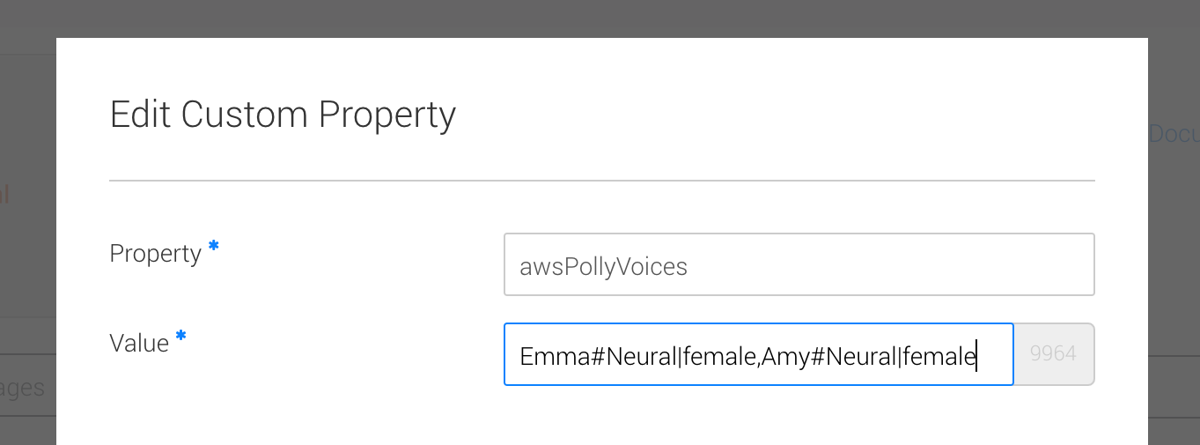
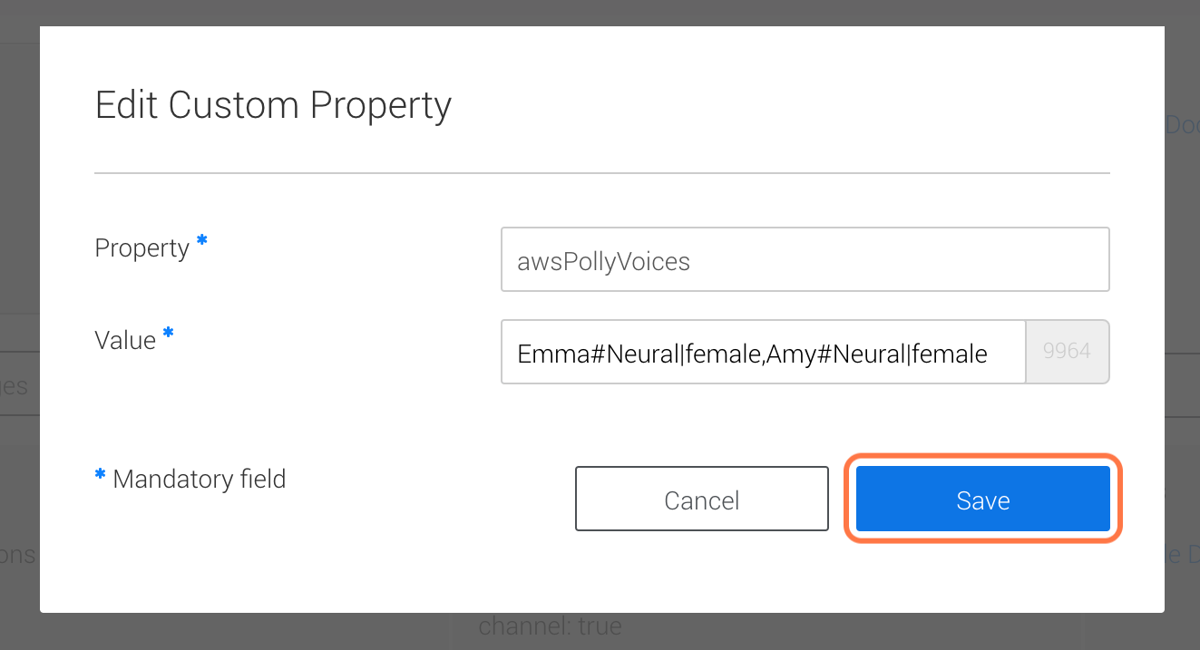
16. Click on 'Save'
17. Click on 'New'
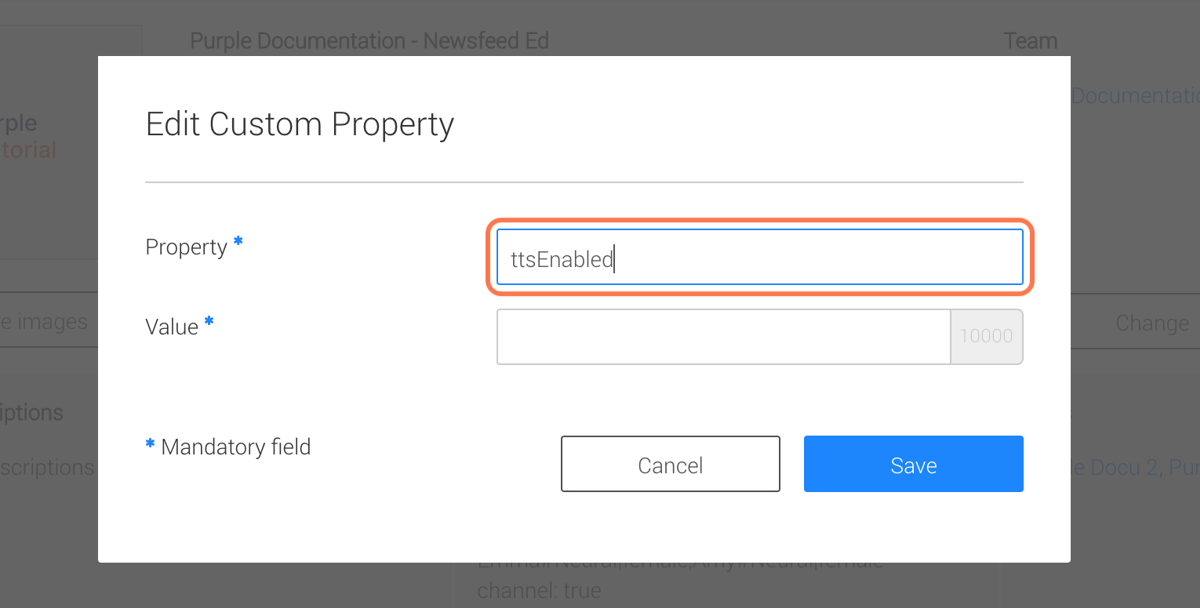
18. Next to 'Property' insert 'ttsEnabled'
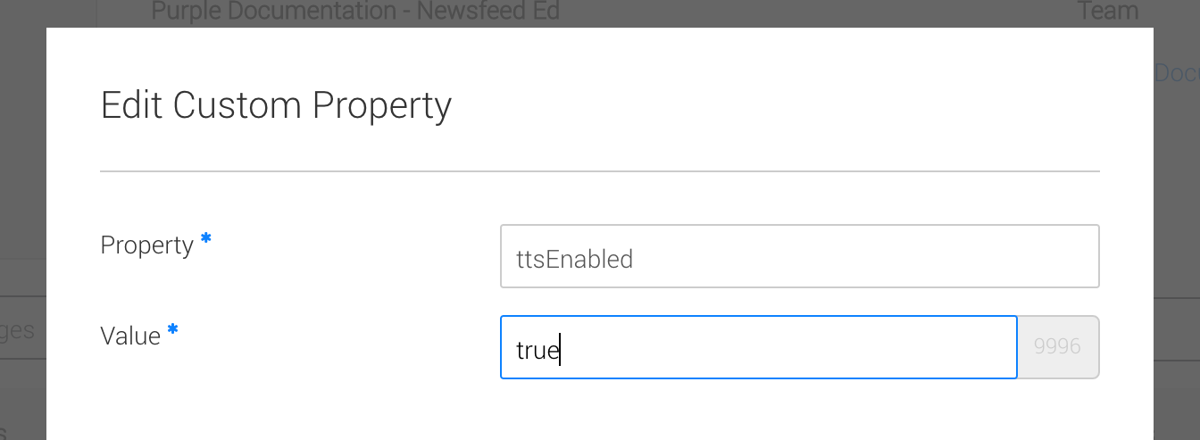
19. Next to 'Value' type 'true'
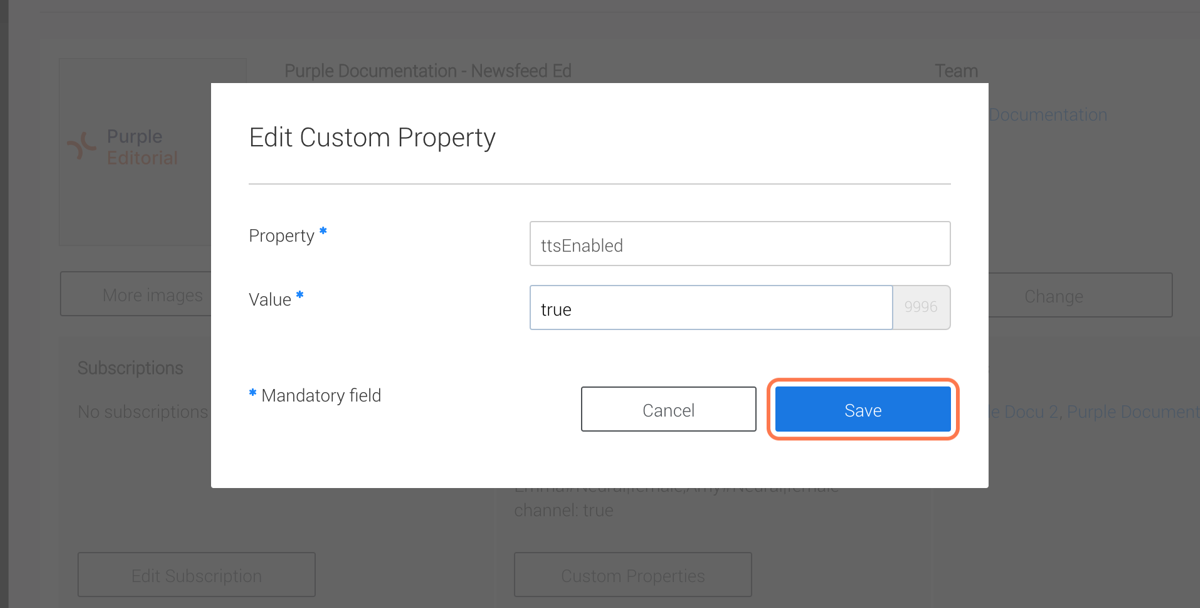
20. Click on 'Save'
21. Click on 'Close'
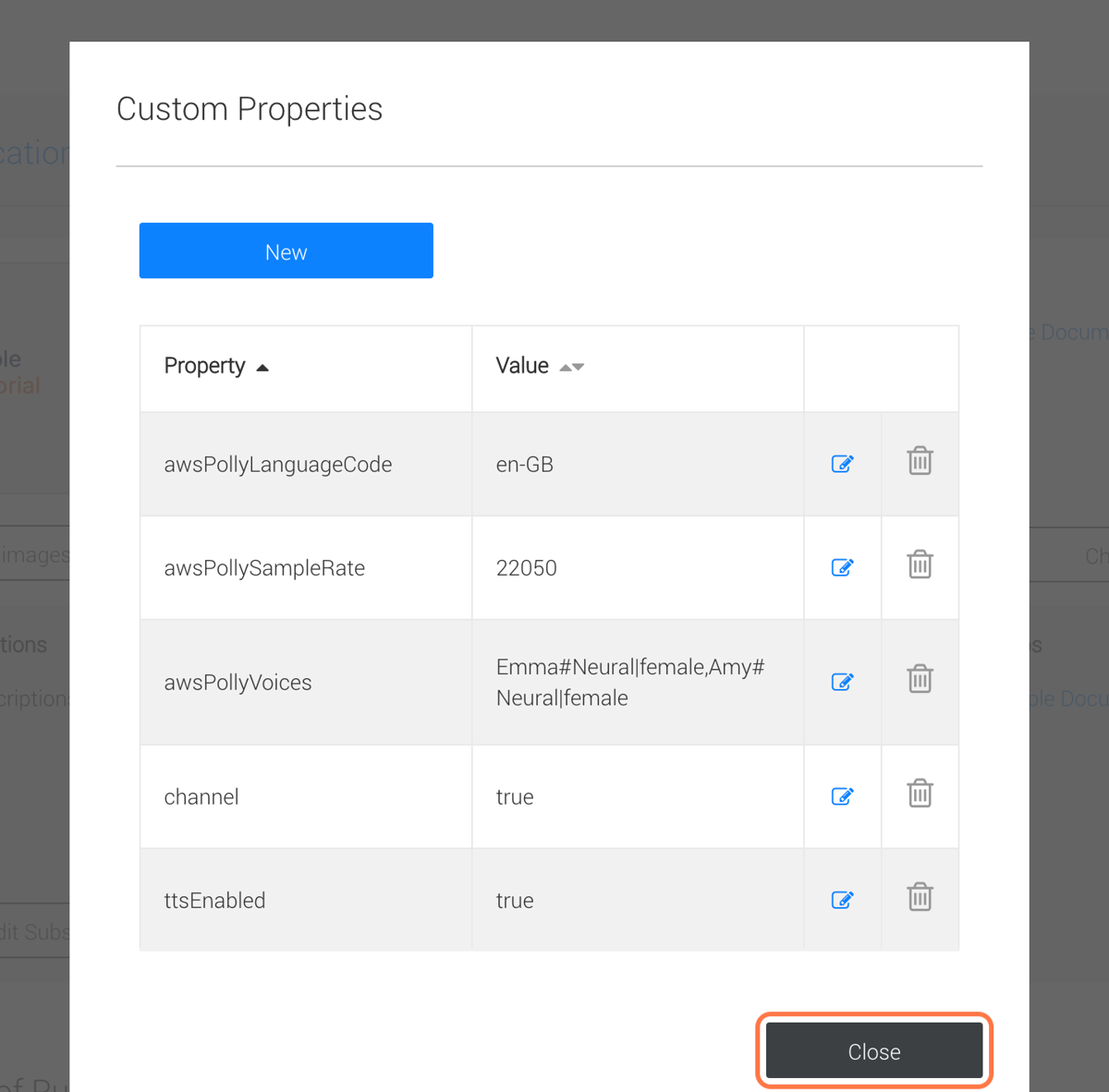
You have now successfully set up TTS and you will be able to directly test it in your Purple app for the newsfeed publication to which you have applied it.