Store an AWS Bucket for TTS in Purple Manager
3rd party integrations / Purple Manager
Summary
Purple supports the configuration of your own AWS bucket to store your team's content and bill your TTS costs accordingly. The example provided shows you how to set up a custom bucket and define its desired region. Once the configuration has been applied using Terraform, you can configure the custom bucket in Purple Manager. The custom bucket is a prerequisite for generating TTS via Amazon Polly so that the costs generated can be charged to your account and the storage of the data is defined accordingly.
Precondition
- Have an Administrator role in Purple Manager
- Have your AWS Bucket created
- Have the following information about your AWS Bucket by hand
- Access Key
- Secret Key
- Bucket Name
- Bucket Base Directory
How to
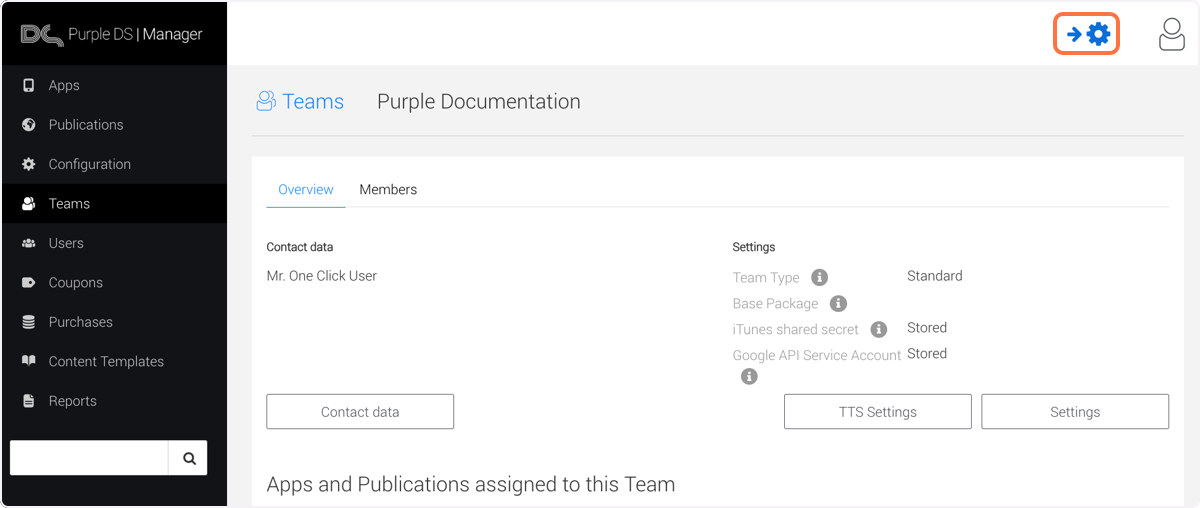
1. Go to Purple Manager -> 'Teams' and click on the 'Gear symbol'
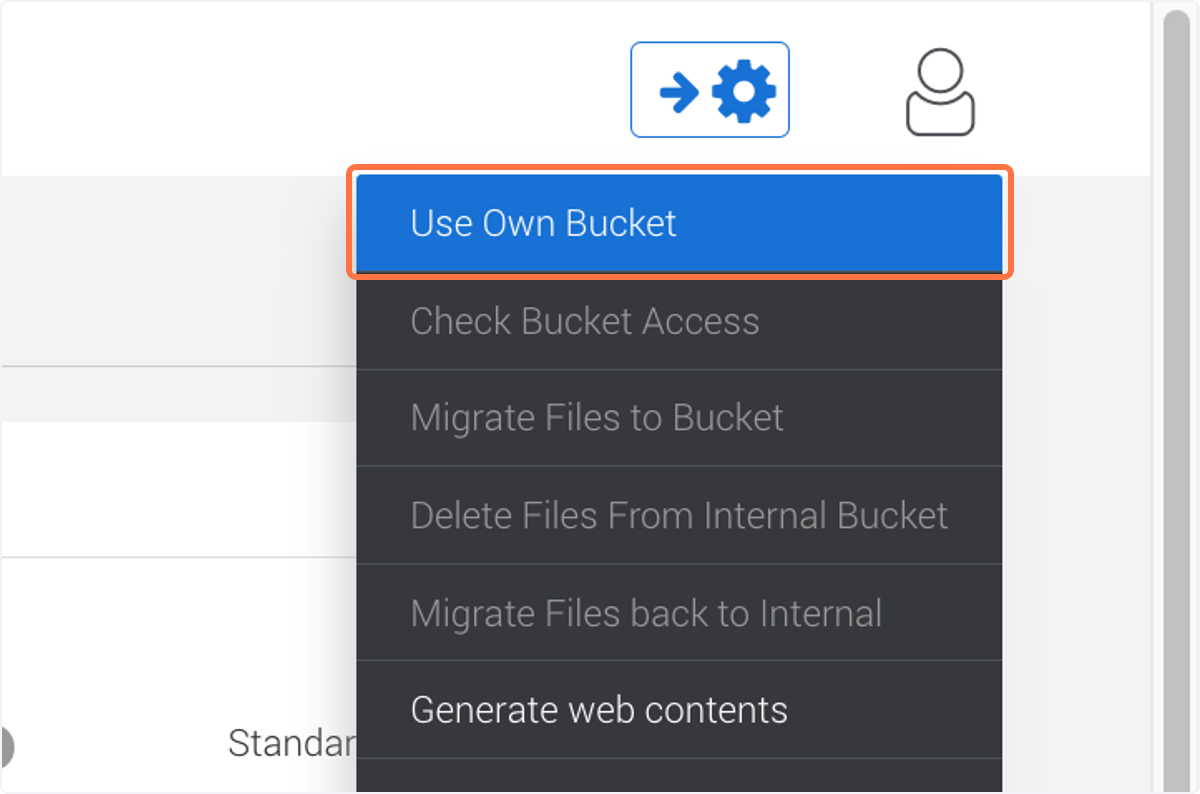
2. Click on 'Use Own Bucket'
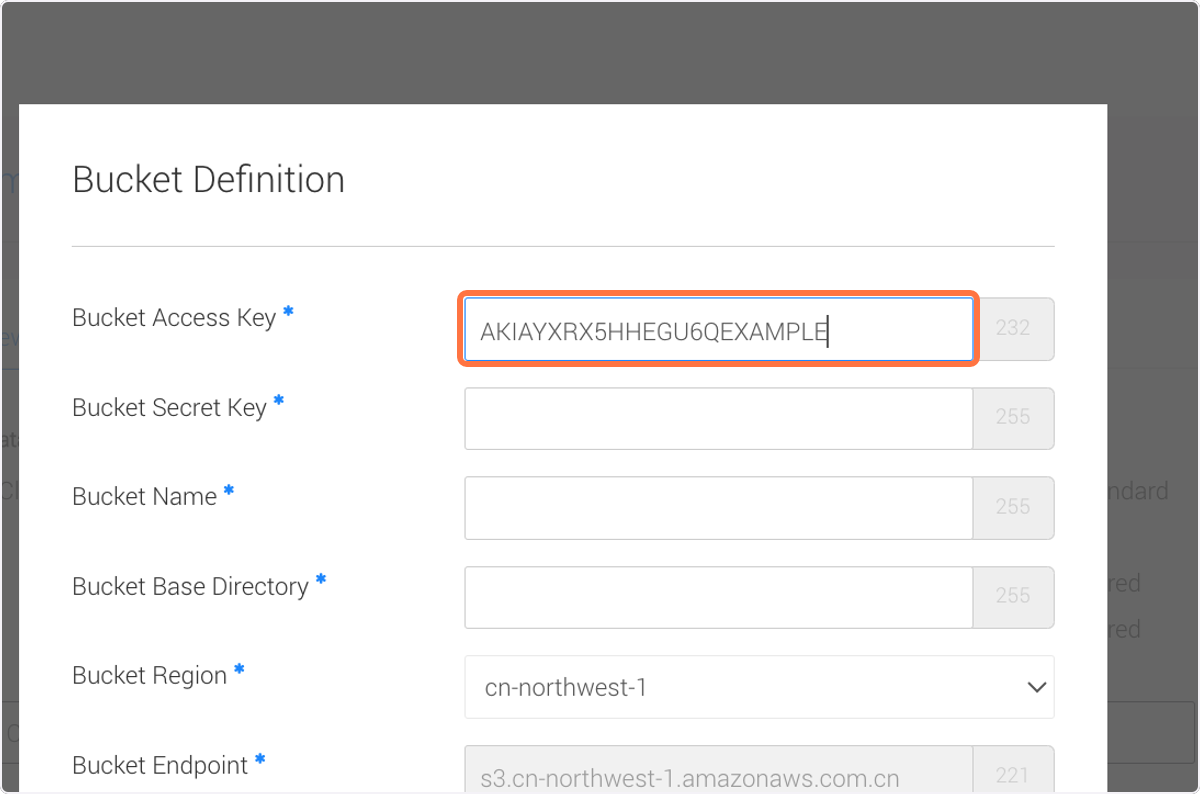
3. Next to 'Bucket Acess Key' paste your Access Key
4. Next to 'Bucket Secret Key' paste your Secret Key
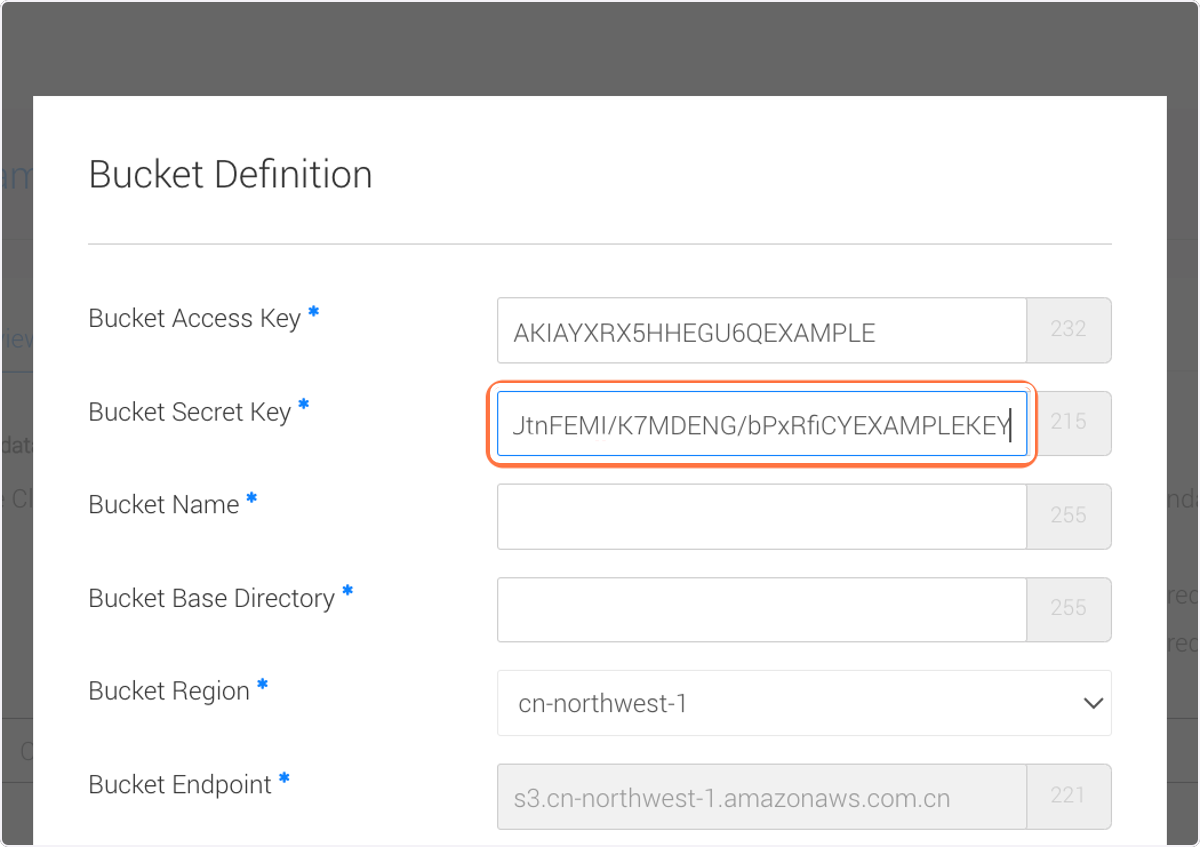
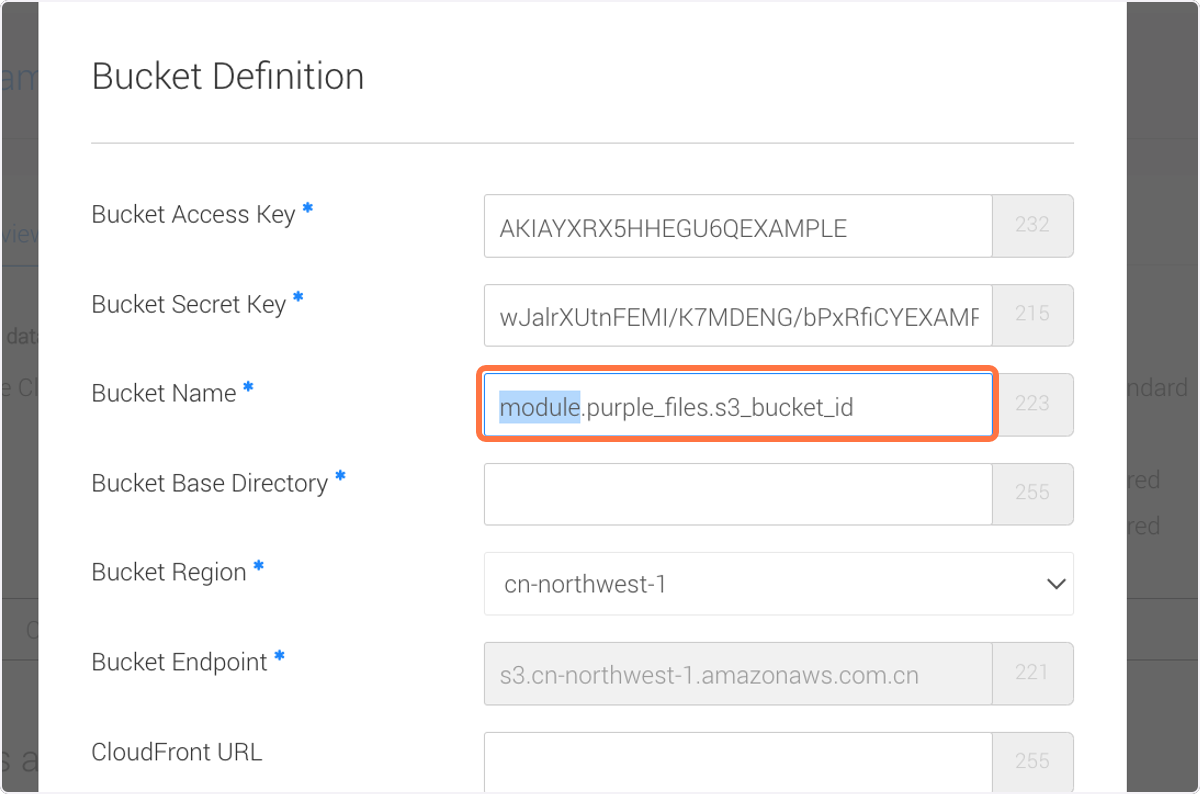
5. Next to 'Bucket Name', paste the name of your bucket
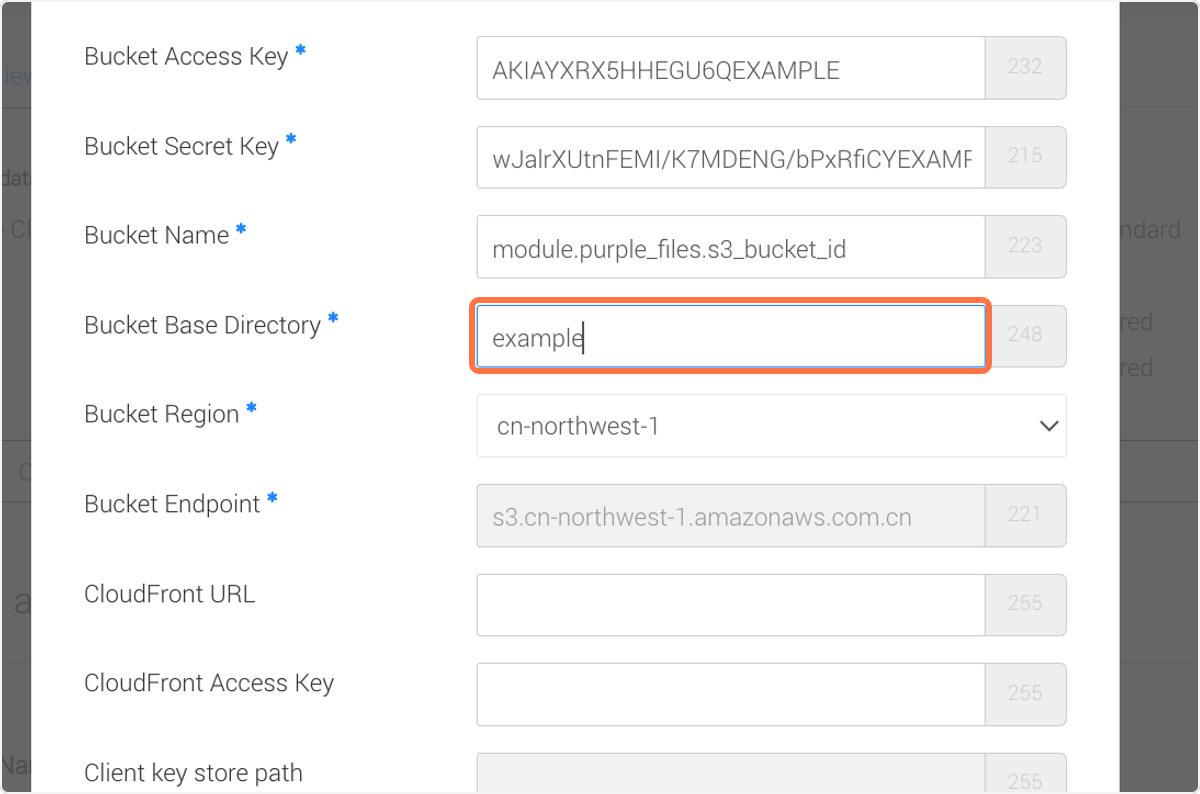
6. Next to 'Bucket Base Directory' paste the Buckets Base Directory
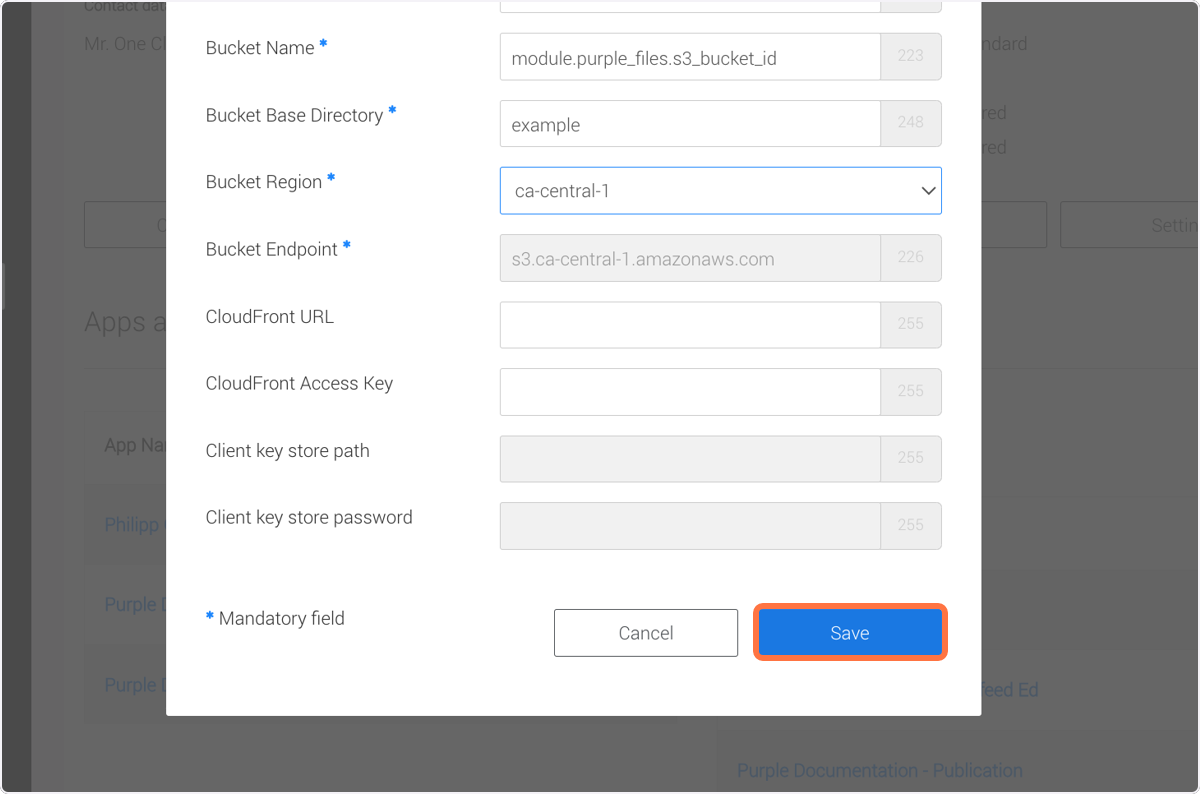
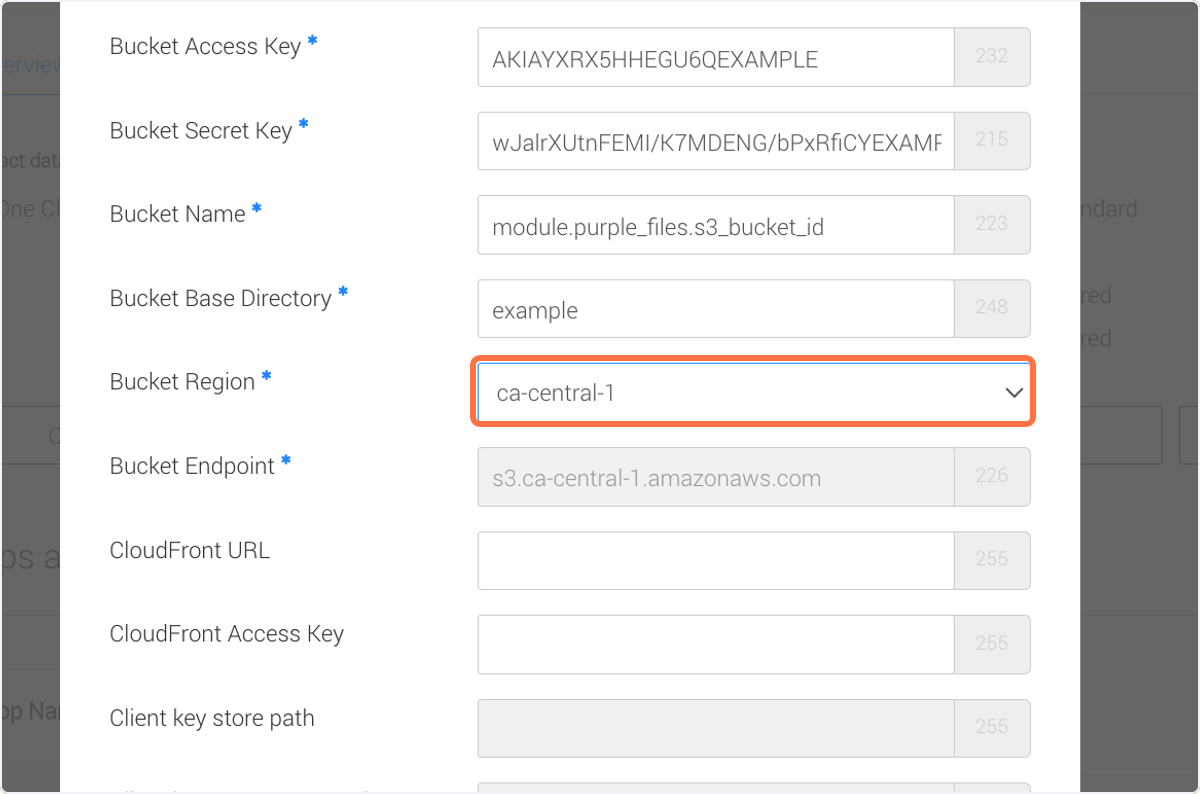
7. Next to 'Bucket Region' select your desired region for the bucket from the dropdown
8. Click on 'Save'