Software Version
The Purple Experience software (PXP) is versioned, and you can control which version runs for your web experience and your native apps. This page explains what versions exist, what branches mean, and how to change the version in each context.
PXP uses a branch-based versioning model. A branch represents a specific line of development of the software and determines both the features available and the stability level you can expect.
Branch | Stability | Notes |
|---|---|---|
release x.y.z | Stable | A published, tested release. Recommended for production use. |
hotfix x.y.z | Stable | A targeted fix release on top of a release version. Safe for production. |
develop | Unstable | Unstable | The latest code under active development. May contain incomplete features and can change without notice. Not recommended for production. |
feature-* | Unstable | A specific feature under development. May differ from `develop` and can be removed at any time, making any site using it unavailable. |
master | stable | Permanently set to PXP 4.2 |
Rule of thumb: Use `release` or `hotfix` branches for production. Use `develop` or feature branches for early testing only.
Changing the Purple Experience version for Web
Websites in purple may be accessed through default domains or custom domains. Their respective Experience versions are determined differently:
Changing the version of the Custom Domain
The version dropdown in Purple Manager only applies to a configured custom domain. Without a Custom domain setupcustom domain, there is no way to pin your production website to a specific PXP version - you would always be on the default. This means:
- To control exactly which PXP version your users see, you need a custom domain.
- For testing a new PXP version using a custom domain (e.g., to validate your configuration in a production-like environment), you need a separate staging setup with its own custom domain. You cannot use your production custom domain for testing without affecting live users.
- For testing a new PXP version with production content but without a dedicated staging custom domain, use the default domain URL scheme described below.
How To:
To change the branch for your Web Experience's custom domain, navigate to your app in Purple Manager. Via the dots menu, switch to "Experience":
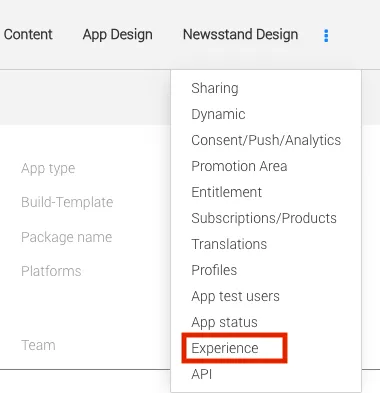
And choose the proper branch in the version dropdown. For further information on branches, see above.
After upgrading your Purple Experience, you may verify the proper version in your environment by opening its preview in the developer tools of your browser.
The dropdown is only applied to the configured custom domain. To test a new PXP version with a custom domain, a separate staging setup with a custom domain must be used. If you want to test a new PXP version with production content, you must use a default domain. Refer to the next section for details.
Changing the version of the Default Domain
For any website, we provide an environment using a default domain, web.purplemanager.com. Please refer to your Purple Manager settings for your respective URL. web.purplemanager.com always points to PXP 4.2, labeled purple-web-master. You may switch versions by modifying as follows:
<branch>.web.<env>.purplemanger.com/<brand>
branch: develop, release-x-y-z, hotfix-x-y-z, feature branches if deployed.
env: staging or dev; if not set, prod
brand: refer to the basic settings of your app in Purple Manager
Switching the Purple Experience version for Apps
Versions of Experience used in apps are set in PXP Builder. You can check your current version and new versions available in the Burger Menu (1) in the top-right corner of your Experience Builder when clicking on 'Upgrade Purple Experience Version' (2).
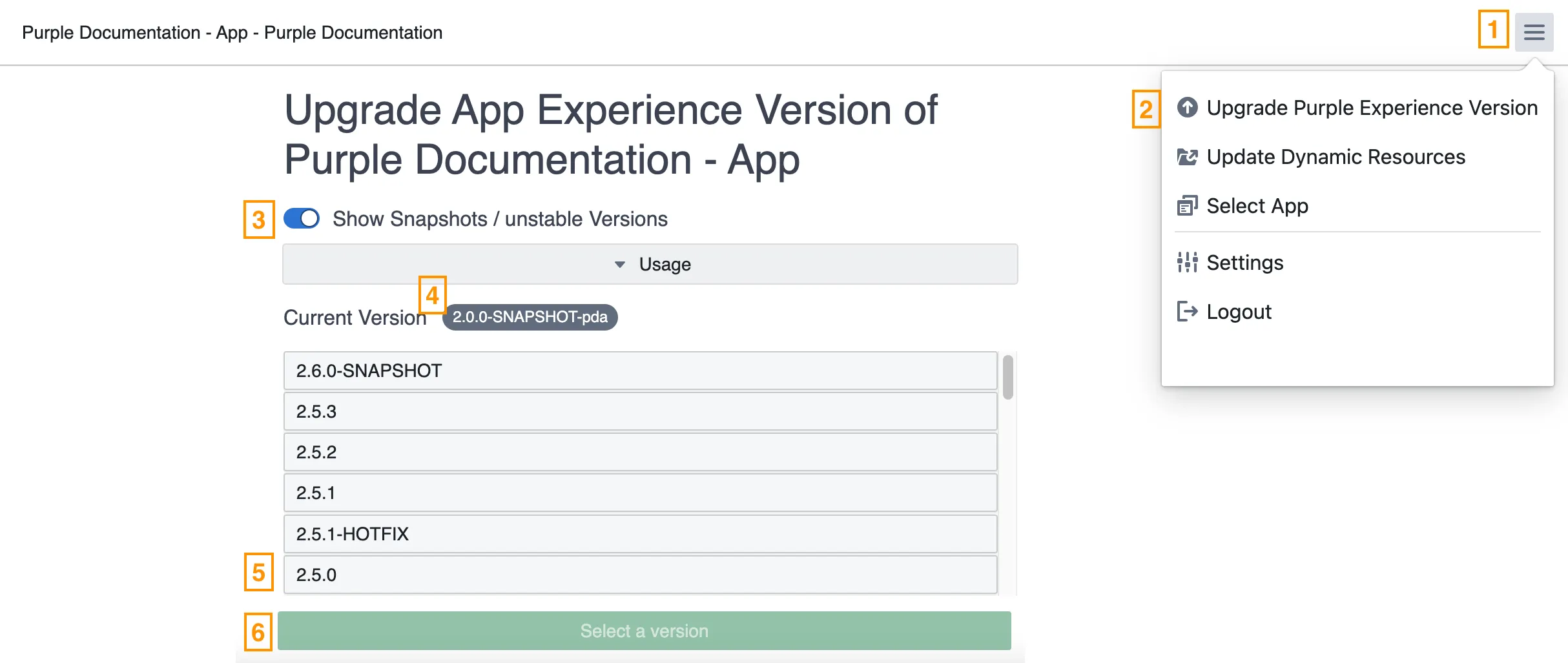
By moving the toggle (3), you have the option to get only the final experience versions displayed or also snapshots and unstable versions. Your currently used Purple Experience version is displayed (4) on this page as well.
You have a list of all available Purple Experience versions on which you can upgrade below, e.g., 2.5.0 (5), and you can select the desired version from the list.
By clicking on 'Select a version' (6), you confirm your selection.
Please refer to the release notes in the Product Updates for details on the different versions.
We recommend upgrading the Purple Experience version separately on staging and not mixing it with any other changes you might want to make. You can do the necessary configurations afterward on staging and publish the full package to prod as a final step.
To release your changes, you need to go to your app in Purple Manager > Overview > Three-dot menu > Dynamic and perform the 'Copy to Release' action.
Returning to the previous Purple Experience/ Dynamic version
Since summer 2025, we offer using a Git-system for handling dynamic resources. For details, please refer to the following documentation Git support for dynamic resources
If the Purple Experience version was upgraded for testing reasons, it is sometimes necessary to downgrade the Purple Experience to the previous version once the testing is completed. This is done via dynamic resources in the Purple Manager:
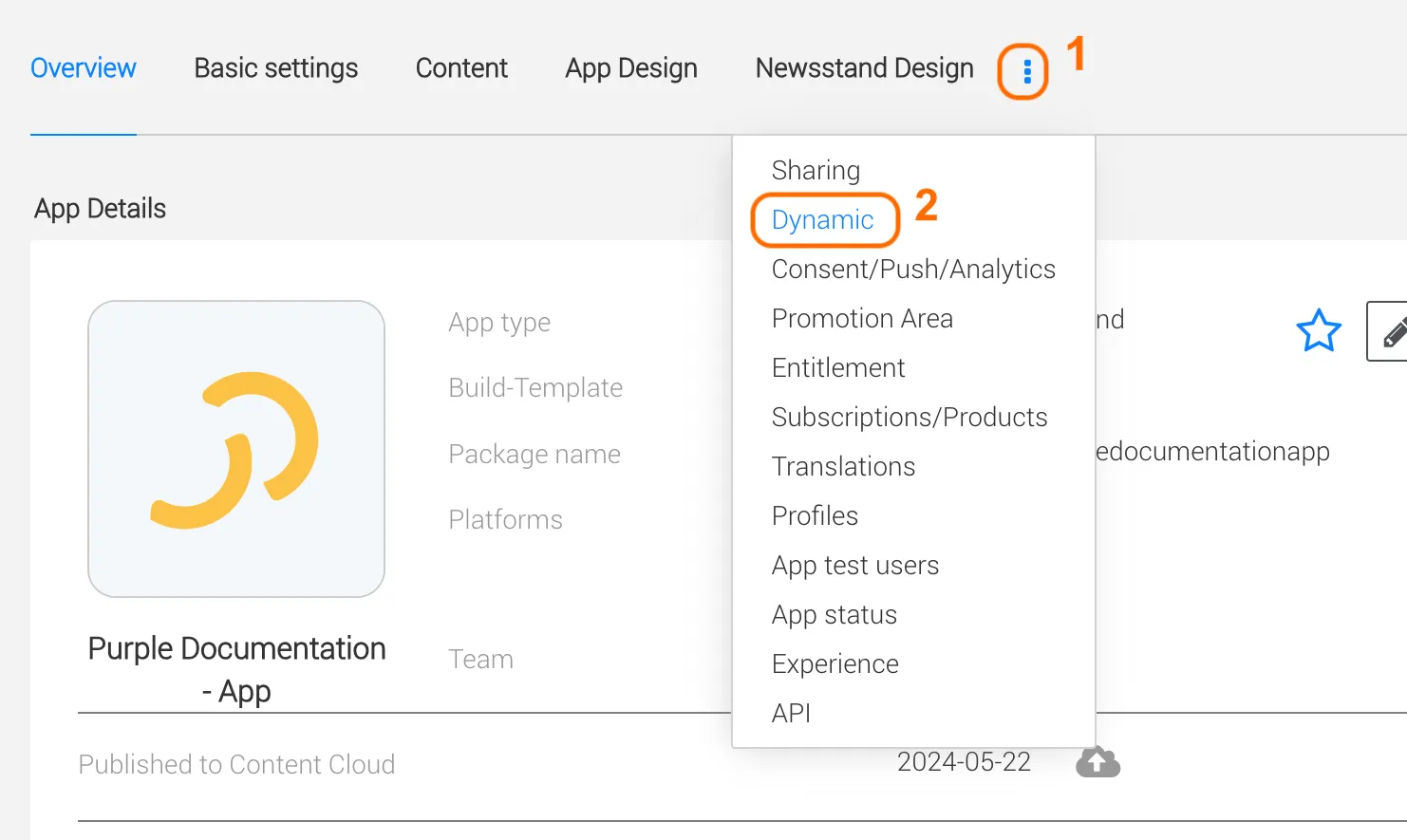
Navigate to your app in Purple Manager. Via the dots menu (1), click on 'Dynamic' (2).
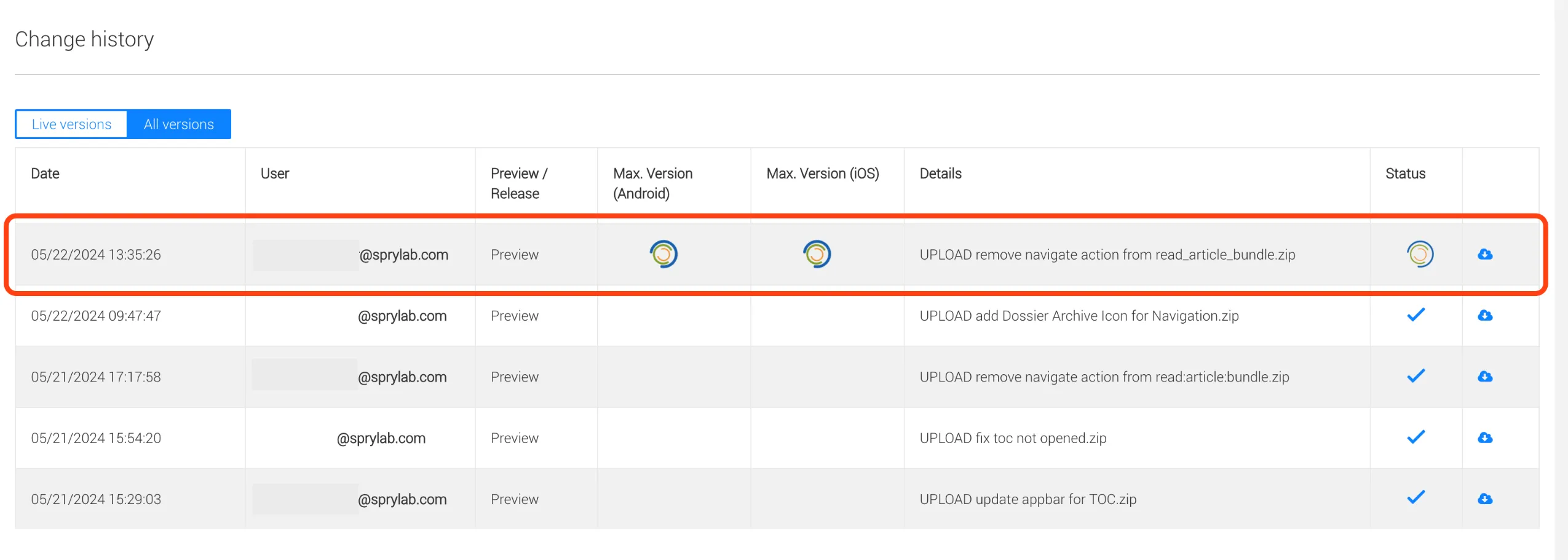
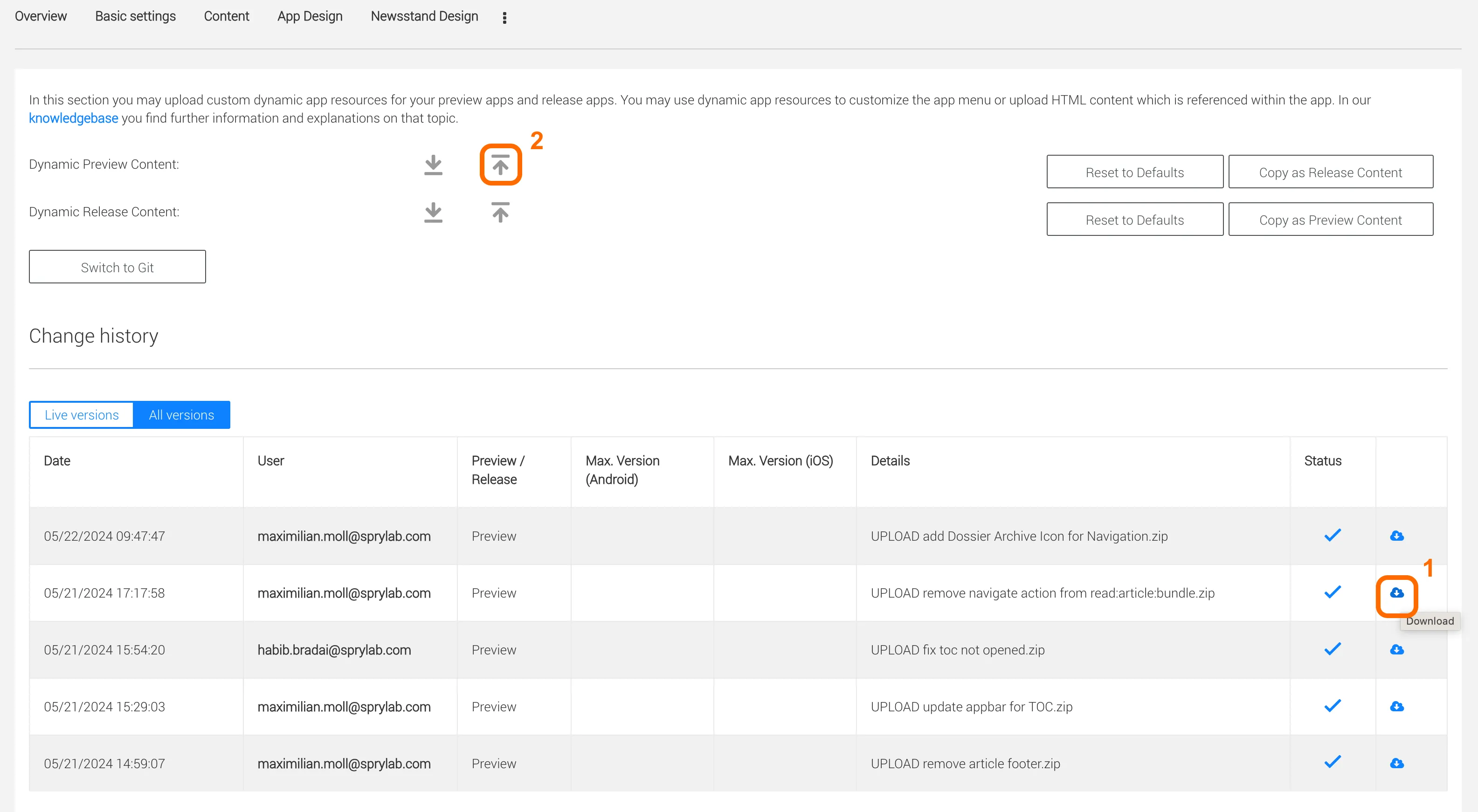
In the Change history, go to the latest content version that was uploaded before your Experience upgrade and click on the download icon (1). In the Dynamic Preview content row click on the upload icon (2).
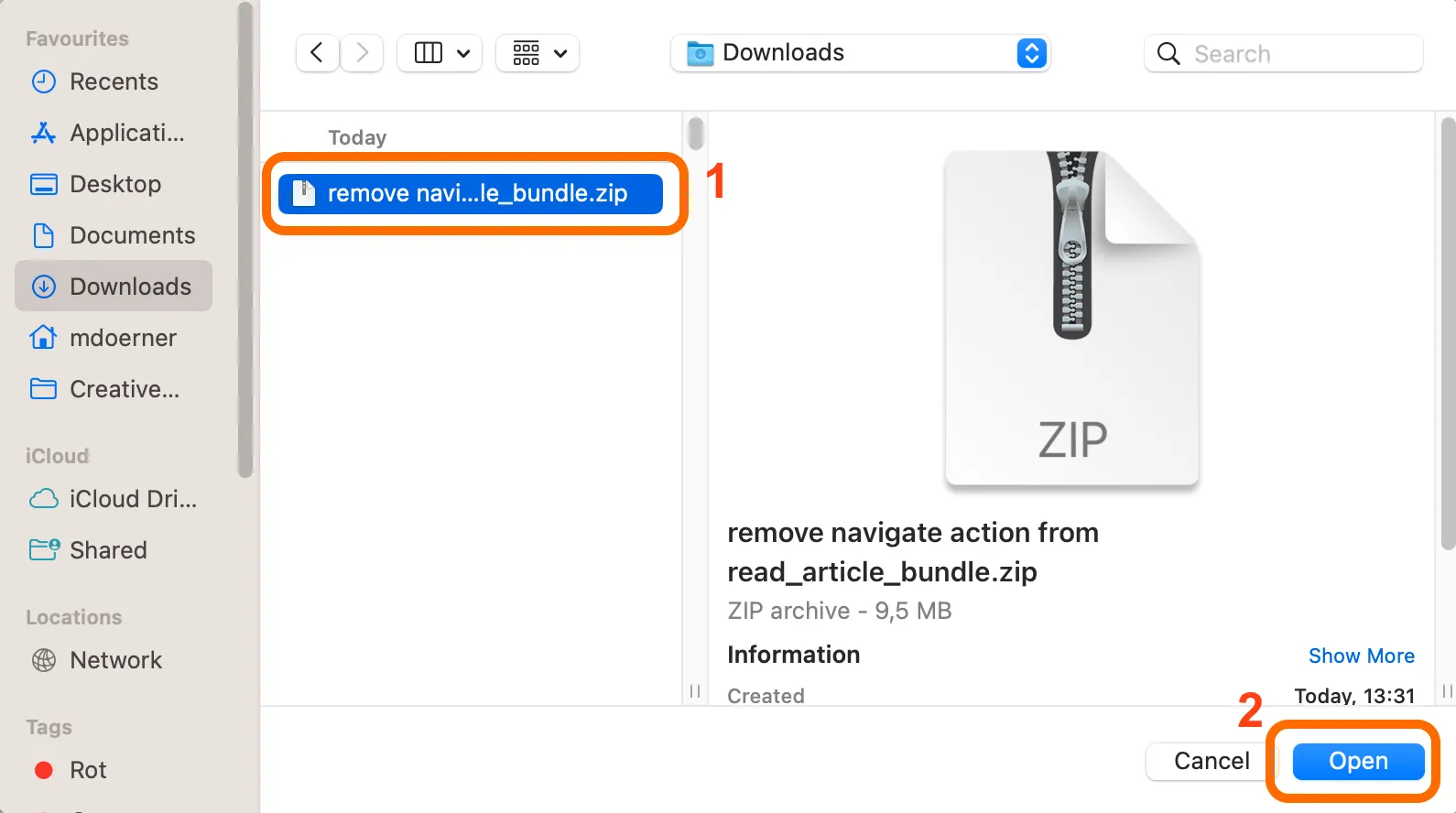
Choose the previously downloaded file in your local download folder (1) and press "Open" (2).
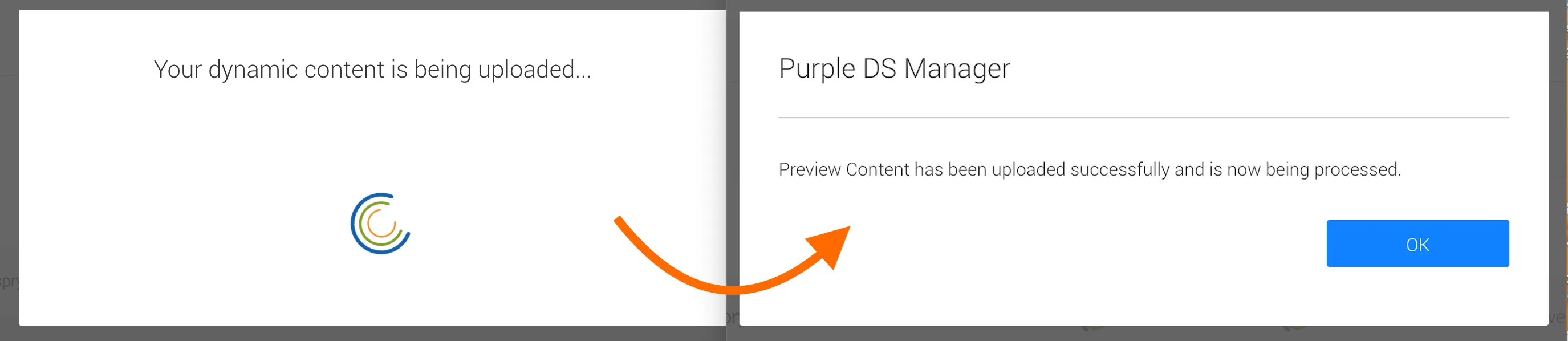
If the upload was successful, you will get a confirmation message in Purple Manager.
And your newest upload will appear in the Change history.