Uploading Media
Uploading Images
Upload images by clicking on "Upload Media" and then either Drag'n'Drop your images or click and select the files by browsing your filesystem.
Editing Metadata
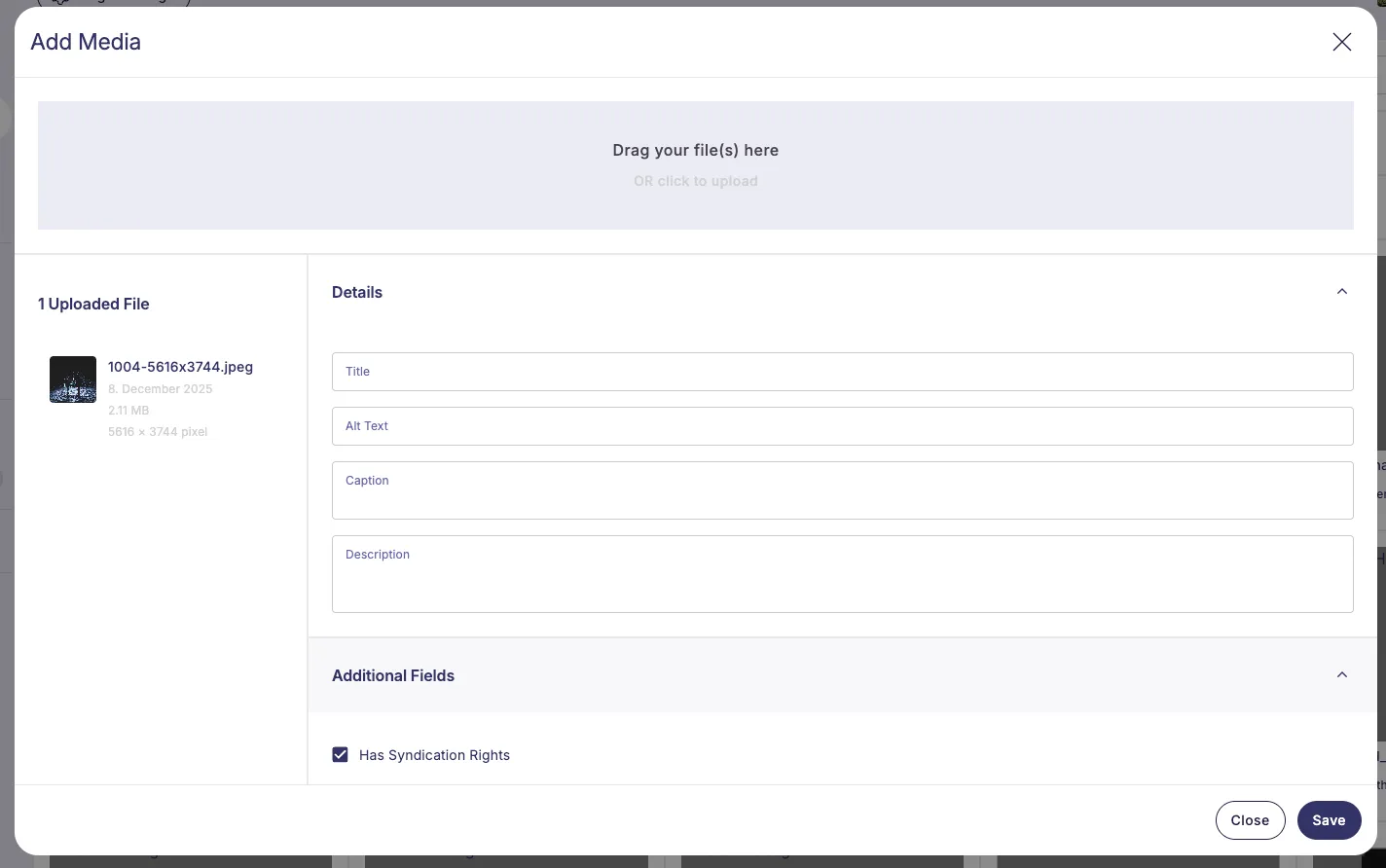
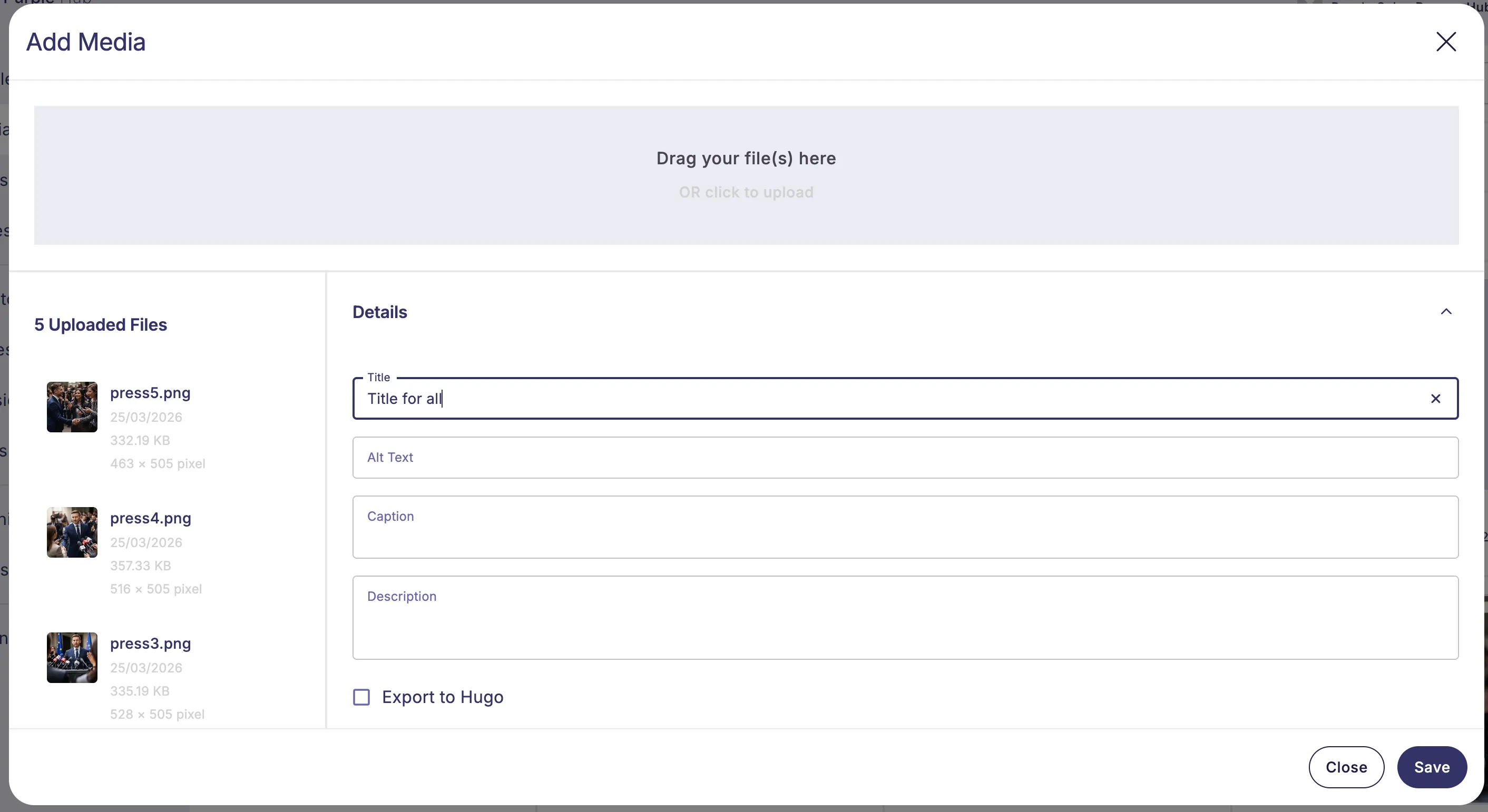
After selecting files, the upload dialog shows a list of all added files on the left and a metadata panel on the right. You can edit the title, alt text, caption, description, media category, and any custom metafields, either for all files at once or for each file individually.
Edit data for all files
When more than one file is added, an Edit data for all files entry appears at the top of the list and is selected by default. Any value you enter here is applied to every file in the batch. Clearing a field here clears it on all files.
Editing a single file
Click a file in the list to select it. The metadata panel then shows that file's own values, which you can edit independently. A value set on a single file overrides whatever was entered for all files. Switching between files keeps your entries without needing to save.
Removing files
Click the X icon on a file to remove it from the list — removed files are not uploaded. Removing files down to a single one hides the "Edit data for all files" entry; removing the last file returns you to the upload area.
Required fields
If a media category (or any other field) is configured as required, files missing a required value show a "missing required fields" hint, and the Save button stays disabled until every file has all required fields filled.
Click Save to upload all files with their metadata, or Cancel to discard them.
EXIF and IPTC Metadata
When you upload images, Purple Hub reads their embedded EXIF (camera settings, capture date, etc.) and IPTC (photographer, copyright, caption source, etc.) metadata immediately and shows it in collapsible EXIF Data and IPTC Fields sections — alongside the title, alt text and other fields. You can review and edit these values before saving, either per file or for all files at once via "Edit data for all files".
A value you enter for all files overrides that field on every file, while fields you leave untouched keep each file's own parsed value. Sections only appear for the EXIF/IPTC fields an administrator has enabled, and stay empty for files whose metadata cannot be read (for example PNGs).
Supported File Types
Purple DAM accepts the following file types:
- Images: JPEG, PNG, WEBP, GIF, SVG
- Video: MP4, MOV, WebM
- Audio: MP3, WAV, OGG, M4A
- Documents: PDF
- Print ImagesPrint formats: PSD, TIFF, AI, EPS, INDD
Uploading Files
- Open the Media Library.
- Click the Upload button in the top-right corner.
- Drag and drop files into the upload area, or click Choose Files to browse.
- Optionally fill in shared metadata (title prefix, caption, alt text) before confirming.
- Click Upload.
Shared metadata is applied to all files in the batch. Individual fields can be edited per asset afterwards in the Image Detail view.
AI metadata suggestions
When enabled, Purple suggests values for the image's empty metadata fields as you upload it, so they start from a solid draft instead of a blank box. This covers the four standard fields — title, alt text, description and caption — as well as your site's own ACF fields on media files and any taxonomies assigned to media. Suggestions come from the image itself together with its embedded EXIF/IPTC data and file name, and are written in your site's language.
Enabling it
The toggle lives under Settings ❭ Media ❭ "AI metadata generation". It is always visible, but can only be switched on once every prerequisite is in place — the tooltip on the info icon lists whatever is still missing:
- Purple DAM+ is active
- the Purple Prompts plugin is active
- an API key for OpenAI or Anthropic is configured in Purple Prompts
For Purple Prompts setup, see Purple Prompts Overview.
Using suggestions during upload
Once you add an image, suggestions are generated in the background while you keep working:
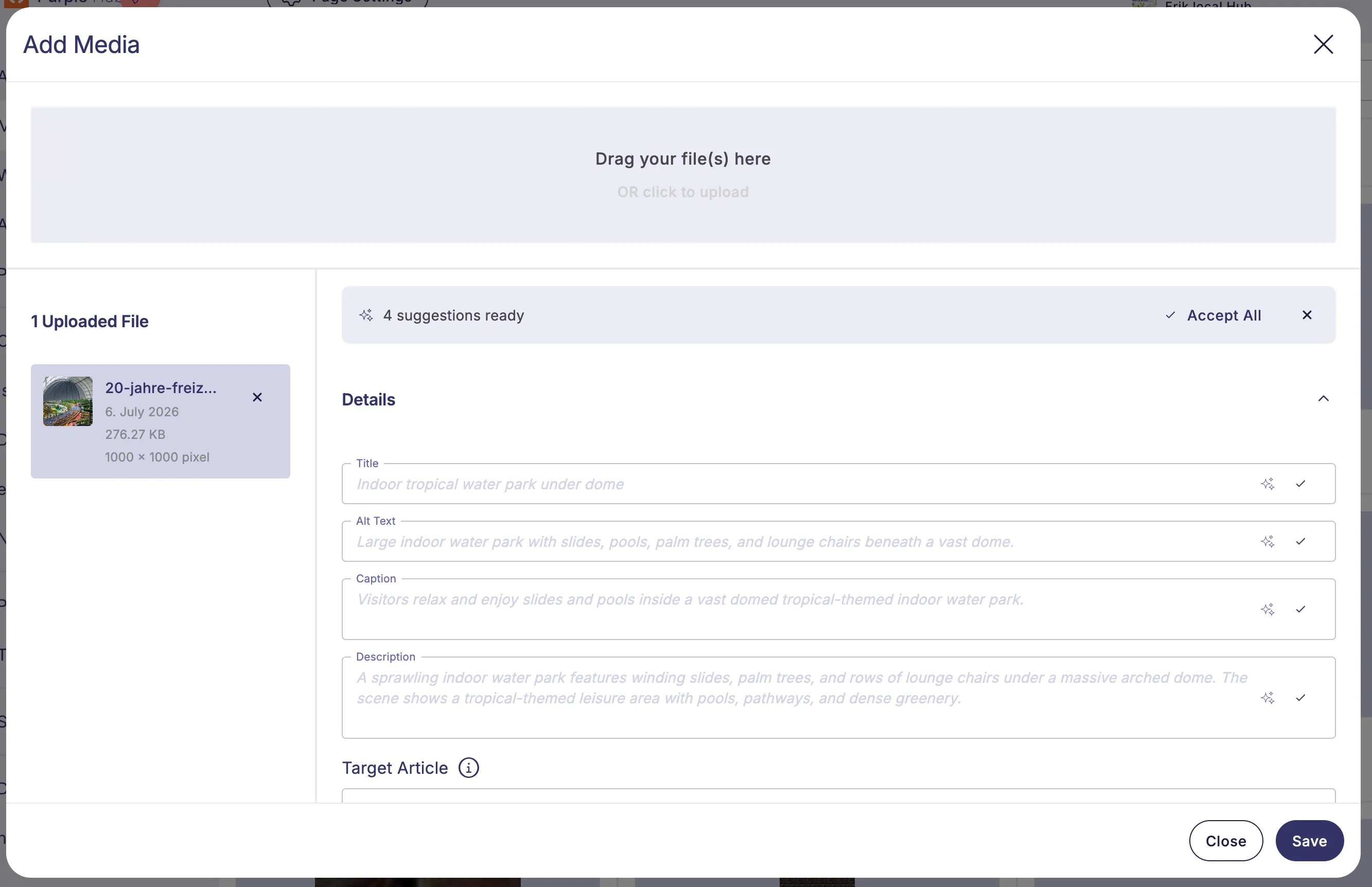
- Each empty field shows its suggestion as faint placeholder text marked with a ✨ icon.
- A banner reads "N suggestions ready" with an Accept All button for the file you have selected.
- Accept a single field with the ✓ beside it, or take everything at once with Accept All.
- Each file in the list on the left shows how many of its suggestions are still waiting, next to a ✨ icon.
- When you upload more than one file, an Accept N suggestions button sits beside the "N Uploaded Files" heading and takes the pending suggestions of every file at once — its count covers the whole batch and updates as you remove files or accept single suggestions. It is unavailable while the upload itself is running.
- Dismiss the banner to hide suggestions for that upload.
Suggestions only ever fill empty fields — anything you have already typed is never overwritten. They are generated per image (raster images only: JPEG, PNG, WebP, GIF) and are not offered on the bulk "Edit Data for All Files" entry.
Customizing the AI suggestions
The wording the AI uses for each field is fully editable. When you switch the ai metadata generation toggle on, Purple creates one prompt per generatable field in purple prompts — the four standard fields plus every eligible ACF field and media taxonomy — each seeded with a sensible default instruction. For a full description of the prompt settings, see Prompt Management.
You can open and edit these prompts like any other prompt to tune the tone, length, or focus per field. If a prompt is left empty, Purple falls back to its built in default wording so generation keeps working.
Deleting a prompt opts its field out of generation. The field then no longer offers an AI suggestion at all, and Purple will not recreate the prompt. This is the intended way to exclude a single field from AI suggestions. You can create a new prompt for that Meta-generation targe to re-enable a field.
Because the prompts are only created when the toggle is switched on, an ACF field or taxonomy you add to media afterwards has no prompt yet and is therefore not generated. Switch the ai metadata generation toggle off and on again to seed the prompts for the newly added fields — existing prompts (including your edits) are kept, and prompts you deleted stay deleted.
Turning the ai metadata toggle, purple dam+, or purple prompts off leaves the created prompts in place (orphaned, not deleted).
PSD and TIFF Files
If a Print Plugin is active on your Hub that supports print-file handling, uploading a PSD or TIFF file is handled automatically:
- The file is converted to a web-optimised WEBP on upload.
- The WEBP becomes the main image shown in the Media Library and in articles.
- The original PSD/TIFF is stored as the Print ImagesPrint Version attachment — no manual step needed.
Target Article ( DAM+ only )
See for more information on why to use it: Target Articleand Or learn about Purple DAM Plushier
How it works
- In the upload dialog, click the Target Article field.
- Type to search for an article and select it.
- Complete the upload as normal.
Multiple articles can be assigned to the same media item. The target can also be changed later in the Image Detail view.
