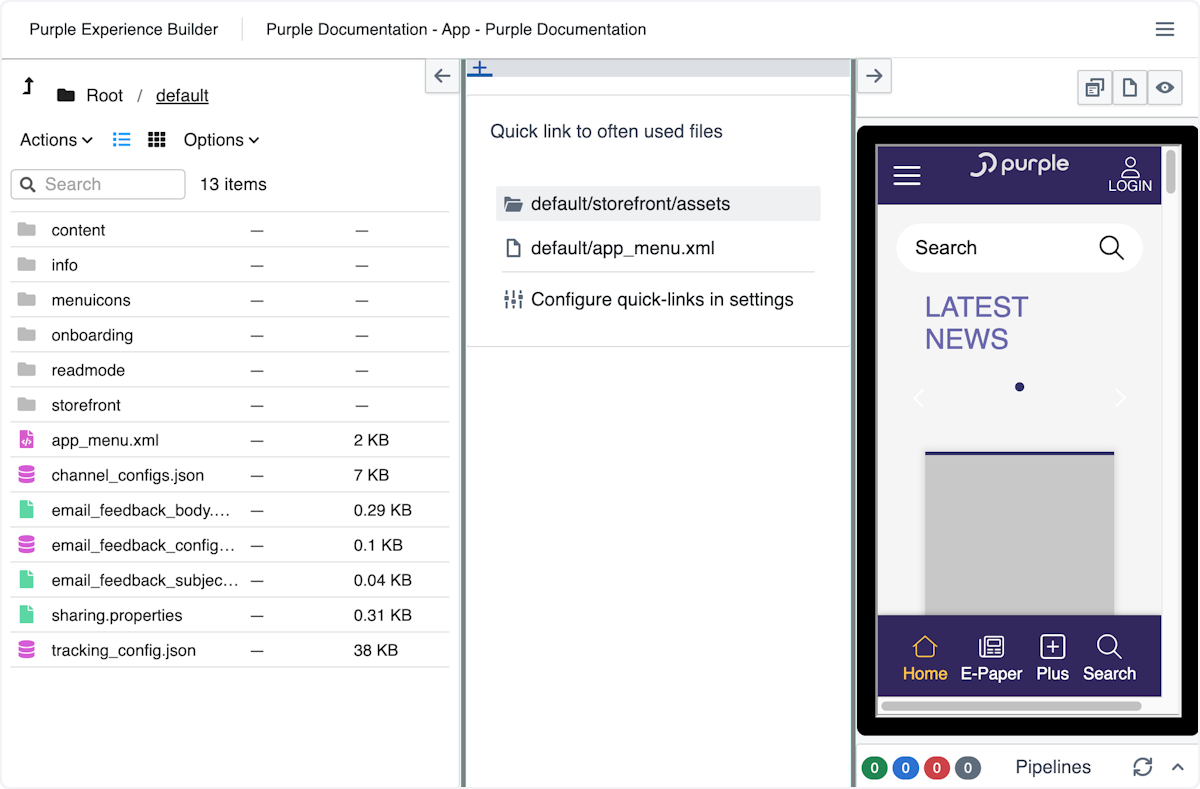
Using the Purple Experience Builder
Usually, when you make any changes to the dynamic resources, you will do that in the Purple Experience Builder (PXP Builder).
- Access the PXP Builder in your browser
- Edit
- QA changes in the preview application and websites
- Deploy changes to production
Typically, you will use a staging environment, which allows you to test integrations with third parties without using your live environment. Please refer to your project knowledge base accordingly.
Depending on the changes you have made and your project configuration, the builder may run several post-processing steps. See Builder Pipelines and your projects' knowledge base for details.
Select your App
After logging in, you can select the app you want to access from the list.
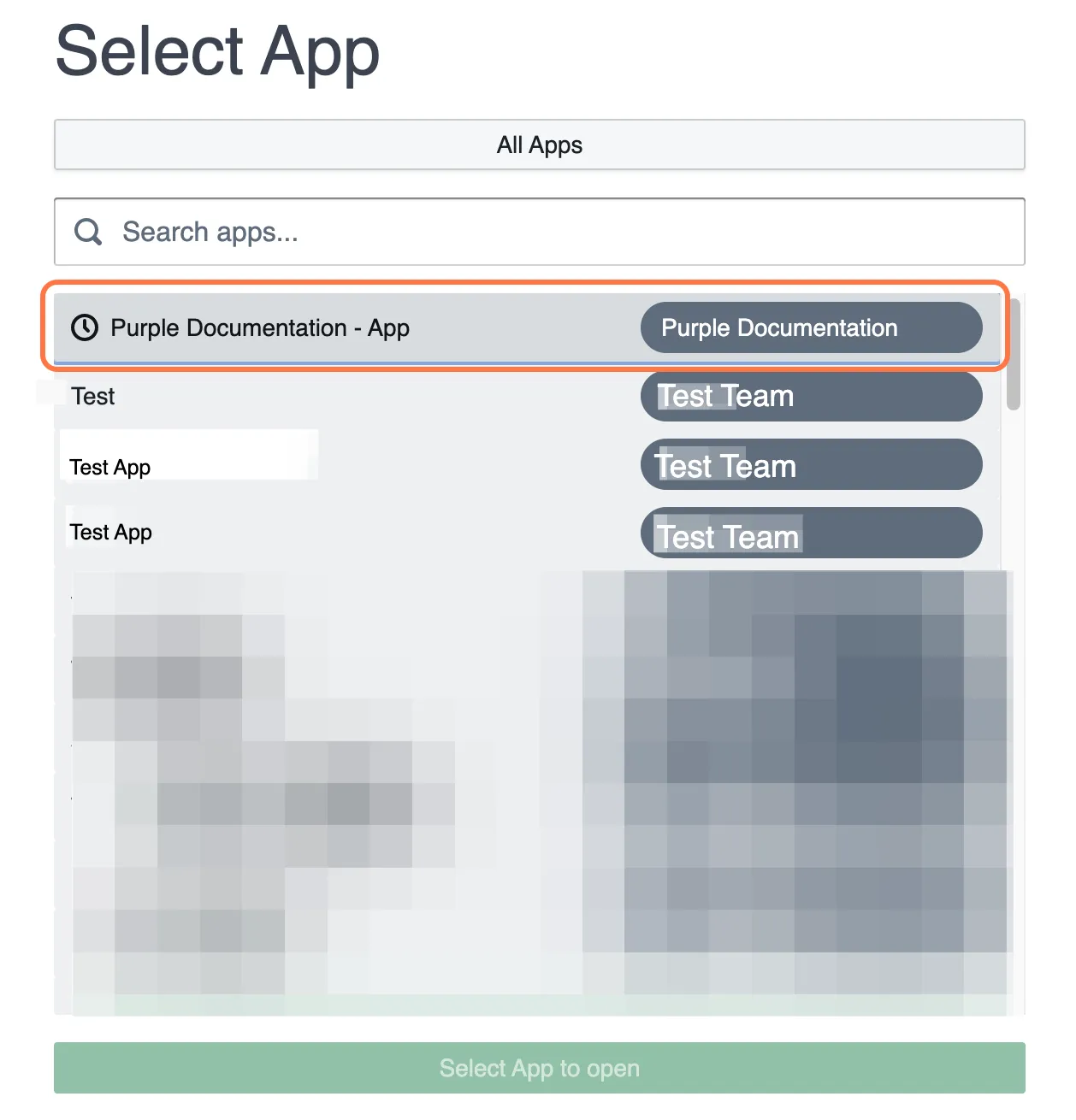
Tips & Tricks
- You can use the arrow keys of your keyboard to navigate and press enter to open the current highlighted app
- The most recently opened apps are always shown on the top
On the top dropdown, you can select the team your app is inside.
Pull resources
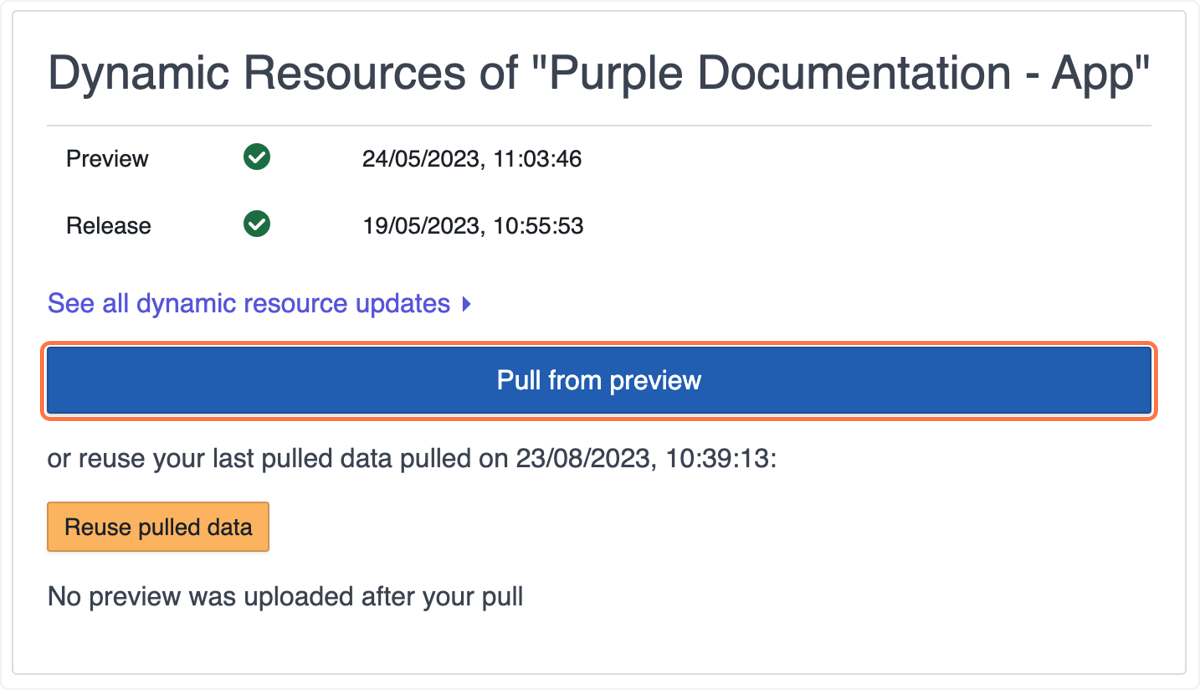
Press "Pull from preview". The latest dynamic resources from your preview are loaded so you can edit them. You may also use previously pulled data to continue your work where you left off. We keep pulled states for 48 hours, so make sure to merge your changes before weekends or holidays.
Edit the dynamic resources
After pulling your resources, the application presents a file system. Per default, if you don't want platform specifics, your changes should be applied in default/storefront/assets.