Editing dynamic resources
The Purple Experience Builder is crafted for configuring the behavior and design of apps and websites. To achieve that, you will define views and use various components and data sources to build the behavior you want to have.
For styling, you will use SCSS, and for custom functionality, PXP offers multiple ways to integrate and use custom-built scripts from different sources.
To ensure data security and to not be dependent on third parties, we recommend only sideloading any data when it's inevitable. Note that any resources being sideloaded will not be available in offline cases.
Layout and main functionality
The builder consists of three main panes: a file explorer to the left, the editing window in the center, and the preview pane to the right. An app bar at the top shows the currently selected app's name, holds a burger menu, and allows you to switch preview functionality.
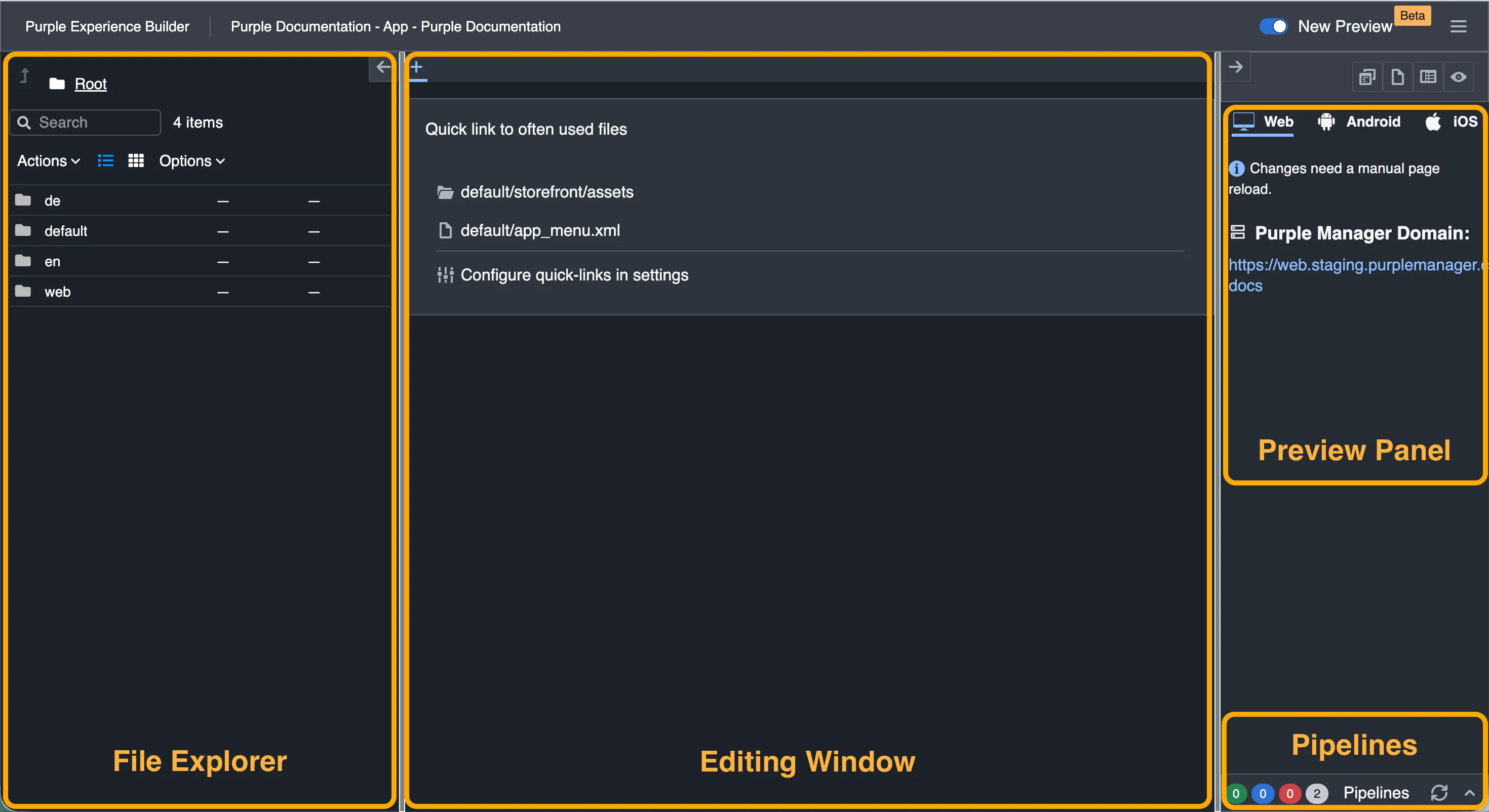
File Explorer
The file explorer pane may be collapsed to the left. The search provided here is only scoped for the current folder. It will neither look for all dynamic resources nor search recursively in folders below. For details on the folder structure, seeStructure of Dynamic resources .
Editing Pane
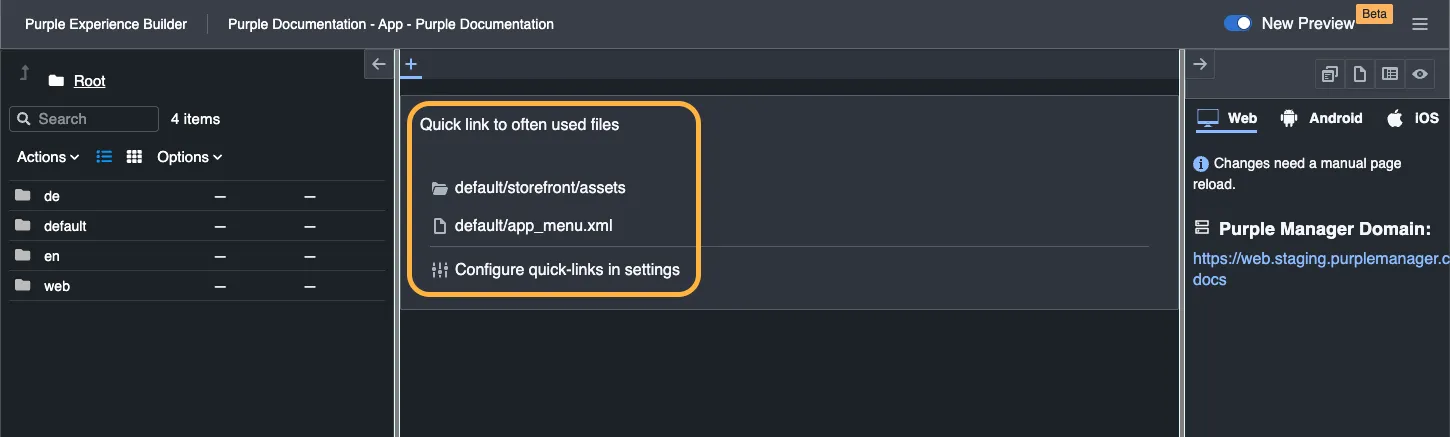
While no editor is opened, the main editing pane provides configurable quick-links to allow fast access to any files frequently used.
Preview Pane
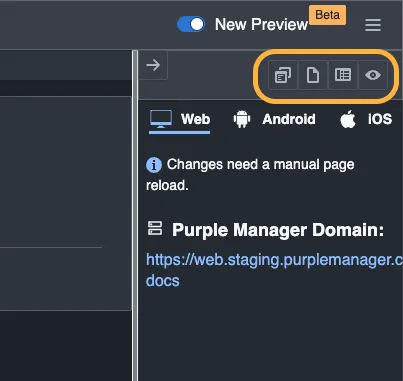
The right-hand-side preview pane may be collapsed to the right. It provides some action buttons too, from left to right:
- Open the classic preview in a new browser window. This simulates an Android device and only provides a rule-of-thumb review. We are aiming to deprecate it.
- Review the schema currently used in the set PXP Version
- A toggle to switch the editing mode in the main window: you may either use our JSON editor with some interface or directly edit the JSON files.
- A button to toggle the legacy preview
Its main area provides links to preview your uncommitted changes on default domains or custom domains if configured. (Image depicts default domain only.) Using the tabs, you may navigate to retrieve QR codes for previewing the changes in-app. See Preview your changes for details.
A bottom pane provides insights on the pipelines configured on this builder instance. You may retrieve any error messages or manually run them from here, too. See Builder Pipelines for further information.
Editing
PXP Builder provides a JSON editor utilizing the available schema of the set PXP version. While using the editor, some erroneous configurations are prevented, as the schema gets validated. You may switch to a text editing mode to use search and replace functionality.
Editing Views
For details on the creation of views, see View configuration.
The editor typically structures configurations in components of different types. To create structures that may be maintained easily, one may use the section component. Depending on the component, a corresponding data source may be set up. Data sources can also be scoped for the view and accessed through the context. This allows an efficient retrieval of data on a per-view basis.
Components usually are configured with a class to ensure proper styling and are equipped with content, that will be displayed. This can also be additional sections.
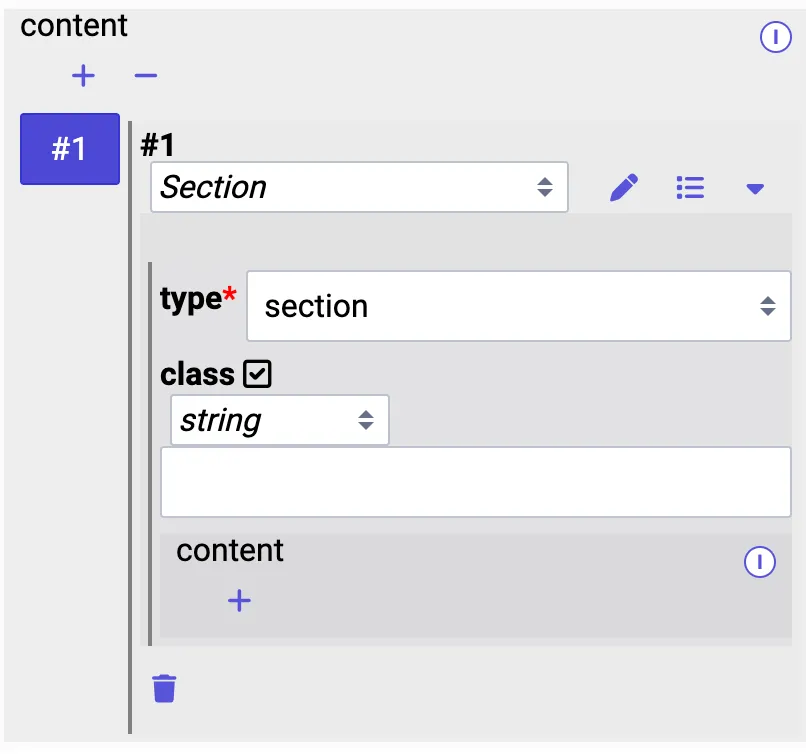
Also, the dropdown menu on the top right allows the setup of further attributes and settings per component. The eptions available may vary, depending on the chosen component.
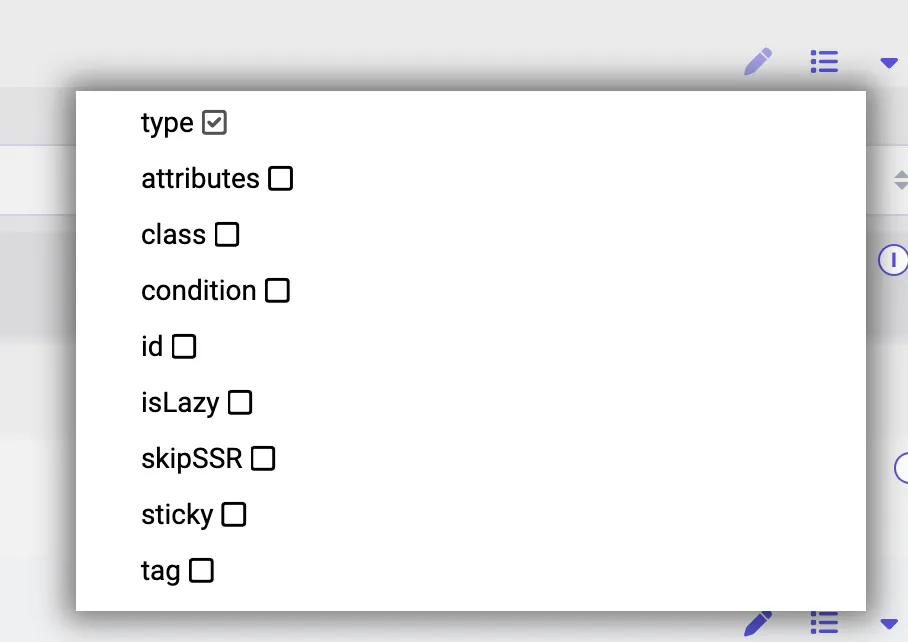
You may also retrieve and edit the json of a component directly from this view, for this, you can utilize the pen icon at the component level.
The editing of data sources utilizes the same procedures. You may add filters here, too, to get exactly the content you need.
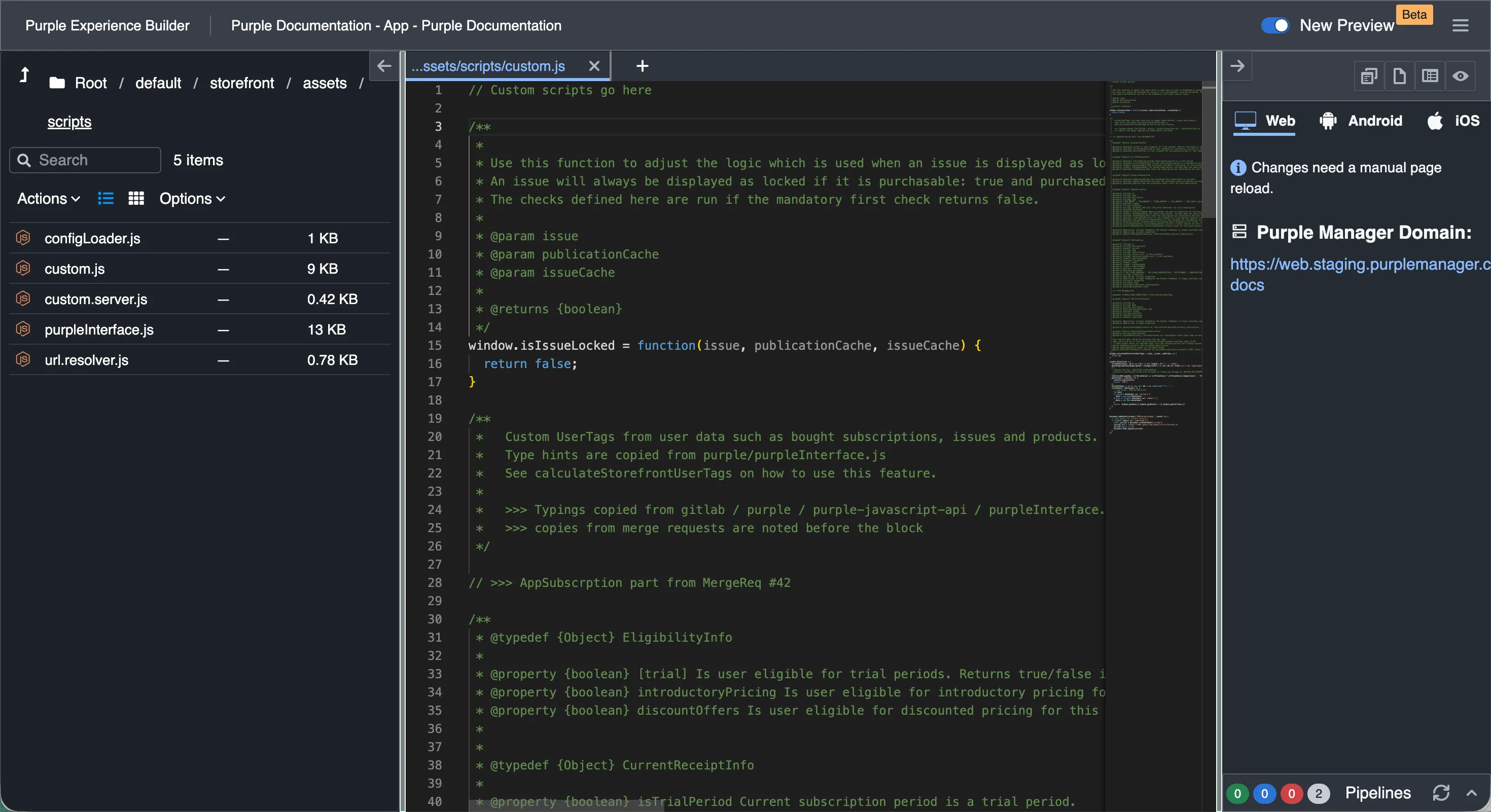
Editing JS
The builder provides an editor interface for crafting scripts to create custom functionality. We utilize the monaco editor for this purpose.
Merging or pushing changes
After you have reviewed your changes on the preview, you can merge or push them. They will then appear in preview apps and websites utilizing the preview=true query parameter.
Merge
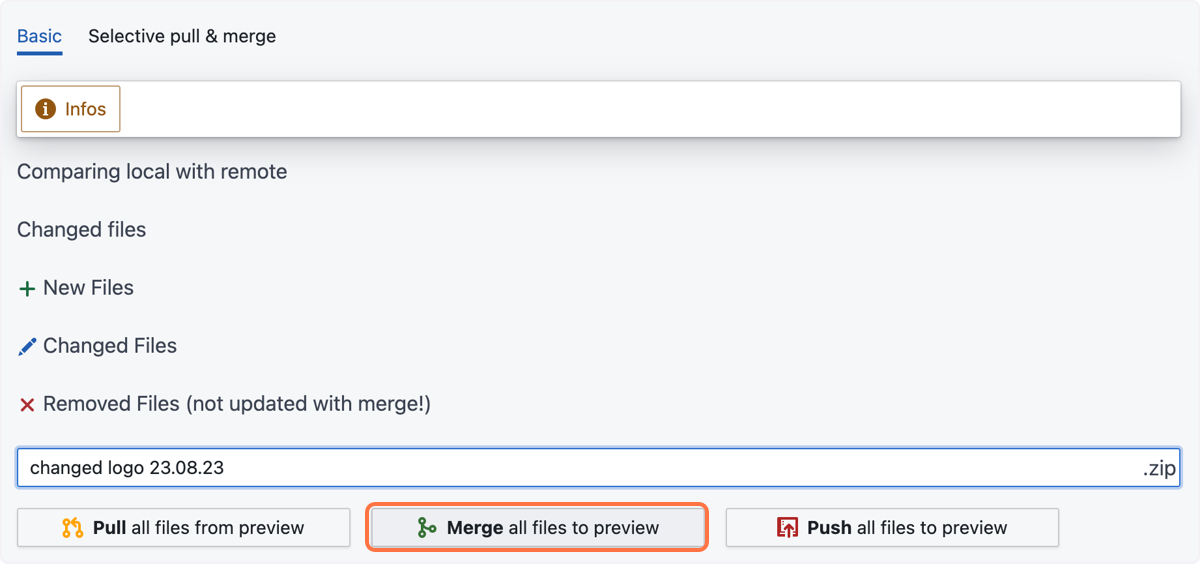
When you merge your changes, any file that you have changed will be completely overwritten. Merging does not remove any files, so if you want to delete something, you need to push.
Push
When pushing, all files are completely overwritten. Also, deletions are respected.
How To
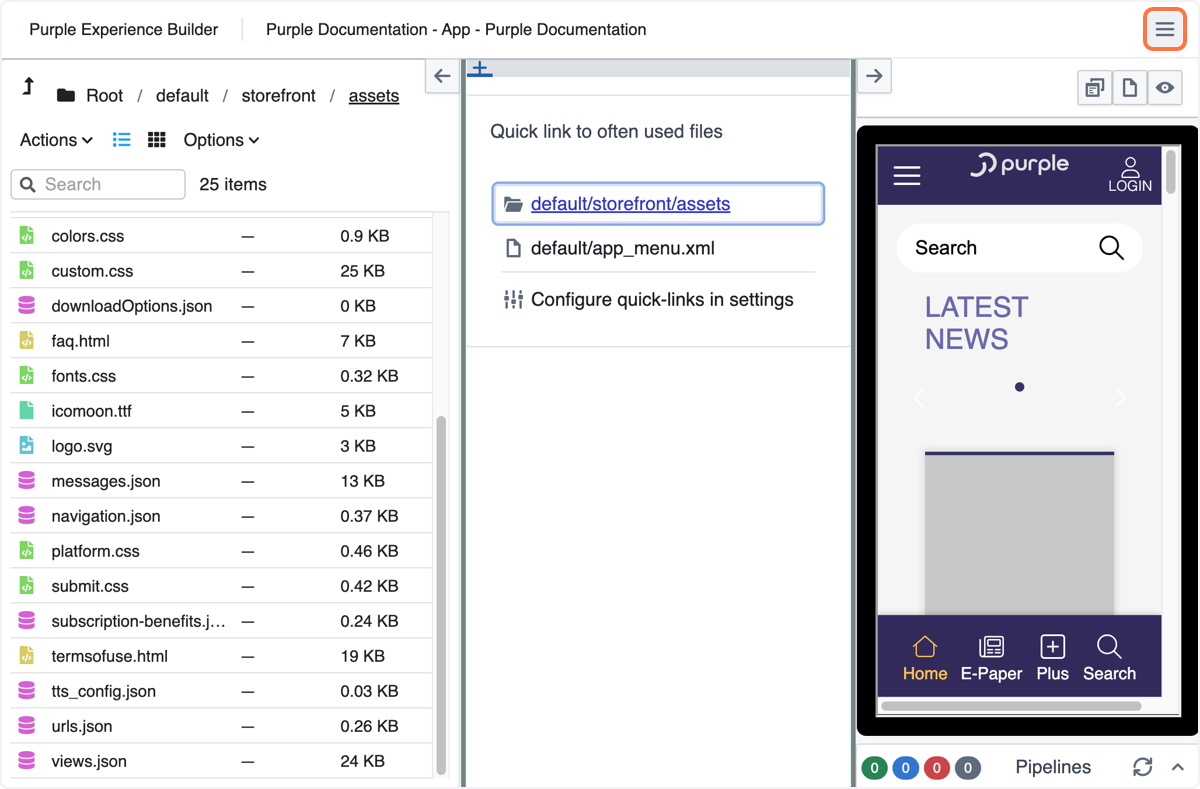
To merge or push your changes, navigate to the top-right burger menu:
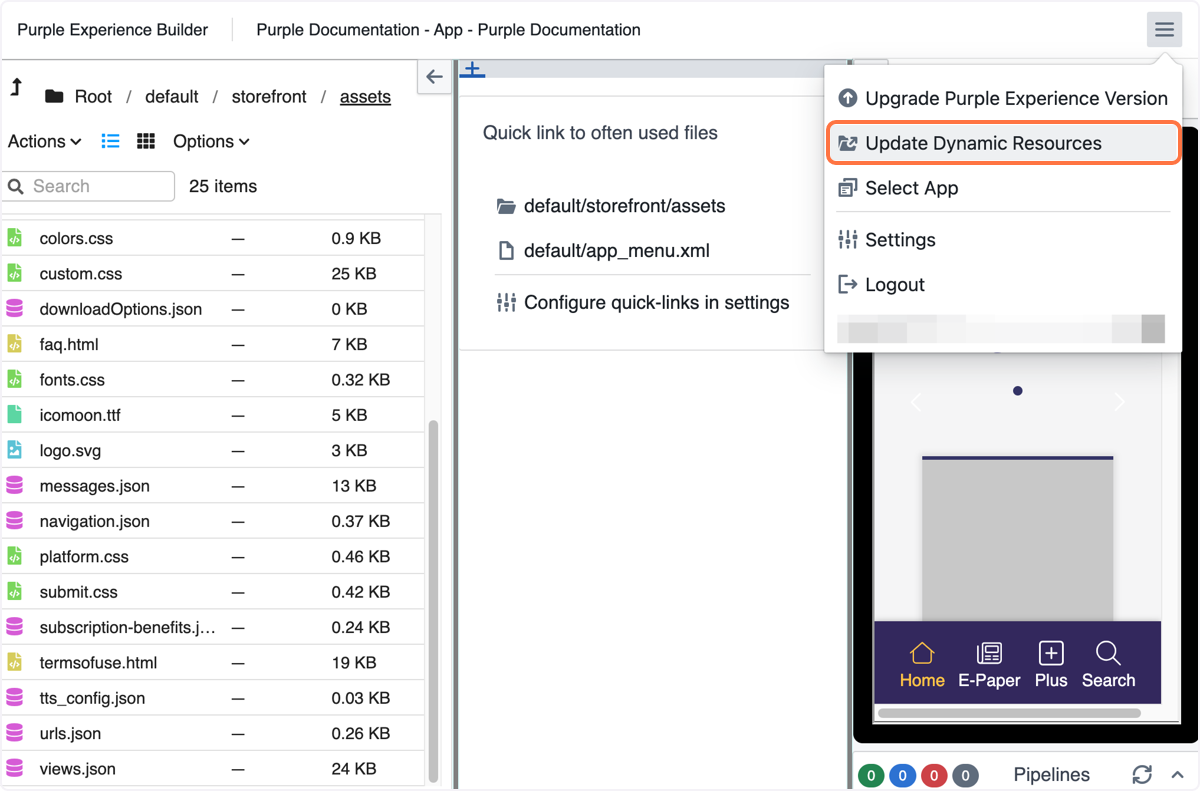
Click on 'Update Dynamic Resources'
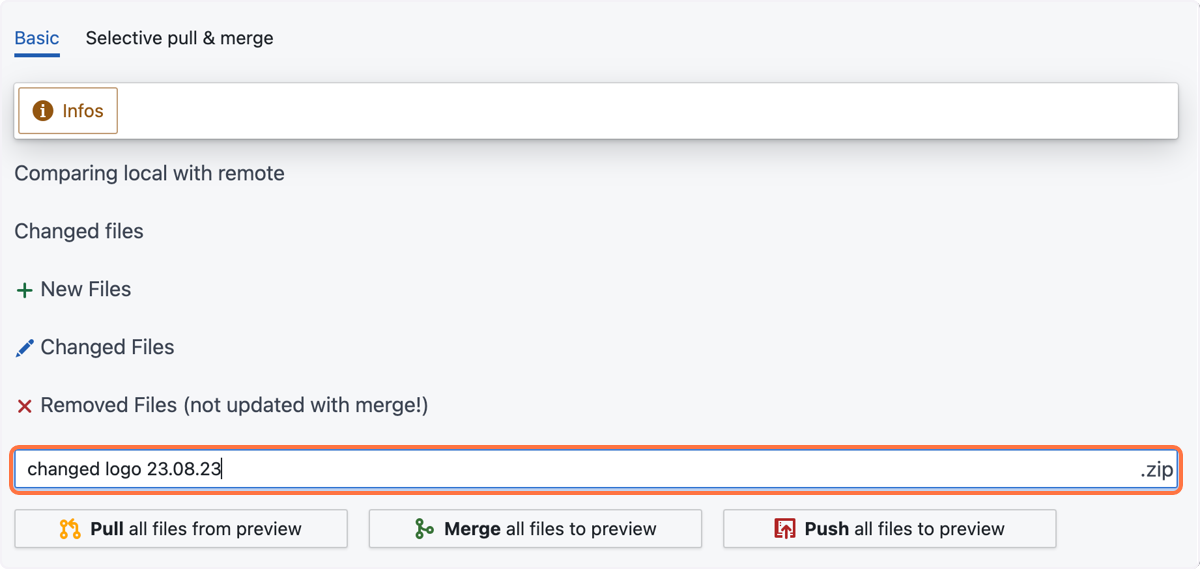
In the text field, name your changes, e.g. 'changed logo 23.08.23'
10. Click on 'Merge all files to preview' or 'Push all files to preview'.
After the merging is done, you can open your preview app on your mobile device to verify your changes on the device. We recommend to always do a quick check on a real device.
After successful QA, you can deploy your changes to the production environment.