Configure WYSIWYG toolbars
Summary
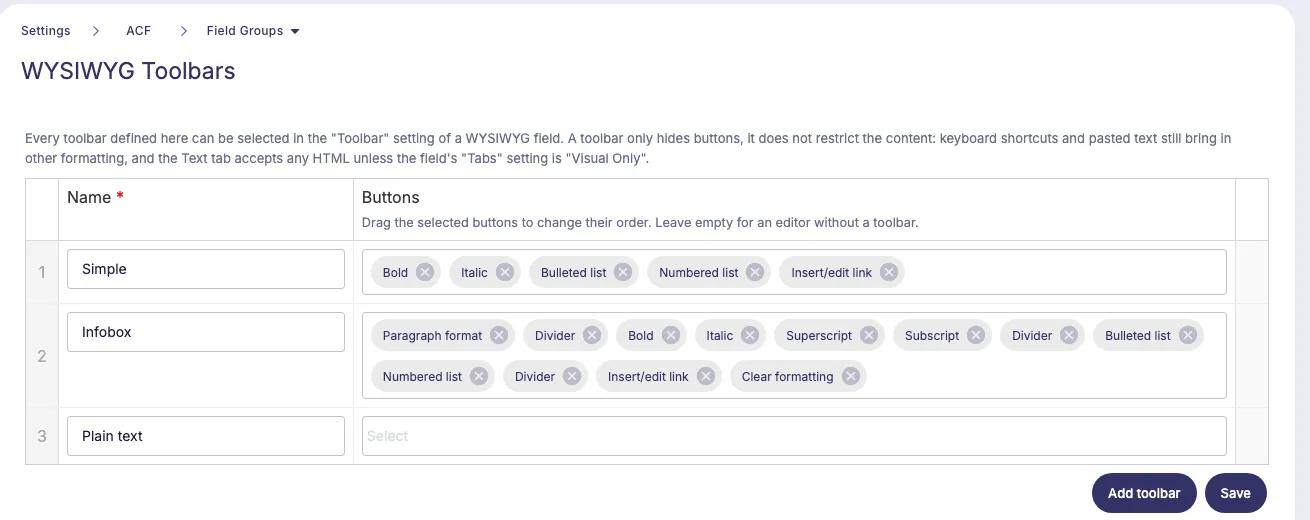
Admins can define their own toolbars for WYSIWYG fields (ACF field type "Wysiwyg Editor"), so editors only see the formatting buttons a field needs — e.g. only bold, italic, lists and link in an infobox.
Preconditions
- Have the 'Administrator' role in your Purple Hub
- Have the 'ACF' plugin enabled in your Purple Hub
How to configure
- Go to ACF → WYSIWYG Toolbars.
- Click Add toolbar and enter a Name, e.g. "Infobox".
- Below Buttons, select the buttons the toolbar should show. Drag the selected buttons to change their order, and add a Divider to separate groups of buttons. A toolbar without buttons gives an editor without a toolbar.
- Click Save.
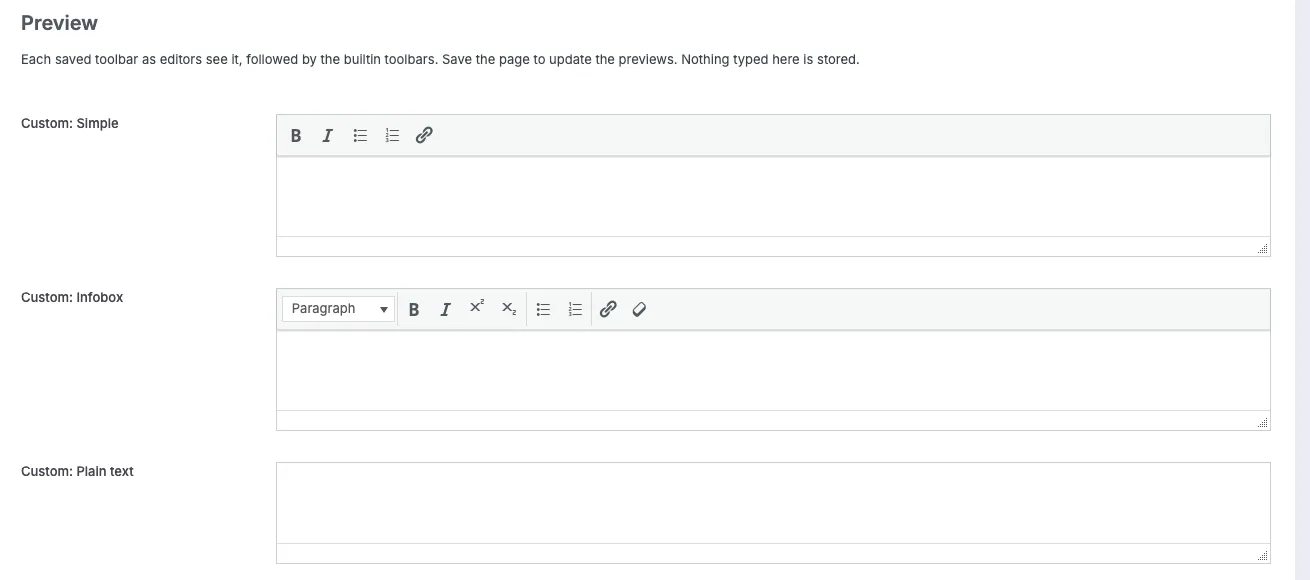
- Below Preview, check how every saved toolbar looks to editors, followed by the builtin toolbars "Full" and "Basic". The previews update after saving; nothing typed into them is stored.
- Go to ACF → Field Groups, open the field group with the WYSIWYG field, and select the toolbar in the field's Toolbar setting. Your own toolbars are listed as "Custom: …" next to "Builtin: Full" and "Builtin: Basic".
Besides the WordPress buttons, the list offers buttons that active plugins add to the editor, e.g. Editorial comment (Oasis Workflow). If such a plugin is deactivated later, its button stays in the toolbar, marked "(currently not available)".
Rules for toolbars
- The name identifies the toolbar in every field that uses it. A toolbar that is still used by a WYSIWYG field can therefore not be renamed or removed — switch the fields to another toolbar first. The page lists the fields that still use it.
- "Full" and "Basic" are reserved, names must be unique, and a name needs at least one letter or digit.
Warning: A toolbar only hides buttons, it does not restrict the content: keyboard shortcuts and pasted text still bring in other formatting, and the Text tab accepts any HTML. For fields whose formatting must stay restricted, also set the field's Tabs setting to "Visual Only".
Copying toolbars to another Purple Hub
In Settings → Copy Setup, the toolbars are a set of their own, WYSIWYG Toolbars. Copy it together with the field groups whose fields use these toolbars. An import never removes a toolbar that a field of the target Purple Hub still uses.