Purple Workflows: Managing Article Status & Assignee
Purple Workflows lets your editorial team track an article's progress and ownership without leaving the editor. Instead of switching to a spreadsheet or a separate workflow tool, writers and editors can change an article's status and hand it off to a colleague right from the sidebar — and everyone downstream (including your own systems, via a webhook) is notified automatically.
Purple Workflows is the successor to the Oasis workflow plugin. The two cannot be active on the same site at the same time.
Key concepts
- Status — a step in your editorial process (e.g. Draft, In Review, Ready for Print, Published). Beyond the Hub's built-in Draft/Scheduled/Published states, you define your own intermediate statuses to match your team's process, per post type.
- Assignee — the person currently responsible for the article. It defaults to whoever last edited the article, but can be handed off to someone else at any time.
Enabling Purple Workflows
Purple Workflows is rolled out per site by your Purple account team. If you'd like to start using it, get in touch with support — once it's turned on for your site, Purple Workflows needs to be enabled (done by your Purple account team).
Setting up your workflow statuses
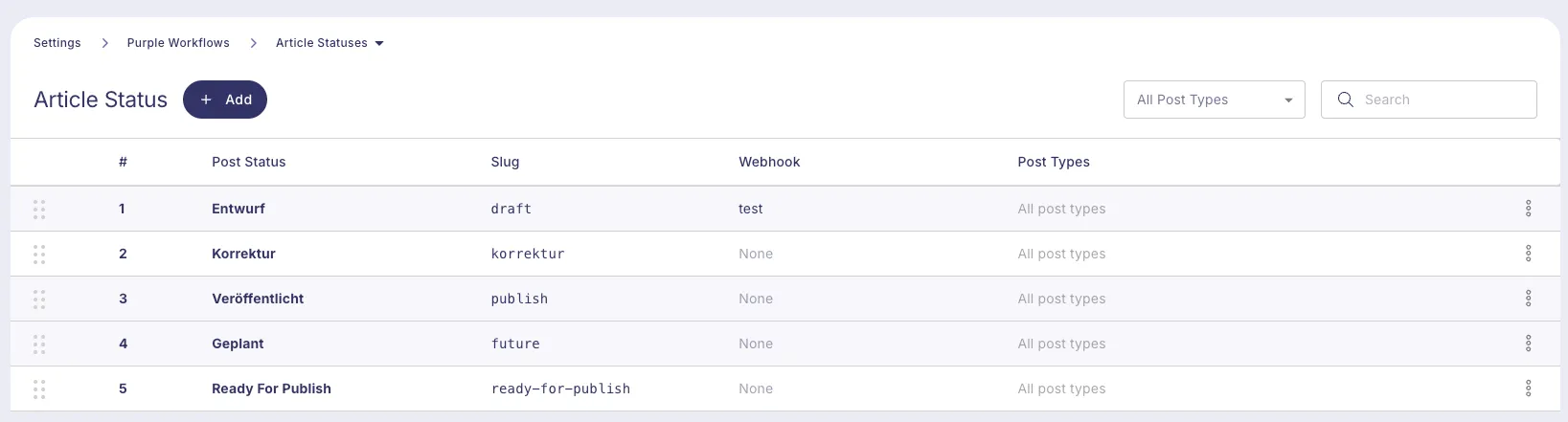
Once enabled, a new Purple Workflows menu appears in the admin sidebar, with an Article Statuses page underneath it (requires the Manage options permission, i.e. Administrator).
On this page you can:
- Add, rename, reorder, or remove statuses.
- Restrict a status to specific post types.
- Attach a webhook URL to a status, so your own systems are notified whenever an article is moved into it (see Webhook notifications below).
Three statuses are always available and can't be renamed or removed, since they map to the Hub's own states:
Status | Notes |
|---|---|
Draft | Regular Hub draft |
Scheduled | Set via the Hub's own Schedule action, not the status dropdown |
Published | Set via the Hub's own Publish action, not the status dropdown |
Everything else — e.g. In Review, Approved, Ready for Print — is entirely up to you to define to match your own editorial process.
Using it in the editor
Changing the status
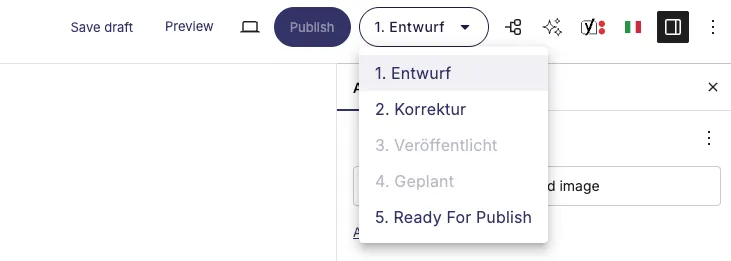
In the editor, the usual status row is replaced by a status button showing the article's current status (e.g. 2. In Review). Clicking it opens a dropdown listing every configured status.
- Scheduled and Published are shown greyed out in this dropdown — those are handled by the Hub's own Publish/Schedule flow, not by picking them here.
- Picking any other status opens an Update Workflow dialog where you confirm:
- New status
- Assignee — defaults to yourself, but you can hand the article to any other user who can edit posts.
- If the article is currently scheduled or published, the dialog warns you about the consequences before you continue (e.g. moving a published article back to Draft also unpublishes it; other status changes leave it published).
While the article is saving, or while a scheduled background-publish is in progress, the status button is temporarily locked.
The assignee
Directly below the status row in the editor sidebar, you'll find an Assignee row (labelled Zugewiesen in German) showing who's currently responsible for the article. Click it to reassign the article to anyone with edit access, or to clear it back to Not Assigned.
You don't have to do anything to keep the assignee up to date day-to-day: whoever last saved the article automatically becomes the assignee, unless someone has been assigned to it on purpose (via the status dialog or the sidebar control). Once a deliberate assignment has been made, the article "sticks" with that person and won't silently reassign itself to the next person who happens to save it.
Finding articles by status and assignee
The Post Overview screen gains an Assignee column and a matching filter, so you can quickly answer "what's on my plate" or "what's unassigned":
- Filter by one or more specific people, or by Not Assigned.
- The Assignee column shows the current assignee's name, or Not Assigned.
Webhook notifications
If you've attached a webhook URL to a status, Purple Workflows sends an HTTP POST request whenever an article transitions into that status — whether the change came from the editor UI or anywhere else in the Hub.
{
  "event": "status_changed",
  "occurredAt": "2026-08-10T09:41:12Z",
  "site": { "url": "https://example.com", "name": "Example Site" },
  "post": { "id": 123, "type": "post", "title": "Article title", "contentId": "...", "editLink": "https://example.com/wp-admin/post.php?post=123&action=edit" },
  "status": { "from": "draft", "to": "in-review", "label": "In Review" },
  "assignee": { "id": 5, "name": "Jane Doe", "avatarUrl": "https://..." },
  "changedBy": { "id": 5, "name": "Jane Doe", "avatarUrl": "https://..." }
}
Notes on delivery:
- assignee and changedBy may be null if no one is assigned, or the change wasn't made by a logged-in user.
- The assignee in the payload always reflects the value after the change, even if the same request also updated the assignee.
- Delivery happens a moment after saving (it's queued, not sent inline), so saving an article is never slowed down by a webhook endpoint that's slow to respond. There's no automatic retry if your endpoint is unreachable.
- Bulk actions (e.g. bulk-editing many articles at once in Post Overview) don't trigger a webhook per article.
Permissions
- Changing an article's status or assignee requires the same permission as editing that article (edit_post).
- Anyone who can edit posts can be selected as an assignee.
- Configuring statuses on the Article Statuses page requires Administrator access (manage_options).
Purple Workflows doesn't introduce its own roles — access is controlled entirely through your existing user roles and capabilities.