New Curator (EN)
New Curator – Quick start
The Curator is where you put together collections: hand-picked, ordered lists of articles that your apps and websites display, for example the top stories on a homepage or a sports teaser box. The interface has been redesigned. This guide covers everything you need for daily work.
You find it in the main menu under Curator.
1. The collections overview
When you open the Curator, you see all collections of your hub.
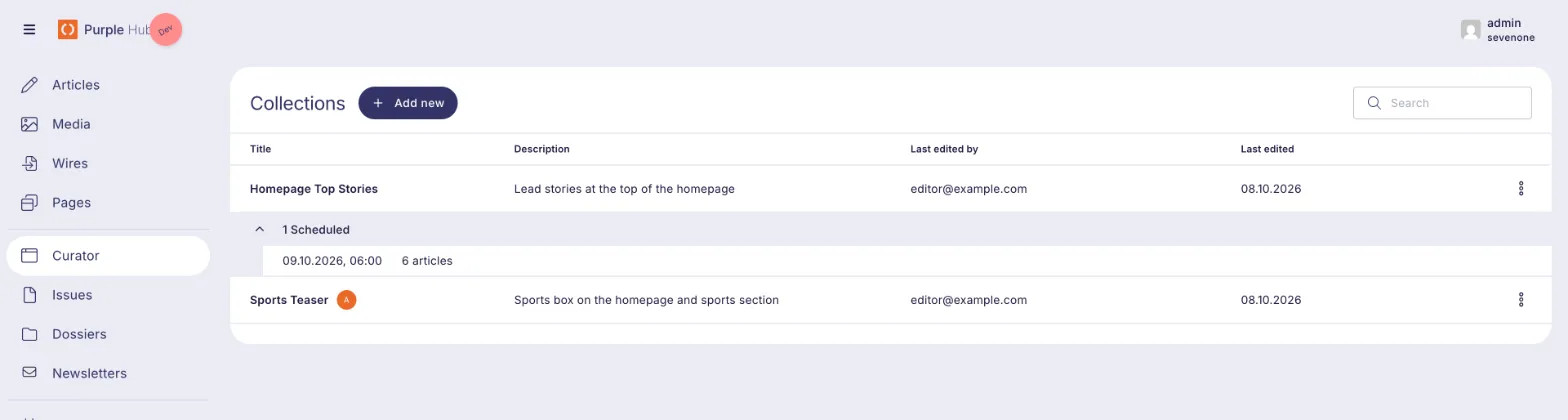
- Search filters the list by title and description.
- Last edited by / Last edited show who changed a collection last, and when.
- A coloured avatar next to a title means that a colleague has this collection open right now. Hover over it to see who.
- "1 Scheduled" under a collection means that a future version is planned. Click it to see when the version goes live and how many articles it contains.
- Click a row to open the collection. To delete a collection, use the ⋮ menu at the end of the row.
2. Create a collection
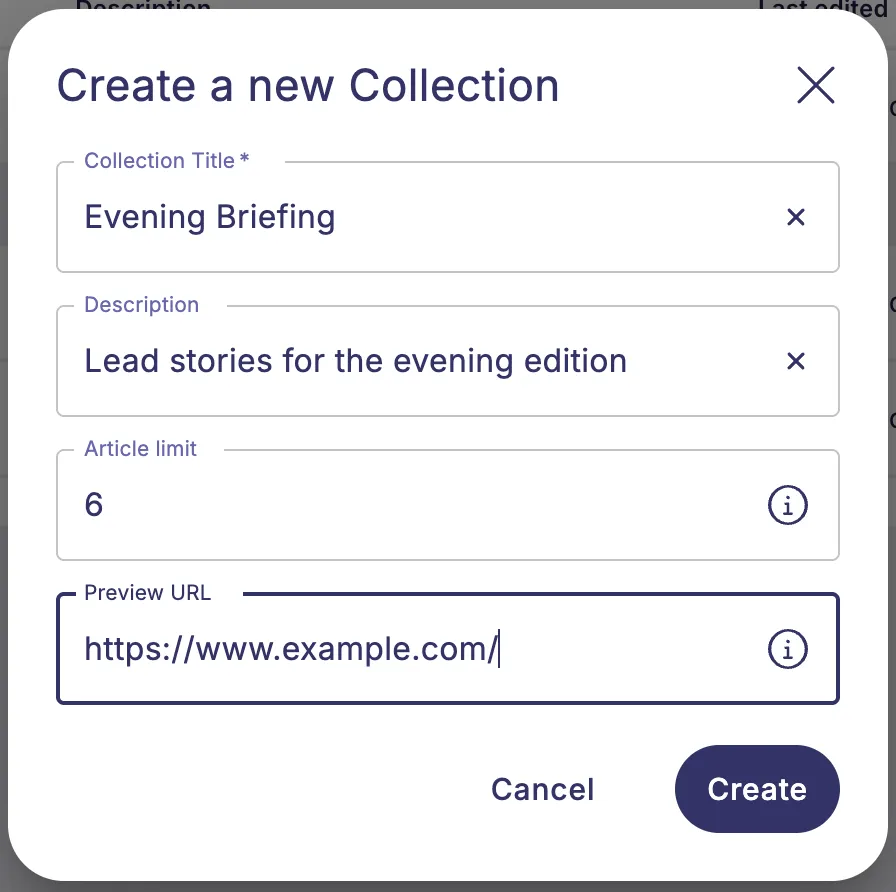
Click Add new and fill in the dialog:
Field | What it does |
|---|---|
Collection Title (required) | The name of the collection. It cannot be changed later, so choose it carefully. |
Description | A short note for your team on where the collection is used. |
Article limit | The maximum number of articles. Leave it empty for no limit. |
Preview URL | The address of the page in your frontend that shows this collection. If you fill it in, you can preview your changes before you publish them. |
Click Create and the new collection opens straight away. You can change the description, article limit and Preview URL later with the settings icon next to the collection title.
3. The workspace
A collection opens in a split view:
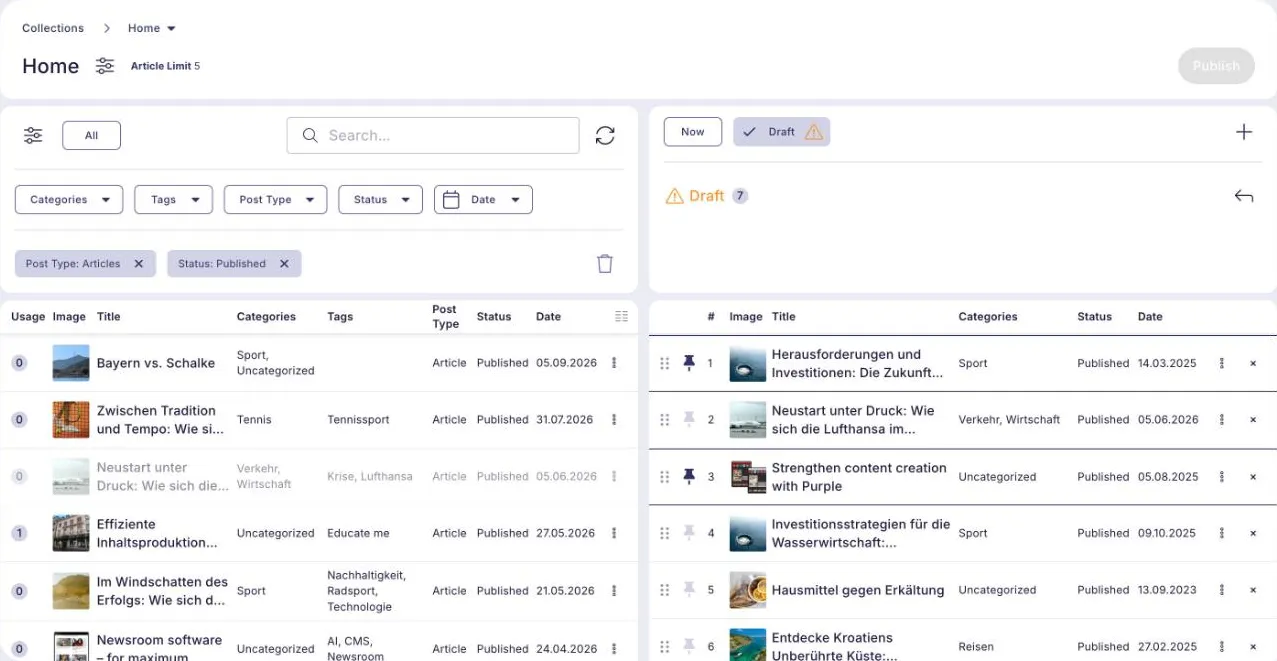
- Left: Article Pool. All articles you can add, with search and filters.
- Right: the collection. The articles in the collection, in the order they are shown, grouped into versions.
You can drag the divider between the two panels to make either side wider. The Curator remembers the position. In a narrow window, each panel keeps a minimum width; if a list no longer fits, scroll it sideways. Each list scrolls on its own, and its column headers stay in view.
The header above both panels shows the collection's title, its Article Limit and the settings icon (Edit Collection), where you change the description, article limit and Preview URL.

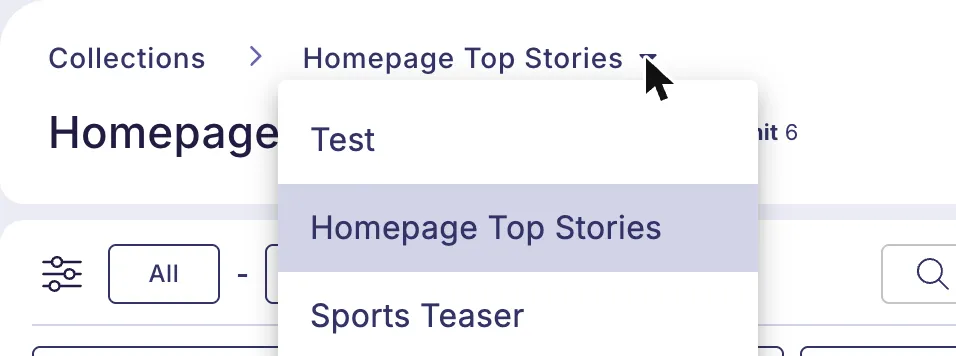
Switch collections: click the collection name in the breadcrumb and pick another collection. Ctrl-click (Cmd-click on a Mac) or middle-click a name to open it in a new browser tab. To go back to the overview, click Collections.
4. Find articles in the Article Pool
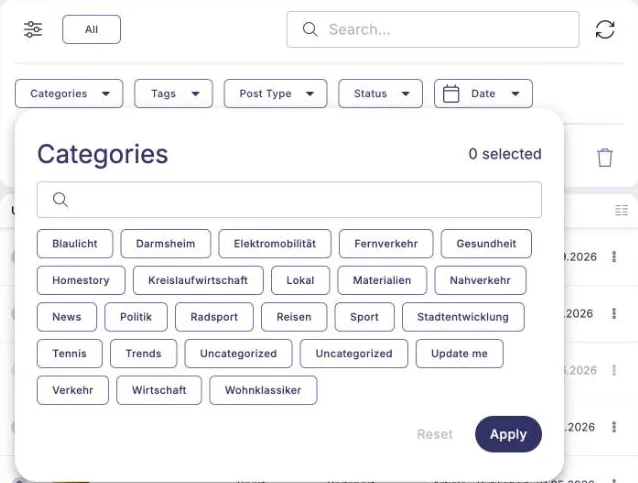
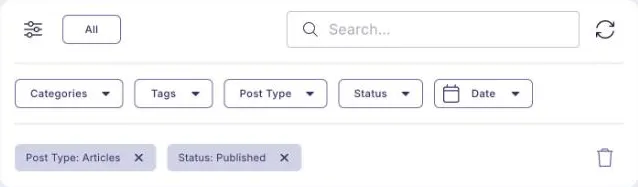
By default, the pool shows published articles. Use the filter buttons to narrow it down:
- Categories, Tags, Post Type, Status, Language (on multilingual hubs) and Date.
- Select the values you want and click Apply. Active filters are shown as chips. Remove one with ×, or all of them with the bin icon.
- Search finds articles by keyword.
- The reload icon next to the search field fetches the latest articles.
The pool loads the newest articles first, in batches. The footer shows how many of the matching articles are loaded, for example "50 of 230 articles". Click Load more to load the next batch.

On hubs with a very large number of articles, the footer says Displaying first 10,000 results: the pool only goes through the first 10,000 matches. Use the filters or the search to narrow them down.
Save filters you use often
Set up your filters, click the filter icon to the left of All and choose Save Filter. Give it a name, for example "Sports". The filter now appears as a button next to All. One click applies it again. Saved filters are personal: each editor has their own.
See where an article is already used
The Usage column shows how many collections an article belongs to. Hover over the number to see which collections they are, and click a name to jump to that collection.
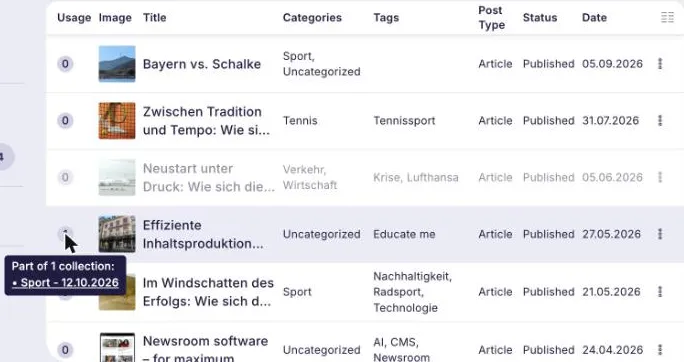
Tip: Click the column icon in the top right corner of the table to show or hide columns. Your choice is saved as your personal default.
5. Add, order and pin articles
- Add an article: click it in the pool, or drag it to the right position in the collection. Articles that are already in the collection are greyed out in the pool.
- Change the order: drag an article by its handle (⠿) to a new position.
- Remove an article: click × at the end of its row, or drag it back to the pool.
The ⋮ menu of an article offers more options:
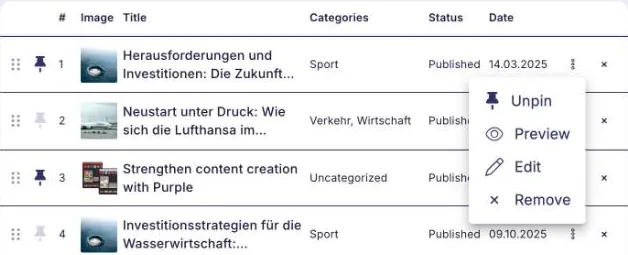
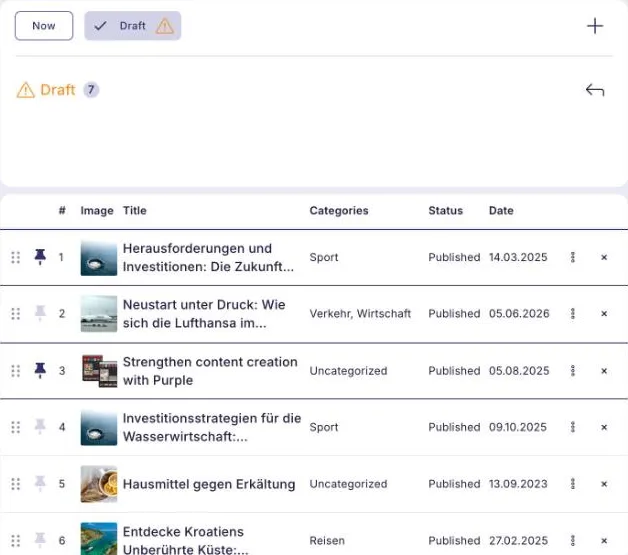
- Pin: keeps the article at its current position. Pinned articles have a pin icon and a frame. They cannot be dragged, and the other articles move around them. Use this for a lead story that must stay in place. Click the pin icon to unpin the article. You can also click the pin icon at the start of any row to pin or unpin the article directly.
- Preview: opens the article preview in a new tab.
- Edit: opens the article in the editor in a new tab.
- Remove: takes the article out of the collection.
Article limit: If the collection has more articles than its limit allows, you cannot publish it until you remove some. Your administrator can also set the Curator to remove the last unpinned article automatically when the limit is reached (see section 9).
6. Draft and Now: publish your changes
Your changes do not go live immediately. As soon as you change a published collection, a Draft version appears next to Now:
- Now shows what is currently live. It is read-only while a draft exists.
- Draft contains your changes. The number next to the version name shows how many articles it contains.
Below the version name you see its status: Published, Scheduled or Draft. A version that is not scheduled yet shows Draft in orange with a warning icon. The Draft version itself has an orange name with a warning icon.
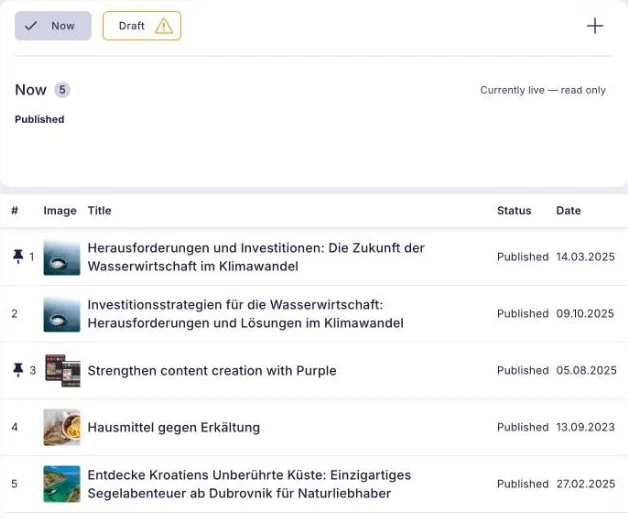
The versions are shown as a row of buttons above the list. If they do not fit in one row, they continue on the next row, so you always see all of them. A warning icon on a version means that it is not live as it is. Hover over it to see why:
- Collection has unpublished changes: the version was changed after it was last scheduled.
- Collection is not scheduled yet: the version was added but has not been scheduled yet.
- Collection is not published yet: the draft contains changes that are not live yet.
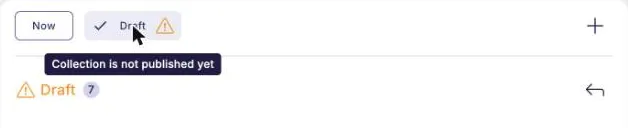
When you are happy with the draft:
- Optionally, click the eye icon to preview the collection on your frontend. This needs a Preview URL.
- Click Publish at the top right. If the collection also has scheduled versions, this button reads Publish / Schedule all; to publish only the draft, click Publish next to the version name instead. The draft becomes the new Now, and the Draft version disappears.
To throw your changes away, click the revert icon (↶) and confirm. The collection goes back to what is live.
Unpublished articles: You can add articles that are not published yet, but they only appear in the collection once they are published. The Curator shows a notice when this applies.
7. Schedule versions
You can prepare future versions of a collection, for example a morning line-up that goes live at 6:00 tomorrow.
- Click + at the top right of the versions.
- In New Scheduled Collection, choose the date and time and click Create. The time starts at the next full hour; you cannot choose a time in the past.
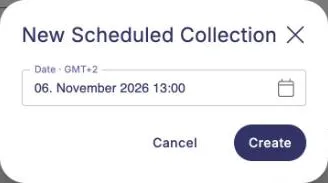
- The new version opens as a copy of the latest version. Change it as you like.
- Click Schedule to save the version and plan it.
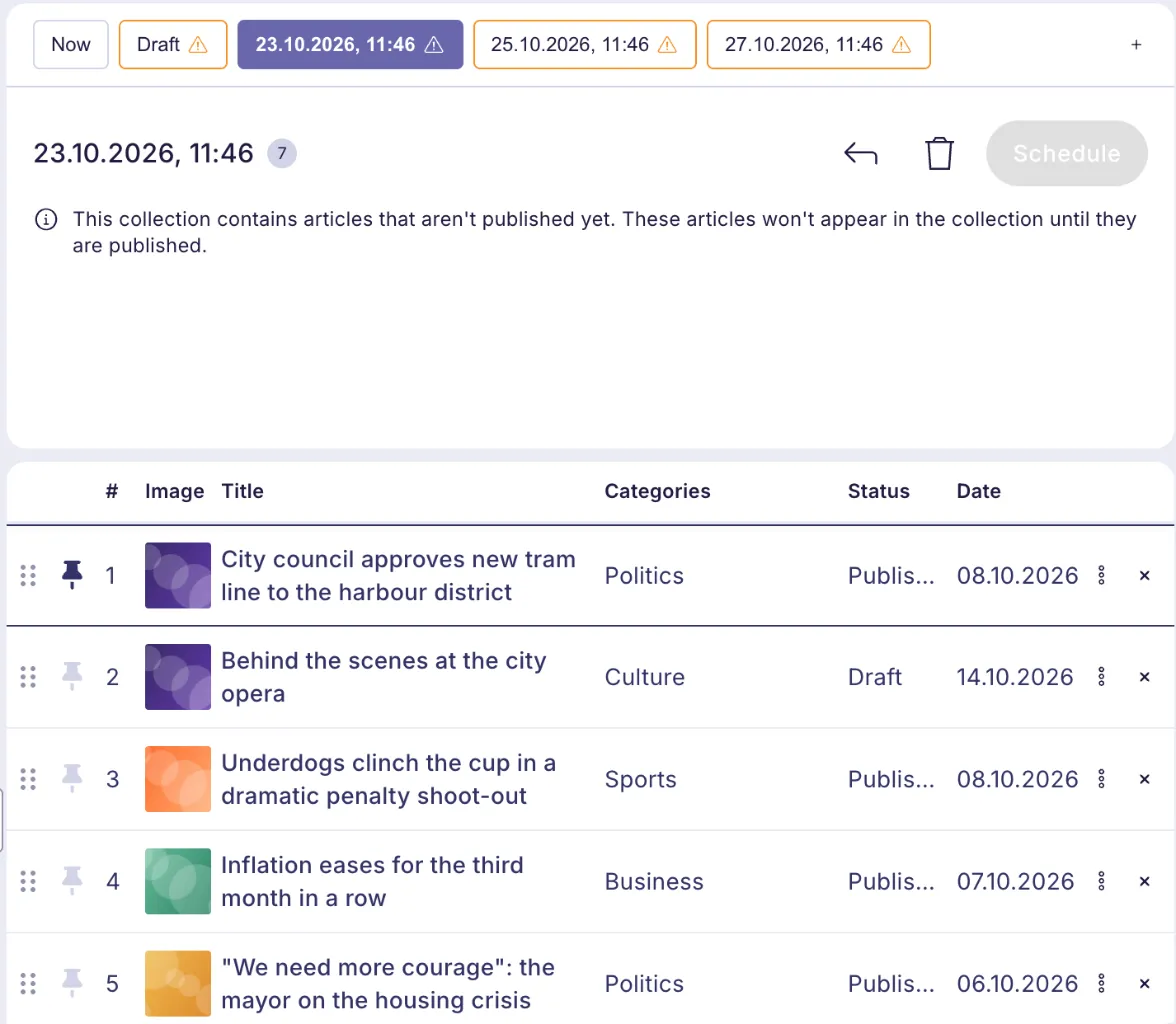
Scheduled versions appear next to Now and Draft, labelled with their date and time. At that time they automatically replace the live collection.
- Publish / Schedule all (top right) publishes the draft and saves and schedules all other versions in one step.
- To delete a scheduled version, open it and click the bin icon.
- To change the date or time of a scheduled version, click its date next to the version name, choose the new date and time in Edit Scheduled Collection and click Save. The change takes effect once you click Schedule or Publish / Schedule all; the revert icon (↶) restores the old date.
Important: A new version is only saved once you click Schedule or Publish / Schedule all. If you leave the collection with unsaved changes, the Curator asks whether to save or discard them.
8. Work together in real time
Several editors can work on the same collection at the same time. Nothing is locked.
- Avatars at the top right, next to the publish button, show who else is in the collection and which version they are on.
- Changes made by colleagues appear within seconds. A row that someone else just changed is briefly highlighted in their colour. Hover over it to see who changed it.
- The draft is shared: everyone in the collection works on the same draft. Reverting it discards the changes for everyone.
- If a colleague changes the collection while you are publishing, the Curator loads their changes and asks you to publish again, so nobody's work is overwritten.
9. Settings for administrators
Under Purple Curator → Settings you can choose the Article Limit Behavior:

- On: when a collection reaches its limit, adding an article automatically removes the last unpinned one.
- Off (default): a collection can go over its limit temporarily, but it cannot be published or scheduled until it is back within the limit.