New Curator (DE)
Neuer Curator – Schnellstart
Im Curator stellst du Collections zusammen: handverlesene, sortierte Artikellisten, die deine Apps und Websites anzeigen, zum Beispiel die Top-Storys auf einer Startseite oder eine Sport-Teaserbox. Die Oberfläche wurde neu gestaltet. Diese Anleitung enthält alles, was du für die tägliche Arbeit brauchst.
Du findest ihn im Hauptmenü unter Curator.
1. Die Collection-Übersicht
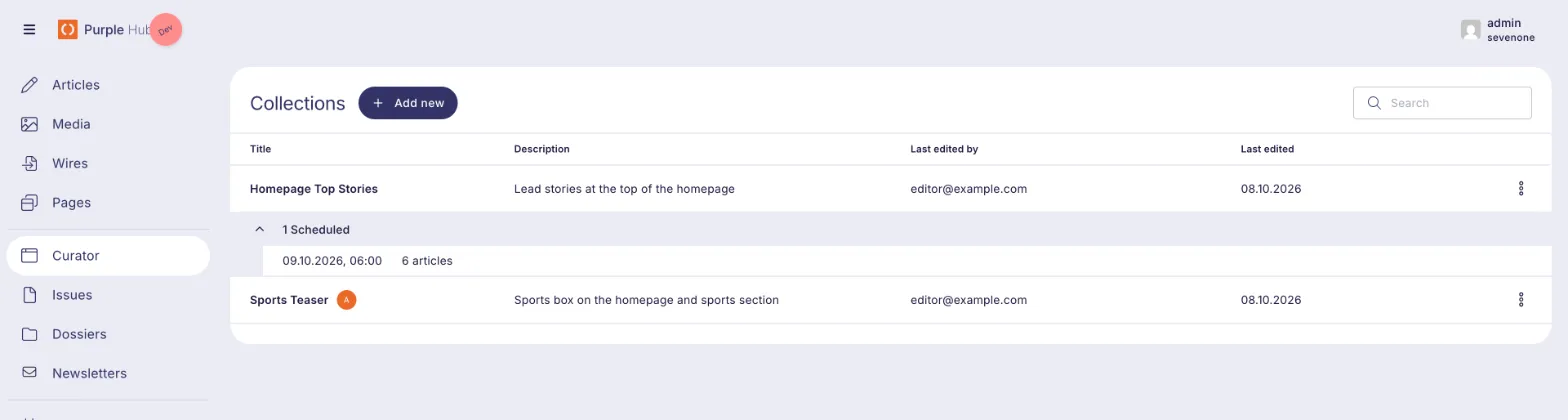
Wenn du den Curator öffnest, siehst du alle Collections deines Hubs.
-
- Suchen filtert die Liste nach Titel und Beschreibung.
- Zuletzt bearbeitet von / Zuletzt bearbeitet zeigen, wer eine Collection zuletzt geändert hat und wann.
- Ein farbiger Avatar neben einem Titel bedeutet, dass ein Kollege diese Collection gerade geöffnet hat. Fahre mit der Maus darüber, um zu sehen, wer es ist.
- „1 geplant“ unter einer Collection bedeutet, dass eine zukünftige Version geplant ist. Klicke darauf, um zu sehen, wann die Version live geht und wie viele Artikel sie enthält.
- Klicke auf eine Zeile, um die Collection zu öffnen. Um eine Collection zu löschen, nutze das ⋮-Menü am Ende der Zeile.
2. Eine Collection erstellen
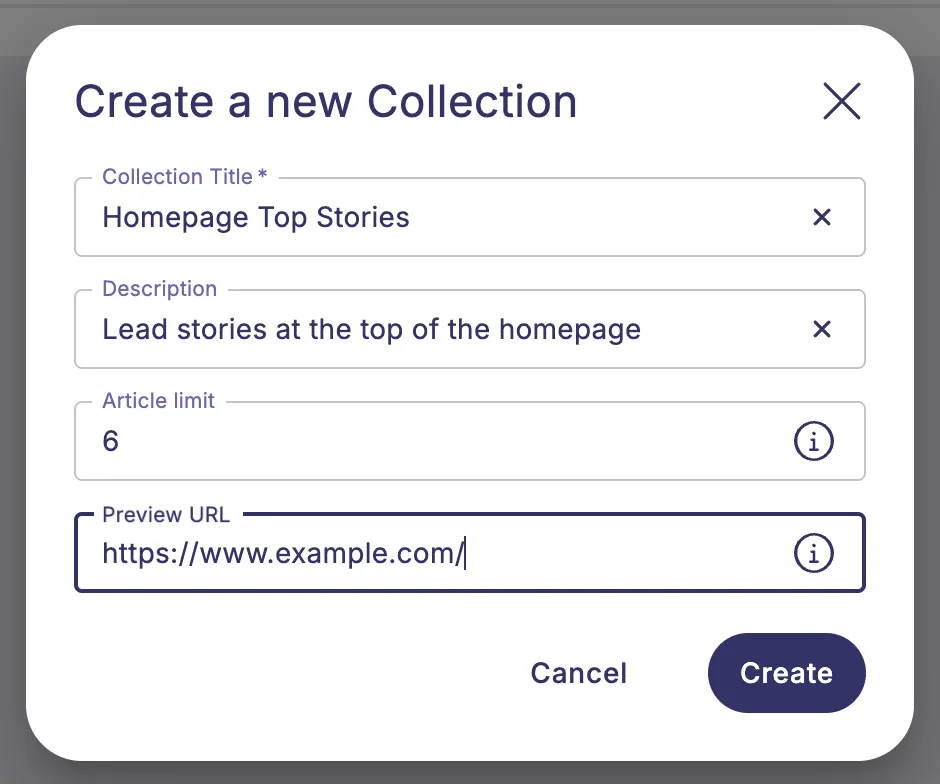
Klicke auf Neu hinzufügen und fülle den Dialog aus:
Feld | Funktion |
|---|---|
Collection-Titel (Pflichtfeld) | Der Name der Collection. Er kann später nicht mehr geändert werden, wähle ihn also mit Bedacht. |
Beschreibung | Eine kurze Notiz für dein Team, wo die Collection verwendet wird. |
Artikel-Limit | Die maximale Anzahl an Artikeln. Lass das Feld leer, wenn es kein Limit geben soll. |
Vorschau-URL | Die Adresse der Seite in deinem Frontend, die diese Collection anzeigt. Wenn du sie ausfüllst, kannst du deine Änderungen vor dem Veröffentlichen in der Vorschau ansehen. |
Klicke auf Erstellen, und die neue Collection öffnet sich sofort. Beschreibung, Artikel-Limit und Vorschau-URL kannst du später über das Einstellungs-Symbol neben dem Collection-Titel ändern.
3. Der Arbeitsbereich
Eine Collection öffnet sich in einer geteilten Ansicht:
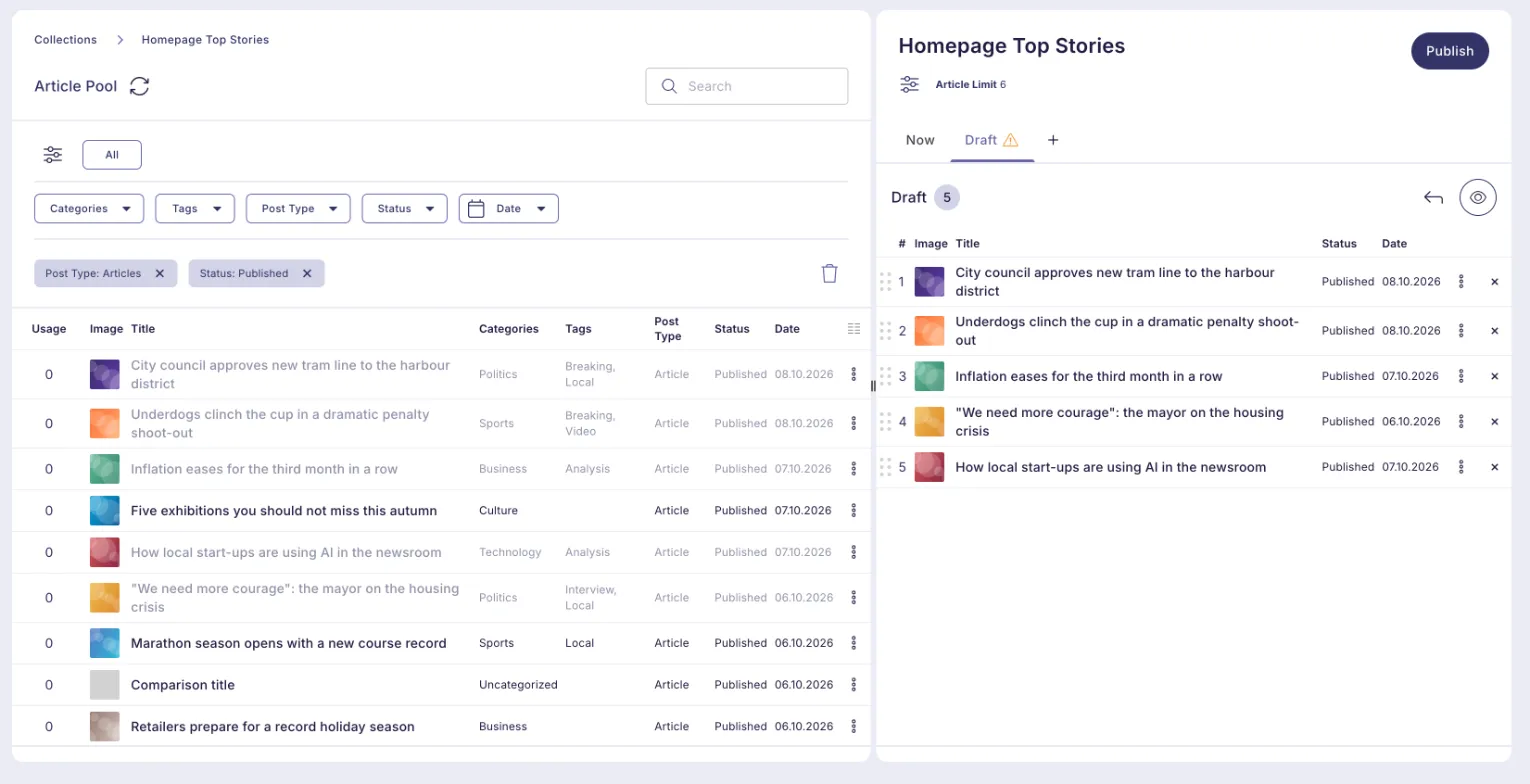
- Links: Artikel-Pool. Alle Artikel, die du hinzufügen kannst, mit Suche und Filtern.
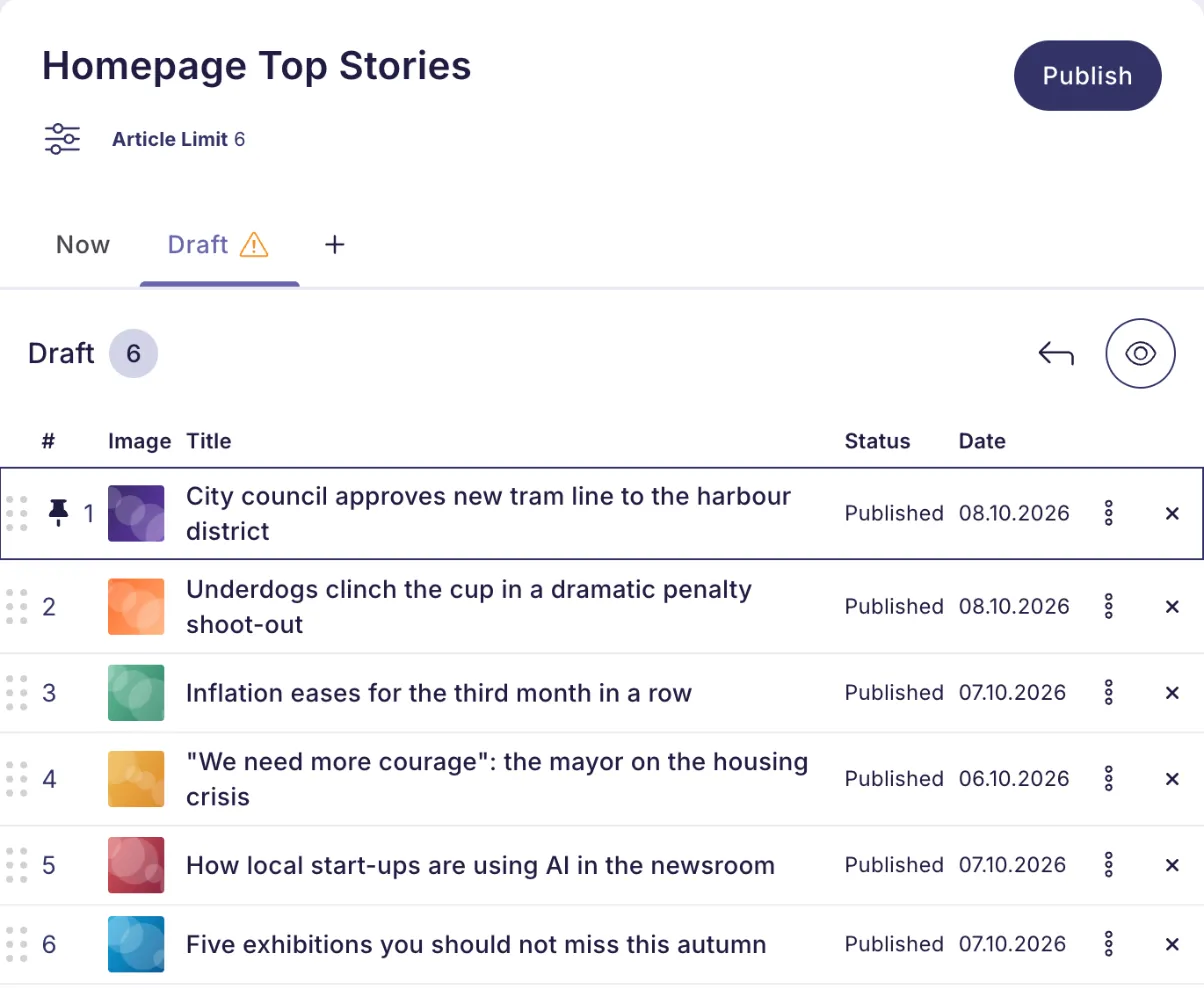
- Rechts: die Collection. Die Artikel der Collection in der Reihenfolge, in der sie angezeigt werden, gruppiert in Versionen (Tabs).
Du kannst die Trennlinie zwischen den beiden Bereichen ziehen, um eine Seite breiter zu machen. Der Curator merkt sich die Position.
Um zur Übersicht zurückzukehren, klicke oben links im Breadcrumb auf Collections.
4. Artikel im Artikel-Pool finden
Standardmäßig zeigt der Pool veröffentlichte Artikel. Mit den Filter-Buttons grenzt du die Auswahl ein:
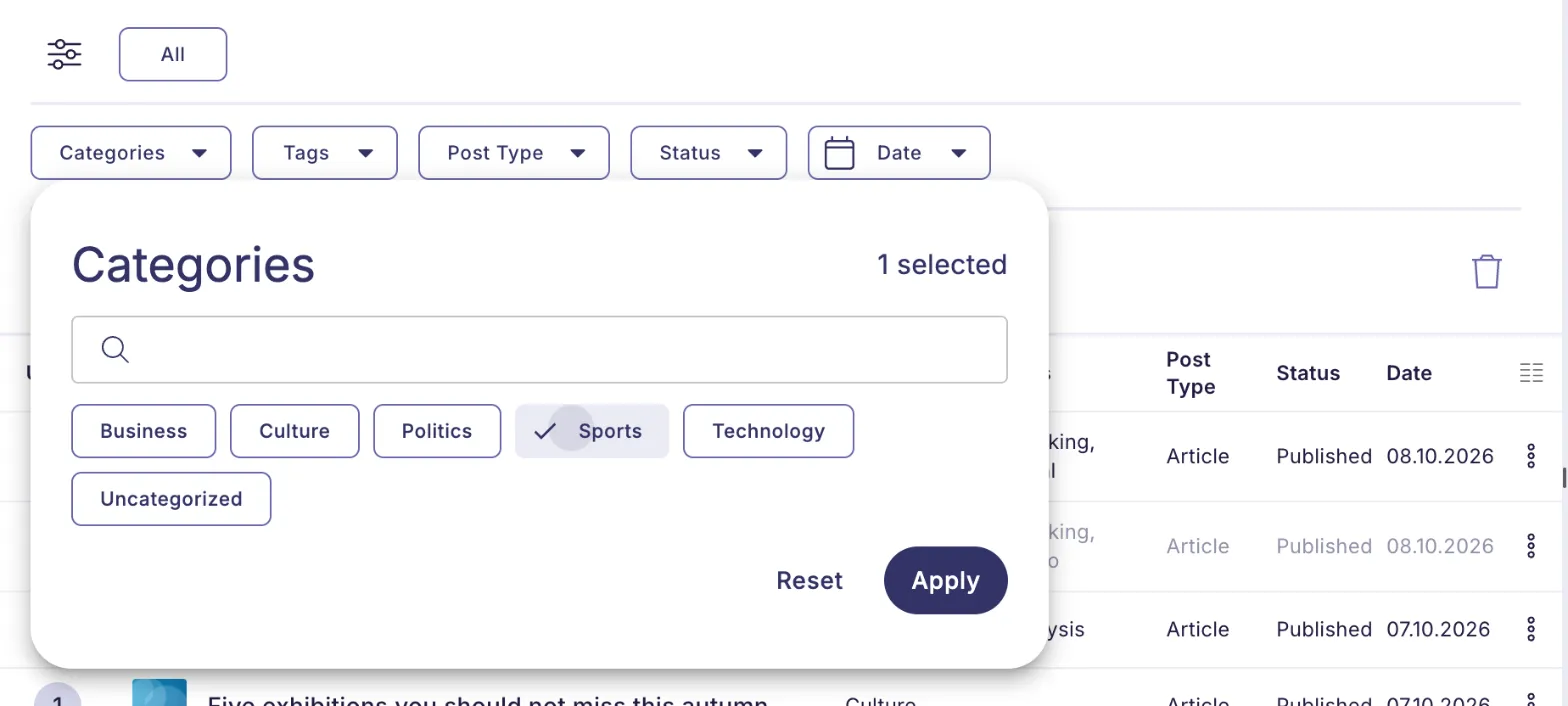
- Kategorien, Schlagwörter, Posttyp, Status, Sprache (bei mehrsprachigen Hubs) und Datum.
- Wähle die gewünschten Werte aus und klicke auf Anwenden. Aktive Filter werden als Chips angezeigt. Entferne einen einzelnen mit × oder alle mit dem Papierkorb-Symbol.
- Suchen findet Artikel per Stichwort.
- Das Aktualisieren-Symbol neben „Artikel-Pool“ lädt die neuesten Artikel.
Häufig genutzte Filter speichern
Stelle deine Filter ein, klicke auf das Filter-Symbol links neben Alle und wähle Filter speichern. Gib ihm einen Namen, zum Beispiel „Sport“. Der Filter erscheint nun als Button neben Alle. Ein Klick wendet ihn erneut an. Gespeicherte Filter sind persönlich: Jeder Redakteur hat seine eigenen.
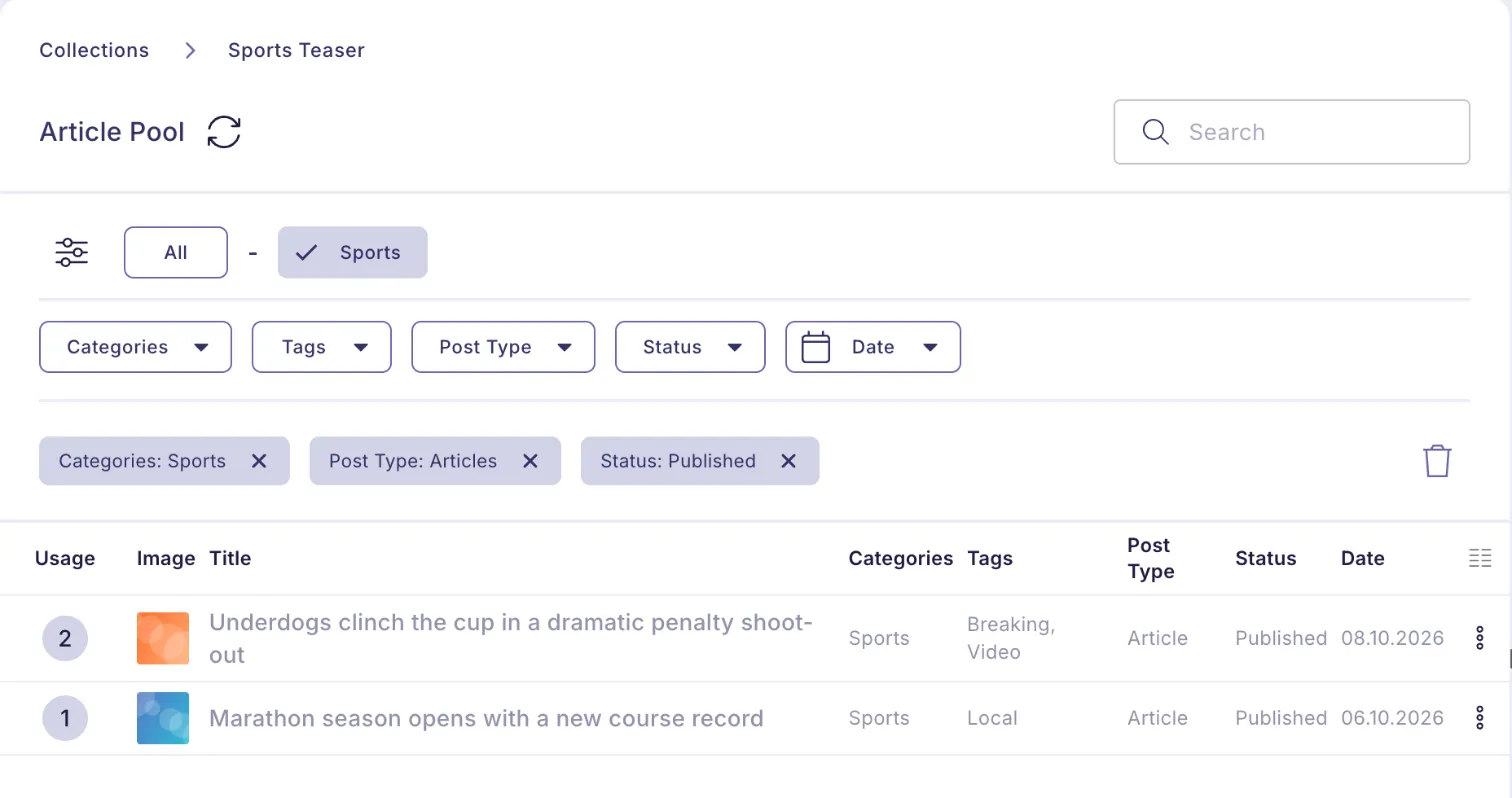
Sehen, wo ein Artikel bereits verwendet wird
Die Spalte Verwendung zeigt, in wie vielen Collections ein Artikel enthalten ist. Fahre mit der Maus über die Zahl, um zu sehen, welche Collections es sind, und klicke auf einen Namen, um direkt zu dieser Collection zu springen.
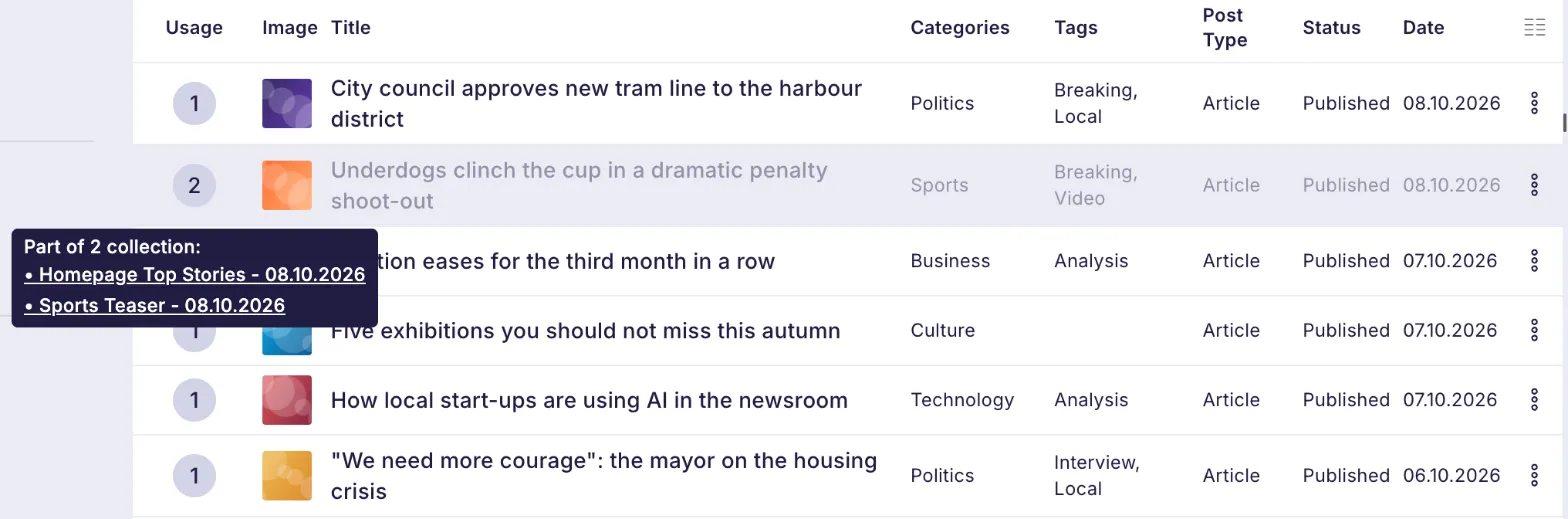
Tipp: Klicke auf das Spalten-Symbol oben rechts in der Tabelle, um Spalten ein- oder auszublenden. Deine Auswahl wird als persönliche Standardeinstellung gespeichert.
Artikel hinzufügen, sortieren und anheften
- Artikel hinzufügen: Klicke ihn im Pool an oder ziehe ihn an die gewünschte Position in der Collection. Artikel, die bereits in der Collection sind, werden im Pool ausgegraut.
- Reihenfolge ändern: Ziehe einen Artikel an seinem Griff (⠿) an eine neue Position.
- Artikel entfernen: Klicke auf × am Ende der Zeile oder ziehe ihn zurück in den Pool.
Das ⋮-Menü eines Artikels bietet weitere Optionen:
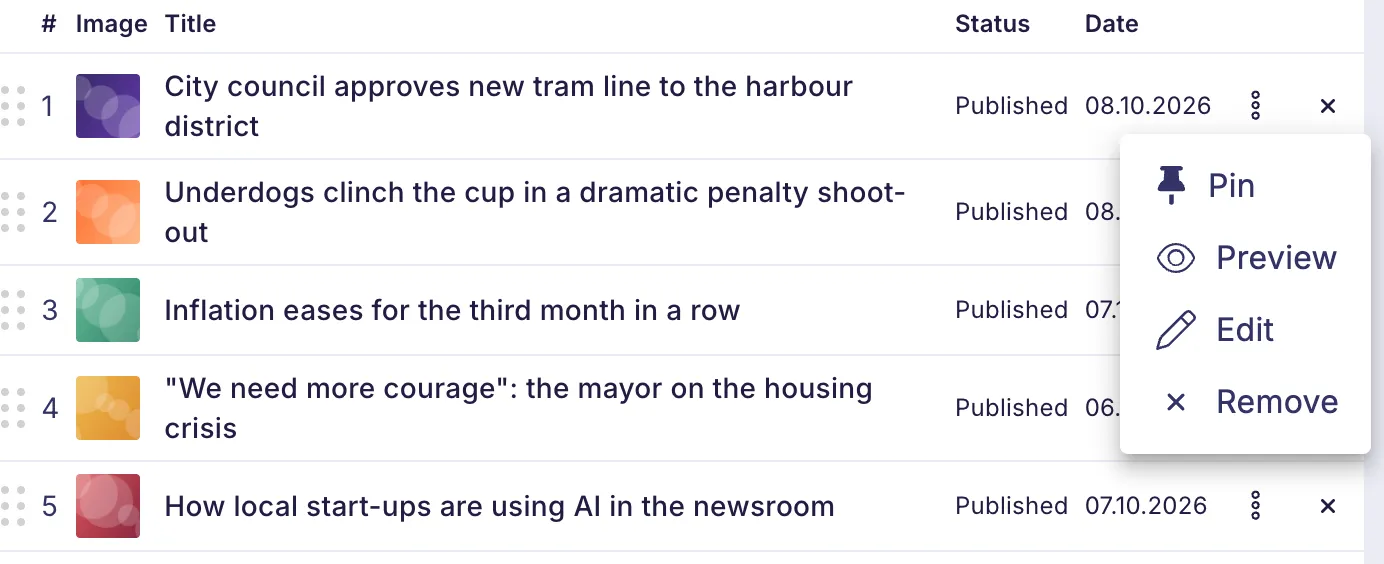
- Anheften: hält den Artikel an seiner aktuellen Position. Angeheftete Artikel haben ein Pin-Symbol und einen Rahmen. Sie lassen sich nicht verschieben, die anderen Artikel bewegen sich um sie herum. Nutze das für einen Aufmacher, der an seinem Platz bleiben muss. Klicke auf das Pin-Symbol, um den Artikel wieder zu lösen.
- Vorschau: öffnet die Artikelvorschau in einem neuen Tab.
- Bearbeiten: öffnet den Artikel im Editor in einem neuen Tab.
- Entfernen: nimmt den Artikel aus der Collection.
Artikel-Limit: Wenn die Collection mehr Artikel enthält, als ihr Limit erlaubt, kannst du sie erst veröffentlichen, wenn du einige entfernst. Dein Administrator kann den Curator außerdem so einstellen, dass der letzte nicht angeheftete Artikel automatisch entfernt wird, sobald das Limit erreicht ist (siehe Abschnitt 9).
6. Entwurf und Jetzt: Änderungen veröffentlichen
Deine Änderungen gehen nicht sofort live. Sobald du eine veröffentlichte Collection änderst, erscheint neben Jetzt ein Tab Entwurf:
- Jetzt zeigt, was aktuell live ist. Solange ein Entwurf existiert, ist dieser Tab schreibgeschützt.
- Entwurf enthält deine Änderungen. Ein Warnsymbol an einem Tab bedeutet, dass er Änderungen enthält, die noch nicht live sind.
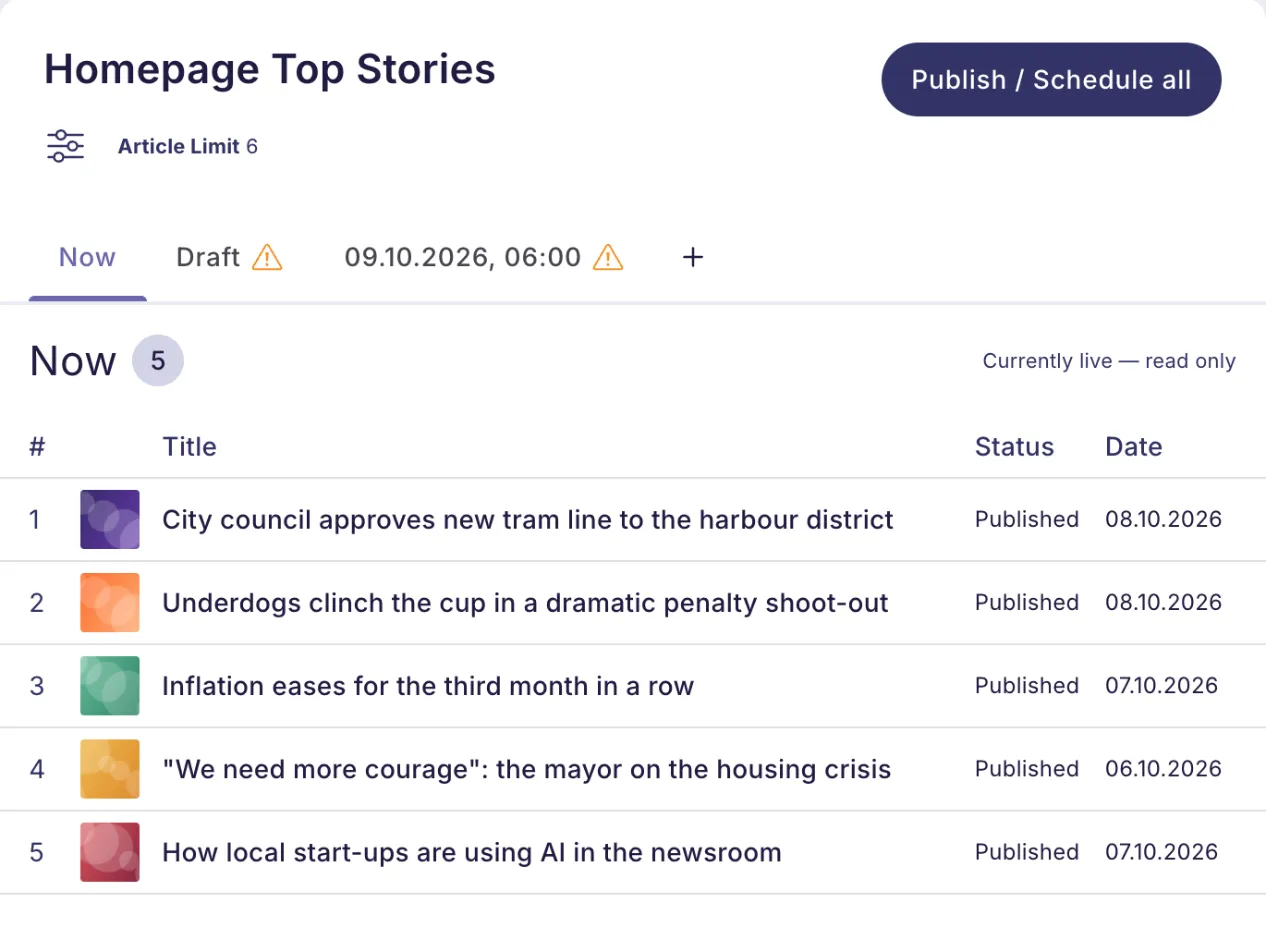
Wenn du mit dem Entwurf zufrieden bist:
- Optional: Klicke auf das Augen-Symbol, um die Collection in deinem Frontend in der Vorschau anzusehen. Dafür ist eine Vorschau-URL nötig.
- Klicke auf Veröffentlichen. Der Entwurf wird zum neuen Jetzt, und der Tab „Entwurf“ verschwindet.
Um deine Änderungen zu verwerfen, klicke auf das Zurücksetzen-Symbol (↶) und bestätige. Die Collection kehrt zum Live-Stand zurück.
Unveröffentlichte Artikel: Du kannst Artikel hinzufügen, die noch nicht veröffentlicht sind. Sie erscheinen aber erst in der Collection, wenn sie veröffentlicht sind. Der Curator zeigt in diesem Fall einen Hinweis an.
7. Versionen planen
Du kannst zukünftige Versionen einer Collection vorbereiten, zum Beispiel eine Morgenausgabe, die morgen um 6:00 Uhr live geht.
- Klicke auf + neben den Tabs.
- Wähle Datum und Uhrzeit und klicke auf Hinzufügen.
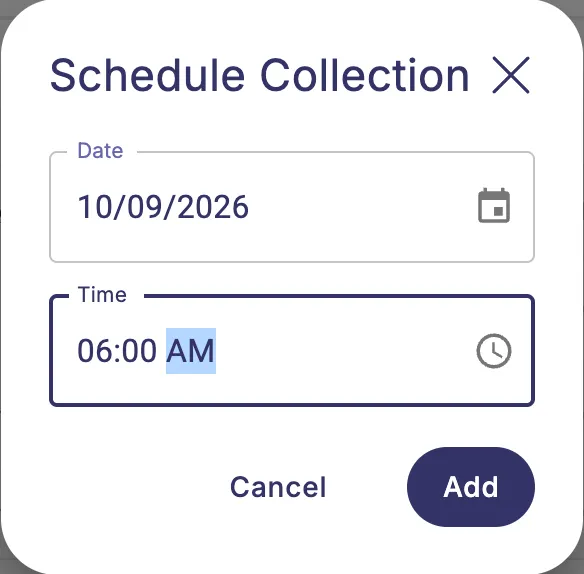
- Die neue Version öffnet sich als Kopie der neuesten Version. Ändere sie nach Belieben.
- Klicke auf Planen, um die Version zu speichern und einzuplanen.
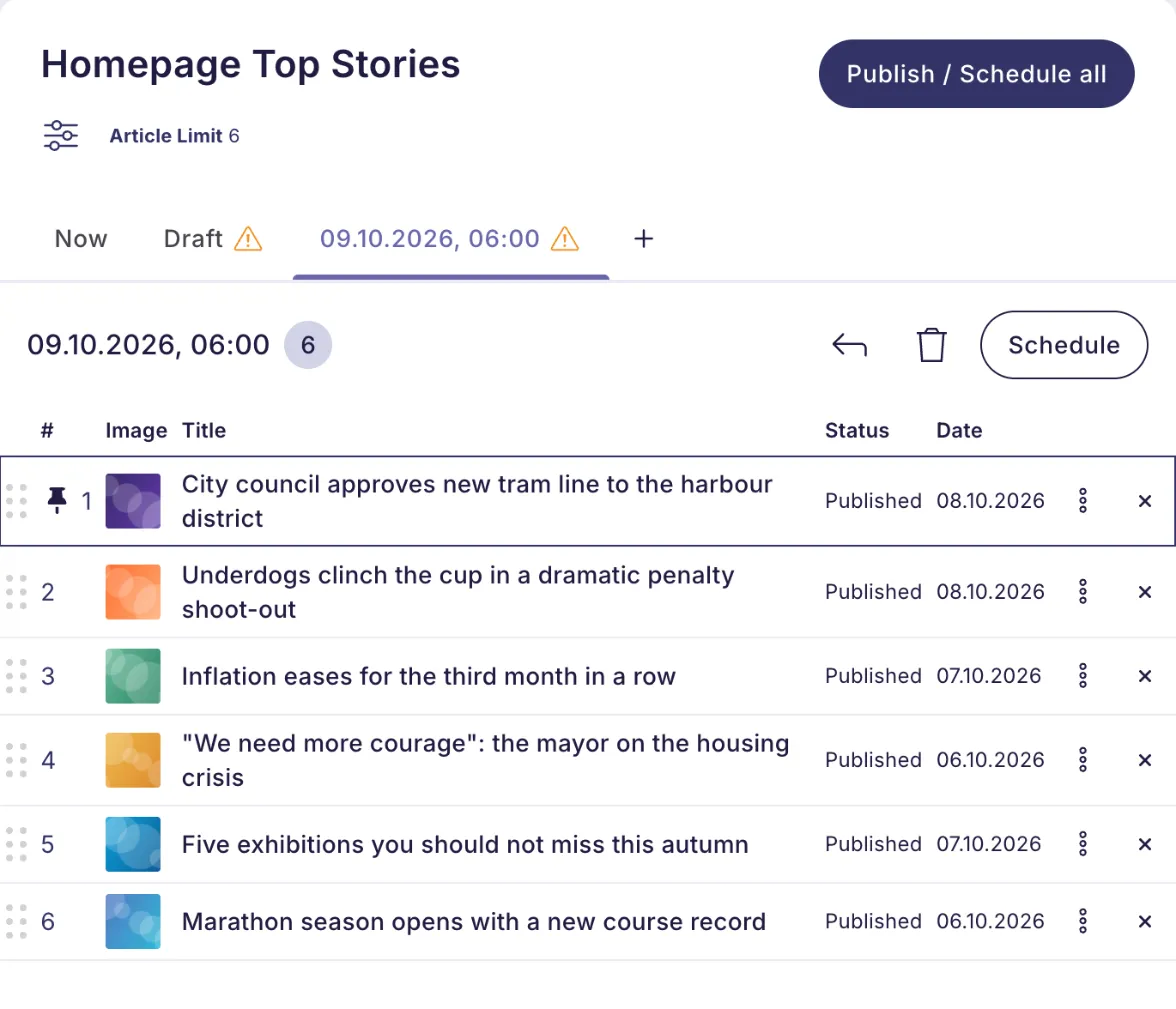
Geplante Versionen erscheinen als Tabs, die mit Datum und Uhrzeit beschriftet sind. Zu diesem Zeitpunkt ersetzen sie automatisch die Live-Collection.
- Alle veröffentlichen / planen (oben rechts) veröffentlicht den Entwurf und speichert und plant alle anderen Versionen in einem Schritt.
- Um eine geplante Version zu löschen, öffne ihren Tab und klicke auf das Papierkorb-Symbol.
Wichtig: Eine neue Version wird erst gespeichert, wenn du auf Planen oder Alle veröffentlichen / planen klickst. Wenn du die Collection mit ungespeicherten Änderungen verlässt, fragt der Curator, ob du sie speichern oder verwerfen möchtest.
8. In Echtzeit zusammenarbeiten
Mehrere Redakteure können gleichzeitig an derselben Collection arbeiten. Nichts wird gesperrt.
- Avatare neben dem Collection-Titel zeigen, wer sich sonst noch in der Collection befindet und auf welchem Tab.
- Änderungen von Kollegen erscheinen innerhalb von Sekunden. Eine Zeile, die gerade jemand anderes geändert hat, wird kurz in dessen Farbe hervorgehoben. Fahre mit der Maus darüber, um zu sehen, wer sie geändert hat.
- Der Entwurf ist gemeinsam: Alle in der Collection arbeiten am selben Entwurf. Wird er zurückgesetzt, werden die Änderungen für alle verworfen.
- Ändert ein Kollege die Collection, während du veröffentlichst, lädt der Curator seine Änderungen und bittet dich, erneut zu veröffentlichen, damit niemandes Arbeit überschrieben wird.
9. Einstellungen für Administratoren
Unter Purple Curator → Settings kannst du das Article Limit Behavior festlegen:

- An: Wenn eine Collection ihr Limit erreicht, entfernt das Hinzufügen eines Artikels automatisch den letzten nicht angehefteten Artikel.
- Aus (Standard): Eine Collection kann ihr Limit vorübergehend überschreiten, kann aber erst veröffentlicht oder geplant werden, wenn sie wieder innerhalb des Limits liegt.