Taxonomy Overview
The Taxonomy Overview lets editors and administrators browse, search, filter, and manage taxonomy terms across all registered taxonomies in Purple Hub. Taxonomies can be flat or hierarchical; in hierarchical taxonomies, terms can be nested under parent terms, which is reflected in indentation and filtering throughout the interface.
The Term Table
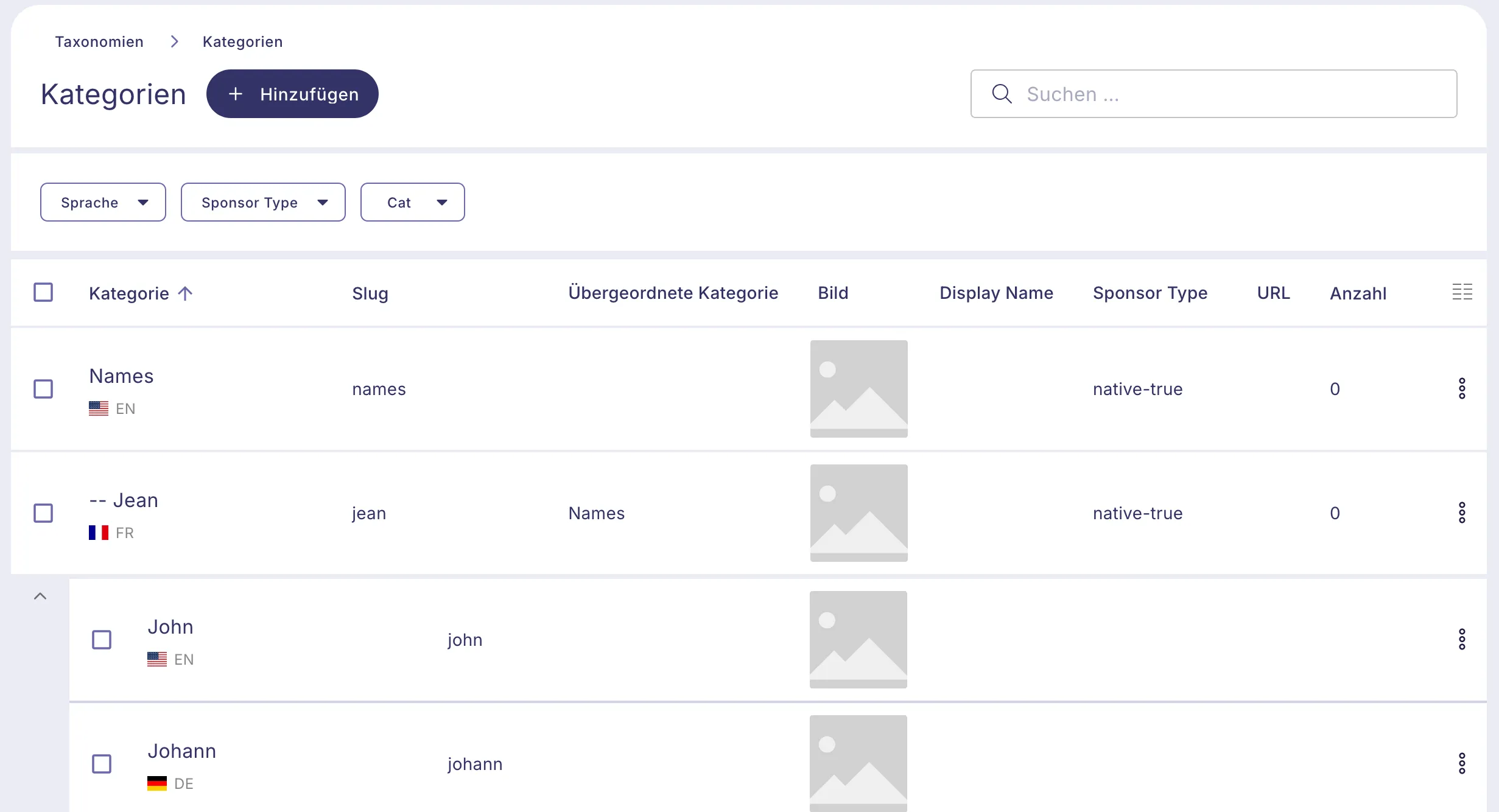
The table shows all terms for the selected taxonomy. The following columns are available by default:
- Name — the term name, clickable to open the Term EditTerm Edit page
- Slug — the term's URL identifier
- Parent (hierarchical taxonomies only) — the name of the parent term
- Avatar — a thumbnail image, if one has been assigned to the term
- Count — the number of content items assigned to the term
For hierarchical taxonomies, terms are indented to reflect their parent-child structure.
Any ACF (Advanced Custom Fields) fields registered for the taxonomy appear as additional columns automatically.
Searching and filtering
The area above the table lets you narrow down the term list:
- Search — type to filter by term name
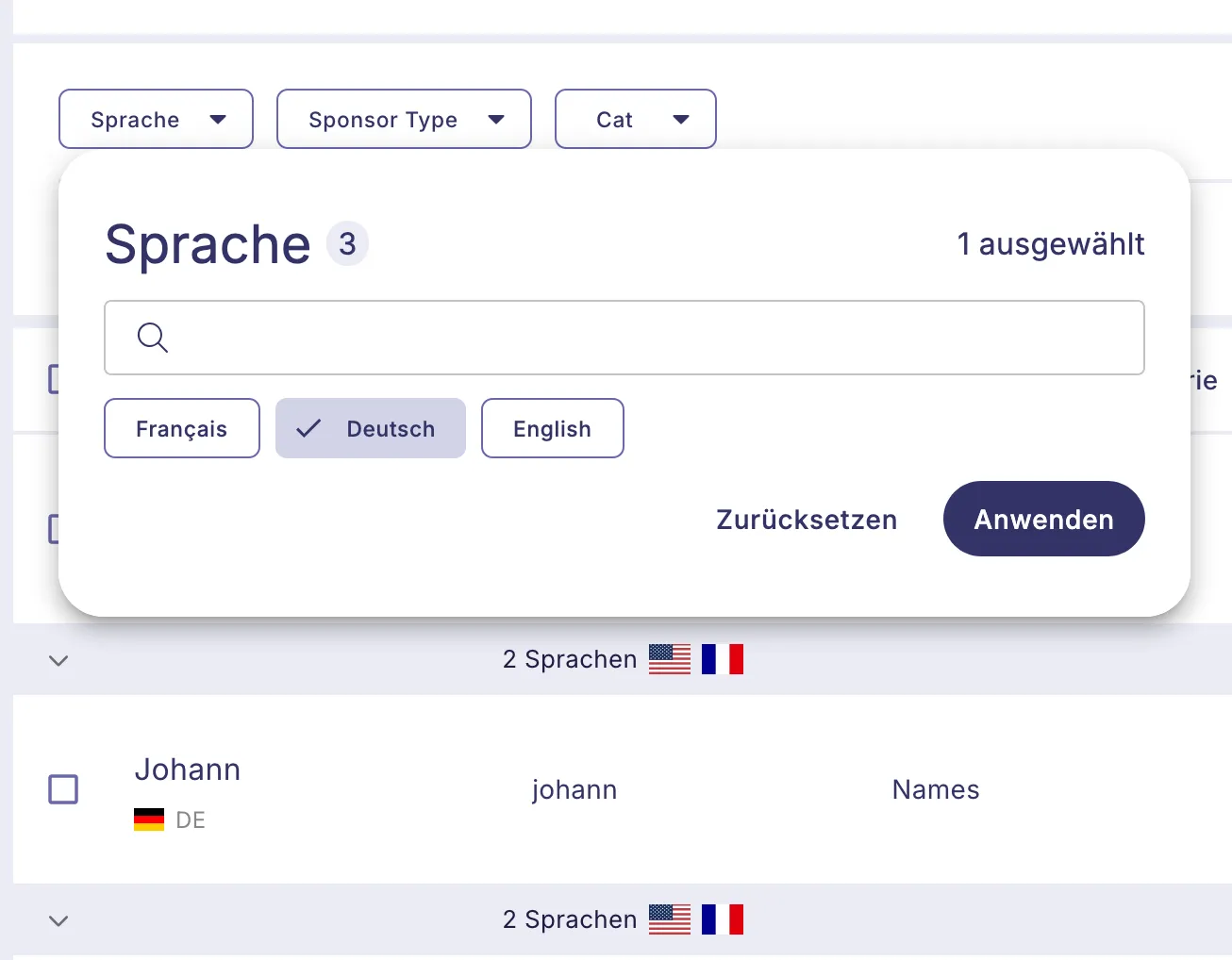
- Language — filter by language (available when Polylang is active)
- Parent — filter by parent term (hierarchical taxonomies only)
- ACF fields — filter by values in list-type fields (select, radio, checkbox, and similar), or by date range for date fields
Filters can be combined freely. You can save a combination under a custom name and share it with colleagues by copying the URL — the filter state is encoded in the URL, so anyone opening the link sees the same view.
Sorting and pagination
Click any column header to sort by that column; click again to reverse the order. Sorting by name, slug, and count is supported.
The number of terms shown per page is configurable and remembered between sessions.
Managing terms
To edit a term, click its name in the table, or select "Edit" from the context menu (opened by right-clicking a row or clicking the three-dot icon that appears on hover). This opens the Term EditTerm Edit page.
To delete a term, open the context menu and select "Delete". A confirmation dialog prevents accidental deletion.
To delete multiple terms at once, use the checkboxes on the left side of the table to select the terms you want to remove, then choose the delete action from the bulk actions menu. A confirmation dialog is shown before any terms are removed.
Column visibility
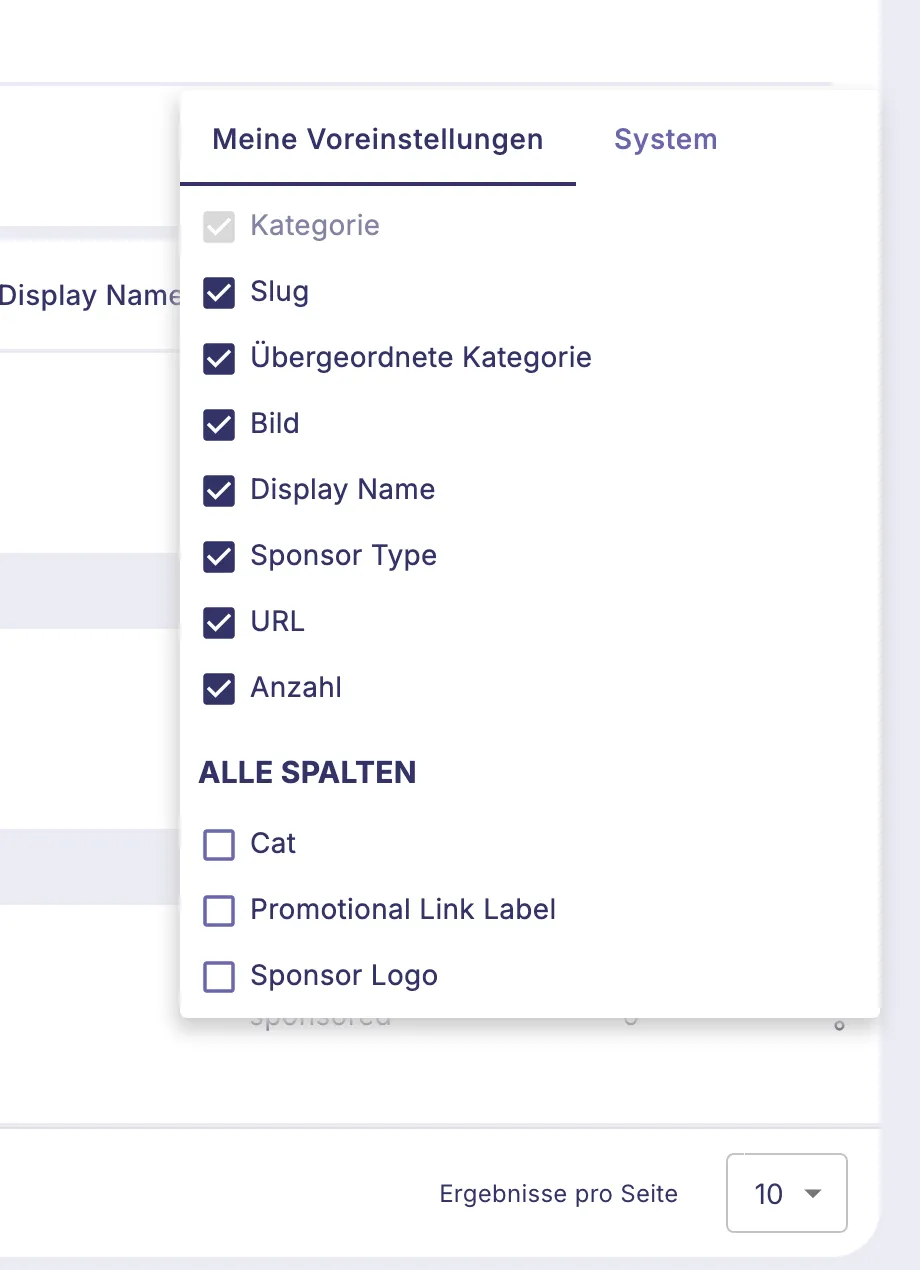
Click the columns icon in the top-right corner of the table to choose which columns are shown. Visibility can be configured at two levels:
- My defaults — your personal column preferences, saved per taxonomy
- System defaults — hub-wide defaults that apply to all users (requires Administrator role)
Personal defaults take precedence over system defaults where set.
Translations
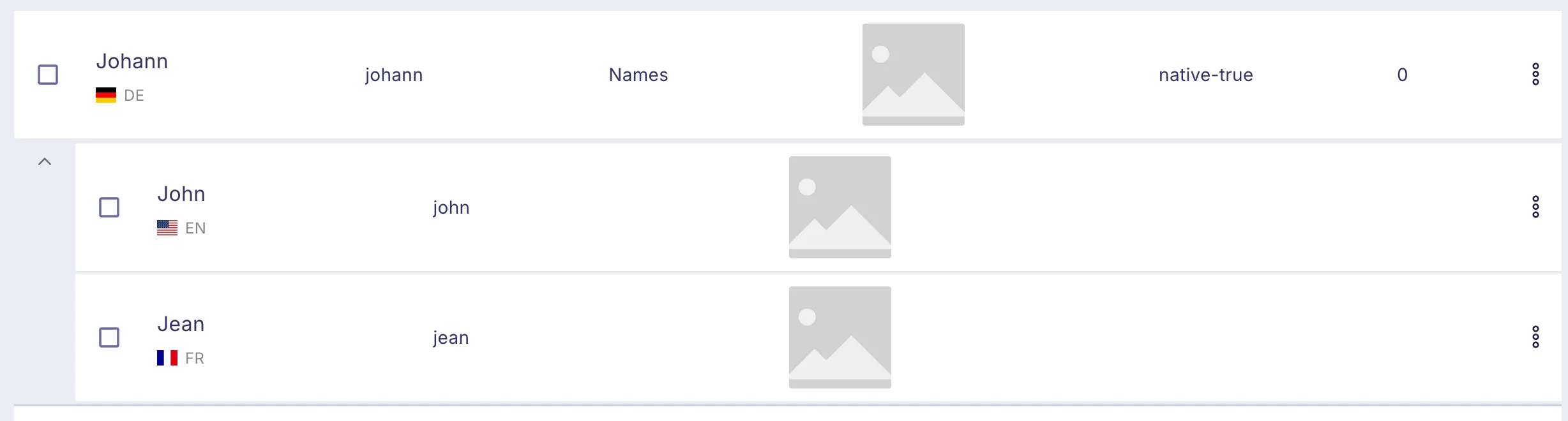
When Polylang is active, each term row shows a language badge indicating which language the term belongs to. Click the expand icon on a row to see all translations of that term. Each entry shows the language flag, term name, and slug, with a direct link to edit that translation.