Term Edit
The term edit page is where you create and update individual taxonomy terms. It is opened by clicking a term name in the Taxonomy OverviewTaxonomy Overview, or by selecting "Edit" from the context menu on a term row.
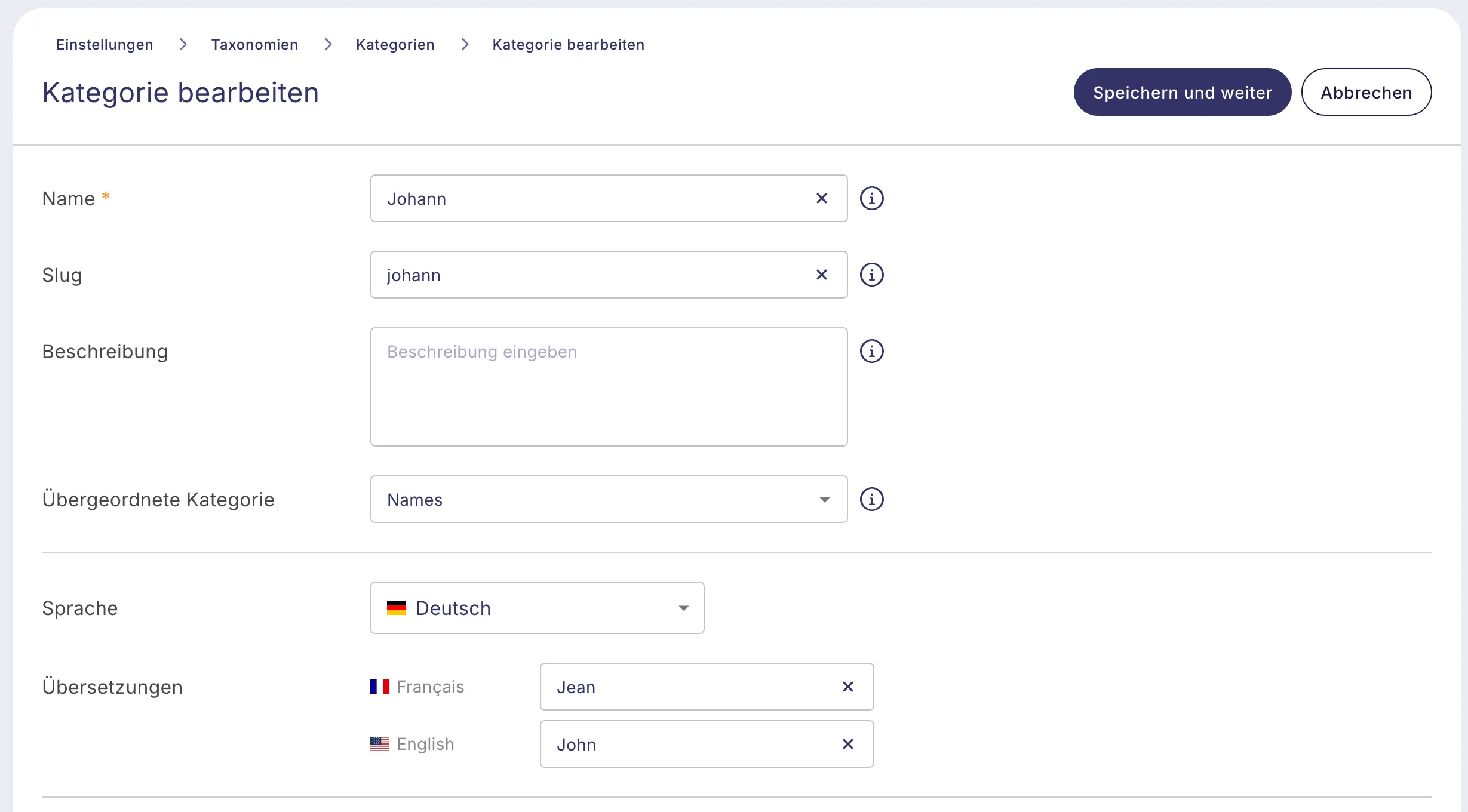
Form fields
The following fields are available for every term:
- Name (required) — the term name as it appears on the site
- Slug — the URL-friendly identifier for the term; auto-generated from the name if left empty
- Description — an optional description; whether it appears on the site depends on the theme and post type configuration
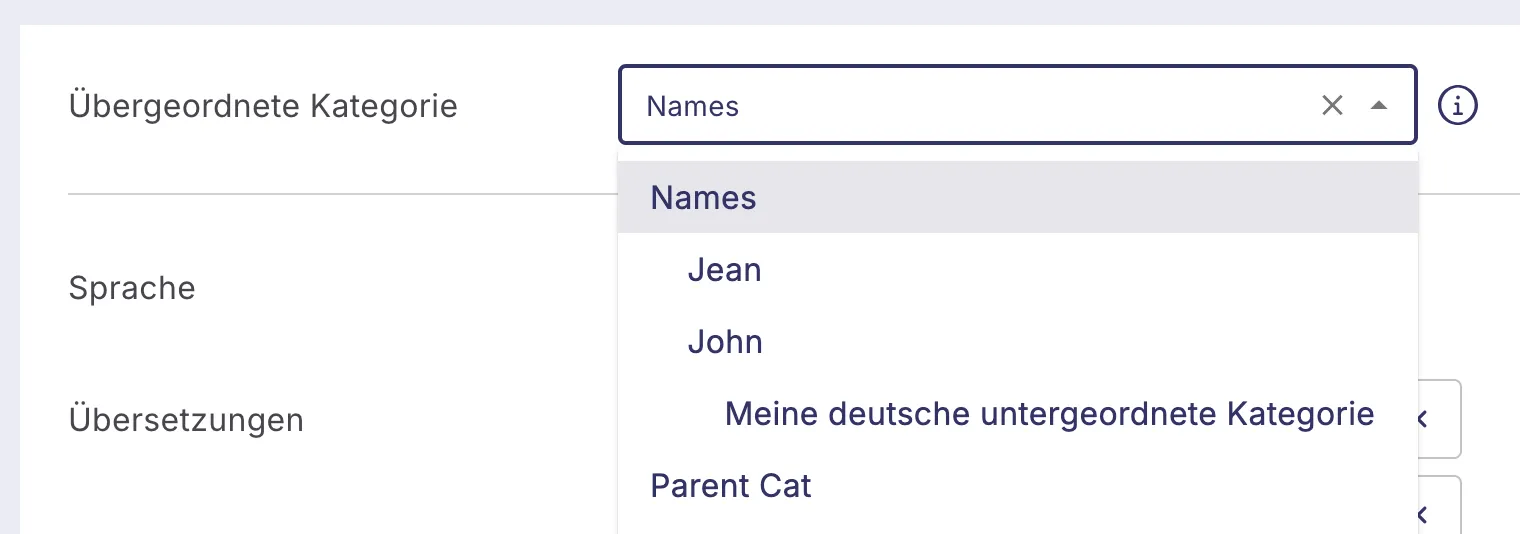
For hierarchical taxonomies, a Parent dropdown is also shown. It lists all existing terms in the taxonomy and indents them to reflect their depth. A term cannot be set as its own parent or as the parent of any of its descendants.
Image
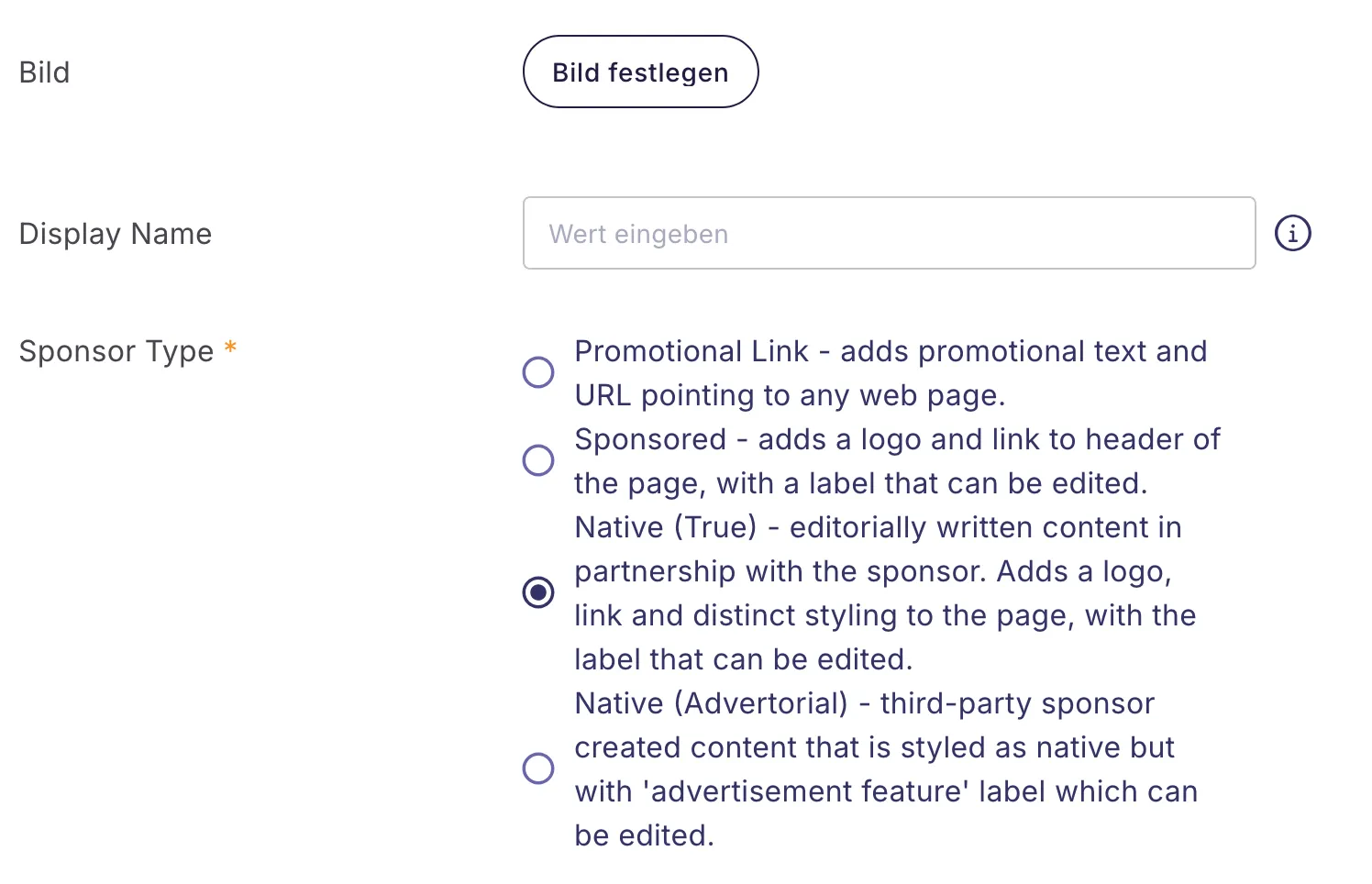
Each term can have an image assigned to it, displayed as a thumbnail in the term table and usable in your site's templates. Click Set image to open the media library and select or upload an image. Once set, a preview is shown alongside a Change image button.
Language and translations
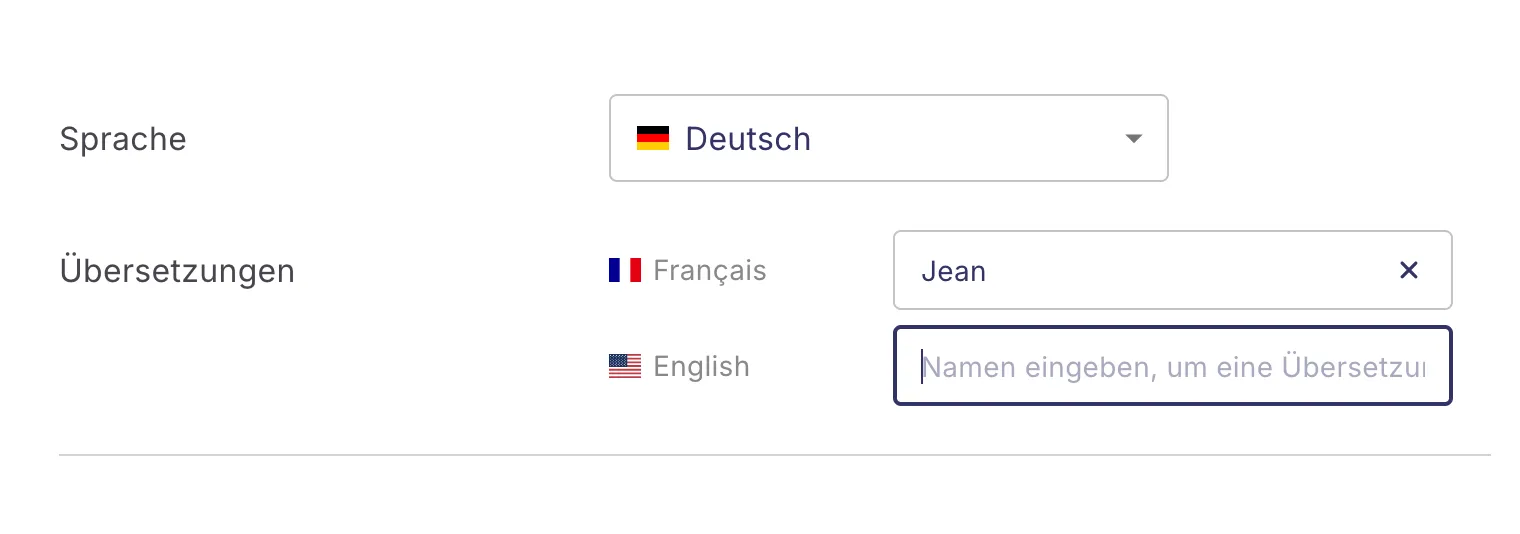
When Polylang is active, a language section appears below the main fields.
Select the term's language from the dropdown. Below the language selector, the translations panel shows all other configured languages. For each language, you can either see the linked translation (clickable to open its edit page) or enter the name of a new term to create and link as a translation in that language.
Custom fields
If ACF (Advanced Custom Fields) groups are configured for the taxonomy, they appear below the image section. Related fields are grouped together visually. Required fields are marked with an asterisk and must be filled in before saving.
Saving
Click Save and Continue to save all changes and remain on the edit page. If there are unsaved changes and you navigate away, a confirmation dialog is shown to prevent accidental data loss.
Click Cancel to return to the Taxonomy Overview without saving.