Create a new user
Disclaimer: This feature has not officially been released yet. Both the feature itself and the documentation are not finalized yet.
Summary
The Create button on the Users page opens a short wizard. You enter the new user's email address, choose their teams and access, and decide which role they start with in each Purple Hub. The wizard only shows the steps that apply to your choices. The user then receives an invitation email.
Who can use it
- Team Admins create users in the teams they administer.
- Purple Super Admins and Purple Admins create users in every team, and Purple staff accounts.
Other users do not see the Create button.
Before you start
- Read User ManagementRoles to decide which access the person needs.
- Have the person's email address at hand. Each email address can belong to only one user.
Create a user
1. Open the wizard
Go to Users in the Control Center and click Create next to the page title.

2. Enter email address and language
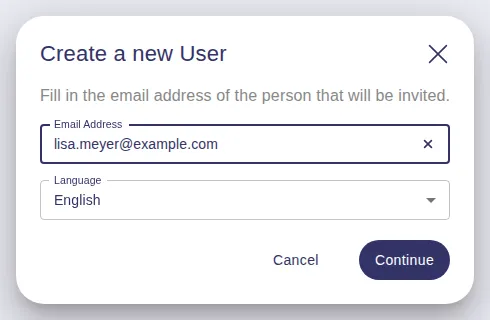
Enter the Email Address of the person you want to invite and choose the Language of their invitation email (English or German). Click Continue.
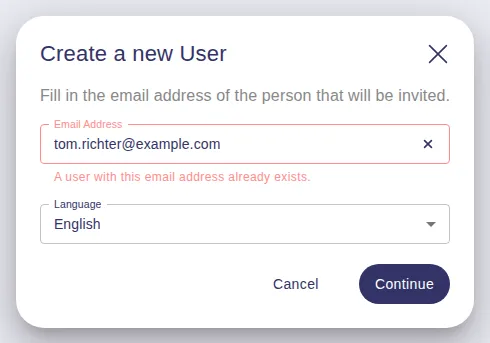
If the address already belongs to a user, the wizard says A user with this email address already exists. and you cannot continue. Search for the address on the Users page to find that user.
3. Select teams
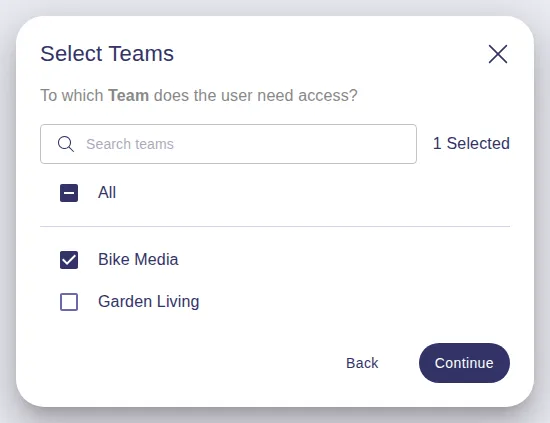
This step appears when you administer more than one team. Check the teams the user should belong to, or check All to select every team in the list. Use Search teams to find a team in a long list. Click Continue.
If you administer only one team, the user is added to that team and the wizard skips this step.
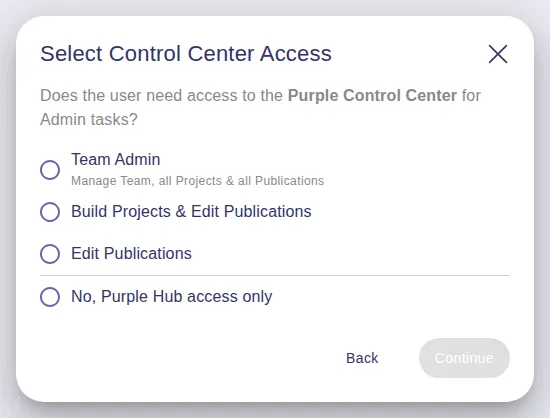
4. Select Control Center access
Choose what the user may do in the Control Center:
- Team Admin: manages the team with all projects and publications, and can create users.
- Build Projects & Edit Publications (App Admin): works on selected projects (apps) and publications. Also signs in to the Purple Hubs of those projects.
- Edit Publications (Editor): edits selected publications in the Control Center. Has no Purple Hub access.
- No, Purple Hub access only (Hub Editor): works only in selected Purple Hubs.
Click Continue.
5. Select projects
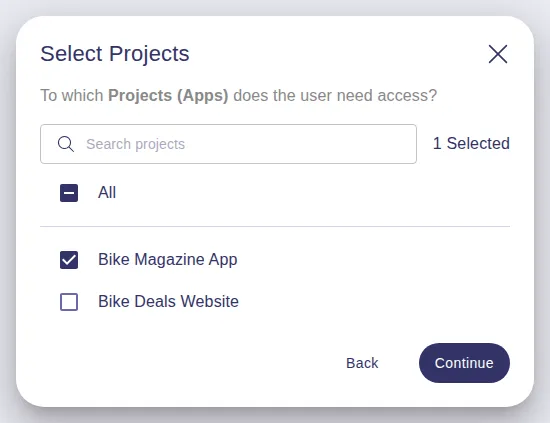
This step appears for Build Projects & Edit Publications. Check the projects (apps) the user should work on, or All to include every project of the selected teams, also those added later. Click Continue.
6. Select publications
This step appears for Build Projects & Edit Publications and Edit Publications. Check the publications the user should edit. If you chose All projects in the step before, All publications is already checked; you can change that. Click Continue.
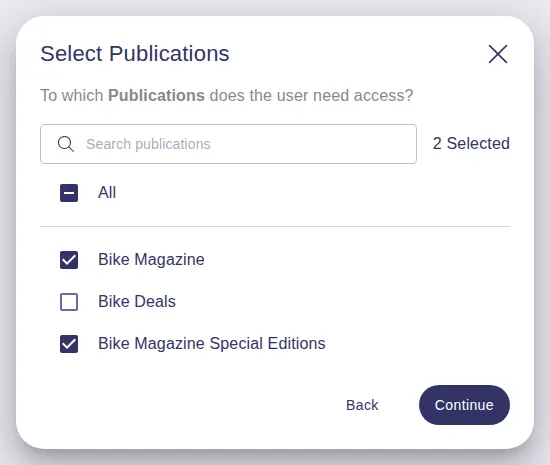
With several teams selected, pick at least one publication in each team, or check All. Otherwise the wizard names the teams that are still missing a publication.
For Edit Publications, Continue creates the user in this step.
7. Choose hub roles
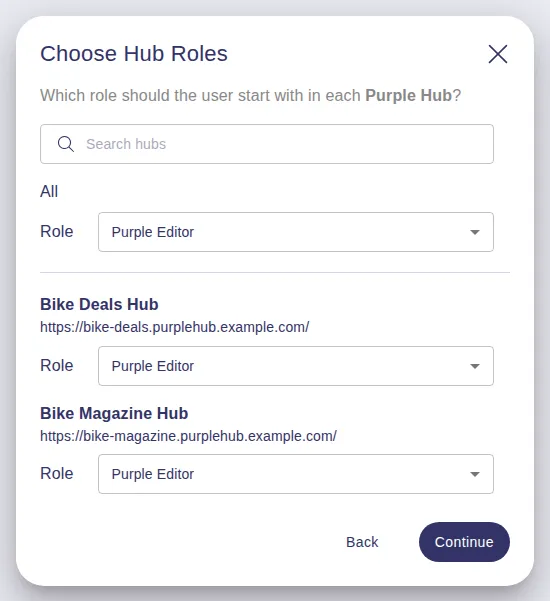
This step appears for Team Admin, Build Projects & Edit Publications and No, Purple Hub access only when the user gets access to at least one Purple Hub. Otherwise the user is created when you click Continue in the step before.
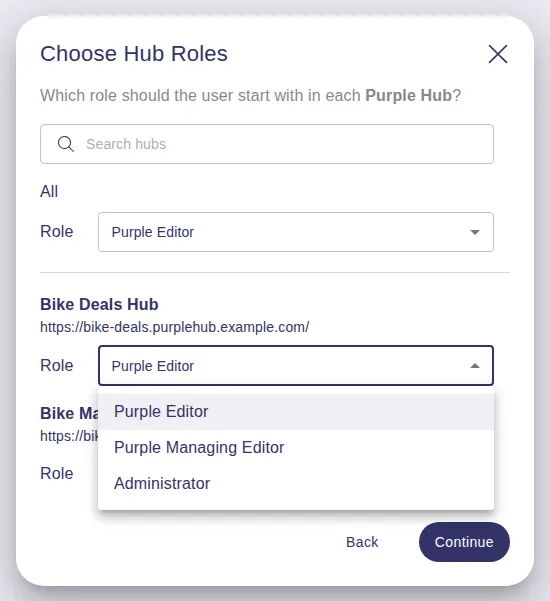
For Team Admins and App Admins, the list shows every Purple Hub the user will be able to sign in to. Each hub has a Role dropdown with that hub's roles, preselected with its default role (Purple Editor). Change the role where the user should start with a different one. The Role dropdown in the All row sets the role for every hub in the list at once; you can still change single hubs afterwards.
For Hub Editors (No, Purple Hub access only), check the Purple Hubs the user should be able to sign in to, and pick a role for each checked hub. Check All to give access to every Purple Hub of the selected teams, including hubs added later. With individual hubs checked, hubs added later are not included.
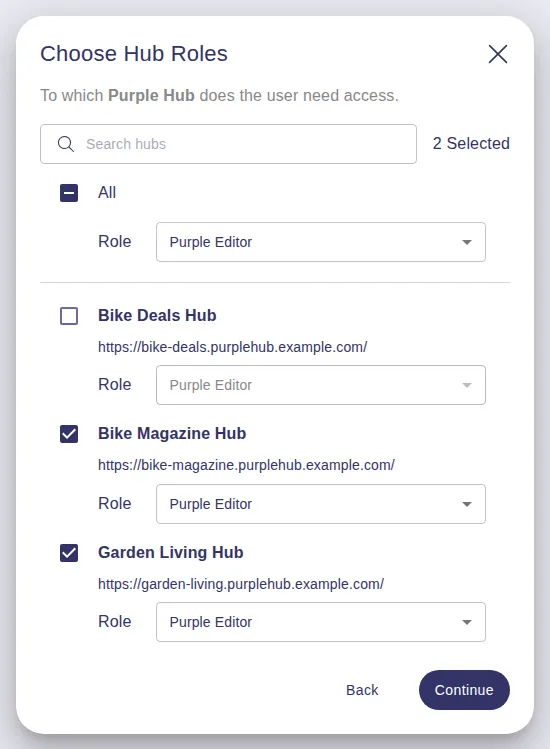
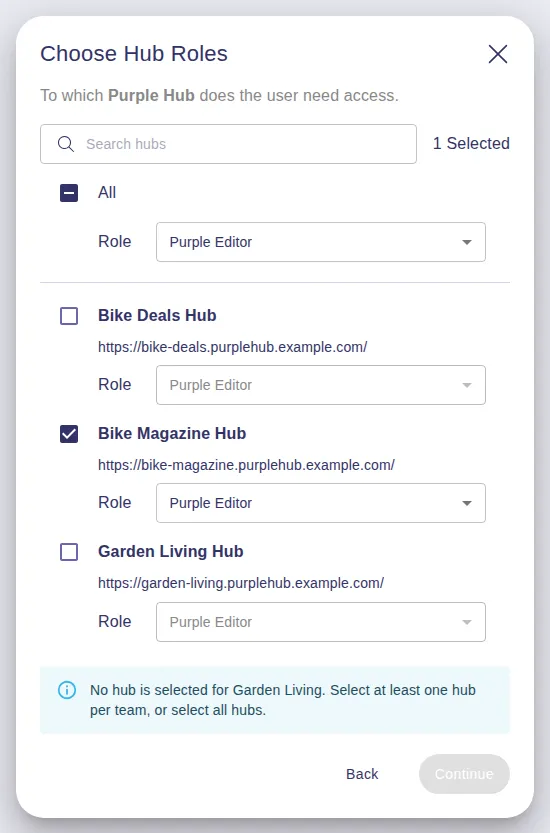
With several teams selected, check at least one Purple Hub in each team, or check All. Otherwise the wizard names the teams that are still missing a hub.
Use Search hubs to find a hub by name. Click Continue to create the user.
The role you choose here is the role the user starts with. It is applied when the user signs in to the hub for the first time. Later changes are made in the Purple Hub itself, see User ManagementRoles in the Purple Hub.
If the list of Purple Hubs cannot be loaded, click Retry. You can also click Continue without the list: Team Admins and App Admins then start with the default role in every hub, and Hub Editors get access to every Purple Hub of the selected teams.
8. Done
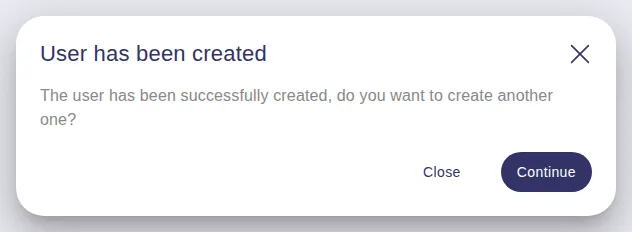
The wizard confirms User has been created. Click Close to return to the Users page, where the new user now appears, or Continue to create another user.
What the new user receives
Right after you create the user, Purple sends them an invitation email in the language you chose. It names the team (or teams) they were invited to and your email address, and contains a temporary password.
- Users with Control Center access get a Sign in button that leads to the Control Center, plus a link to each Purple Hub they can sign in to.
- Hub Editors get a link to each of their Purple Hubs and no Control Center link.
When they sign in for the first time, they set their own password and enter their first and last name. Their name then appears in the users list.
If your company signs in to Purple with its own company account (single sign-on), the email contains no password. The user signs in with their company account instead.
Creating Purple staff accounts
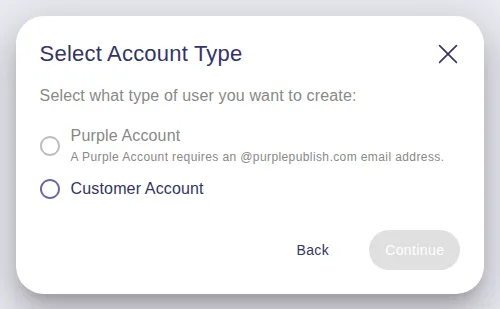
Purple Super Admins and Purple Admins see two additional steps after the email address.
Select Account Type: Customer Account continues with the steps above. Purple Account is only available for Purple email addresses.
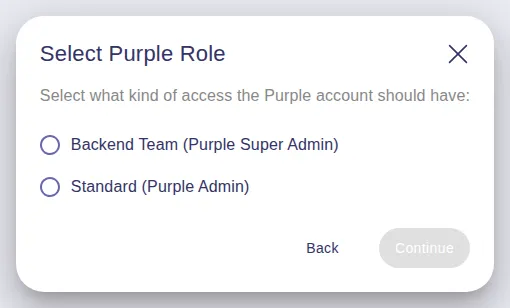
Select Purple Role: Backend Team (Purple Super Admin) or Standard (Purple Admin). Both get access to all teams, projects and publications and are Hub Super Users in every Purple Hub, so the wizard creates the account right away.