Inserting Media in Articles
Overview
Purple DAM replaces the standard media picker everywhere images and media are selected in the Hub.
Where the Image Chooser Appears
The Purple DAM image chooser opens automatically in the following contexts:
- Gutenberg editor — Image, Video, Audio, Gallery, and File blocks
- Featured Image — in the article sidebar
- ACF image fields — on articles, Cloud Settings, and media items
- Social Media
Inserting an Image into a Block
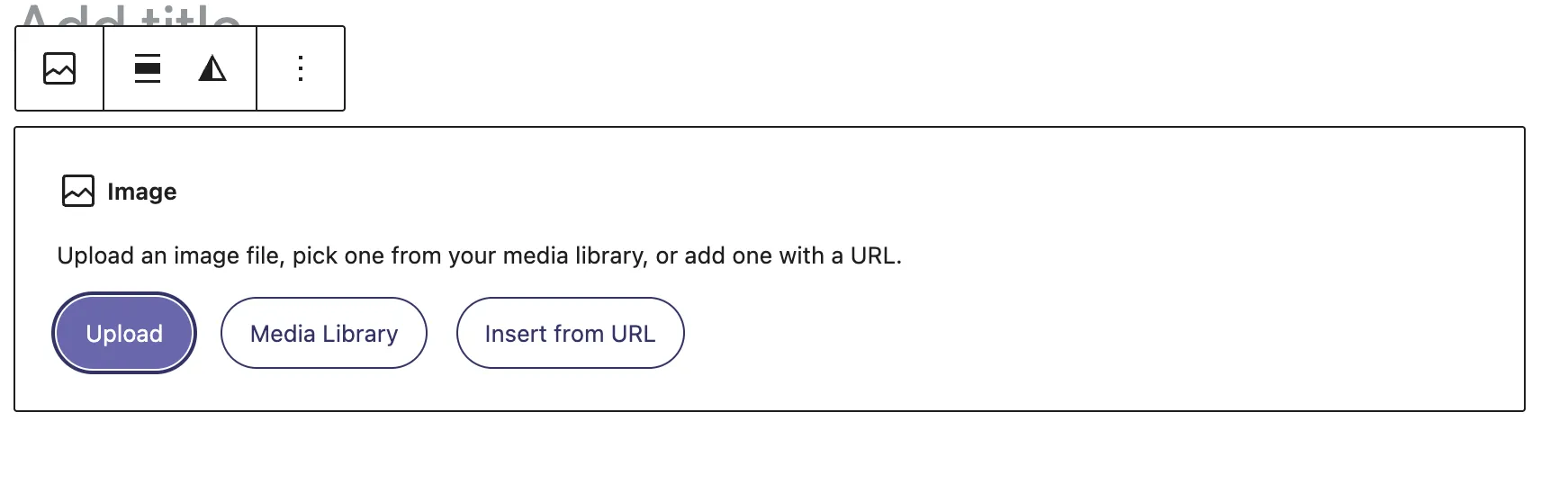
- In the article editor, add an Image block.
- Click Choose from Media Library.
- Browse or search for the image you want.
- Click Insert.
If the Field Already Has an Image
When a field already has a selection, the chooser opens directly in the detail view of that image. Use the Change Image button in the bottom-right corner to pick a different asset.
Multiple Images
For blocks that support multiple selections (e.g. gallery), the picker switches to multi-select mode. Select several assets, then click Insert to add them all. If the picker is reopened to change the selection, the same button is labelled Replace.
Required fields when inserting
If required image fields are configured (see: Validating Image Blocks and Meta Information), the picker enforces them before you can insert:
- The Insert / Replace button is disabled while one or more selected files are missing required fields, and becomes enabled once they are all filled.
- A warning shows the number of affected files (e.g. "2 files"). Hovering the count opens a tooltip listing each affected file by title; clicking a file opens its detail panel so the missing fields can be filled.
- Affected files' thumbnails in the bottom-left selection strip get a red outline. Clicking a thumbnail also opens that file's detail panel.
- The warning, tooltip, and outlines update live as files are completed, and disappear once nothing is missing.
Target Article / Material Sammlung Sidebar ⭐
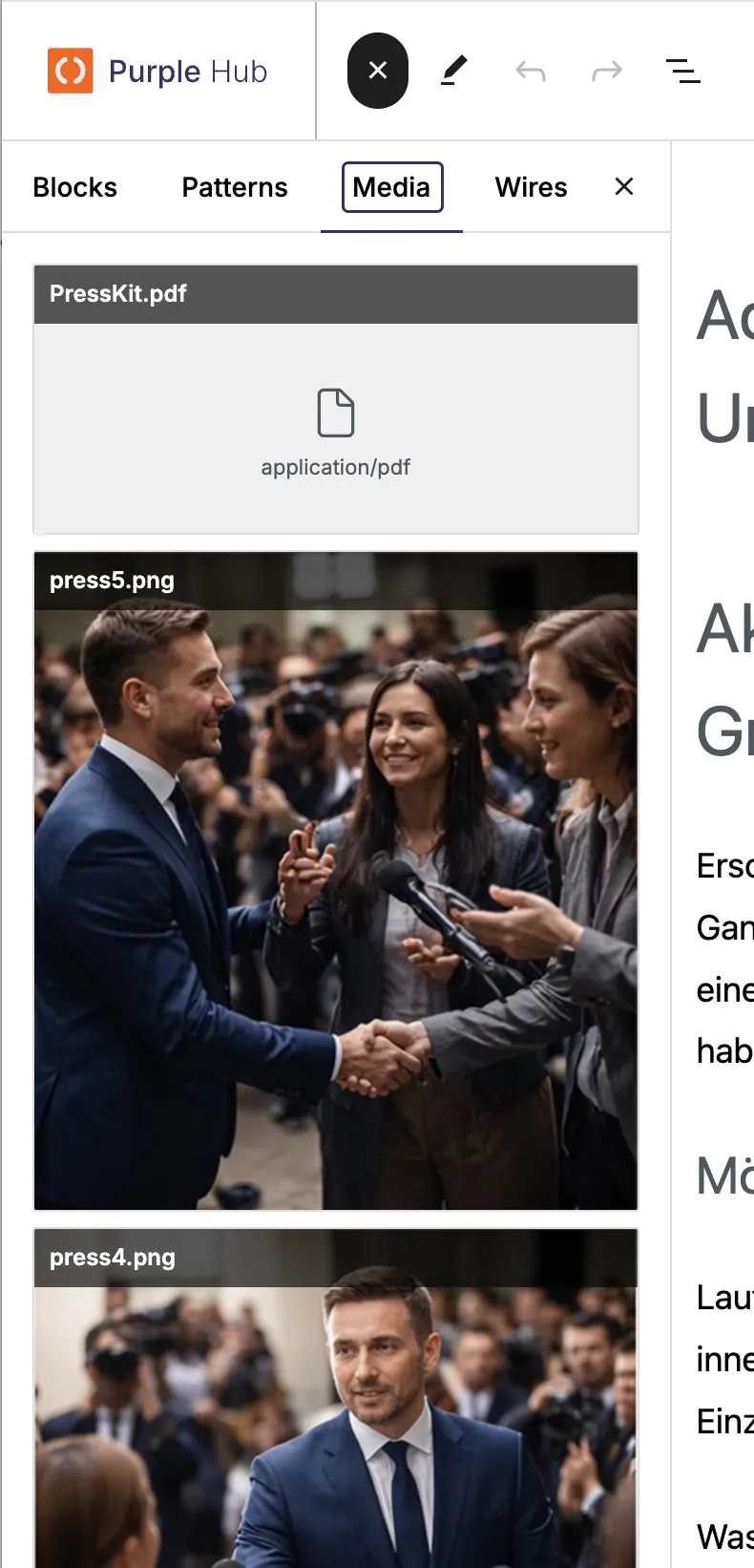
When the Media Library is opened from within an article, a Material Sammlung sidebar appears alongside the grid. It shows all assets that have been linked to that article via the Target Article feature — making it quick to find relevant material without searching.
- Assets linked to the article appear at the top.
- Non-insertable files (e.g. PDFs) display a link that opens the file in a new tab instead of inserting it.
- If no assets are linked to the article, the sidebar behaves as the standard media library.
ℹ️ Note: The Material Sammlung sidebar requires Purple DAM Plus.
Adding Audio or Video
For audio and video blocks, the same image chooser opens but filtered to the relevant media type. See Uploading Media for supported formats.