Status Board
Summary
You will learn how to use the Status board in the Purple Hub Post Overview to see your articles grouped by workflow status, and to move them between statuses by dragging and dropping.
Preconditions
- Purple Workflows must be enabled for your Hub. Ask your administrator if you're not sure.
- Purple Workflows cannot be active at the same time as Oasis Workflow Pro. If Oasis is active, an administrator needs to disable it before Purple Workflows — and the Status board — can be turned on.
- An administrator has activated the Status board under Hub UI Settings → Planning boards.
Explanation
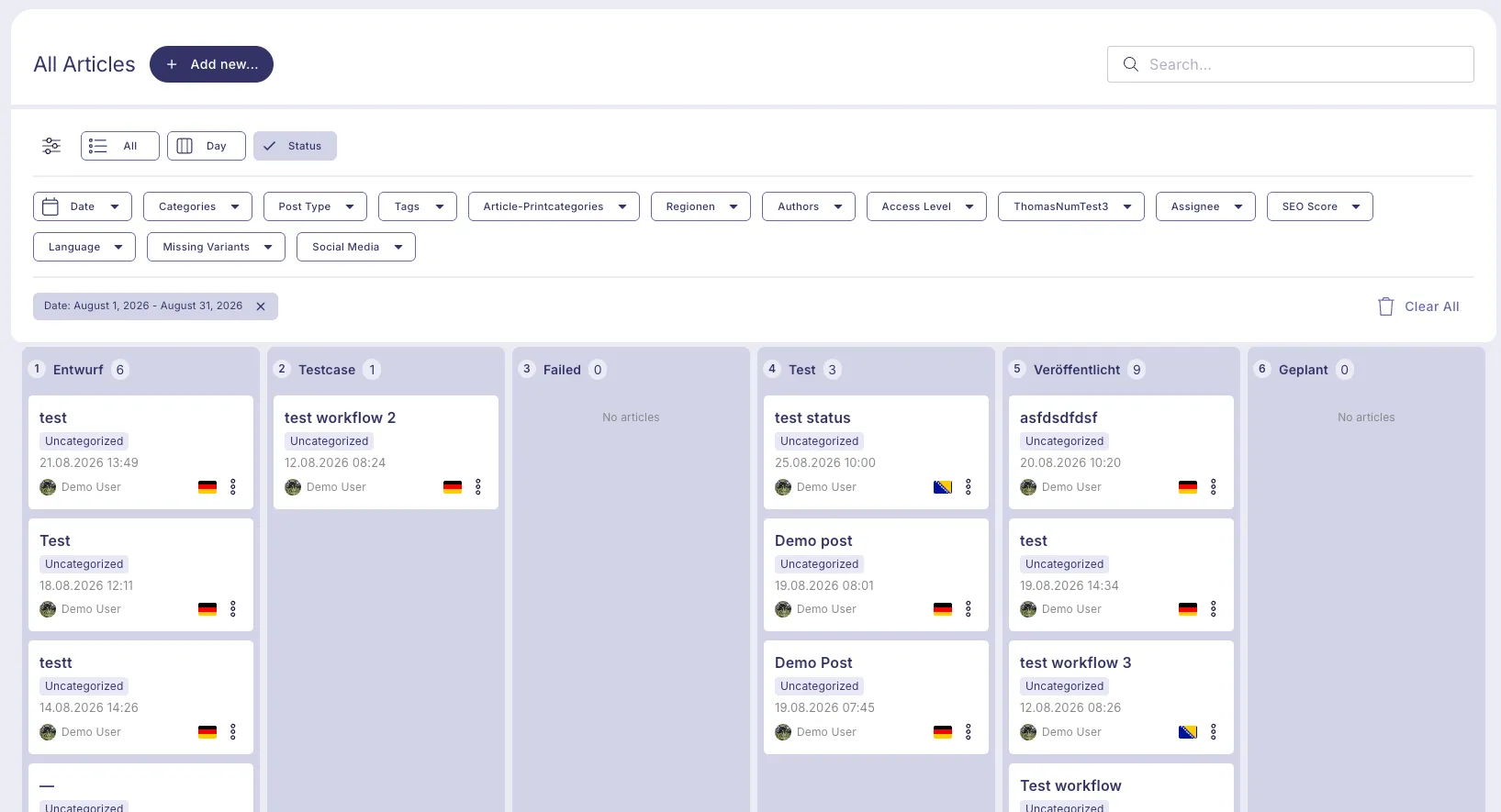
The Status board is a view of the Post Overview that replaces the usual list of articles with columns — one column per workflow status. It gives editors and leads an overview of the editorial pipeline at a glance, and lets you move articles between statuses without opening them.
Enabling the Status board
Administrators can turn the Status board on for the Hub under Settings → Hub UI → Planning boards:
- Open the toggle labeled Status and switch it on. Its description reads "Organize articles by their workflow status."
- If Purple Workflows isn't enabled yet, a note under the toggle says "Requires Purple Workflows to be enabled." — enable Purple Workflows first, then activate the Status board.
- Other boards in the same "Planning boards" section may still be marked "Coming soon" — this doesn't affect the Status board.
Switching to the Status board
In the Post Overview, a row of chips lets you switch between views: All, Day, Print, and Status (only the boards your administrator has activated are shown). Click Status to switch to the Status board. Click All to go back to the regular list.
Reading the board
- Each column represents one workflow status, for example "Draft", "In review", or "Published". The statuses and their order are configured by your administrator on the Workflow Statuses settings page.
- The column header shows the status's position in the workflow and its label, for example "1 Draft" or "2 In review".
- Within a column, articles are always sorted by date, newest first. Manual reordering within a column isn't possible.
- Each column loads its first 20 articles automatically. Click Show more to load more articles in every column at once.
- A column shows "No articles" when there's nothing in that status.
- No status filter is available while the Status board is active — you always see every status column. A this week date filter is applied by default when you open the board; you can change or remove it like any other filter.
Moving articles between statuses
Drag an article's card from one column and drop it onto another column to change its status.
- Most status changes happen immediately, with a green confirmation message: "The article's status has been updated."
- You cannot drag an article directly onto Published or Scheduled — publishing and scheduling can only be done through the regular publish flow in the editor, not by dropping a card on the board.
- If you drag an article out of Published or Scheduled into another status, you'll be asked to confirm first:
- Moving out of Scheduled: "This article is scheduled. Changing its status cancels the scheduled publication."
- Moving out of Published: "This article is published. Changing the status also unpublishes it from Purple."
- Confirm with Change status, or Cancel to leave the article where it was.
- If a status change fails (for example, because the article is in the middle of being published), the card returns to its original column and a red message appears: "The article's status could not be changed."