Print Board
Print Board
The Print Board is a view in the article overview for planning articles into Aptoma print editions. Swimlanes are print editions, columns are placement codes. Editors place articles by dragging them into a column, mark the important ones with a star, and the resulting placement is sent to Aptoma DrEdition, where the placement bot uses it to auto-place the article on a page.
It is one of the boards offered by the board switcher in the article overview, next to the table view ("All") and the Calendar board.
Requirements
The Print Board only appears when all of the following are true:
Requirement | Where |
|---|---|
New Post Overview is enabled | Purple DS Hub → Hub UI |
Aptoma integration is enabled | Purple DS Hub → Settings (Aptoma) |
Aptoma Data Sync is enabled | Purple DS Hub → Aptoma |
Aptoma Placement Automation is enabled | Purple DS Hub → Aptoma → Placement Automation |
Kanban board Print is switched on | Purple DS Hub → Hub UI → Planning boards |
The current overview shows at least one post type that placement applies to | Purple DS Hub → Aptoma → Post types |
If any of these is missing, the Print chip is simply not shown, and a bookmarked ?view=print link falls back to the table view.
Board anatomy
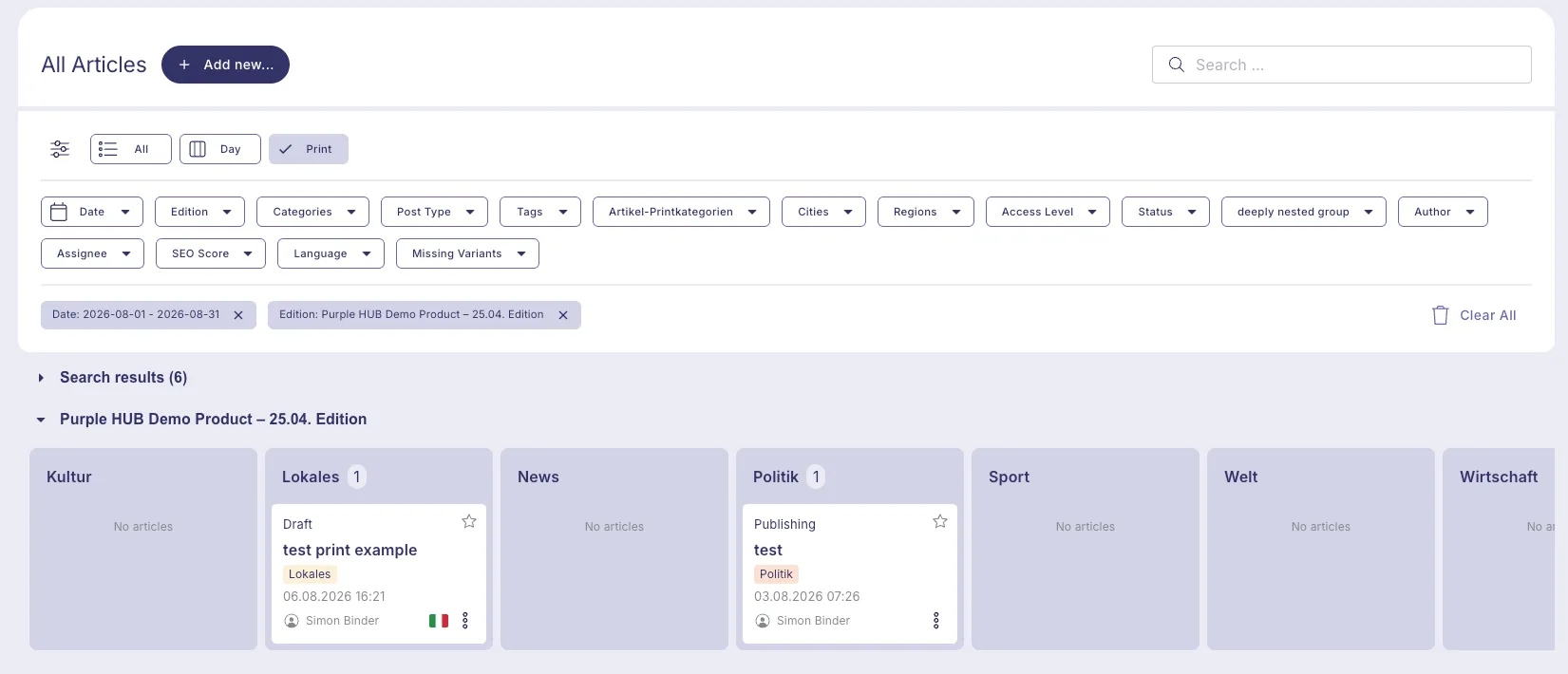
Swimlanes — print editions
Each swimlane is one Aptoma print edition, labelled Product – Edition
- Editions come from the Aptoma data sync; they are not maintained in the Hub.
- Sorted by publish date, newest first. Editions without a publish date sort last.
- Archived editions are not shown. An article that is still assigned to an edition that has since been archived keeps its assignment (the editor sidebar marks it as (archived)), but the edition no longer appears as a swimlane.
- The first two swimlanes are expanded and load immediately; the rest start collapsed and only load their articles when you open them. Once opened, a swimlane keeps its data, so collapsing and reopening is instant.
Columns — placement codes
Each column is a term of the Placement Codes taxonomy (Posts → Placement Codes).
- Every code gets a column in every swimlane, including codes that no article uses yet — so there is always a drop target.
- Codes are maintained by the Hub editors themselves; adding a code adds a column.
The "Unplanned" column
An extra leading column that appears only while it contains something. It holds articles that already belong to an edition but have no placement code yet — for example articles that got their edition in the post editor.
You drag cards out of Unplanned to place them. You cannot drop anything into it: assigning a code is what a drop does, so there is no meaningful "drop to unplan" gesture. To take an article out entirely, use Remove from edition (see below) or clear the field in the post editor.
Card
Each card shows title, workflow status, date/time, tags, language and author — the same anatomy as the Calendar board card — plus three print-specific elements in the top-right corner:
Element | Meaning |
|---|---|
p. 12 | The page Aptoma actually placed the article on, synced back from DrEdition. Read-only. |
S / M / L | The placement slot from the Slot field. Read-only on the board (set it in the post editor). |
★ Star | Priority. Filled = High priority. Click to toggle. |
Clicking the card opens the article in the editor in a new tab.
Working with the board
Opening the board
Article overview → the chip row above the filters → Print. The view is kept in the URL as ?view=print, so the board can be bookmarked and shared.
Placing an article (search results pool)
The board itself only shows articles that are already in an edition. To bring a new article in:
- Use the search field or any filter in the filter bar.
- A Search results lane appears at the top of the board with all matching articles that are not yet in any edition. It is collapsed by default — open it with the caret.
- Drag a card from the results grid into the target edition's column.
The article is assigned that edition and that placement code in one move, and disappears from the pool.
The results lane shows 12 cards at a time; Show more loads the next 12. The heading shows the total number of matches.
Choosing which editions to show
Hubs can have dozens of editions, which makes dragging across a long board awkward. Use the Edition filter in the filter bar to reduce the board to the editions you are planning right now. With nothing selected, all (non-archived) editions are shown.
The Edition filter is the only filter that changes the swimlanes; it does not open or narrow the search results pool.
Changing an article's placement
Action | Result |
|---|---|
Drag a card to another column in the same swimlane | Placement code changes |
Drag a card into another swimlane | Edition and code change — the article is replanned for that edition |
Drag from the Search results lane into a column | Edition and code are assigned |
Drop inside the same column | Nothing happens (see Ordering below) |
Drop into Unplanned or back onto the results lane | Nothing happens |
Changes are applied optimistically — the card moves immediately and a message confirms the change. If the write fails, the board rolls back and shows an error.
Ordering — the priority star
There is no manual drag-and-drop reordering inside a column. Ordering is derived:
- High priority (starred) articles first,
- then Standard priority articles,
- alphabetically by title within each group.
Click the star on a card to switch it between High Priority (1) and Standard Priority (2); the card immediately re-sorts to the top or bottom group of its column. This is the same Priority field as in the post editor's Print Placement box.
Removing an article from an edition
Card menu (⋯, bottom right) → Remove from edition. A confirmation dialog appears; the article's edition assignment is cleared, the card leaves the board — the article itself is untouched.
Loading more articles
Each column shows up to 20 articles per edition, with the exact total in the column header. Show more raises the limit by 20 for every column of that edition at once.
What Aptoma receives
The board writes the standard Print Placement fields, which the Aptoma content source emits as the top-level placement block that DrEdition's placement bot consumes:
{
  "sourceId": "1234",
  "title": "This is an article",
  "placement": {
    "code": "sport",
    "priority": 1,
    "slot": "M"
  }
}- code — the Placement Codes term (the board's column)
- priority — 1 = High, 2 = Standard (the board's star). Lower is more important.
- slot — S/M/L, from the post editor
The edition itself (aptoma_edition) determines which content source / edition the article is offered to. Additional ACF or taxonomy fields can be added to the placement block under Aptoma → Placement Automation → Extra placement fields.
The placed page shown on the card (p. 12) is the result coming back from Aptoma via the data sync — it is not something the board sets.
Limitations and known behaviour
- No manual reordering within a column. Ordering is priority-then-title by design; use the star to promote an article.
- Archived editions are hidden. Articles inside them stay assigned but drop off the board. Search results may still surface such articles.
- The Unplanned column rejects drops. It is an inbox, not a target.
- Only placement-enabled post types appear on the board and in the pool, even on an "all articles" overview.
- The board plans which article goes into which code bucket. Slot and page are not editable from the board.