Teaser Type
Articles inside an issue can be given a teaser type, e.g. to tell the Digital Edition whether an article is shown as a large or a small teaser. The teaser type can be set for all articles of an issue directly in the article table of the issue editor, without opening every article.
Configuration
- Open Settings → Purple DS HUB.
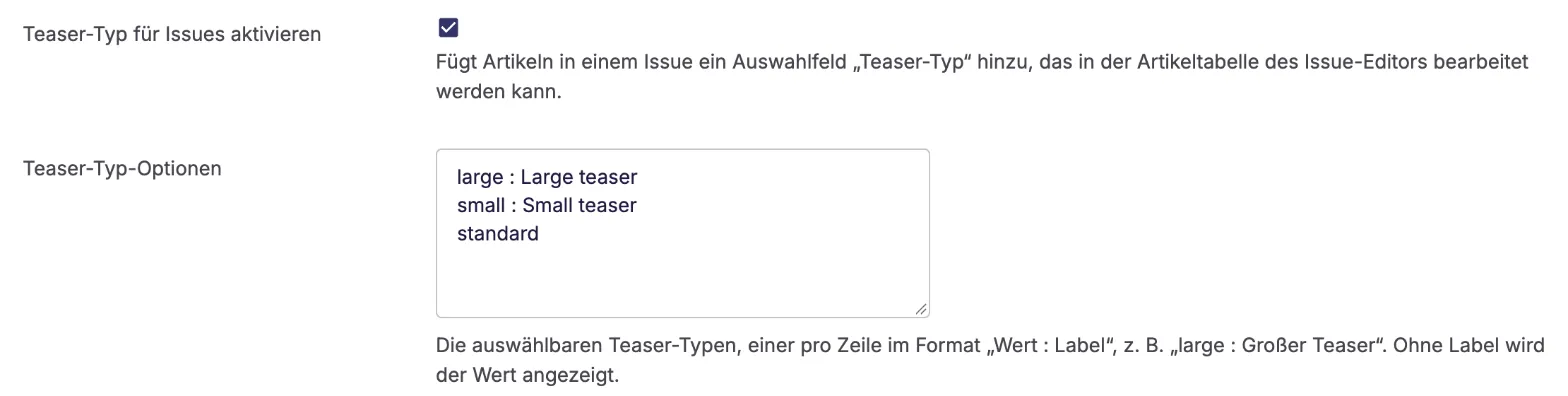
- Activate the checkbox Activate teaser type for issues.
- In Teaser type options, enter the selectable teaser types, one per line as value : label, for example:
large : Large teaser
small : Small teaser
standard
The value is what is published with the article, the label is what editors see in the dropdown. A line without a label uses the value as label.
- Save the settings.
Set the teaser type in the issue editor
- Open Issues and click Open in Editor for an issue.
- The article table has a Teaser Type column after Page Number. Select a teaser type for an article from the dropdown. The selection is saved right away and a success message is shown.
Select None to remove the teaser type of an article.

Set the teaser type in the article editor
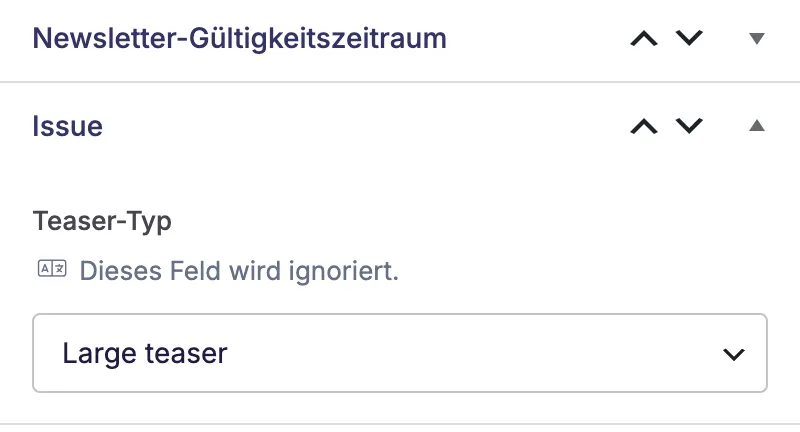
For an article that is part of at least one issue, the article editor's sidebar shows an Issue box with the Teaser Type dropdown. It shows the same value as the issue editor, and changes made here are shown in the issue editor as well. Articles that are not part of an issue don't have this field.
Publishing
Changing a teaser type does not publish anything. The teaser type is sent with the next publish of the issue, like the other article settings in the issue editor's table. The published article data contains the value (not the label) in the property purple_teaser_type, e.g. small.