Configure ACFs as filter
Purple Hub
Summary
In the Post Overview (the list of posts, as found under 'Purple Feeds' in the Purple Hub) or Media, you have the option to make your ACFs (Advanced Custom Fields) filterable so that you can find them more quickly across all your content. To make ACFs filterable, you need to set this option when you create them. This article will show you how to do this.
Preconditions
- Have a 'Purple Managing Editor' or 'Administrator' role in Purple Hub. Learn more: Purple Hub: Overview of roles & rights
- Have the the new post overview UI set up. Learn more: Article / Post Overview Configuration
- Have an ACF (Advanced Custom Field) to be applied to the post type you want to filter (e.g. articles in the overview in 'Purple Feeds'). Learn how to Create Custom Fields in Purple Hub
Filterable Field groups
Filterable field types
In ACF exist numerous different fields that can be created as Custom Fields. We made the field types for 'Choices' filterable so that you can have them displayed and filterable in your post overview:
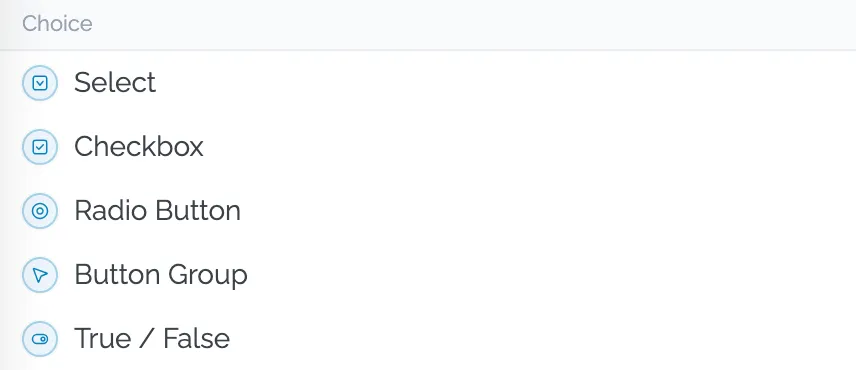
- Selection: display the values of the dropdown list
- Checkbox: display the values + TRUE / FALSE
- Radio button: value + TRUE / FALSE
- Button Group: value + TRUE / FALSE
- TRUE / FALSE: TRUE / FALSE
Set up in ACF settings
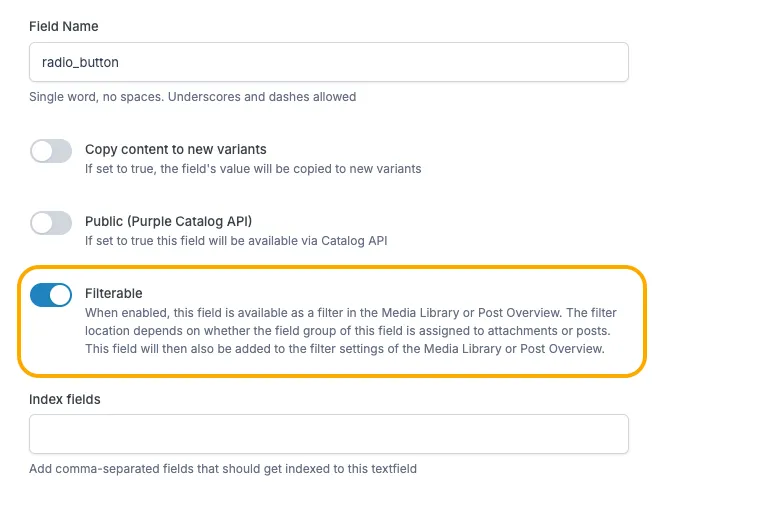
To set up ACFs, go to the left hand sind menu item in Purple Hub 'ACF'. Once you have created the (ACF) field and saved it, go back to the field you want to make filterable a second time to activate the toggle that will allow you to make the field filterable in the post overview. Don't forget to click on 'Save' to make your changes taking effect. In this example below, we are working with a field for 'Approval' of an article.
Set up for Post Overview filters
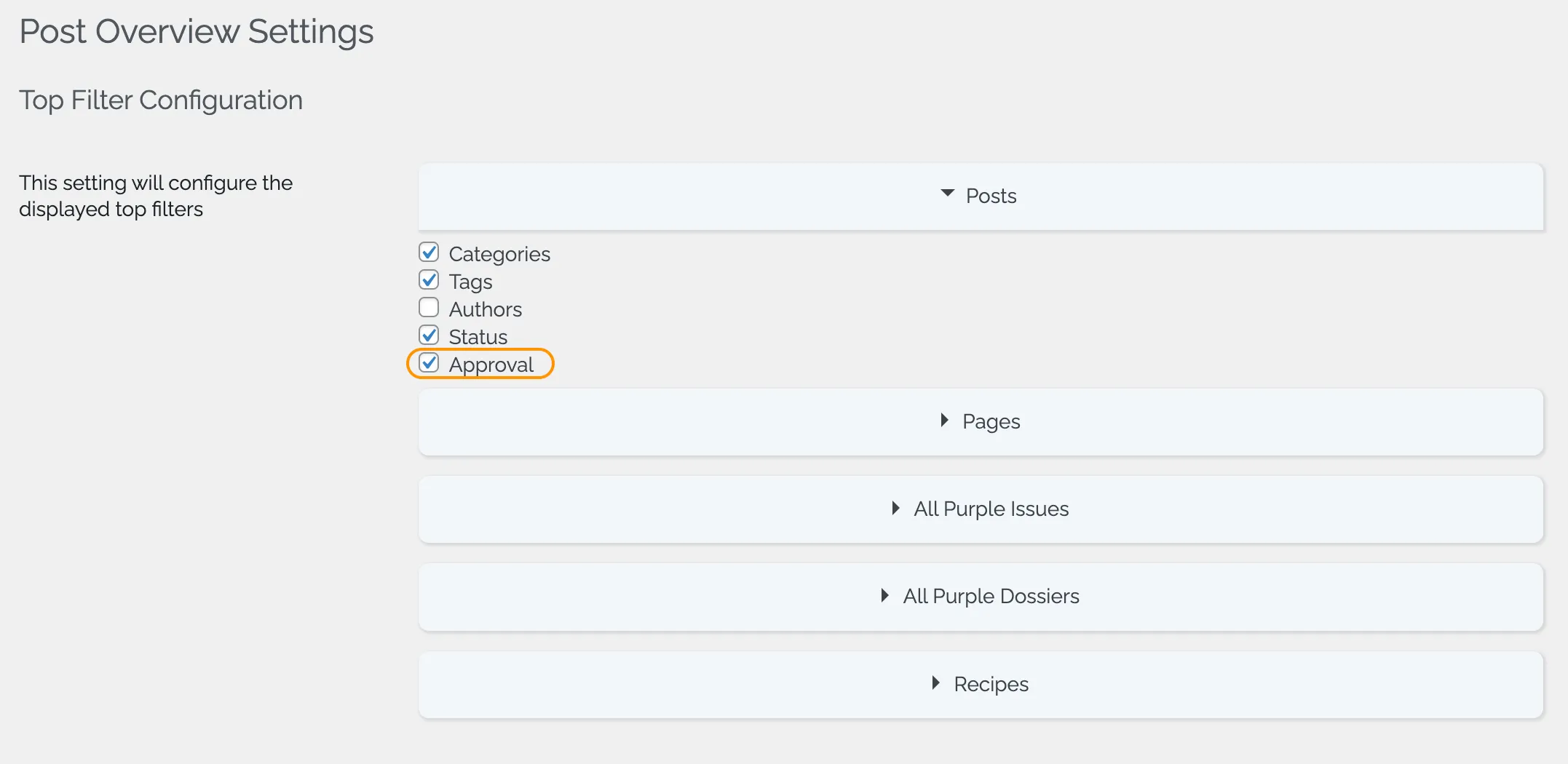
Once you have set up the ACF and made it filterable, you can set its visibility in your post Overview. This can be done in Settings -> Post Overview Settings. You can apply the visibility of your ACF for the 'Top Filter' and the 'Filterable Fields' in the Post Overview. Don't forget to click 'Save' for your changes to take effect. In the example below, we are working with an 'Approval' field for an article.
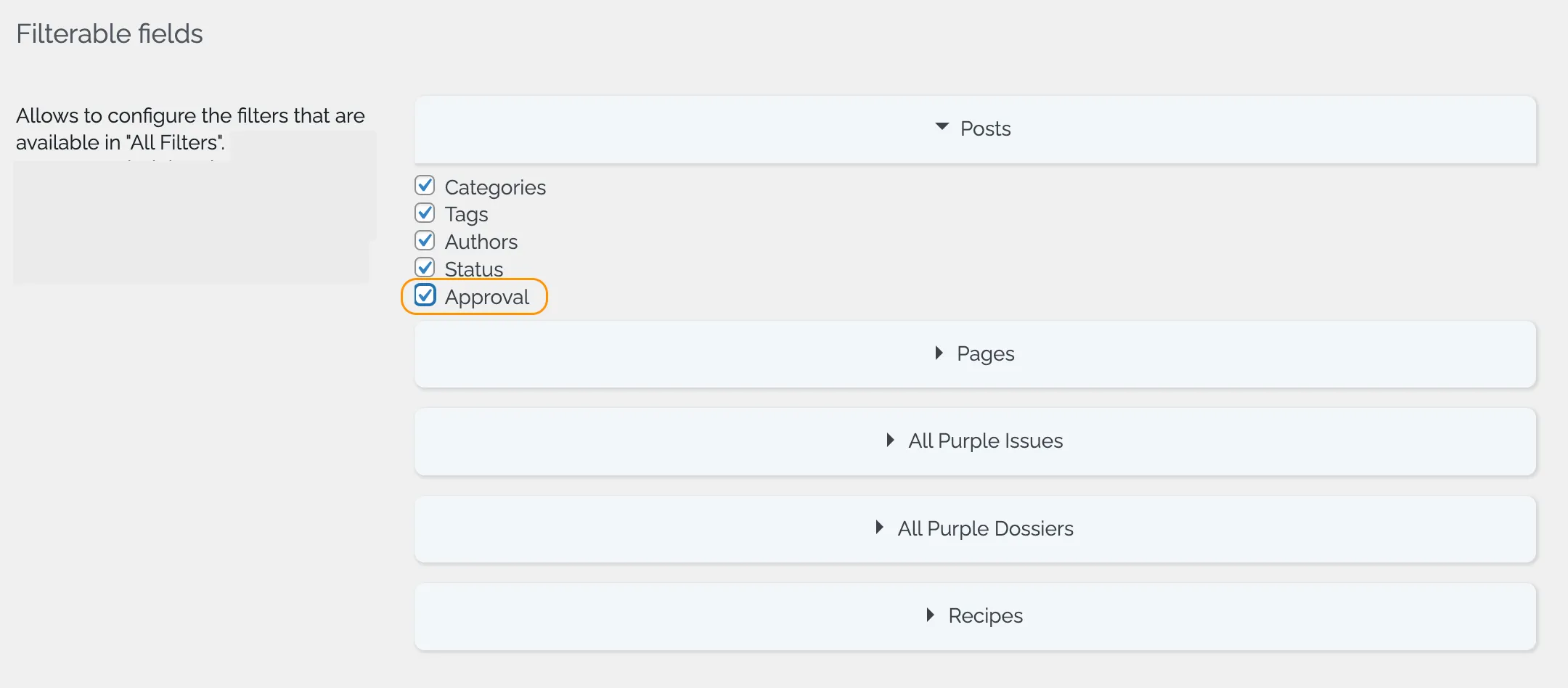
ACFs in Post Overview
If set up correctly, the ACF values you have selected to be filterable will be displayed as filters in the post overview.
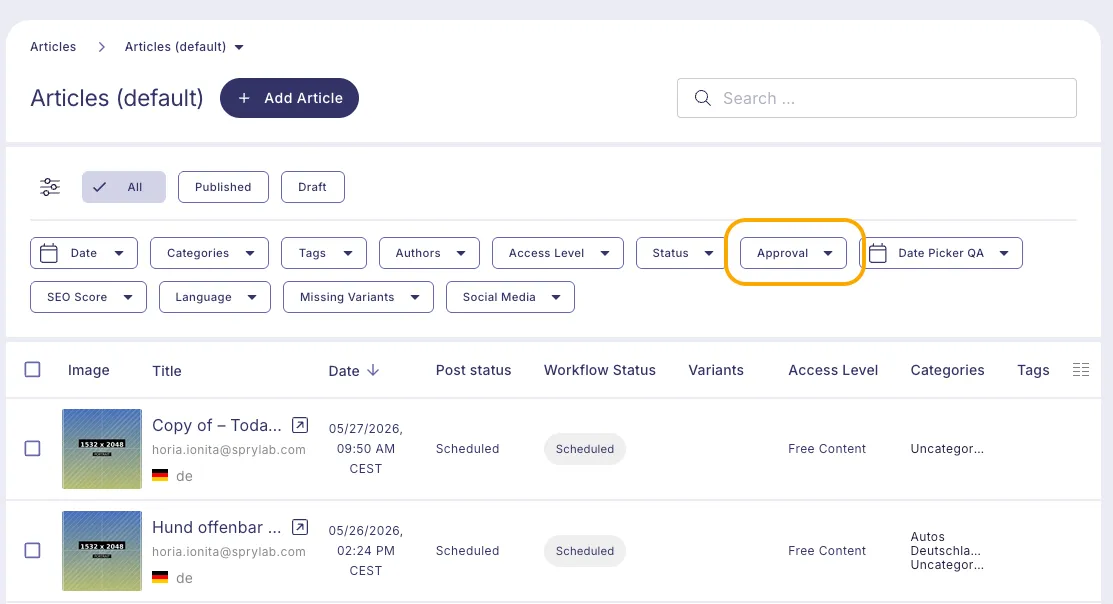
Set up for Media (Purple DAM)
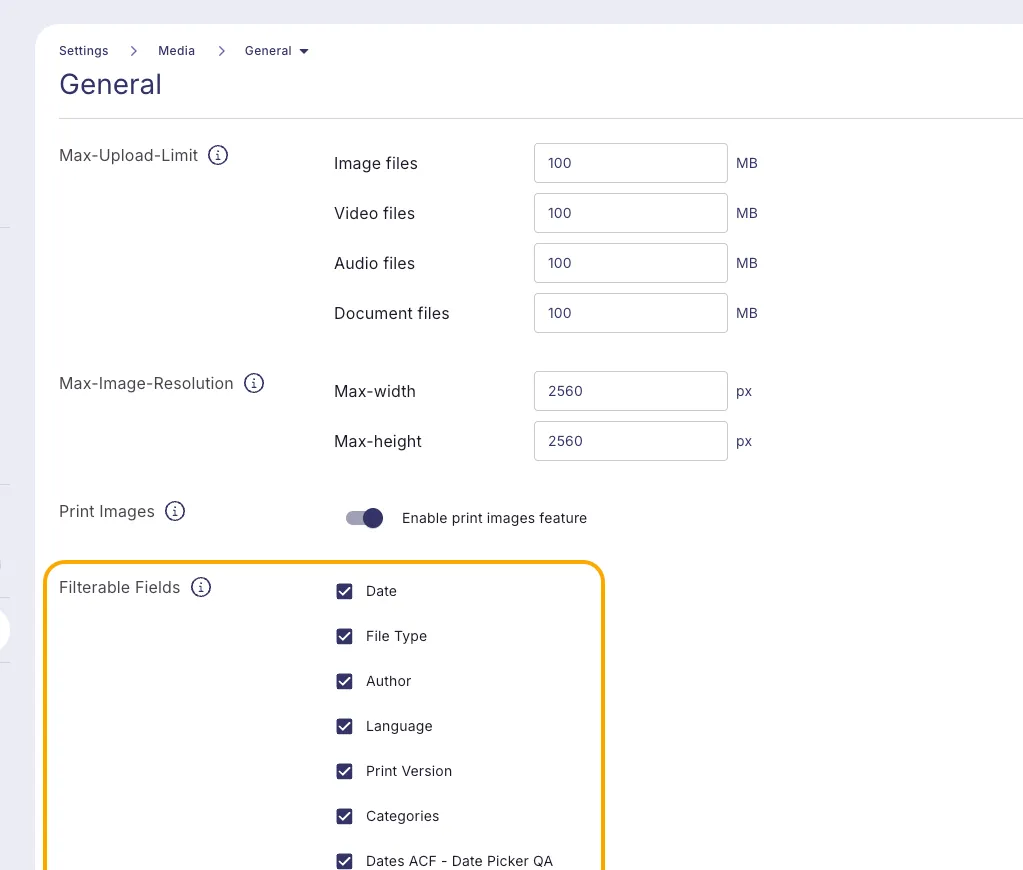
If the "Filterable" toggle in the ACF settings is activated and the field group is used for attchements (see Advanced Custom Fields (ACF) for Purple DAMg), the field will automatically be visible as filter inside "Media".
Filter settings for Media
Additionally in the General Media settings, you can activate/deactivate all filterable fields. All filterable ACF fields for attachements will appear in this setting.