AI Image Editing
Overview
AI Image Editing adds AI-powered image creation and editing to Purple DAM. Editors can generate new images from text prompts, create variants or combinations of existing assets, and apply AI-based edits without leaving the Media Library.
AI image generation and editing always uses OpenAI — there is no Anthropic counterpart for it. A Hub that runs its prompts on Anthropic therefore still needs the OpenAI API key for these features, see AI Models and API Keys.
Generate
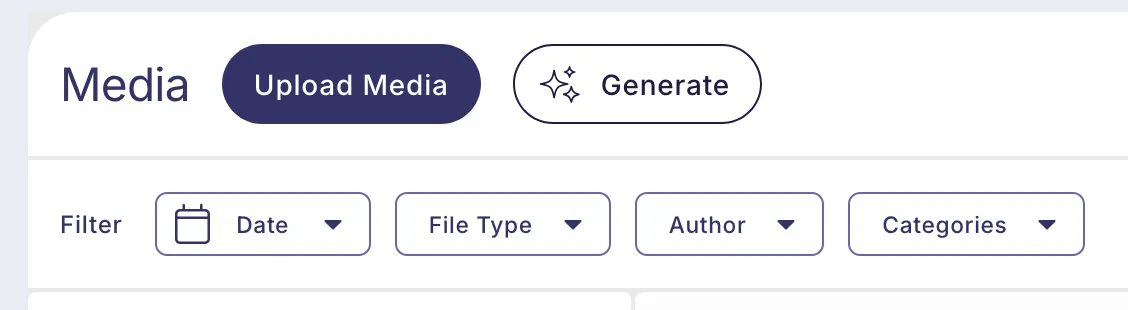
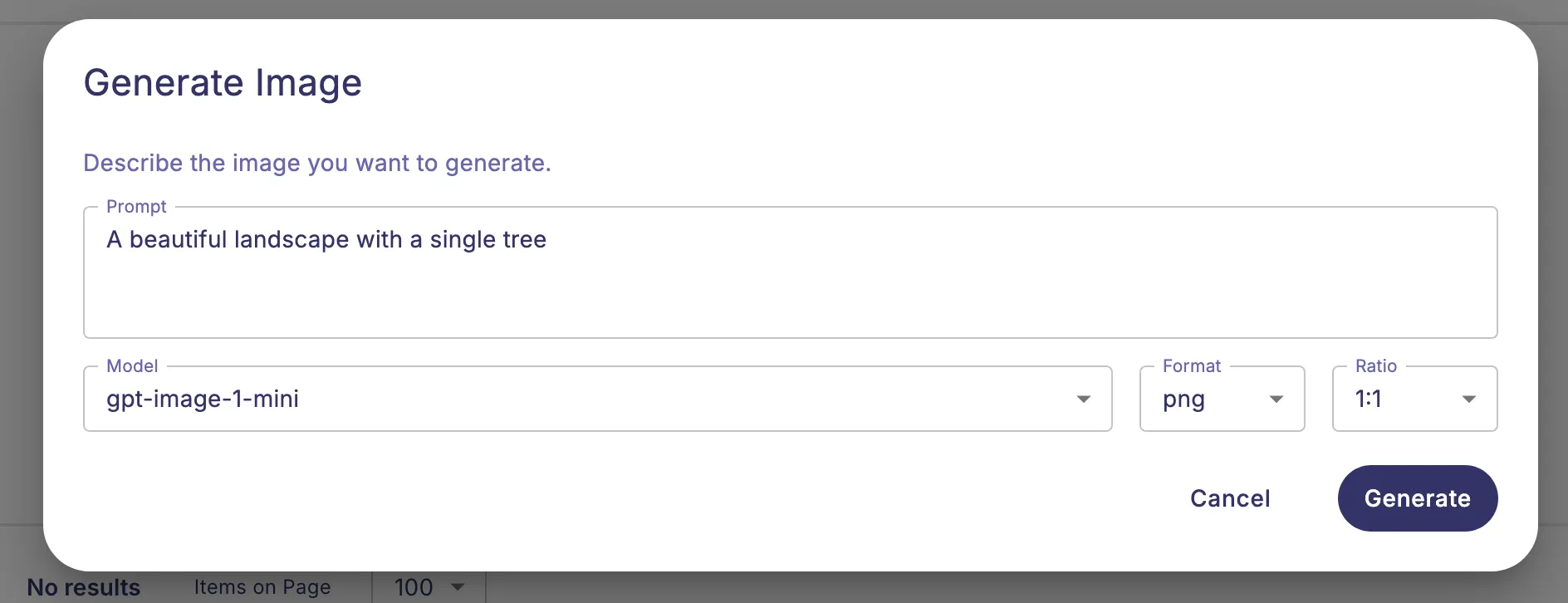
Click Generate in the Media Library toolbar to open the generation dialog.
- Enter a text prompt describing the image you want to create.
- Optionally adjust the Model, Format, and Ratio. The defaults are set in SettingsSettings.
- Click Generate.
A progress indicator is shown while the image is being created. When done, the new image is saved directly to the Media Library and the dialog closes.
Create Variant
A variant is a new image generated using one existing image as a visual reference.
- Select exactly one image in the Media Library.
- Click Variant in the bulk-action bar.
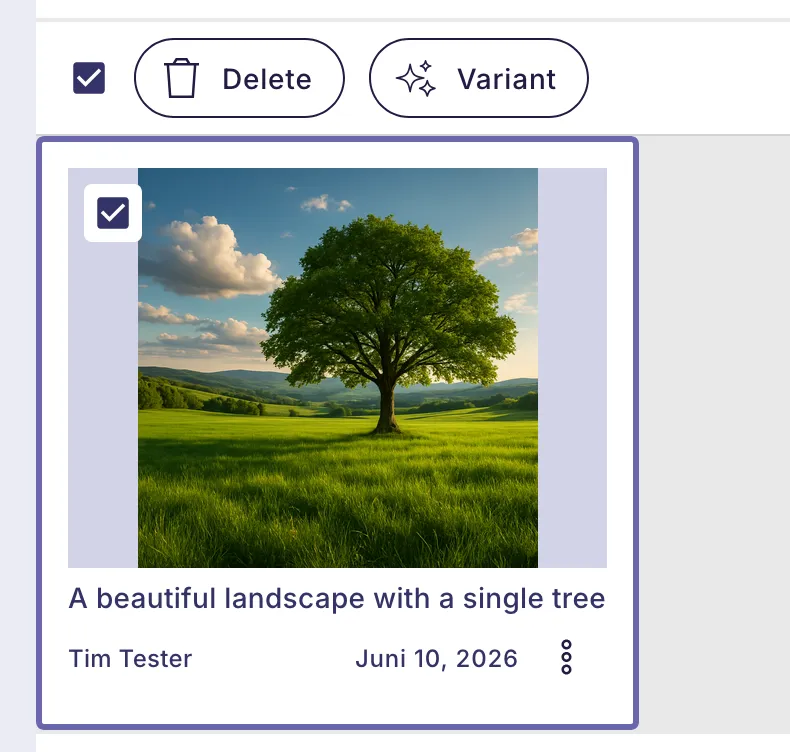
- Enter a prompt describing the variant you want, then click Create Variant.
The generated variant is saved as a new asset in the Media Library.
Combine
Combining merges two or more existing images into a new image, guided by a prompt.
- Select two or more images in the Media Library.
- Click Combine in the bulk-action bar.
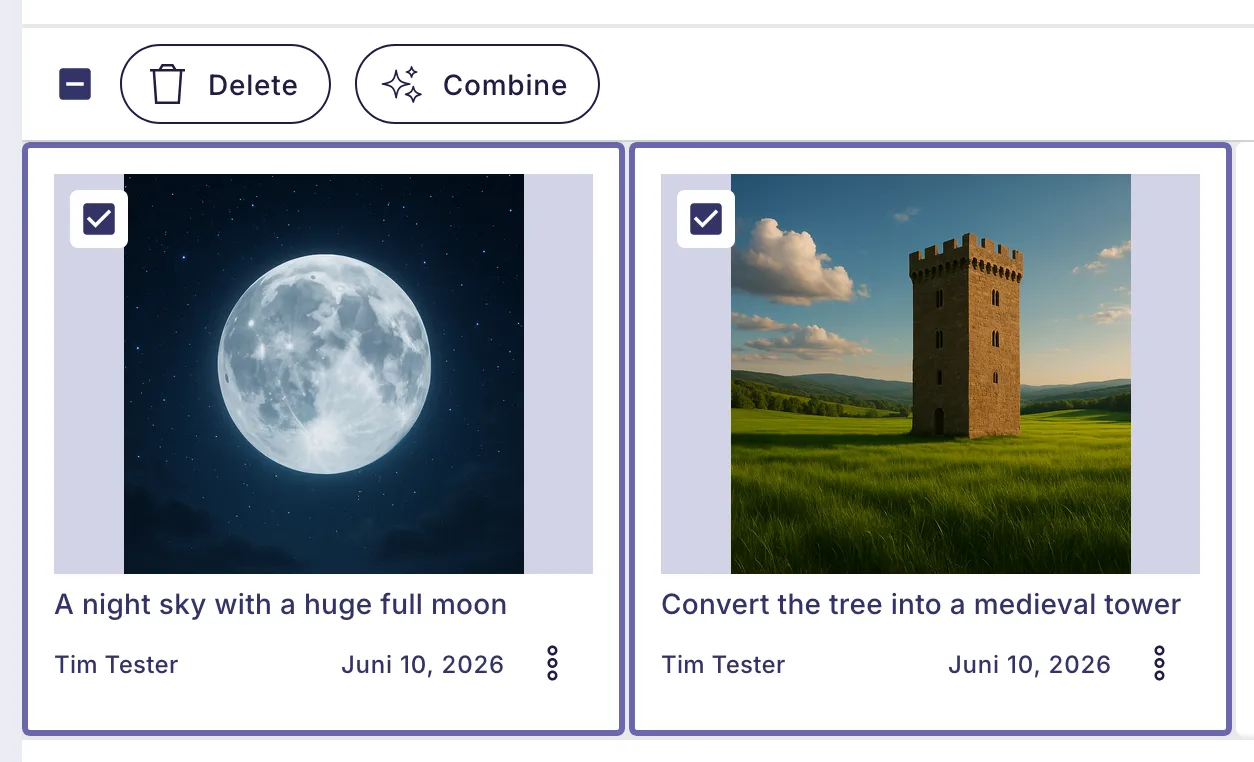
- Enter a prompt and click Combine.
The resulting image is saved as a new asset in the Media Library.
Edit
AI editing transforms an existing image based on a text instruction and saves the result back to that asset or as a copy.
- Click any image in the Media Library to open its File Detail view.
- Click Edit in the header.
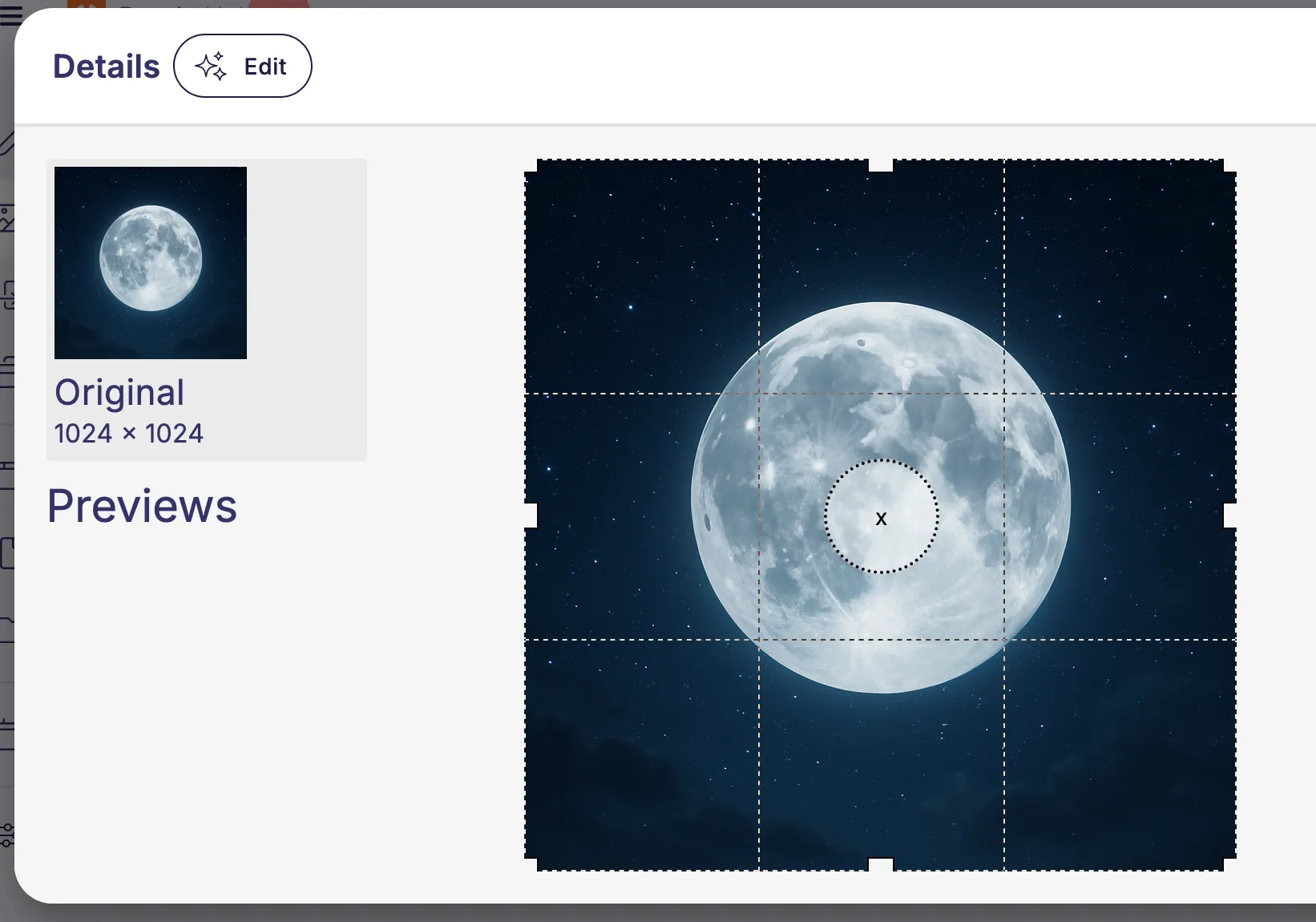
- Enter an instruction, for example: Remove the background or Change the sky to a sunset.
- Optionally adjust the Model, Format, and Ratio.
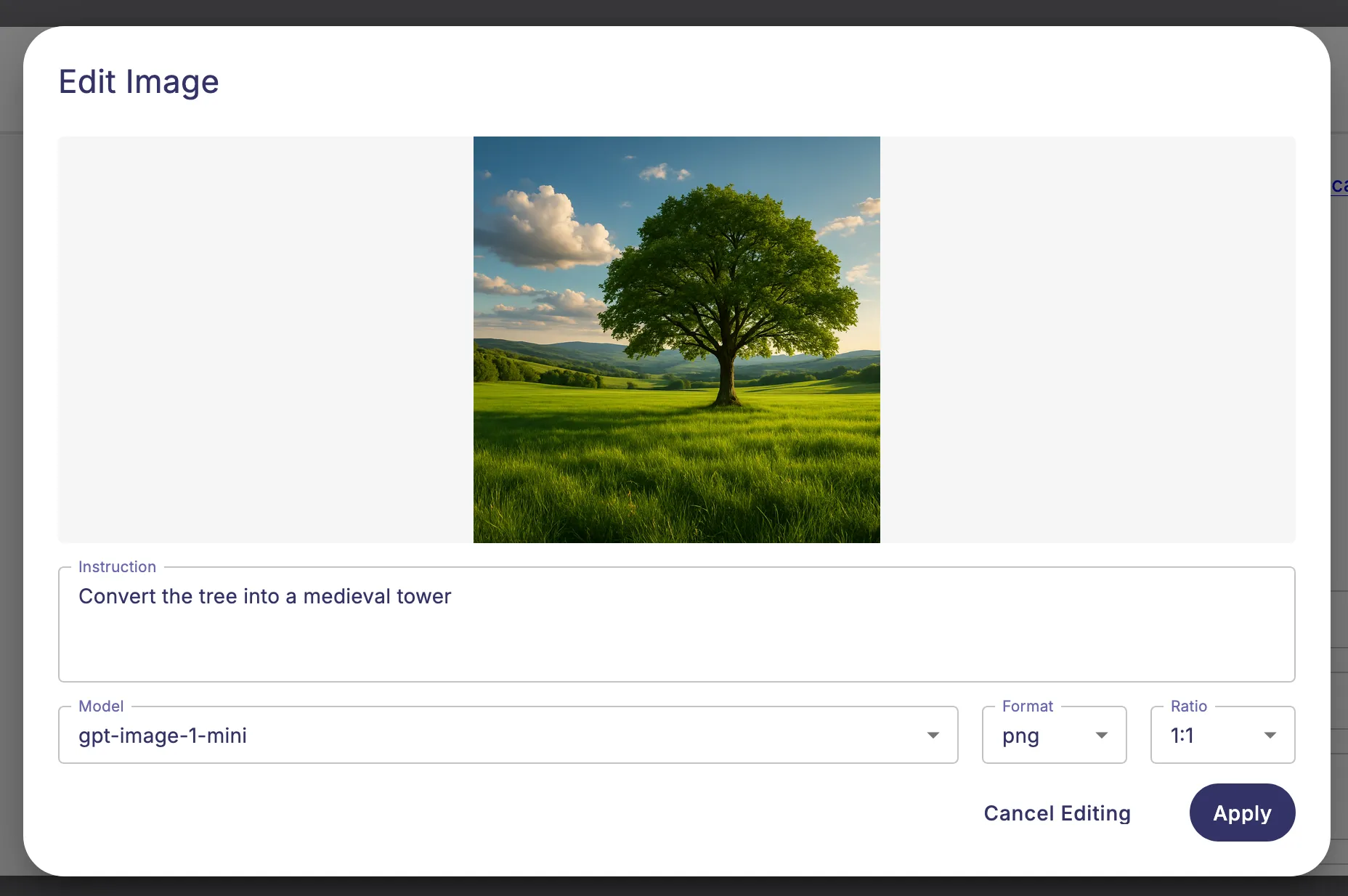
- Click Apply.
Once the AI has processed the instruction, a preview of the edited image is shown. Choose how to proceed:
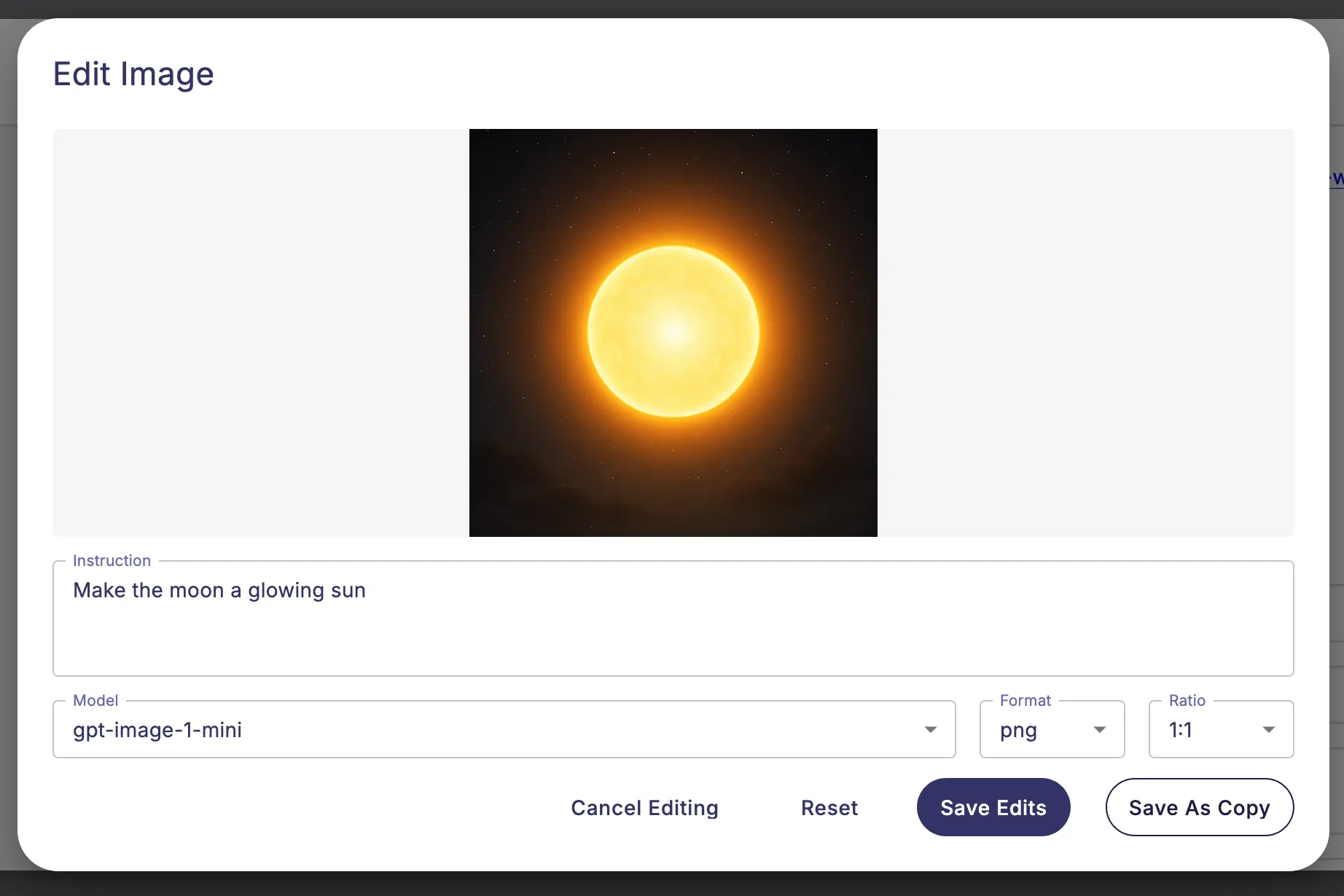
- Save Edits: overwrites the existing asset with the edited version.
- Save As Copy: saves the result as a new asset, leaving the original unchanged.
- Reset: discards the preview so you can try a different instruction.
- Cancel Editing: closes the dialog without saving anything.
Undo, Redo, and Restore Original
After saving edits with Save Edits, additional controls appear in the File Detail header:
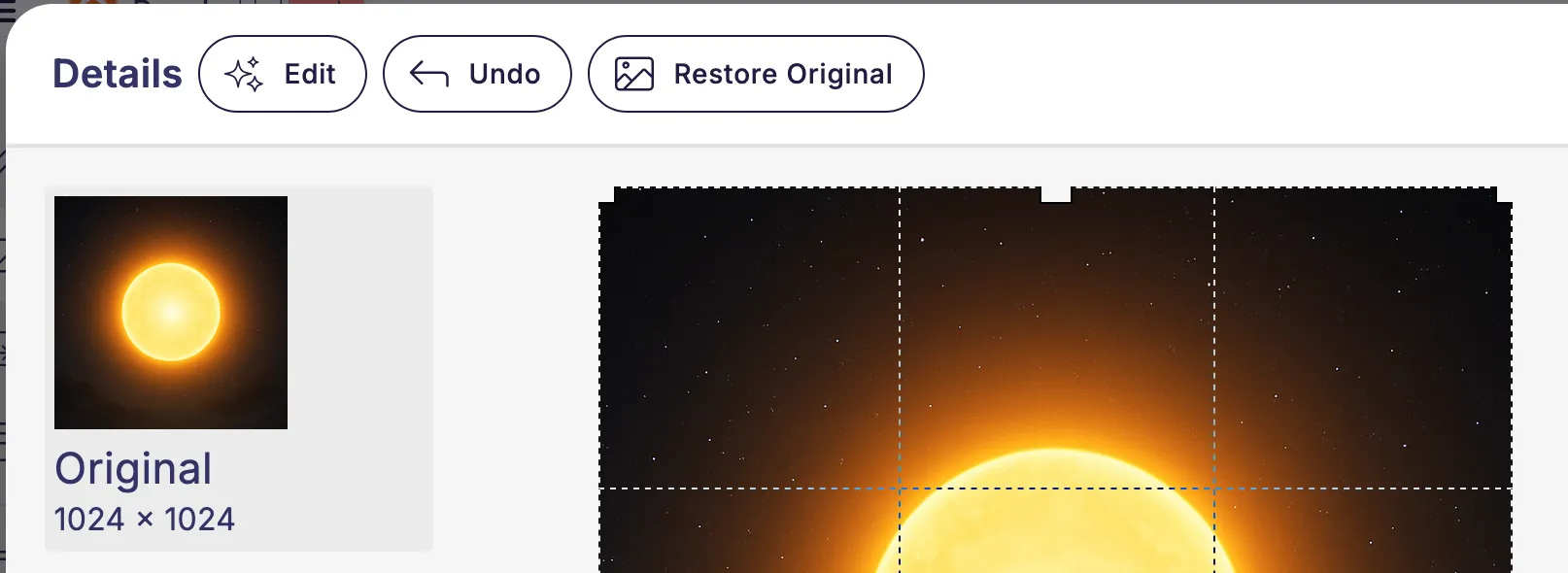
- Undo: reverts to the version before the last save.
- Redo: reapplies a previously undone edit.
- Restore Original: reverts all AI edits and restores the image to its pre-edit state.
Edit history is stored for 1 hour and supports up to 50 steps. History is cleared when the page is reloaded.
AI Image Indicators
Images that were created or edited by AI are marked throughout the Media Library.
In the grid view, a spark icon appears on the tile. Hovering it shows a tooltip with the full label, for example: Created with gpt-image-1 or Edited with gpt-image-1.
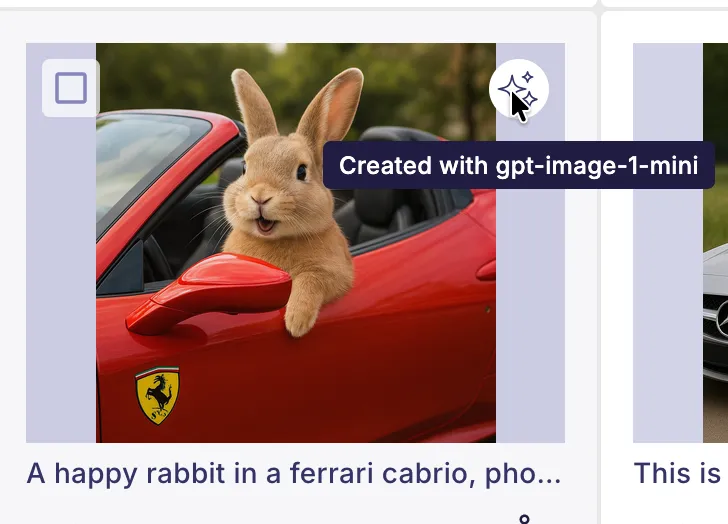
In the File Detail view, an AI source field (also marked with a spark icon) shows the same information.
Settings
Administrators can configure AI Image Editing defaults under Media → AI Image Editing in the Hub sidebar.
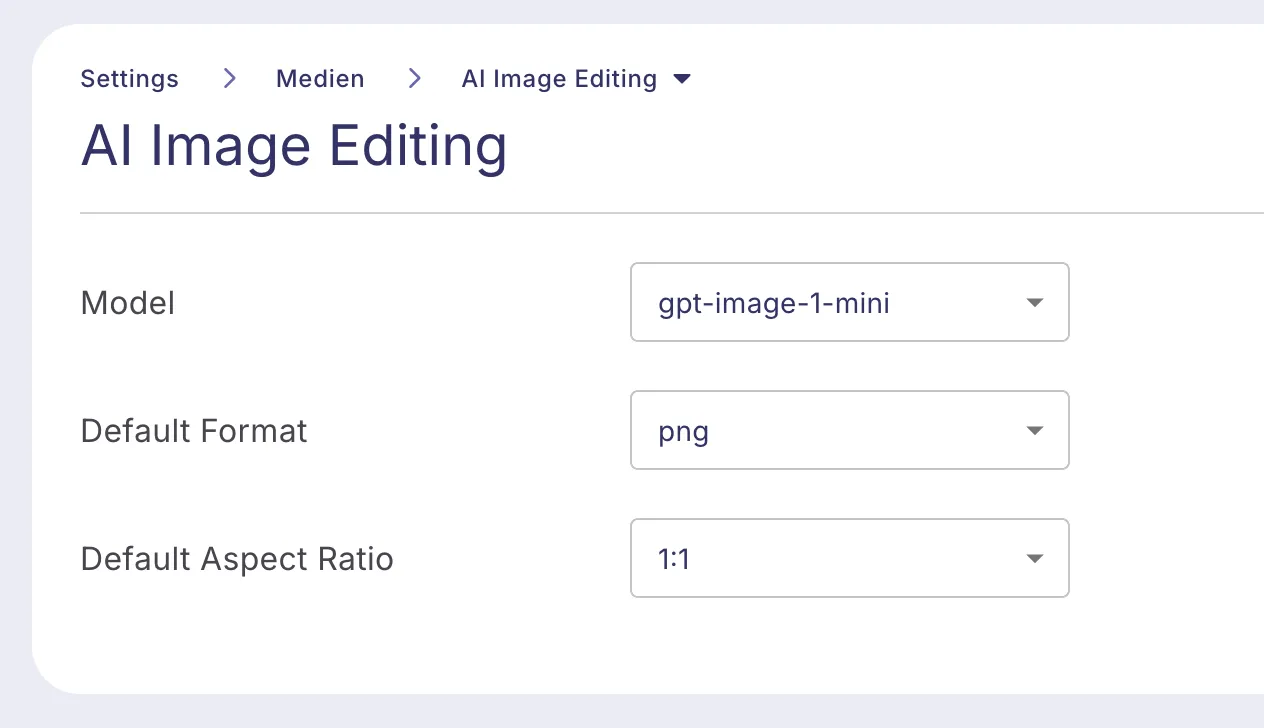
Setting | Options |
|---|---|
Model | gpt-image-1, gpt-image-1-mini, gpt-image-1.5, gpt-image-2 |
Default Format | png, jpeg, webp |
Default Aspect Ratio | 1:1, 3:2, 2:3 |
The selected model, format, and aspect ratio are pre-filled as defaults in all AI dialogs. Editors can override them per operation.
Features
Each feature can be enabled or disabled individually using toggle switches. Disabling a feature hides its button from the interface: Generate removes the button from the Media Library toolbar, Variant and Combine remove their buttons from the bulk-action bar, and Edit removes the button from the File Detail view.