Search Component
This documentation provides a guide to the structure, functionality, and configuration of a search page in the Purple Experience for your Purple app and/or website. It also provides some details on how to configure the display of search results, navigation, or access fallback.
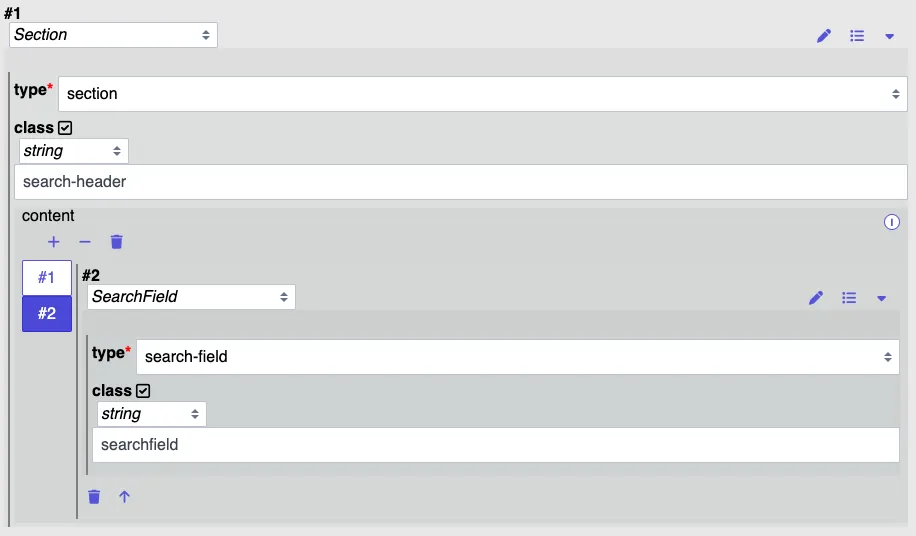
Basic structure of a search page:
- Search field componentsearch-field component
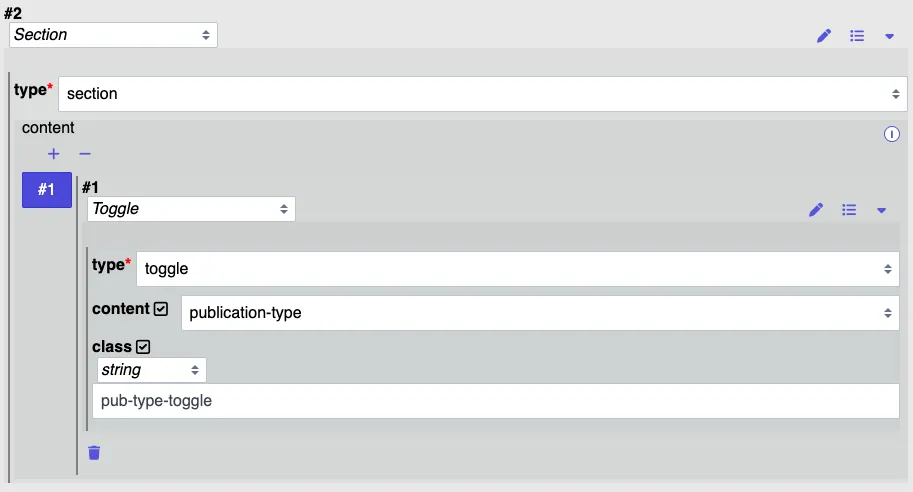
- Publication-type Togglepublication-type toggle
Search-Field Component
The 'search-field' component is the actual text box where the user enters the text.
Search is handled by an API that accepts a search term and returns results.
There is an accessible search icon to trigger search and an "x"-button to clear the input field. A search box, which can be included on pages, allows users to search for specific content.
When the user confirms the search, a query parameter (default is 'phrase') is added to the URL containing the searched text. The search phrase is retrievable by default via $context.phrase
The query parameter from the URL is available in the context, so $context.phrase gets replaced with the searched phrase after the user has entered something into the search bar and pressed 'search'.
Limits:
- Currently it's not possible to specify what fields are searched in the Experience.
- No type ahead possible.
Basic Configuration Options
param (optional string) As stated above, the param defaults to “phrase.
It can be configured to be any string you like, i.e., if you set it to “q,” your URL will be appended with ?q=searchterm.
path (optional string) This is the page the user should be taken to after performing a search.
- If you set a path, the app will go to that page and include the search in the URL.
- If you don’t set a path, it stays on the current page and just updates the URL’s query parameters. Example: setting path to “/search” results in a URL like /search?phrase=searchterm.
label (optional string) If provided, this text will appear as an HTML label around the search input. It helps with accessibility and makes it clear what the input is for.
params (optional object) Extra query parameters that should be added to the URL when a search happens. These are combined with whatever is already in the URL. Example: { category: 'products', sort: 'date' }.
publicationType (optional KIOSK/CHANNEL) This allows you to limit search results to a certain type of publication. It is passed along like any other filter or query parameter.
suggestions (optional object with a url property) This enables search suggestions while typing. The app will send a request to the given URL with the current search text, and the server should return a list of suggestions. Example: { url: '/api/search-suggestions' }.
Placeholder Text (placeholder) Defines the text displayed inside the search field when it is empty. If not set, the system uses the default “Search…” text based on the site language. You may override this with custom text such as “What are you looking for?” or “Search products…”.
Publication-Type Toggle
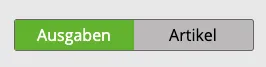
The 'Publication-Type Toggle' component is where you can filter by which publication type you want to search. This can later be used to filter the results or display the correct views based on the type.
The selection is accessible via: $context.publication-type
List (accessing search results)
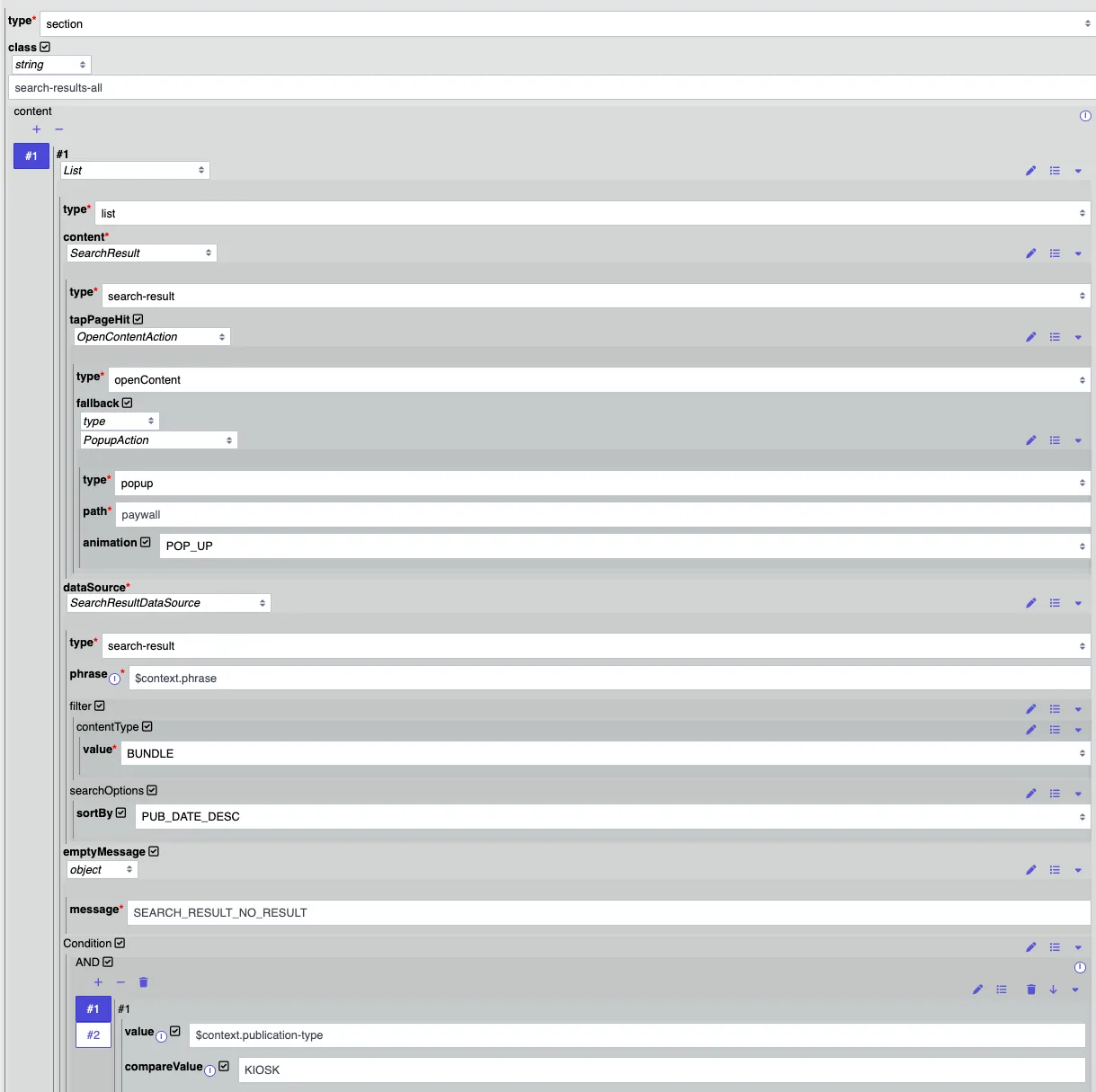
The 'List' component is where the search results will be displayed. For that, you are required to set the content to SearchResult and the dataSource to SearchResultDataSource. You can additionally show an individual styled search result for issues, posts and bundles by adding multiple views and use conditions.
Bundles and Dossiers are currently not fully supported, and we are still in the process of migrating the 'SearchResult' component to fully support those.
The 'SearchResult' component has a lot of customization options which are documented here: issue-search-results.config.ts
Here is an example setup:
Conditionals
You can use conditions to conditionally show components like 'No search results' or 'Please enter a search phrase' or to display search results differently based on publication type.
Here you can see an example. Some more examples are listed after the screenshot.
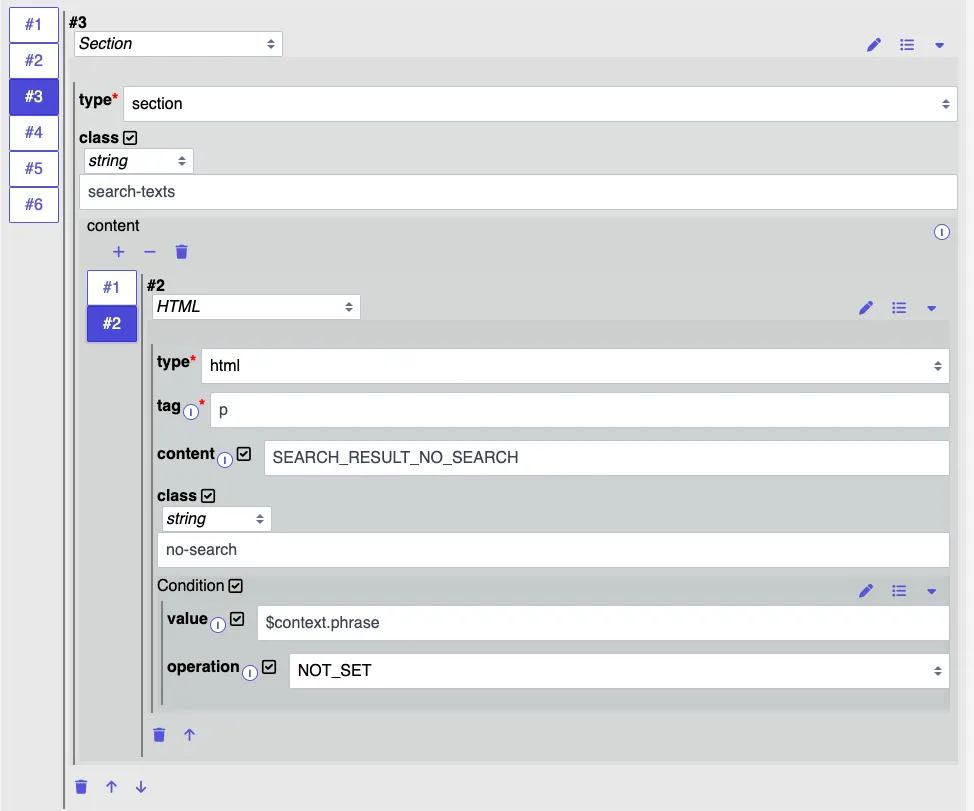
Search Header Conditional Examples
{
  "value": "$context.phrase",
  "operation": "NOT_SET"
}
Search Results Conditional Examples
{
  "AND": [
    {
      "value": "$context.phrase",
      "operation": "NOT_EMPTY"
    },
    {
      "value": "$context.publication-type",
      "compareValue": "CHANNEL"
    }
  ]
}
Navigation
For navigation configuration see the Static Routing documentation.
Fallback (a.k.a. Content Access Control)
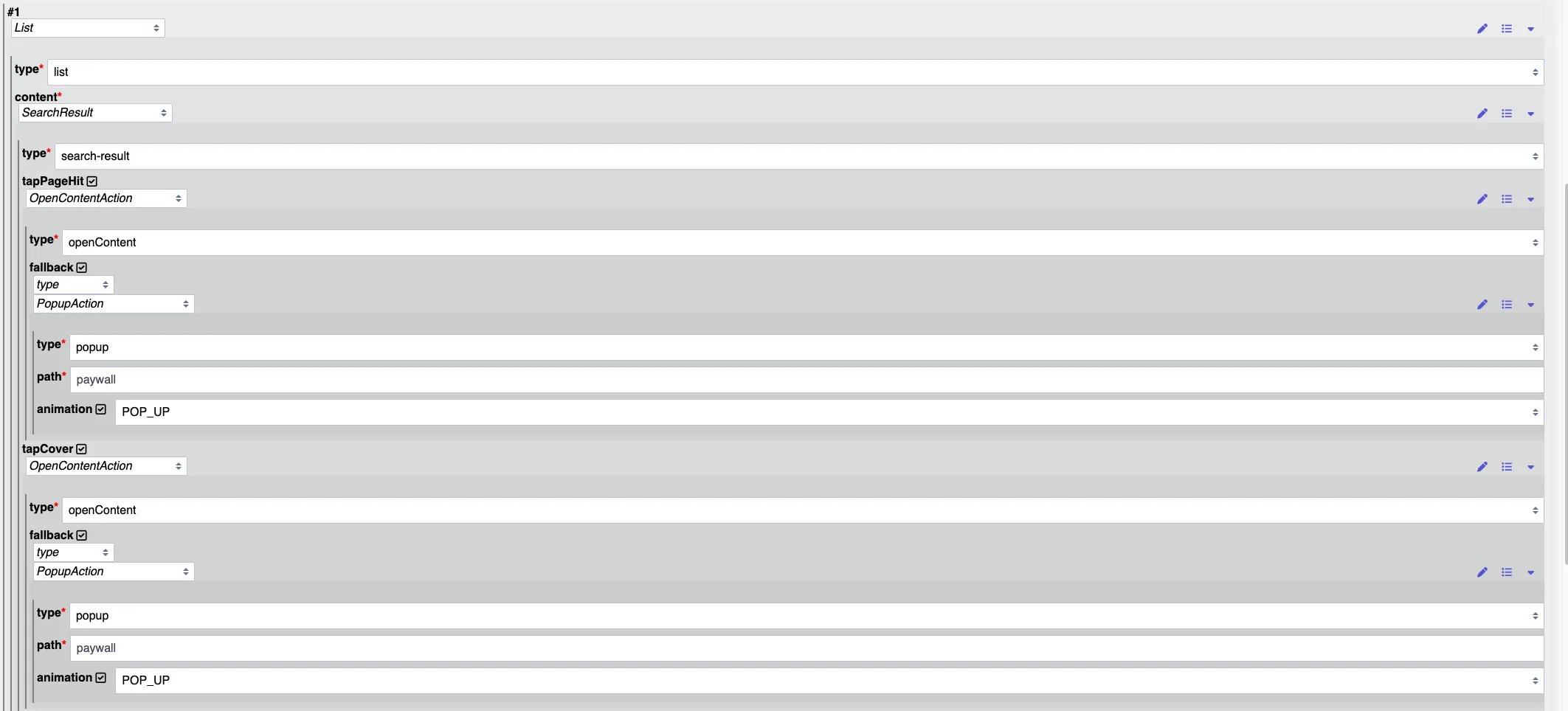
This configuration defines what to do if the user is not allowed to access/view the content (i.e. not purchased).
The most common actions here are NavigateAction or PopupAction.
The following example opens the content if the user has access otherwise shows the view "paywall" in a popup.
Search Results in Issues
If you search for Issues / Contents of Type Issue, you may configure the search results to display multiple results for the same issue if found. To do so, you'll need to set up the PageHitLimit accordingly. This defaults to 1.
PageHits will open the page in the Issue directly if the user is entitled accordingly. If no valid entitlement for the content is present, the issue is opened according to its customer preview setup, on page 1.