File Detail View
Overview
Clicking any asset in the Media Library grid opens the File Detail modal. Changes made here save automatically — a loading spinner followed by a checkmark in the top-right confirms each save.
Layout
The modal is split into two panels:
- Left: Asset preview with a download link, image dimensions, uploader name, and upload date
- Right: All metadata fields and management options
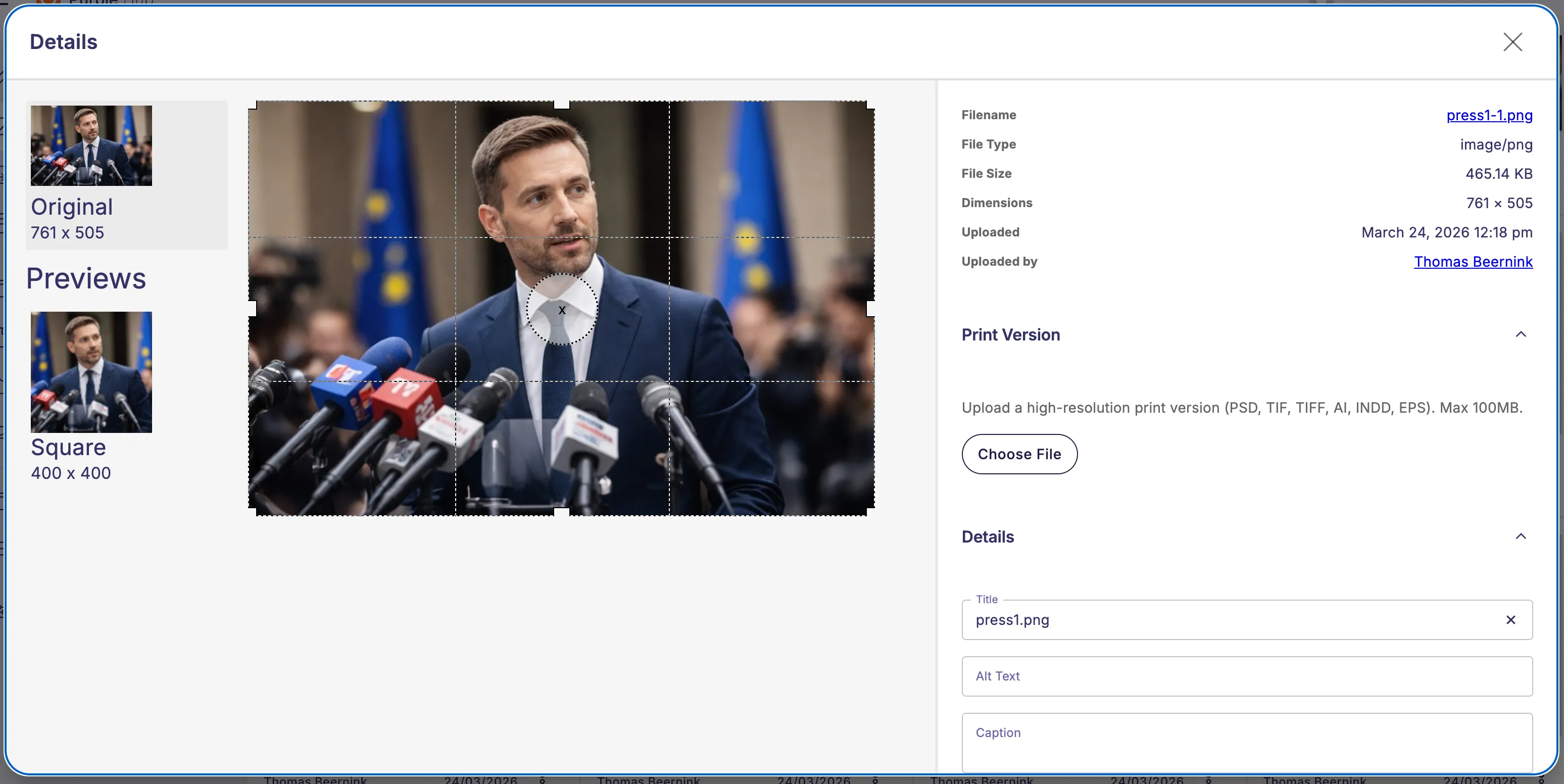
Editable Text Fields
At the top of the right panel:
- Title
- Alt Text
- Caption
AI metadata suggestions
When AI metadata generation is enabled, Purple can suggest the Title, Alt Text, Description, and Caption for an image directly in its file details — the same suggestions you already know from the upload dialog, now also available when editing a file later. Suggestions are generated from the image itself together with its embedded EXIF/IPTC data and file name, and are written in your site's language.
Setup and prerequisites are the same as for upload (Purple DAM+, the Purple Prompts plugin, an OpenAI API key, and the Settings ❭ Media ❭ "AI metadata generation" toggle). For the full setup, see Uploading Media.
When you open the details of an image:
- If you skipped suggestions during upload, the same suggestions reappear in their empty fields, marked with a ✨ icon.
- For images that were uploaded before this feature was available, suggestions are generated automatically the first time you open their details.
- A N suggestions ready banner appears above the fields. Use Accept All to fill every suggested field at once, or accept fields one at a time. Dismissing the banner (✕) hides it until you reopen the file.
You can also regenerate a single field at any time with the ✨ button next to it — regardless of whether the field is empty, holds a pending suggestion, or already has a value.
As during upload, suggestions only ever fill empty fields — anything you have already typed or accepted is never overwritten. Suggestions are offered for raster images only (JPEG, PNG, WebP, GIF).
ACF Fields and Taxonomies
Beyond the four standard text fields, AI suggestions are also offered for your site's ACF fields on media files and for the taxonomies assigned to media, in their own collapsible sections further down the panel. The affordances match the standard fields: a ✨ button to generate or regenerate, a ✓ to accept the pending suggestion, and a retry link if generation failed. A pending suggestion is shown as a faintly purple-tinted preview of the value; editing the field yourself discards the preview.
These field types can be generated:
- Text, text area and wysiwyg — free text
- Select, radio and button group — one of the field's configured options
- Checkbox — any number of the field's configured options
- Taxonomy fields and taxonomy sections — one or more terms
Only options that actually exist in the field configuration can be suggested, and for taxonomies only terms that already exist: the AI never creates new terms, and a suggestion it cannot match is simply dropped. Date pickers, true/false and the remaining field types are not generated.
As with the standard fields, suggestions are only offered for empty fields — a field that already has a value has to be cleared before a suggestion is generated for it. The "n suggestions ready" banner counts the ACF and taxonomy suggestions too, and accept all applies them together with the standard fields.
Collapsible Sections
Below the text fields, three sections can be expanded or collapsed:
Details
Additional file metadata such as file size and format.
Language Variants
Shown, if the hub uses multilanguages: Multi language supportf
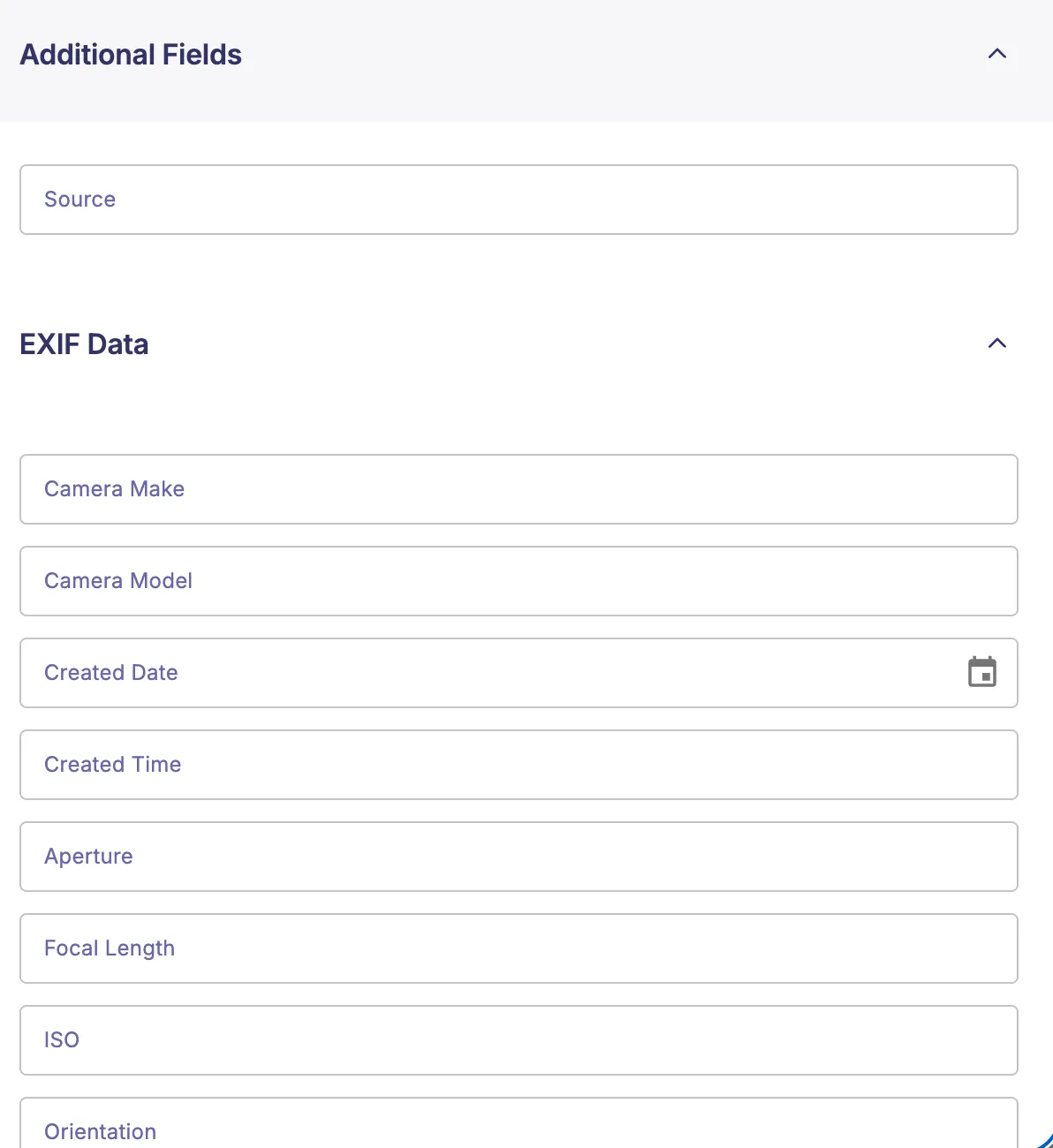
Additional Fields (ACF)
Shows all advanced custom fields (Acf), if any where created: Advanced Custom Fields (ACF) for Purple DAMv
EXIF / IPTC
EXIF data (camera settings, location, etc.) is read-only and extracted automatically on upload. IPTC fields (photographer, copyright, caption source, etc.) are editable.
Print Version
Print Imagesf
When Print Version handling is enabled in Settings → Media → General, a Print Version section appears at the bottom of the detail view.
- Click Choose File to attach a high-resolution print file (PSD, TIFF, AI, EPS, INDD).
- To replace the current file, upload a new one — the previous file is overwritten.
- To remove the file, click Remove.
Images with a print version show a file icon on their tile in the grid view.